
Payments on the Agenda View
View payment status, request payments, capture balances, and issue refunds directly from the Agenda view.
Once you have payment settings configured for your appointments, Apptoto surfaces payment actions across the Agenda view and the Contacts tab — so you can act without leaving the portal.
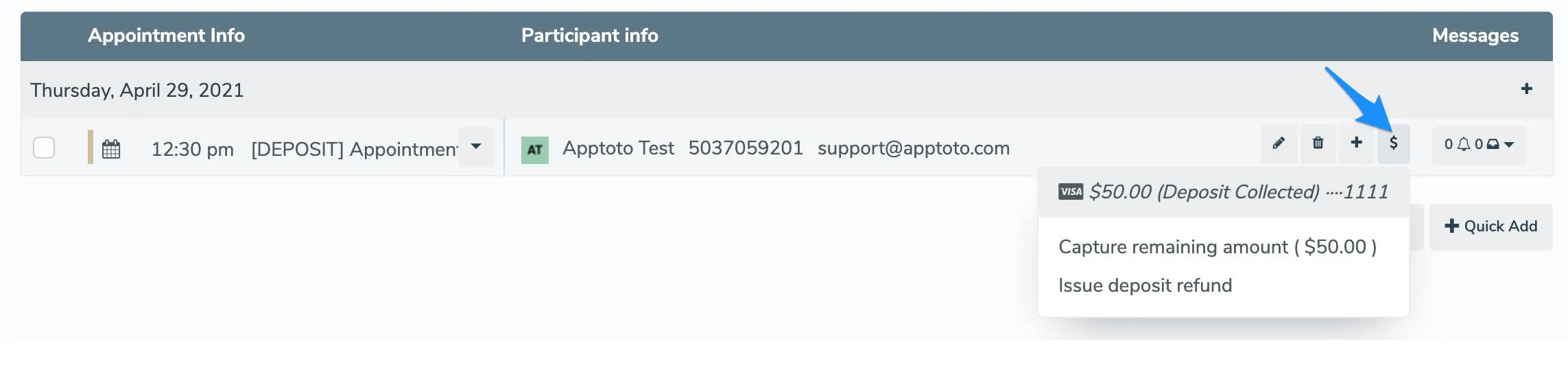
The “$” menu icon for each participant in the Agenda View lets you take action on appointment payments.
Payment status indicator
Section titled “Payment status indicator”Every participant row in the Agenda view shows a $ icon when a payment is associated with that appointment.
- Grey $: Payment is due but not yet collected.
- Green $: Payment requirement has been fulfilled (paid, or card saved for a no-show fee).
Actions from the agenda view
Section titled “Actions from the agenda view”Click the $ icon next to any participant to open a menu of payment actions. The options available depend on the payment type configured for that appointment:
| Action | When it appears |
|---|---|
| Send payment request | Appointment has an outstanding balance |
| Capture remaining amount | Deposit was collected at booking |
| Capture no-show fee | Card required / no-show fee type |
| Capture cost of service | Card required type |
| Issue refund | A payment has already been made |
Requesting payments
Section titled “Requesting payments”Learn how to request payments, both manually and with automated messages, in our Payments for All Appointments article.