
Signup Pages
Signup Pages work differently from Availability Pages. Instead of creating a new appointment when someone books, they add the client to an existing event already on your calendar. Clients see a list of upcoming event times, pick the one they want, fill out the form, and submit — no calendar gaps to fill, just a roster to join.
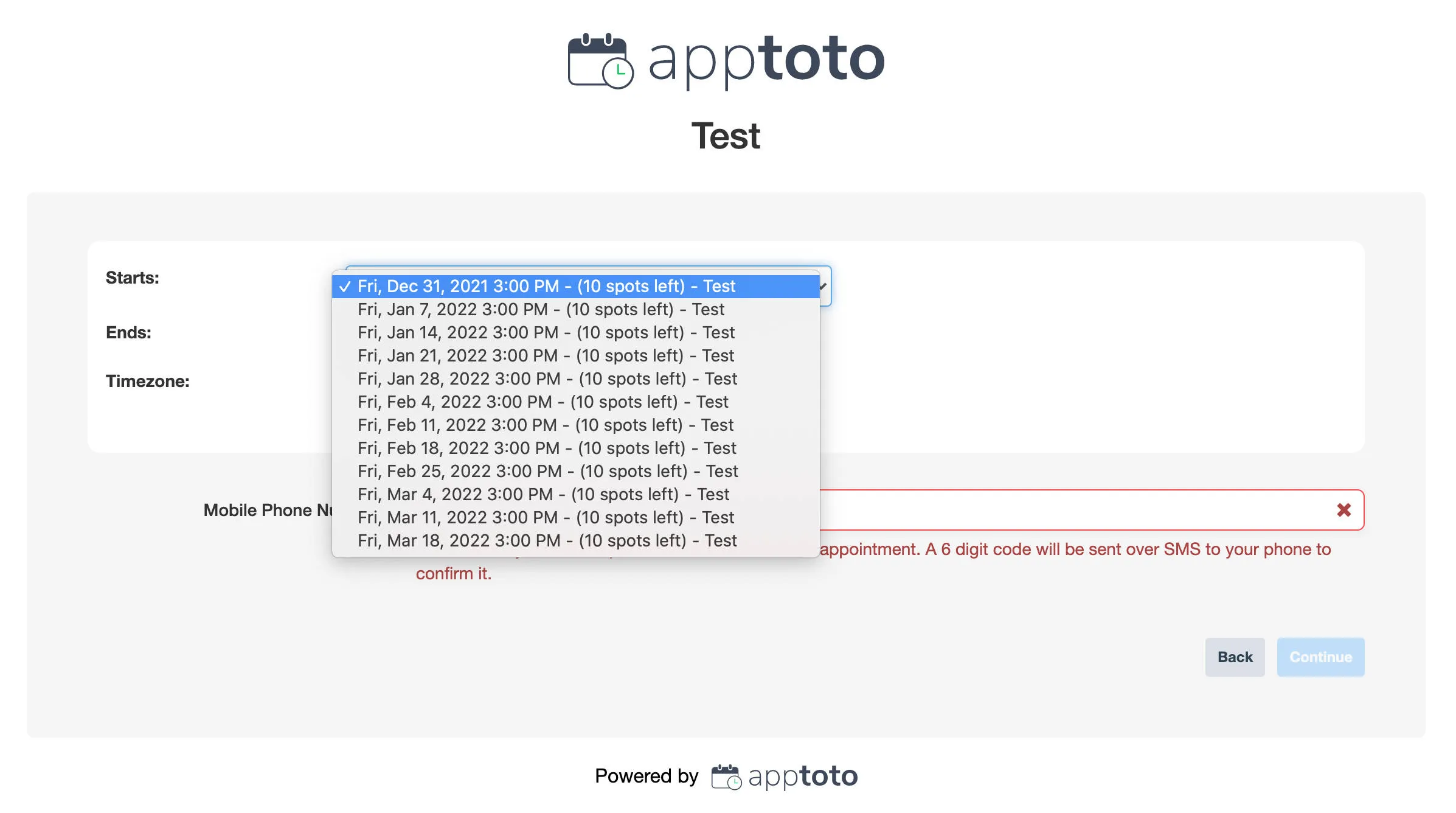
Common uses: fitness classes, group workshops, webinars, seminars, or recurring meetups.
Two ways to get started
Section titled “Two ways to get started”Use this approach when you want to fully customize the page before associating any event times.
- Add a Signup Page: Go to the Booking Page tab and click + Add Booking Page, then select + Add Signup Page.
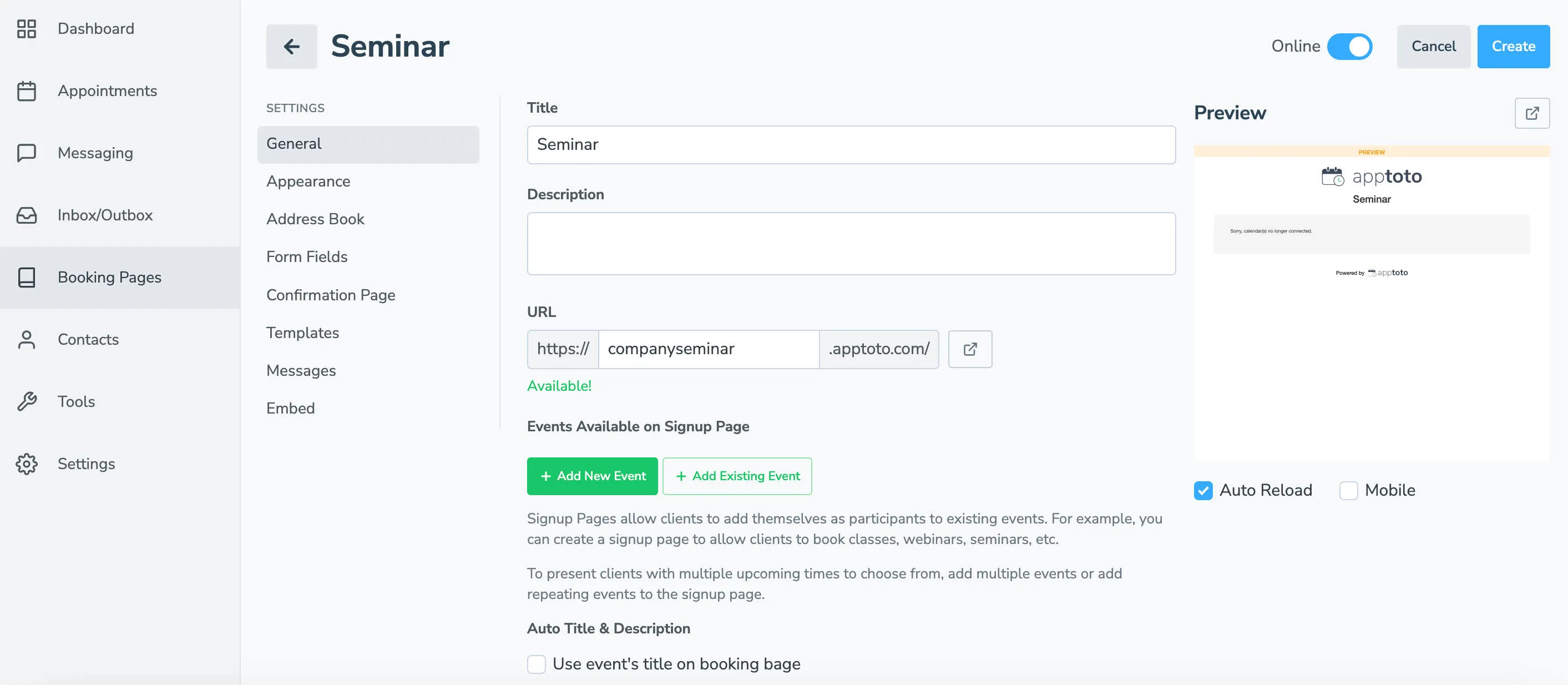
- Fill in page details: Enter the title, description, and URL subdomain for your page. Configure appearance, form fields, and any other settings.
- Link existing events to the page: Open the Appointments tab and click on each event you want to make available for signup. In the event editor, click Add To Existing Signup Page and select your page from the list.
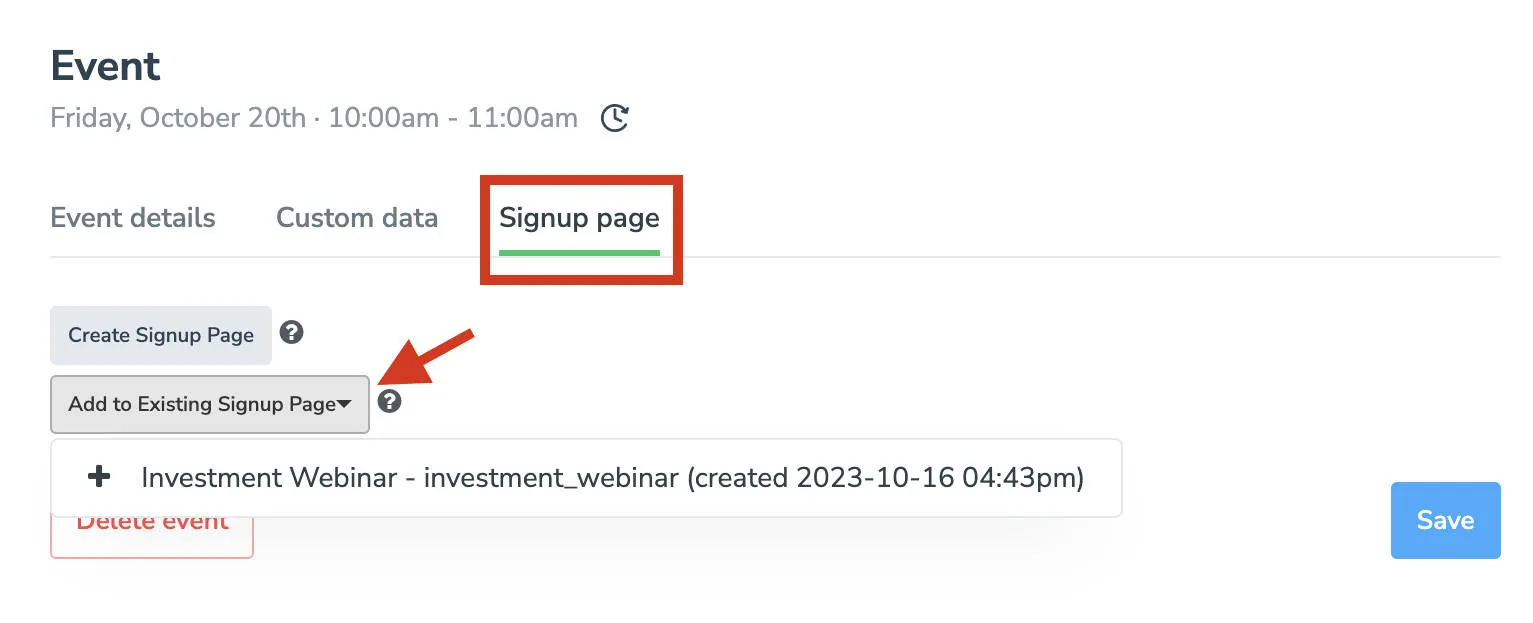
Clients visiting the page will see a dropdown list showing each linked event’s date, time, and the number of available slots remaining.
Use this approach when you already have an event on your calendar and want to quickly generate a signup page for it.
- Open the event: Go to the Appointments tab and click the event you want to create a signup page for.
- Generate the page: In the event editor, click the Signup Page tab, then click Create Sign Up Page.
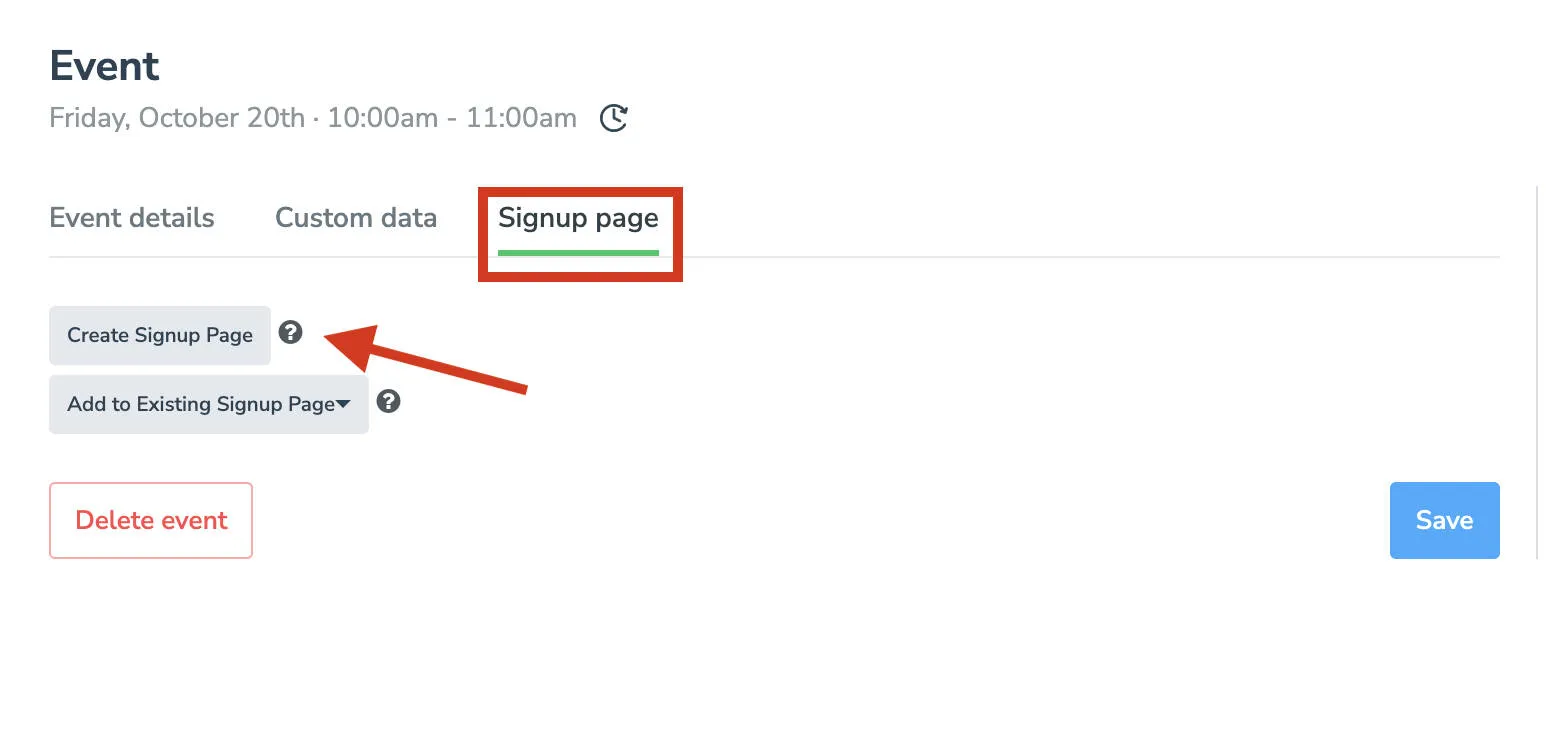
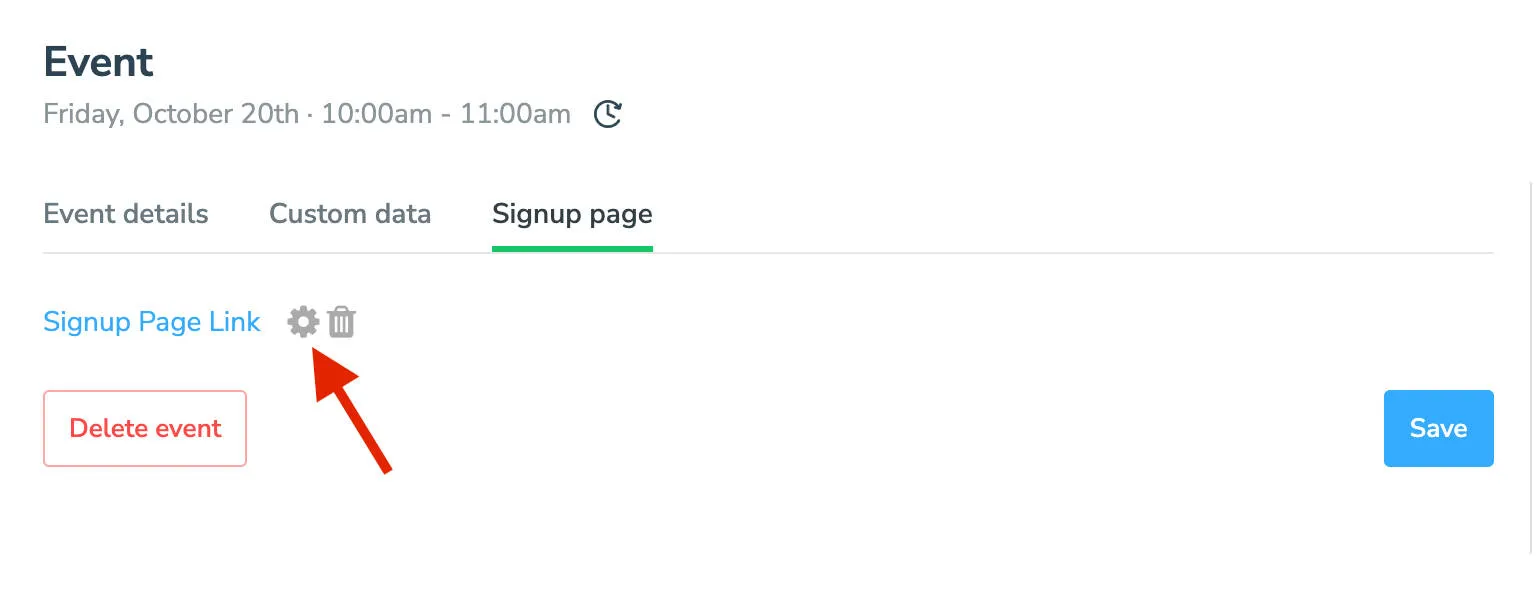
- Customize the page: Apptoto creates a basic page and links it to the event. Click the gear icon to open the page settings and customize appearance, form fields, and confirmation behavior.
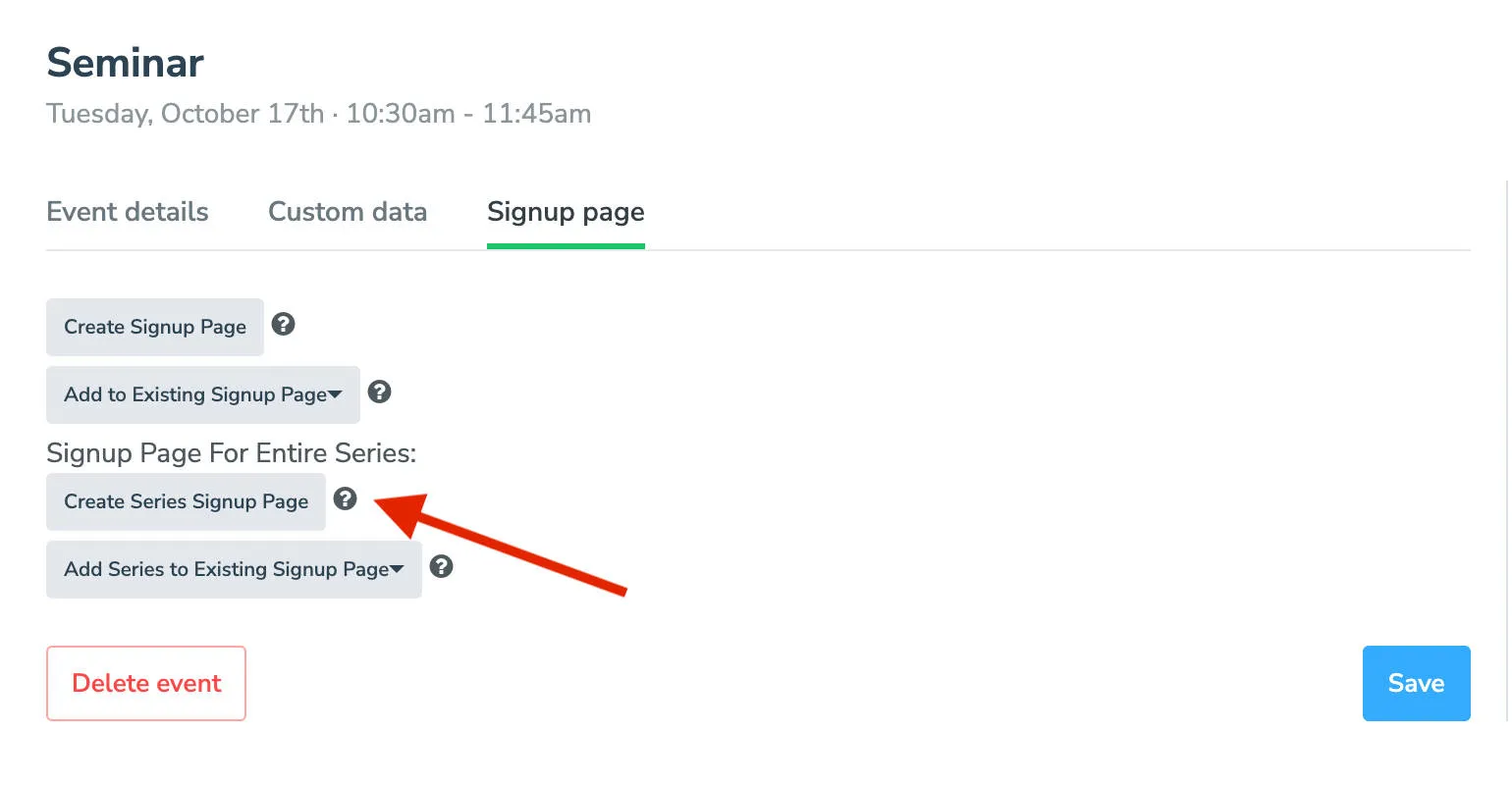
If the event is part of a recurring series, you can create a signup page that covers all upcoming instances, and clients can choose which occurrence to attend.
Customizing your Signup Page
Section titled “Customizing your Signup Page”If you want to customize your Signup Page, you have several settings you can configure, including the appearance, linked address books, form fields, and more. Some settings and configurations are similar or identical to Availability Pages. Please see our shared help articles on Address Books, Form Fields, Confirmation Pages, Templates, and Embedding to customize these options.
For all other information on customizing your Signup Page, please see this article: Signup Page Customization.