
Fields
{{ FIELDNAME }} syntax.Fields insert dynamic appointment or contact data into each message. This allows you to create Auto Message templates that can be used across appointments rather than you needing to customize the message for each appointment and client/patient.
You add them using the Insert Field button in the Message Editor, or by typing {{ FIELDNAME }} directly.
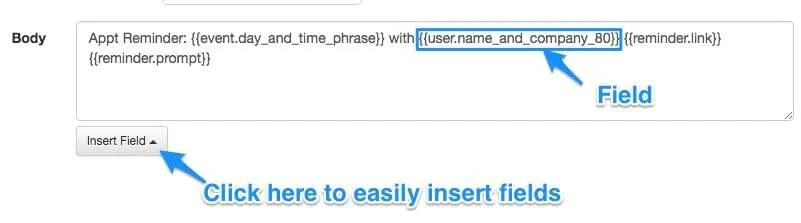
Fields can be used in:
Event Fields
Section titled “Event Fields”| Field | Description |
|---|---|
event.time | The start of the appointment unformatted. (Use the date filter to format it, e.g. 2013-11-15 10:00:00 -0800). |
event.time_phrase | Nicely formatted time based on locale, e.g. “8:00am”. |
event.time_hour | The hour (integer) that the event begins. e.g. “15” for 3pm. Mainly used in conditions. |
event.time_hhmm | The hour and minute as a number (integer). e.g. “1530” for 3:30pm. Mainly used in conditions. |
event.time_zone | The time zone of the event. e.g. “PDT”. |
event.time_zone_expanded | The expanded version of the time zone, e.g. “Pacific Daylight Time” (useful in voice scripts). |
event.date | Date based on locale. e.g. “6-21”. |
event.date_phrase | Expanded date. e.g. “Tuesday, March 8th”. |
event.date_abbreviated_phrase | Abbreviated date. e.g. “Tue, Mar 8th”. |
event.date_phrase_and_time | Expanded date with time. e.g. “Tuesday, March 8th at 2:00 pm”. |
event.date_abbreviated_phrase_and_time | Abbreviated date with time. e.g. “Tue, Mar 8th at 2:00pm”. |
event.date_with_year | Date with year. e.g. “2014-06-21”. |
event.start_time | Same as event.time. |
event.previous_start_time | If appointment is rescheduled, then this will be the previous start time. |
event.start_time_phrase | Same as event.time_phrase. |
event.end_time | The end of the appointment unformatted (e.g. 2013-11-15 11:00:00 -0800). |
event.end_time_phrase | Nicely formatted end time based on locale. e.g. “8:00am”. |
event.day_and_time_phrase | Phrase useful in reminders. Results in: “[today] at [time]” if the event is today (e.g. “today at 8:00 am”); “[tomorrow] at [time]” if the event is tomorrow; “[day of week] at [time]” if the event is within 6 days (e.g. “Friday at 8:00 am”); “[day of week], [Month] [Day] at [Time]” if the event is 7 or more days later (e.g. “Monday, December 2nd at 8:00 am”). |
event.day_phrase | Same as day_and_time_phrase but without the time. |
event.day_and_time_range_phrase | Phrase useful in reminders. Results in “tomorrow between 2 and 3 PM” if the event is tomorrow or “on Saturday, November 23rd between 2 and 3pm” if the date is after tomorrow. |
event.specific_day_phrase | Same as event.day_phrase, however the day is forced to be absolute (e.g. “Wednesday” instead of “tomorrow”). |
event.specific_day_and_timephrase | Same as event.day_and_time_phrase, however the day is forced to be absolute (e.g. “Wednesday” instead of “tomorrow”). |
event.all_day | Returns true if the appointment is an all-day appointment. |
event.duration | The length of the appointment in minutes. To say the number of hours use: {{event.duration | divided_by:60 }}. |
event.days_in_advance | The number of days between when the appointment was created on the calendar and when the appointment takes place. This is calculated on a strict 24-hour basis — if the appointment is for 4pm tomorrow and is booked at 2pm the previous day, then days_in_advance will be 2 since it’s more than 24 hours. If that is an issue, consider using hours_in_advance below. |
event.hours_in_advance | The number of hours between when the appointment was created on the calendar and when the appointment takes place. |
event.days_until | The number of days until the appointment. |
event.days_since | The number of days since the appointment. |
event.title | The title of the appointment in your calendar entry. |
event.where | The contents of the “where” field in your calendar entry. |
event.location | Same as event.where. |
event.content | The contents of the “content” field in your calendar entry. |
event.all | The title, where, and content in one string with a | character in between each. Useful in if blocks — e.g. {% if event.all contains 'haircut' %}This is a haircut appointment{% endif %}. |
event | Same as event.all. |
event.custom | The data found in your appointment. Apptoto looks for key:value in your appointments and then makes those items available for you through this field. e.g. if your appointment has service: haircut on the body of the appointment, then you can access it in your message templates with event.custom.service. See Custom Fields for more information. |
event.color_id_on_calendar | The color of the appointment on your calendars (only supported with Google Calendar currently). |
event.categories | The categories (comma-delimited) of the appointment on your calendar (only supported by Outlook and/or Exchange currently). |
event.show_as | The “Show As” label of the appointment. e.g. “Busy”. |
event.recurring | True if the appointment is a repeating appointment. |
event.organizer | The email address of the person who organized the appointment, as reported by your calendar. Blank if your calendar does not report an organizer. |
event.organizer_is_self | True if you are the organizer of the appointment. Works reliably with Google, Office 365, and Salesforce; other calendar types may not report an organizer. Mainly used in conditions — see Skip Appointments Organized by Others. |
event.created | The date and time that the appointment was created on the calendar. |
event.participant_count | The number of participants for the appointment. |
event.any_confirmed | True if any participant of the event has said they are coming. |
event.any_not_coming | True if any participant of the event has said they are not coming. |
event.any_cancelled | Same as event.any_not_coming. |
event.any_responded | True if any participant of the event has responded. |
event.all_responses | A string containing all of the responses from all participants separated by | characters. |
event.was_rescheduled | True only if event was rescheduled. |
event.line_with_email_address | Returns the line from the event (title if it’s in the title, or the particular line if it’s in the body) containing the participant’s email address. Useful if you want to customize the message for each participant depending on information on that line. |
event.line_with_phone_number | Same as event.line_with_email_address but for the participant’s phone number. |
event.line_with_email_or_phone | Same as event.line_with_email_address but for either email or phone number. The line containing the email address takes precedence. |
event.is_first_appointment_of_day_on_calendar | True if the event is the first event of the day on its calendar. Useful if you want to send a different message for the first appointment. Often used to send a specific time for the first appointment of the day and then send a time range for all subsequent appointments. |
Depending on your location, date formatting may follow: Day of Week DD MM HH:MM instead of the date formatting above (ex: Tuesday 26 November at 8:00 am).
Virtual Meeting Fields
Section titled “Virtual Meeting Fields”Virtual Meeting Fields work for both:
- Appointments created through your Zoom, Microsoft Teams, or Google Meet integrations.
- Appointments created on your calendar manually with conference information in the body. Apptoto will attempt to extract virtual meeting information from the event body. This works with Zoom, GoToMeeting, Webex, and Jitsi. If you need Apptoto to recognize conference information from other conference solutions, please email support@apptoto.com.
| Field | Description |
|---|---|
event.is_virtual_meeting | (Boolean) True if the meeting was created through the Apptoto/Zoom integration OR if Apptoto detects that the appointment is a virtual meeting. False otherwise. |
virtual_meeting.join_link | The link your client (or you) should click on to join the virtual meeting at meeting time. |
virtual_meeting.join_button | The join link as a button (for email messages and appointment pages only). |
virtual_meeting.meeting_id | The “Meeting Id”, “Meeting Number”, or “Access Code” for the virtual meeting. |
virtual_meeting.passcode | The “Passcode”, “Password”, or “Access Code” for the virtual meeting. |
virtual_meeting.call_in_numbers | All of the “Call In Numbers” separated by commas. |
virtual_meeting.call_in_number | The first “Call In Number” found. |
virtual_meeting.invite | The full invite text (for Zoom meetings created through Apptoto only). |
Calendar Fields
Section titled “Calendar Fields”| Field | Description |
|---|---|
calendar.name | The name of the calendar. By default this will be the name of the calendar at the source, but you can change the name of the calendar on the calendar settings page. |
calendar.owner_name | The name of the calendar owner. This is the same as owner.name below. |
calendar.all_event_titles_today | All of the event titles on the same day as the appointment separated by | characters. This is useful if you want to set up a condition that blocks messages from going out for an appointment that is on the same day as another appointment. |
Owner Fields
Section titled “Owner Fields”| Field | Description |
|---|---|
owner.name | The name of the calendar owner. This is the same as calendar.owner_name above. |
owner.name_and_company | The name and company of the calendar owner. |
owner.name_and_company_link | The name and company of the calendar owner in link form (for use in emails and appointment pages). |
owner.phone | Calendar owner’s phone number. |
owner.phone_link | Calendar owner’s phone number in link form (for use in emails and appointment pages). |
owner.email | Calendar owner’s email address. |
Location Fields
Section titled “Location Fields”| Field | Description |
|---|---|
location.name | The name of the location (on the “Locations” tab). |
location.phone | The phone number for the location. |
location.phone_link | The phone number for the location in link form (for use in emails and appointment pages). |
location.address | The address of the location. |
location.address_html | The address of the location formatted with <br/> (for use in emails and appointment pages). |
location.map_link | The address of the location linked to Google Maps. |
location.description | The description of the location. This is often used to add directions to your location. |
User Fields
Section titled “User Fields”These fields use the values provided on the Settings > Account tab inside of your Apptoto dashboard.
| Field | Description |
|---|---|
user.name | The name of the user. |
user.company | Your company name for the user. |
user.name_and_company | The name and company of the user. |
user.company_link | Your company name in link form (for use in emails and appointment pages). |
user.company_url | Your company URL. |
user.phone | Your phone number. |
user.phone_link | Your phone number in link form (for use in emails and appointment pages). |
user.email | Your email address. |
user.outgoing_email | Your outgoing email address. This might be different than your email address for your account if you’ve configured it. |
Participant Fields
Section titled “Participant Fields”These fields pull in information from the participant or contact.
| Field | Description |
|---|---|
participant.name | The name of the participant (e.g. “Fred Smith”). |
participant.first_name | The first name of the participant (e.g. “Fred”). |
participant.last_name | The last name of the participant (e.g. “Smith”). |
participant.email | The email address of the participant (e.g. foo@gmail.com). |
participant.phone | The phone number of the participant (e.g. (650) 555-1212). |
participant.normalized_phone | The normalized phone number of the participant (e.g. +16505551212). |
participant.number | Which participant this is for the appointment. The first participant returns 1. |
participant.reminder_state | The current reminder state for the participant. Values include initial, reminded, confirmed, not_coming, not_coming_no_reschedule, not_coming_needs_reschedule. |
participant.reminded | True if any reminder has been sent. |
participant.booking_state | The current booking state for the participant. Values include initial, sent, accepted, declined. |
participant.booking_sent | True if any booking (i.e. invitation) has been sent. |
participant.check_in_state | The current check in state for the participant. Values include initial, arrived, ontime, late, noshow. |
participant.attended | Returns true if the current check-in state for the participant is arrived, ontime, or late. |
participant.state | This field rolls up the booking_state, reminder_state, and check_in_state into one. When the check_in_state is set, this field is the check_in_state. If the check_in_state is not sent, then the reminder_state is used. If the reminder_state is not set, then the booking_state is used. If none of them are set then the value of this field is initial. |
participant.state_on_calendar | The current booking state for the attendee on the source calendar. This is really only useful for calendar types (like Google) which have the ability to send invites themselves. If the client accepts/declines through those invites, then you can access that information through the participant.state_on_calendar field. The values are initial, sent, accepted, declined, and tentative. |
participant.all_responses | A string containing all of the responses from this participant separated by | characters. |
participant.group | Appointments can be grouped together using the Appointment Grouping feature (all appointments with the same person on the same day can be considered a group, for example). Only one set of messages can be sent for all of them. The messages can list out all of the appointments on that same day using this field. |
participant.group_count | The number of appointments in this group. |
participant.custom | Very similar to event.custom but data is pulled from the associated contact (if one exists). See Custom Fields for more information. |
participant.locale | The locale for the participant based on which Message Schedule was used for the participant. The possible values are en-US, en-AU, en-GB, nl, fr, es, and de. |
Contact Fields
Section titled “Contact Fields”These fields pull in information from the contact in the address book, if the event is linked to a contact via Apptoto auto-matching or explicitly.
| Field | Description |
|---|---|
contact.name | The name of the participant (e.g. “Fred Smith”). |
contact.first_name | The first name of the participant (e.g. “Fred”). |
contact.last_name | The last name of the participant (e.g. “Smith”). |
contact.email | The email address of the participant (e.g. foo@gmail.com). |
contact.phone | The phone number of the participant (e.g. (650) 555-1212). |
contact.normalized_phone | The normalized phone number of the participant (e.g. +16505551212). |
contact.zip | The ZIP code of the contact (e.g. 97701). |
contact.external_id | The external id of the contact in the address book. |
contact.custom | Very similar to event.custom but data is pulled from the associated contact in the address book. See Custom Fields for more information. |
Message Fields
Section titled “Message Fields”Message fields are fields that are specific to the type of message that is being sent. For example, reminders have the following fields.
| Field | Description |
|---|---|
reminder.time | The date and time that the reminder is being generated. This is not the appointment time. |
reminder.link | The URL to the Appointment Page for the reminder. The user will be able to find out more information about the appointment and confirm/cancel from the Appointment Page. |
reminder.prompt | The prompt string automatically generated depending on the type of reminder. e.g. if the reminder type is an SMS message, then the prompt will say “Please reply with 1 to confirm.” if you have it set up to only allow confirmations. |
reminder.buttons | Only useful in email messages. Same thing as prompt above except the options are buttons that the end user can click on. |
Booking and Followup messages have the same fields as above, e.g. booking.link or followup.link.
These three are for an appointment the AI Receptionist booked in Capture Mode, which takes a name, a phone number, and a time and asks the rest of your booking page’s questions afterwards. They all render empty, or false, on an appointment that asked everything up front.
| Field | Description |
|---|---|
booking.finish_link | A link back to your booking page, opened on the rest of its questions. The client’s time is already chosen, so there is no calendar to pick from. |
booking.finish_button | The same link as a button. Only useful in email messages. |
booking.incomplete | True while the appointment is still waiting on those answers - the same thing that makes it show as [T] Tentative. It turns false the moment the client finishes the booking. Written for a rule, so a message carrying the link only goes to the people who still owe it: booking.incomplete == true. |
Reply Fields
Section titled “Reply Fields”These fields are useful in auto-reply actions.
| Field | Description |
|---|---|
reply.trigger | The type of trigger that caused the auto reply action to take place. |
reply.content | The reply from the participant. |
reply | Same as reply.content. |
reply.time | The date and time of when the participant replied. |
Booking Page Fields
Section titled “Booking Page Fields”These fields are available only when the appointment was booked through an Apptoto Online Booking page.
| Field | Description |
|---|---|
booking_fields | The booking fields as a long string — one field each. |
CUSTOM BOOKING FIELD | The value entered by the client when booking an appointment and filling out one of the custom fields for your booking page. |
ip_address | The IP address of the client used when booking the appointment. |
type.label | The appointment type’s label selected. |
type.description | The appointment type’s description. |
type.token | The shortened “token” of the appointment type. Typically very similar to the label, but with no spaces. |
reschedule_link | A direct link back to the booking page that immediately asks the client to pick a new time. |
booking_page.name | The name of the booking page. |
booking_page.title | The title of the booking page. |
booking_page.url | The URL of the booking page used. |
Form Fields
Section titled “Form Fields”These fields insert a link to one of your forms, and let you ask whether the person has already filled it out. Replace KEY with the form’s key, shown on its General tab under Settings > Forms.
| Field | Description |
|---|---|
forms.KEY.link | A link to the form. Each recipient gets their own, so the form opens knowing who they are and their answers come back attached to them. |
forms.KEY.button | The same link as a button. Email only. |
forms.KEY.needed | True when this person has not filled the form out. Useful as a condition. |
forms.KEY.submitted | True when they have. |
forms.KEY.days_since_submitted | How many days since they last filled it out, or a very large number if they never have — so > 90 catches “not in months” and “not ever” at once. |
These are asked about the person, not the appointment, so someone who filled the form out at a previous visit is not asked again. See Sending a Form.
Payment Fields
Section titled “Payment Fields”Payment fields insert dynamic payment data — amounts, statuses, links, and prompts — into your messages. Some fields require an existing payment record on the appointment, while others pull from the payment settings configured on the appointment type or booking page.
Commonly used payment fields include:
| Field | Description |
|---|---|
{{payment.prompt}} | A full pay-now prompt tailored to the communication type (SMS vs. email). |
{{payment.link}} | A secure link to the participant’s payment page. |
{{payment.is_due}} | Whether a payment is due and has not yet been collected. Useful as a filter in Auto Messages. |
{{payment.amount_due_formatted}} | The amount owed, currency-formatted (e.g. “$50.00”). |