Payments on Signup Pages
Accept payments when clients sign up for webinars, clinics, or group activities through Apptoto signup Pages.
Sign up pages let you set up a page online that lets clients add themselves to an existing appointment or event on your calendar. They are typically used for webinars, clinics, or other group activities.
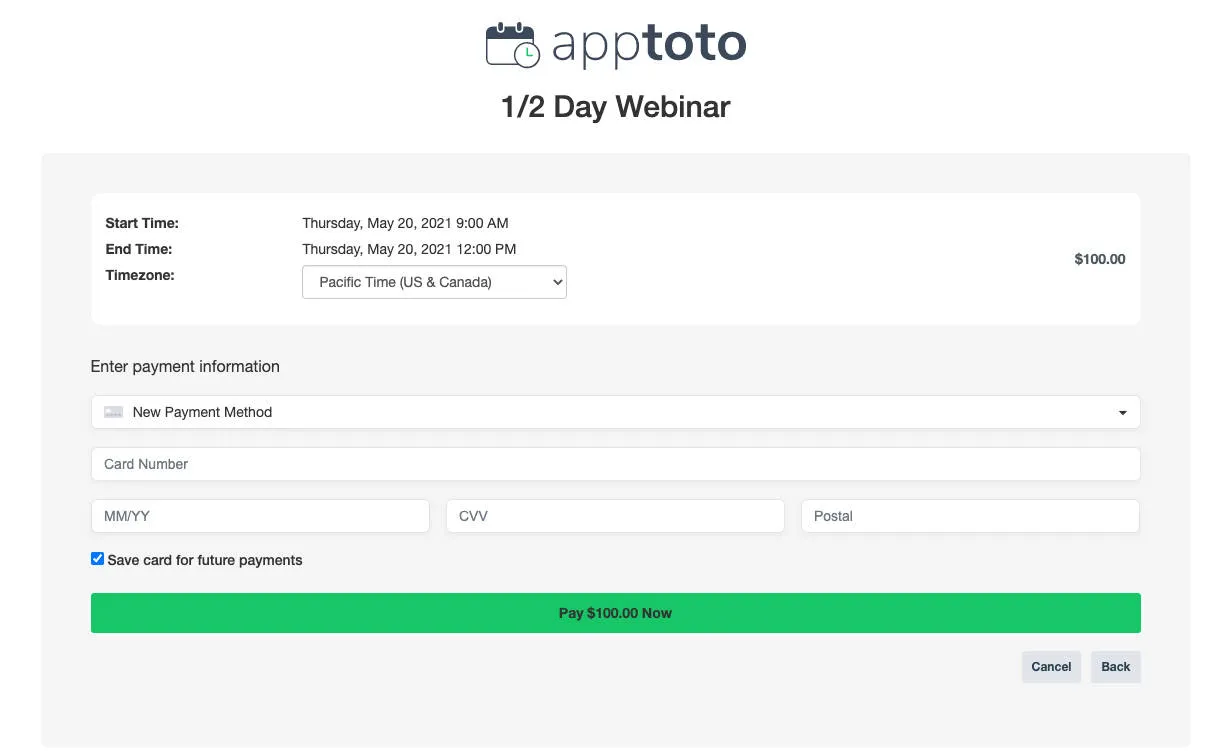
Apptoto’s Payment feature allows you to accept payments when people sign up through a signup page. Here is an example signup page payment form:
Enable payments on a signup page
Section titled “Enable payments on a signup page”- Open the signup page settings - Go to Booking Pages, select the signup page, then open the General tab.
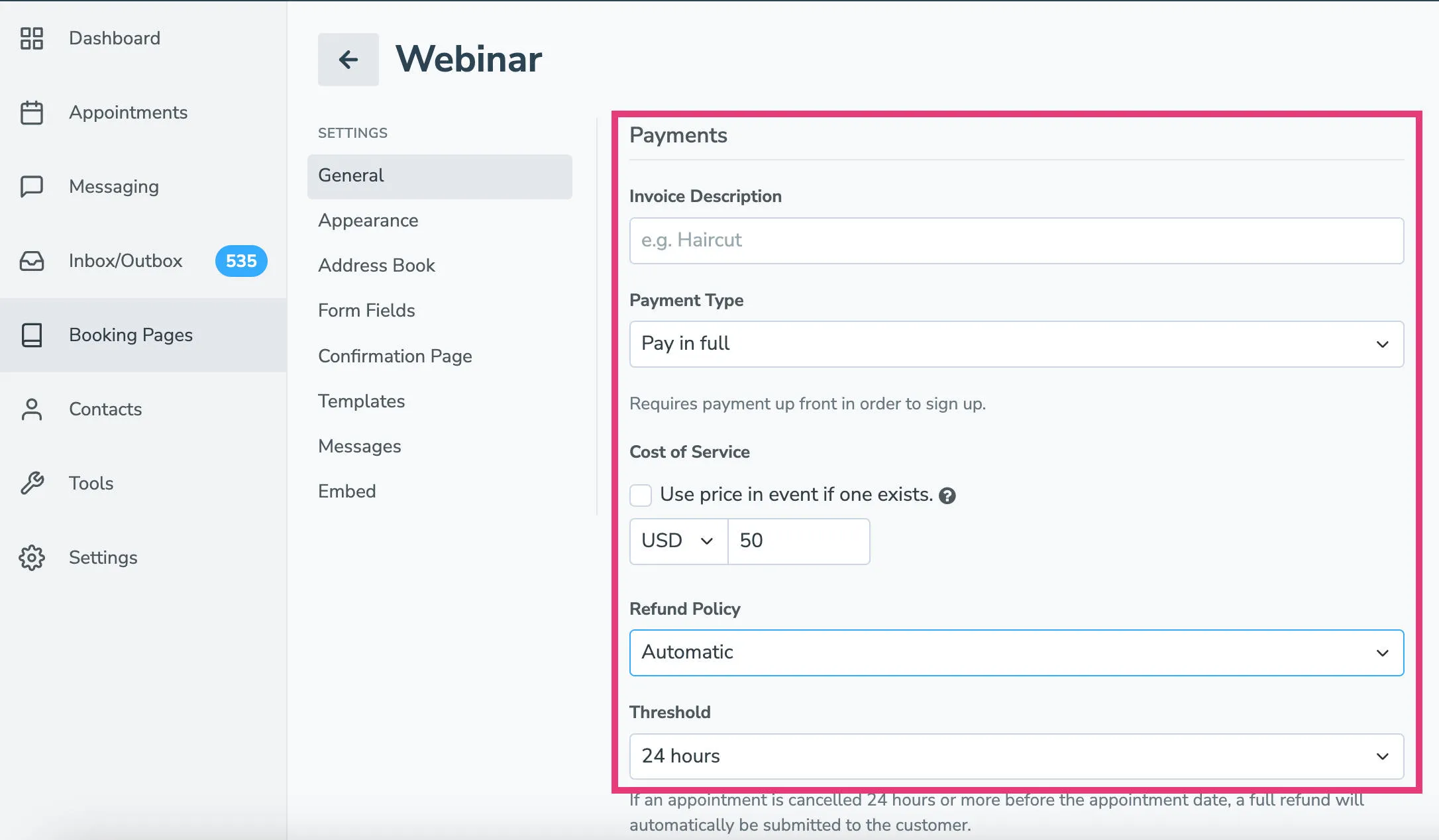
- Configure payment options - The available payment types are the same as availability booking pages (no payment, pay in full, deposit, copay, require card with no-show fee). Select the one that fits your use case.
- Optionally use event-based pricing - Enable Use price in event instead if one exists. With this on, Apptoto determines the price per event in this order:
- A custom field called “price” (e.g., if the body of the event has ‘price: 25’ in it)
- Any $ amount found in the event title/location/body (e.g., $25.00 or $25)
- If neither is found, the Cost of Service from the signup page settings is used.
Multiple event signup pages
Section titled “Multiple event signup pages”The Use price in event instead if one exists option works well if multiple events are attached to one signup page that vary in price.
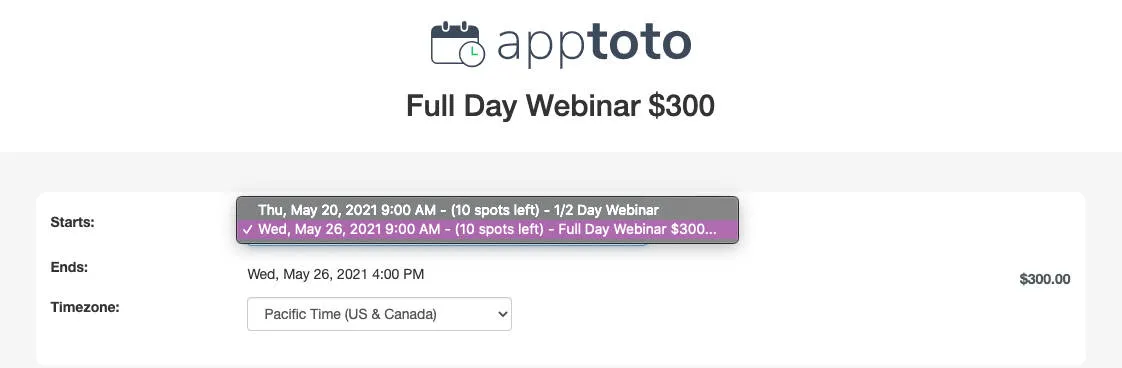
For example, below is a signup page that has two events. A “1/2 Day Webinar” that does not have a $ amount in the title, and a “Full Day Webinar” that has a $ amount in the title of the event.

Apptoto will vary the price based on which event the client picks!