
Zoom Integration
Apptoto’s Zoom integration allows you to create Apptoto Booking Pages that automatically create Zoom Meetings when clients book appointments with you.
Connect Zoom
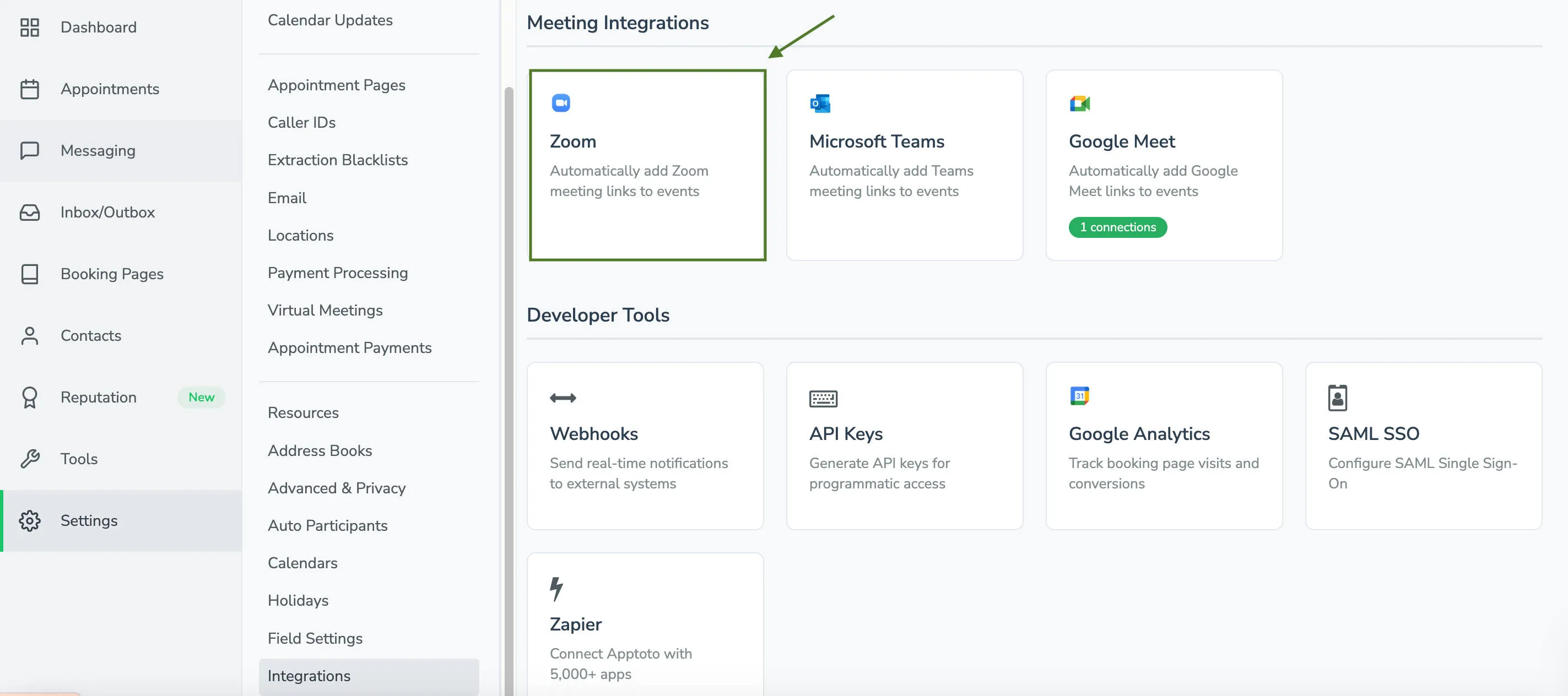
Section titled “Connect Zoom”- Open Integrations: Navigate to Settings > Integrations > Meeting Integrations > Zoom.
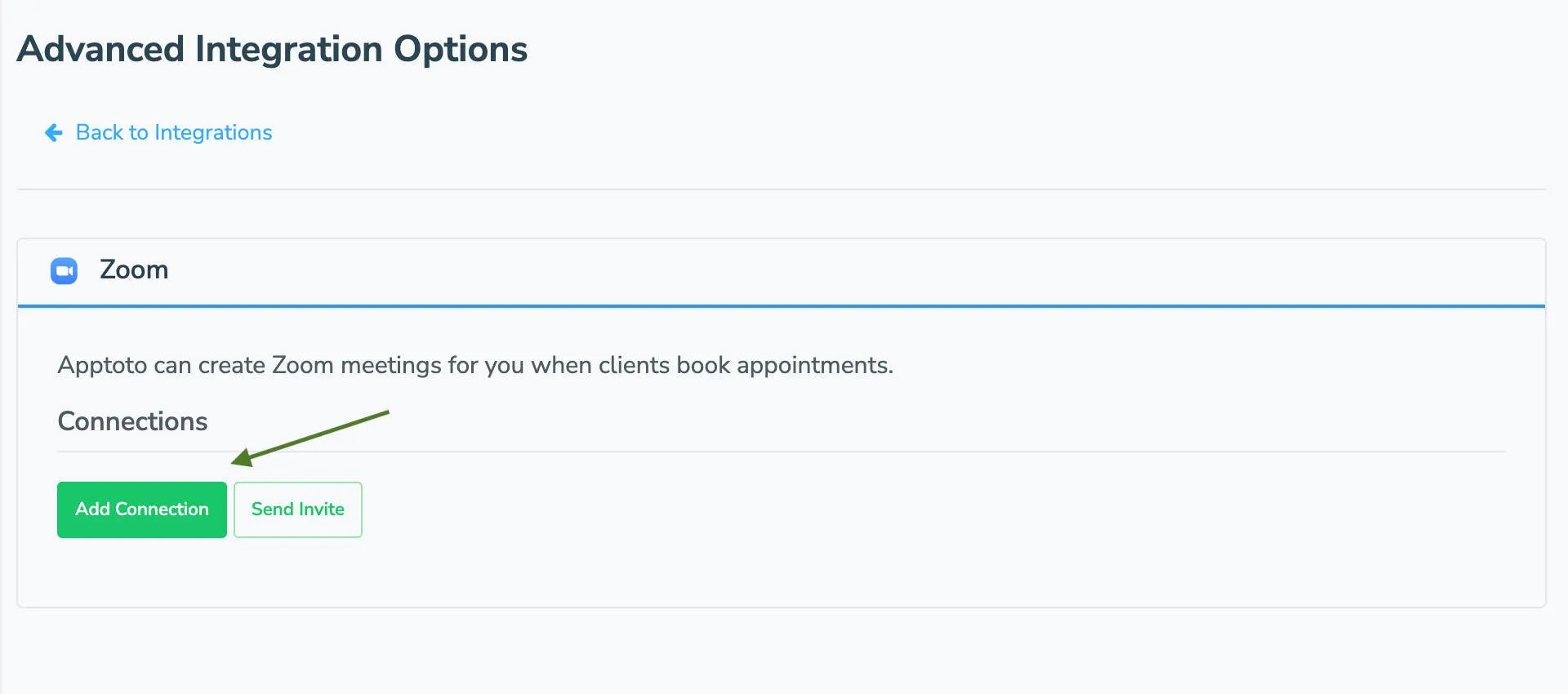
- Add a connection: Click Add Connection and sign in to your Zoom account when prompted.
Enabling Zoom meetings on a booking page
Section titled “Enabling Zoom meetings on a booking page”- Go to your booking page: Navigate to Booking Pages, select a page, and click Edit.
- Open Appointment Types: Click the Appointment Types tab.
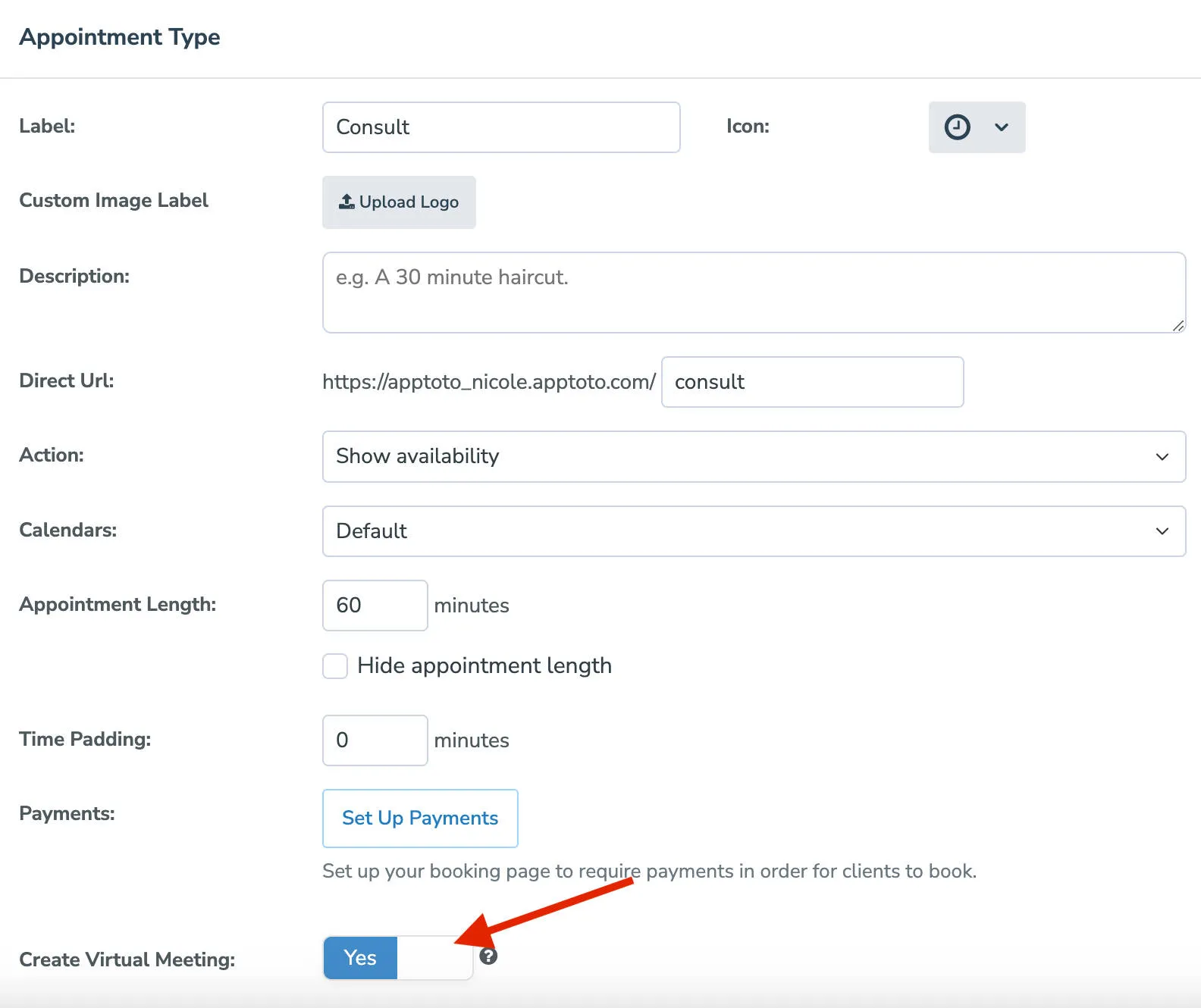
- Enable Virtual Meetings: Under Virtual Meetings, toggle Create a virtual meeting automatically when clients book on. If you have multiple appointment types, edit each type individually to enable it per type.
- Save: Click Save to save your changes.
Once enabled, Apptoto creates a Zoom meeting in your account for every new booking through that page.
Multiple Zoom accounts
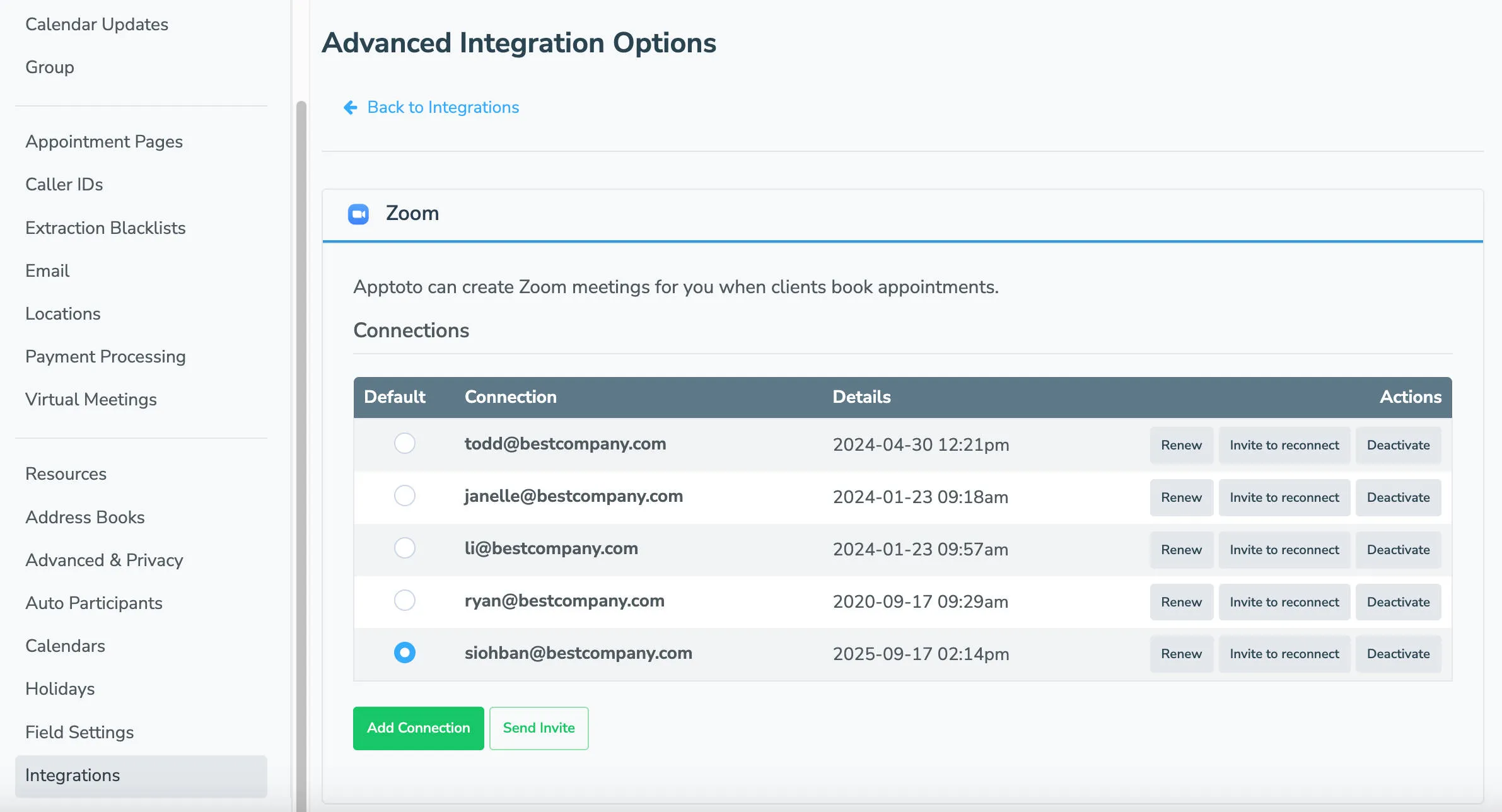
Section titled “Multiple Zoom accounts”If your organization has more than one Zoom account, you can add all of them under Settings > Integrations > Zoom. Set a default connection using the radio button next to your preferred account.
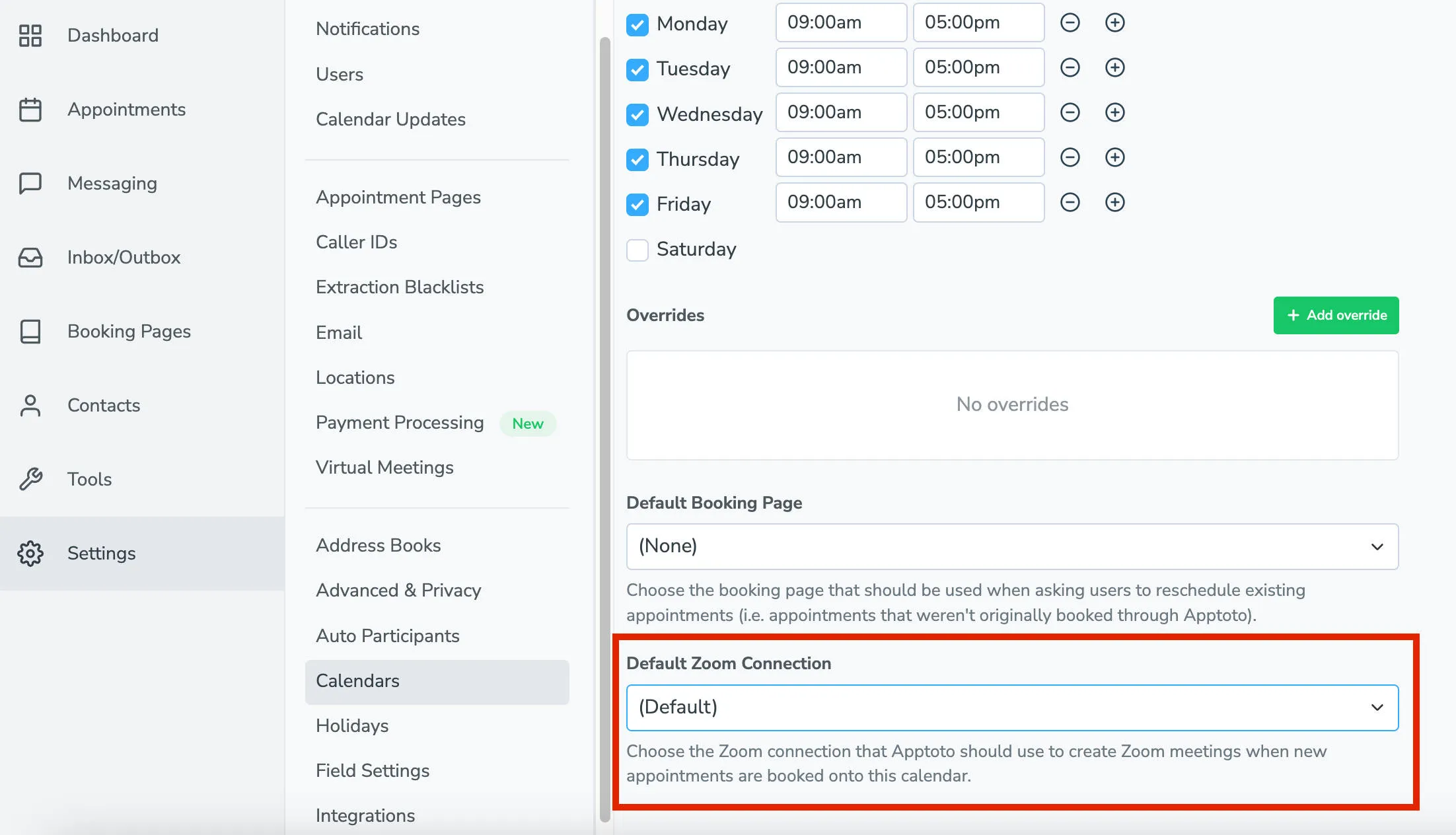
To use a different Zoom account for a specific calendar’s appointments, go to Settings > Calendars, open the calendar’s Scheduling tab, and set the Default Zoom Connection.
Using Zoom fields in messages
Section titled “Using Zoom fields in messages”By default, Zoom invite details appear in the calendar event (note: clients will need to click “Add to Calendar” when they receive the initial message after booking). However, Apptoto won’t automatically include Zoom meeting information in your reminder messages or your appointment pages. To include them in reminder messages or Appointment Pages, use these fields:
| Field | What it inserts |
|---|---|
{{ event.join_meeting_link }} | The Zoom meeting URL |
{{ event.join_meeting_button }} | A clickable button (emails and Appointment Pages only) |
{{ zoom_invite }} | Full Zoom invite text including dial-in numbers |
Use event.is_virtual_meeting as a condition in Auto Message rules to target only virtual appointments.
Automatic appointment updates and deletions
Section titled “Automatic appointment updates and deletions”- If you move an appointment to a new time, Apptoto updates the Zoom meeting automatically.
- If you delete an appointment, Apptoto removes the Zoom meeting from your account.
- If a client cancels a booking, the Zoom meeting is not automatically removed.
Showing Zoom Info on the Appointment Page
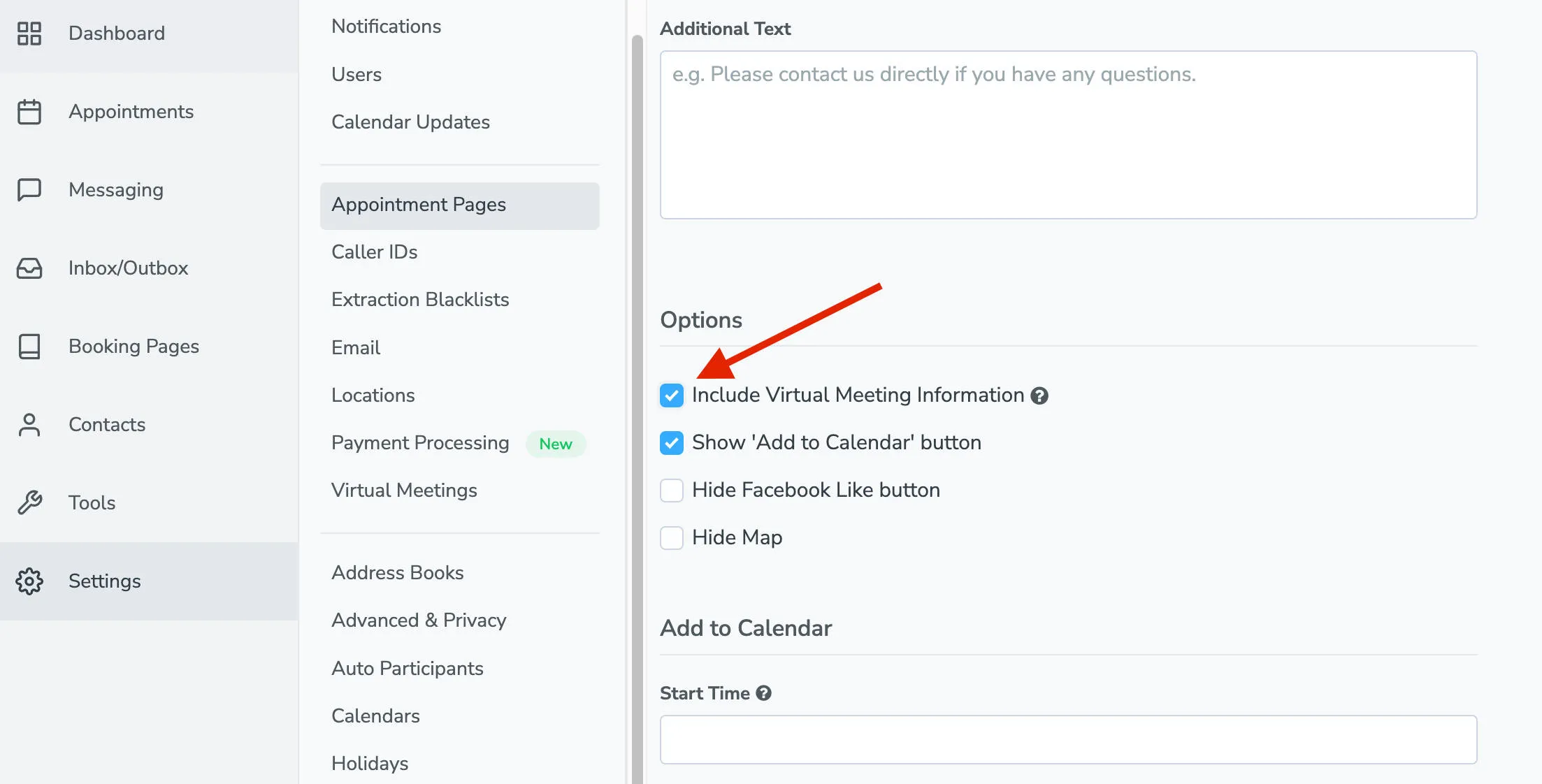
Section titled “Showing Zoom Info on the Appointment Page”“Appointment Pages” are what users see when they click on the special Apptoto links sent in Auto Messages. To include Zoom details on your Appointment Page:
- Go to Settings > Appointment Pages.
- Edit the relevant page.
- Check Include Virtual Meeting Information.
- Click “Save Changes”.
Disconnect Zoom
Section titled “Disconnect Zoom”Go to Settings > Virtual Meetings, find the connection/email you wish to disconnect, click Options, then Deactivate.