
Creating Message Schedules
Overview
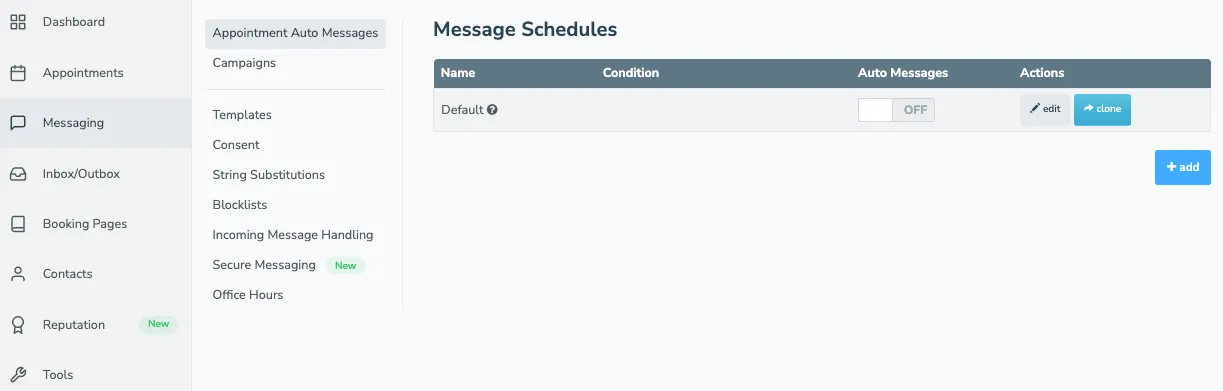
Section titled “Overview”When you activate Multiple Message Schedules, your Appointment Auto Messages tab displays existing schedules. Any previously created messages and conditions are preserved in the Default schedule.
Creating a message schedule
Section titled “Creating a message schedule”Cloning
Section titled “Cloning”The Clone button creates an exact duplicate of any Message Schedule, including all messages and conditions. If your message schedules will be very similar, clone your Message Schedule and then make edits to update the conditions, rules, and message content accordingly.
Adding a new schedule
Section titled “Adding a new schedule”If you want to create a new Message Schedule, follow the steps below.
- Navigate to Messaging > Appointment Auto Messages.
- Click + Add Schedule
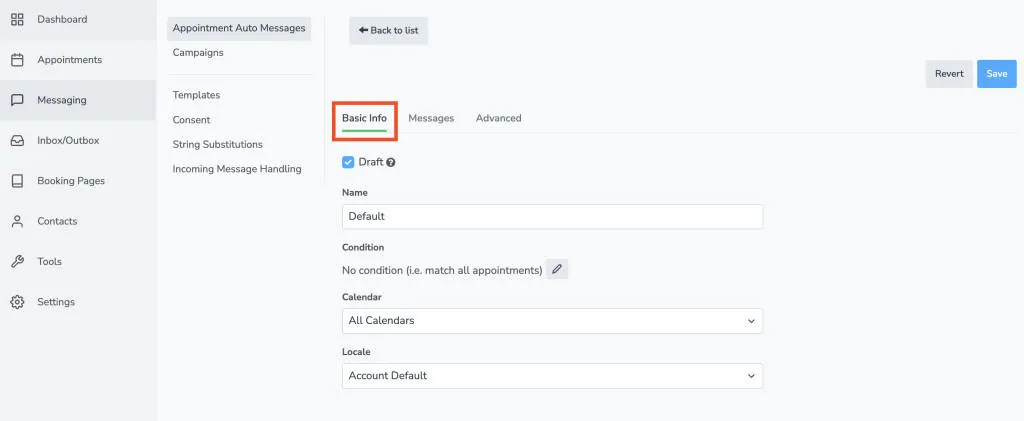
- Give the schedule a name (e.g., “Spanish Clients”). Then set the following:
- Condition: Specify what Apptoto should look for to trigger messages to send (e.g., keywords, providers, locations, etc.). Use the pencil icon to edit.
- Calendar: Restrict message delivery to appointments on a specific calendar.
- Locale: Change the language for auto messages in this schedule without altering account-wide settings; enables creation of multilingual message sets.
- Add SMS, call, and/or email messages to the schedule on the Messages tab just as you would in the Default schedule.
- Click Save. Apptoto will now use this schedule for any appointment whose title or body contains the keyword.
You can combine Condition and Calendar fields for granular targeting. For example, message only appointments on a specific person’s calendar that contain particular keywords.
Draft mode and activation
Section titled “Draft mode and activation”New Message Schedules begin in Draft mode to prevent premature appointment matching. Once the configuration is complete, uncheck the Draft box to enable the schedule.
The upper-right corner allows toggling Auto Messages on or off for individual schedules without affecting others.