
Participant Check-In States
Check-in states let you record whether a participant arrived on time, arrived late, or did not show up at all. They complement reminder statuses — reminder statuses track communication before the appointment, while check-in states track what actually happened on the day.
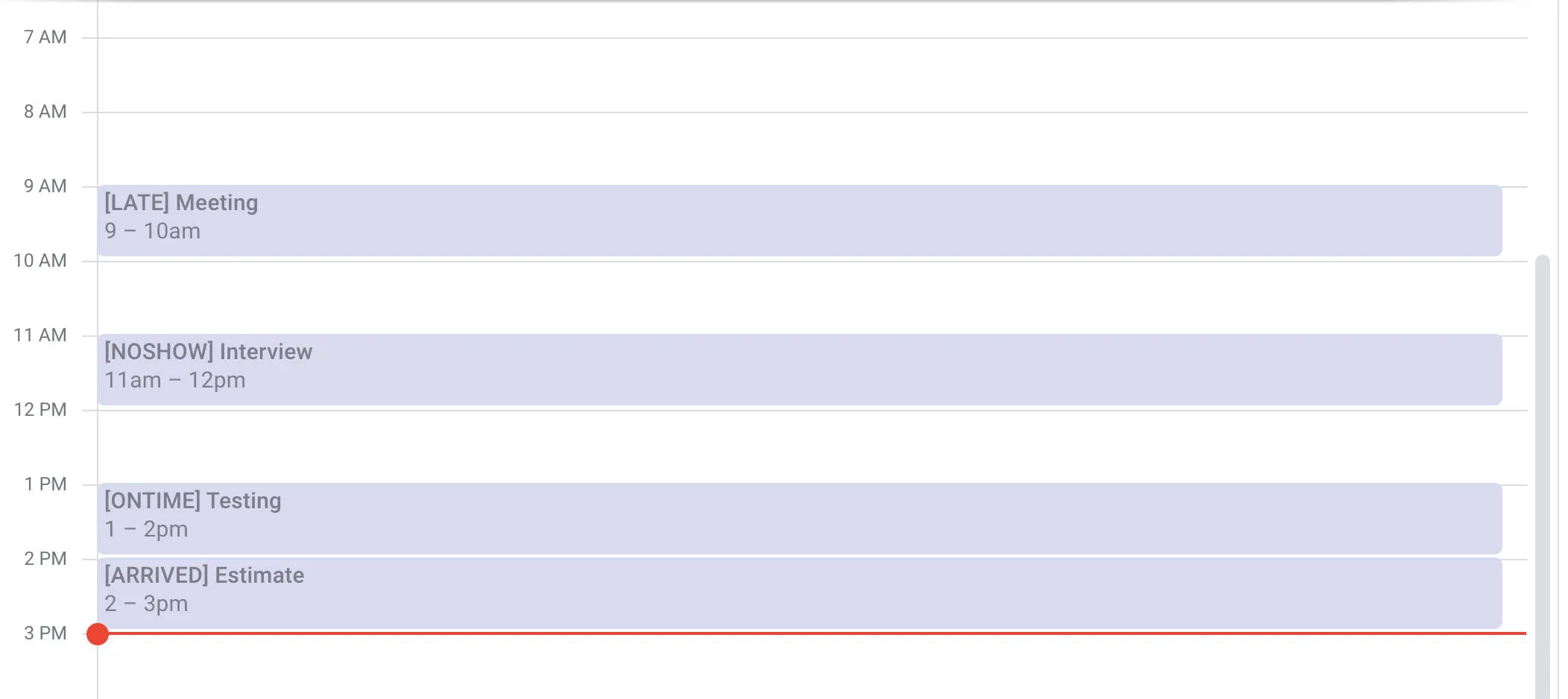
Check-in states will appear in your calendar as follows:
- [ONTIME] – This will mark the participant check-in state as “on-time”.
- [ARRIVED] – This will mark the participant check-in state as “arrived”.
- [LATE] – This will mark the participant check-in state as “late”.
- [NOSHOW] – This will mark the participant check-in state as “no show”.
These tags appear in the event body on your calendar, visible only to you and your team.
Marking check-in states through Apptoto
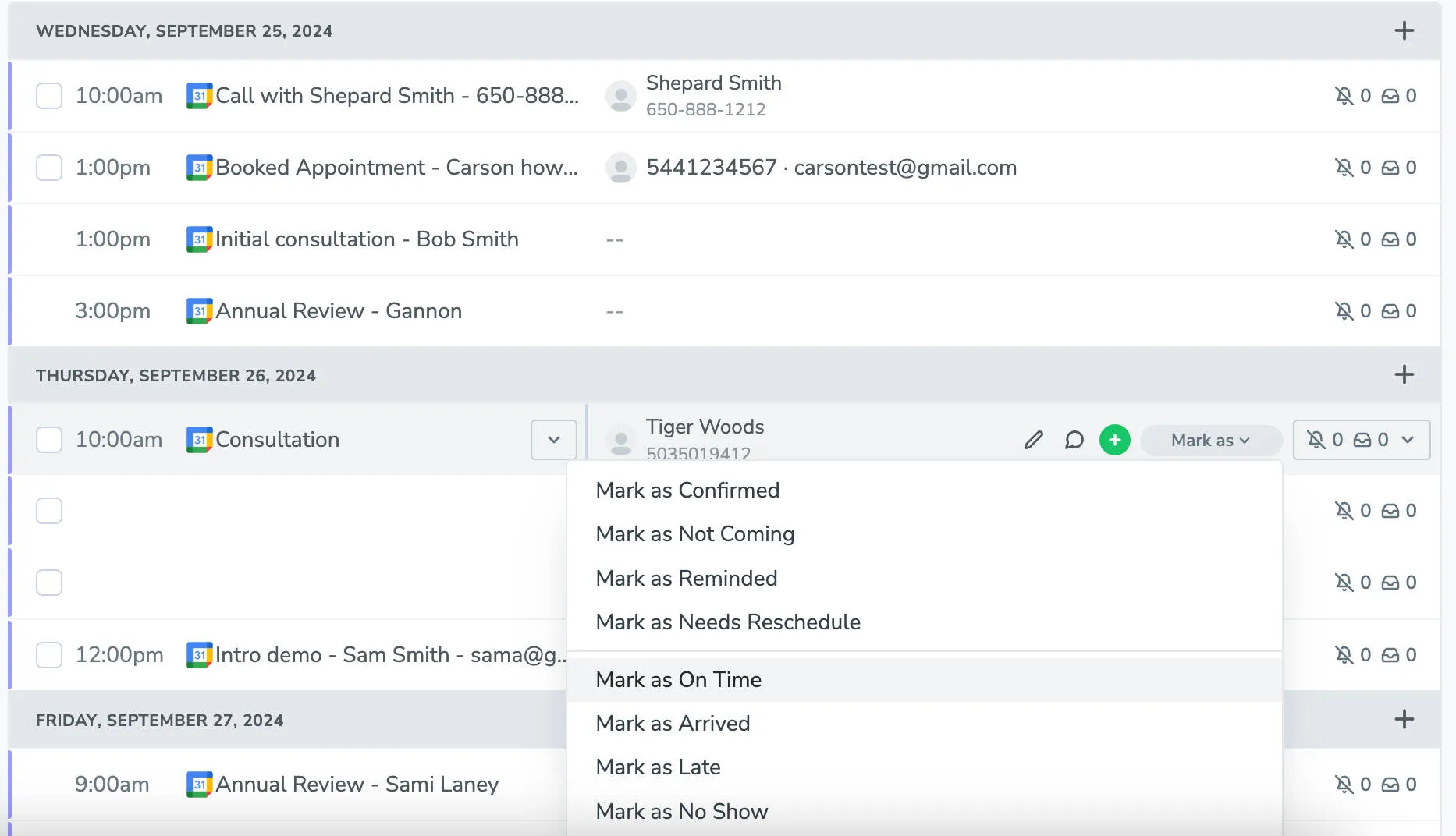
Section titled “Marking check-in states through Apptoto”Participants can now be marked as “On-Time” “Arrived” “Late” or “No Show” via the “Mark As” button in the participants column in Agenda View.
Or, you can also mark their status through the participant action button in the Appointment Editor.
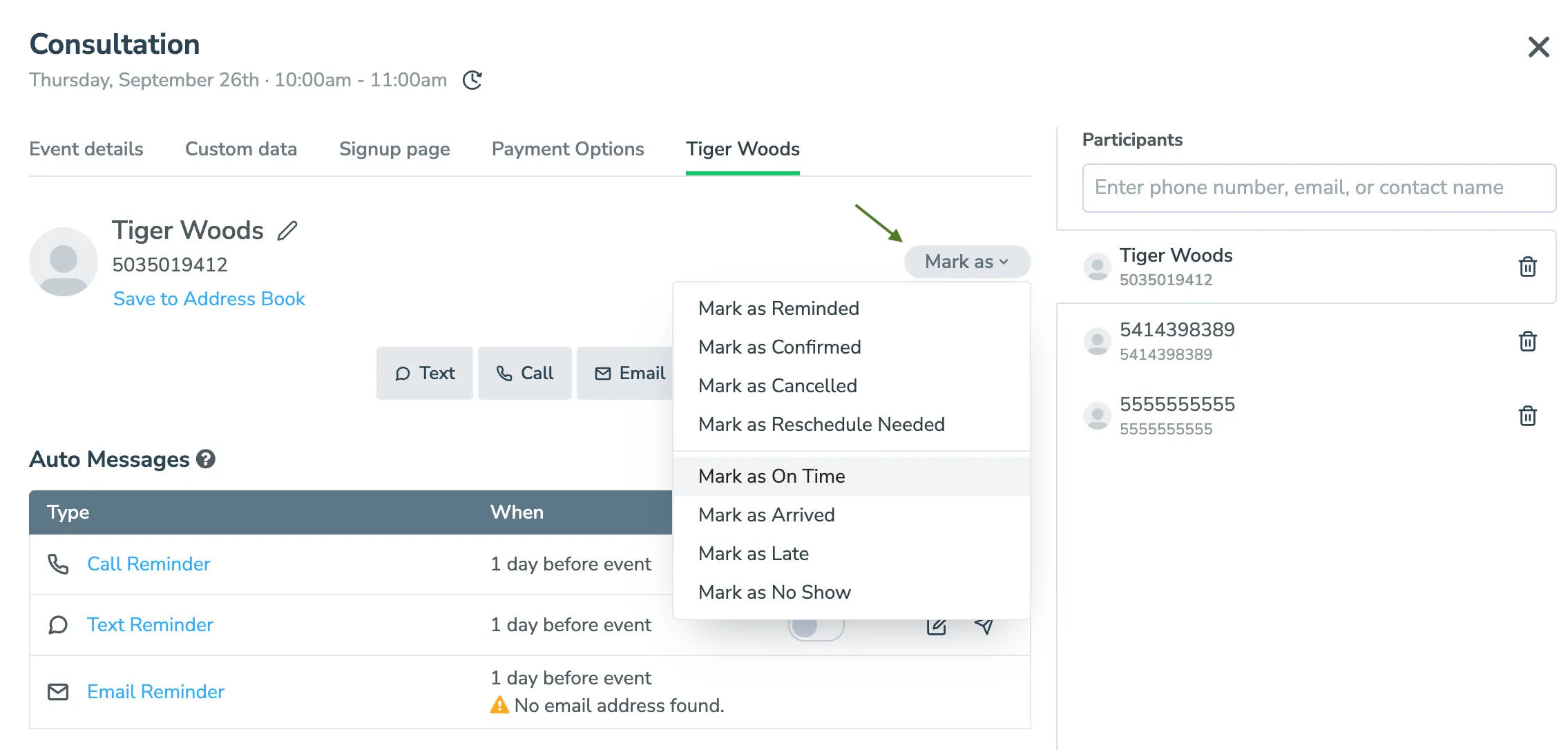
Check-in states can only be applied to appointments that have already occurred. To clear or change a check-in state, follow the steps above, and simply select “Reset Check-In State”.
Marking check-in states through your calendar
Section titled “Marking check-in states through your calendar”You can also set check-in states directly from your calendar app using in-event commands. Add the command anywhere in the event body:
- #Ontime
- #Arrived
- #Late
- #Noshow
Commands are not case-sensitive. Using this method marks all participants in the appointment with the same state. To reset, remove the command from the event body.
To mark a no-show from the event title instead, add [NO SHOW] or [NO-SHOW] anywhere in the title, square brackets included. This is not case-sensitive either, so [No Show] works too. The brackets are required: a title that just mentions “no show” (for example, “Rebook after no show”) will not change anyone’s check-in state. To reset, remove it from the title.
Check-In State Reporting
Section titled “Check-In State Reporting”You can view check-in state data across all your calendars in Tools > Reports > Appointments. This report lets you:
- Filter by specific check-in states
- View data as a bar graph or time series chart
- Select any date range and any combination of calendars
Contact support@apptoto.com if you cannot find the Reports tab on your account.