Automatic Contact Matching
Apptoto matches contacts to appointments automatically through one of the following means:
- Name matching
- Phone number matching
- Email matching
You can tell if Apptoto has matched a contact to an appointment by looking in the Agenda view in the Appointments tab.
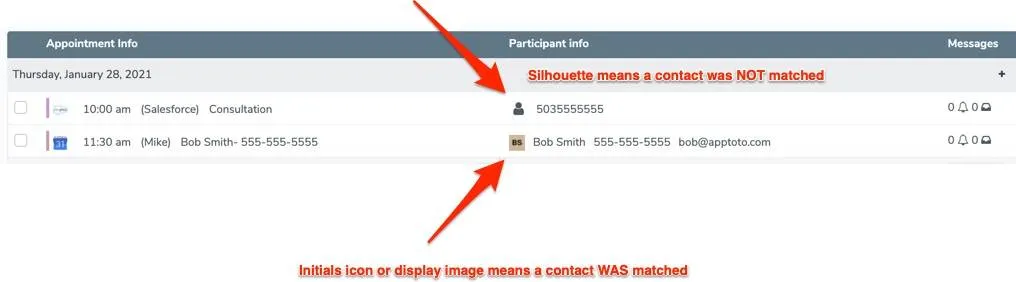
If a contact is matched, Apptoto is able to:
- Pull in any additional contact information (phone numbers and email addresses) from the contact record
- Abide by the contact preference settings in the contact record (e.g. no SMS messages)
- Determine the contact’s timezone based on zip code
- Use custom data attached to the contact
- Keep track of all communication with the contact
Name matching
Section titled “Name matching”By default, Apptoto looks in the title and the first 10K characters of the body for properly cased first and last names. If it finds any, it then searches your address books looking for contacts whose names match. It also matches initials as well as Last, First formatting for names.
These formats will work:
Fred SmithSmith, Fred
These formats will NOT work:
FRED SMITHFRED S.SMITH, FREDfred smithFRED
Phone matching
Section titled “Phone matching”If an appointment contains the phone number of a contact, that contact will be matched to the appointment.
Email matching
Section titled “Email matching”If an appointment contains the email address of a contact, that contact will be matched to the appointment. The email address can be in the title, location, body, or attendee list of the appointment.
Ambiguous matches
Section titled “Ambiguous matches”In the event that multiple contacts match, Apptoto does its best to determine if the contacts are actually duplicates. If it determines that the contacts are duplicates (usually because one email address or phone number is shared), then Apptoto uses the one with the most information in the first address book listed on the Settings > Address Books tab.
If Apptoto is not able to determine that all of the matching contacts are duplicates, it flags the match as ambiguous.
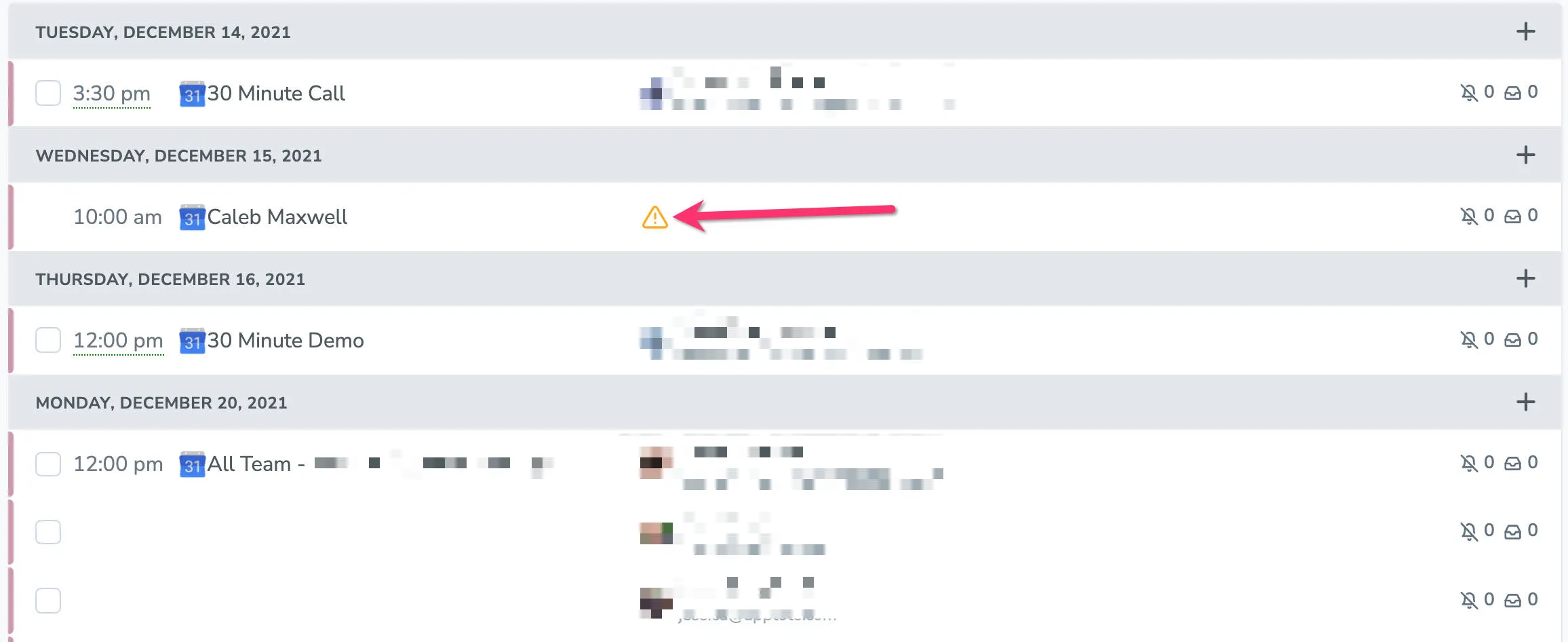
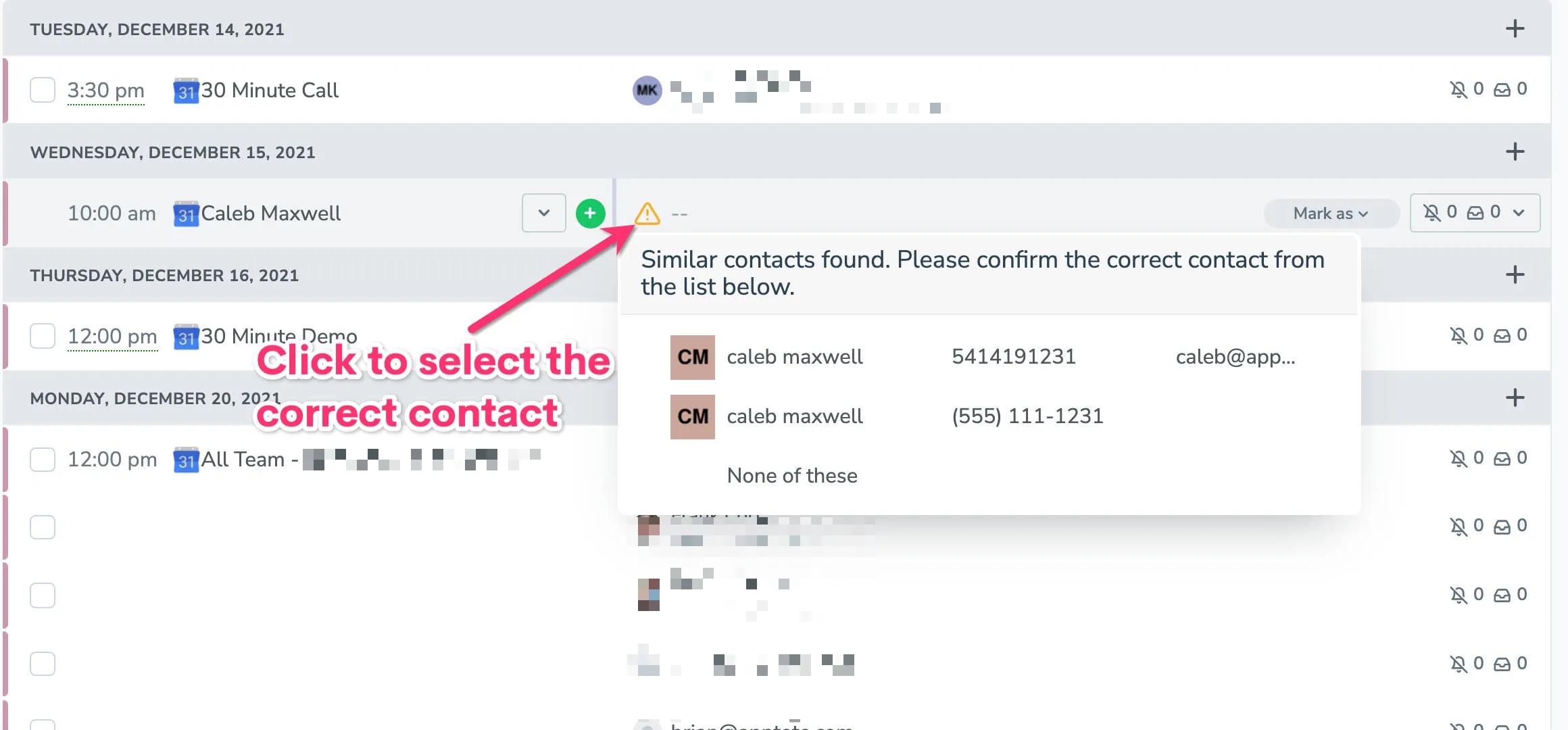
By clicking the yellow exclamation point icon, you can resolve the ambiguous match by telling Apptoto which contact is the correct one.
Ordering address books
Section titled “Ordering address books”On the Settings > Address Books tab, you can order the address books. The order is used when picking contacts. So if one address book has the most up-to-date information, move that address book into the first position.
Preventing Apptoto from matching a contact
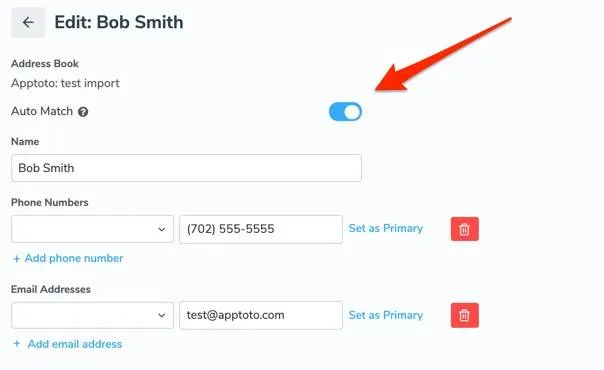
Section titled “Preventing Apptoto from matching a contact”If you have a contact you never want Apptoto to match to appointments, edit the contact on the Contacts tab and turn on the Never automatically match to appointments option for that contact.