
Creating an Auto Message
By default, three messages are created in your Appointment Auto Messages tab: a voice call, an SMS, and an email. They are all set to deliver one day before the appointment (but are not active until you turn on Auto Messages).
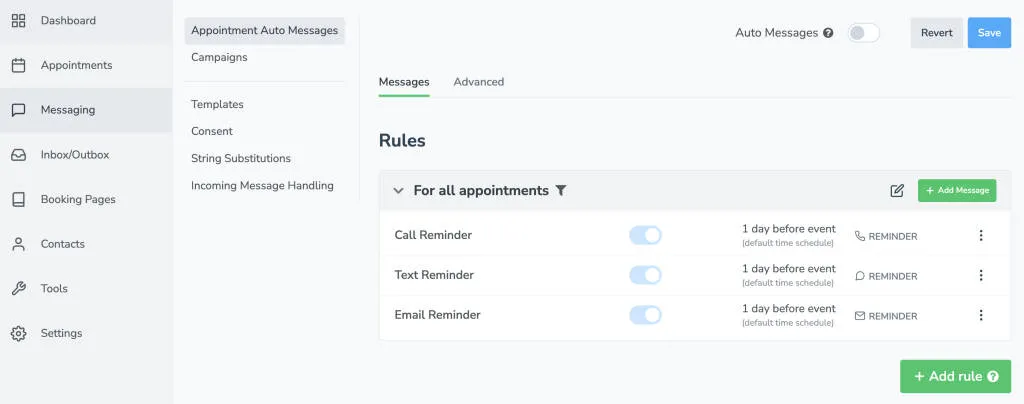
To create a new auto message, hover over the green plus icon to easily create a message type of your choice (Email, text, or voice call).
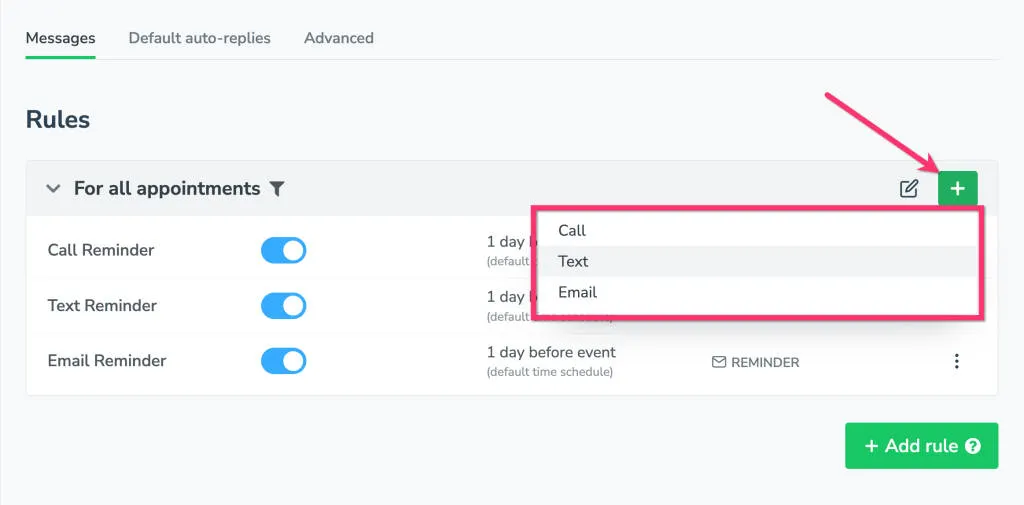
Clicking any of these options will bring you to the Message Editor where you will be asked to specify the message’s “purpose” (e.g., Initial/Booking, Reminder, or Followup), timing, language, content, and more.
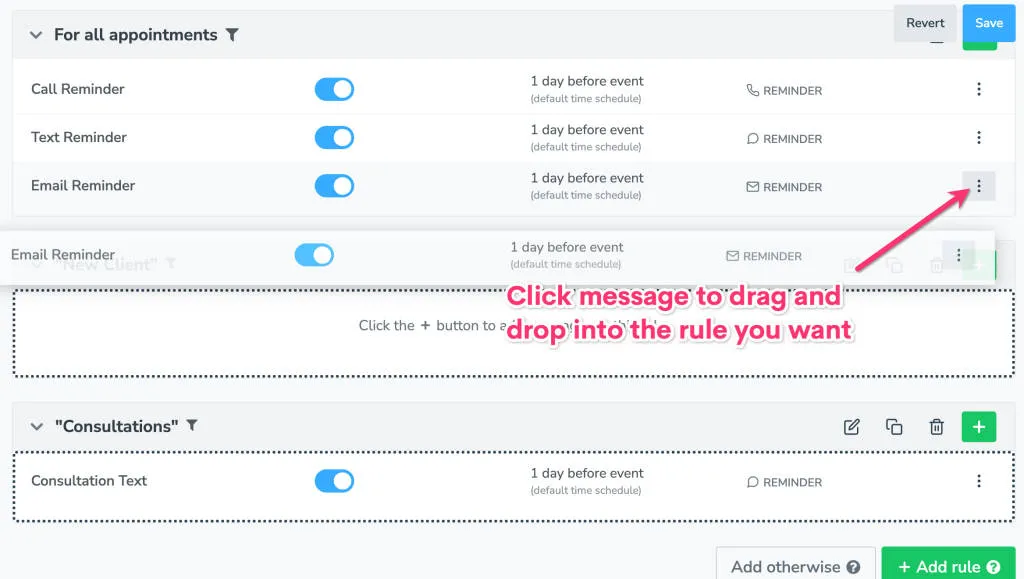
To move any of these messages to a different rule, simply click and drag that message to the desired rule block:
Apptoto now supports attachments to both incoming and outgoing SMS and emails. On the messages where this feature is available, there will be a clickable Attach File button.