
Attachment Support
Apptoto supports attachments on both incoming and outgoing SMS and email messages. On messages where this feature is available, there will be a clickable Attach File button.
Outgoing attachments
Section titled “Outgoing attachments”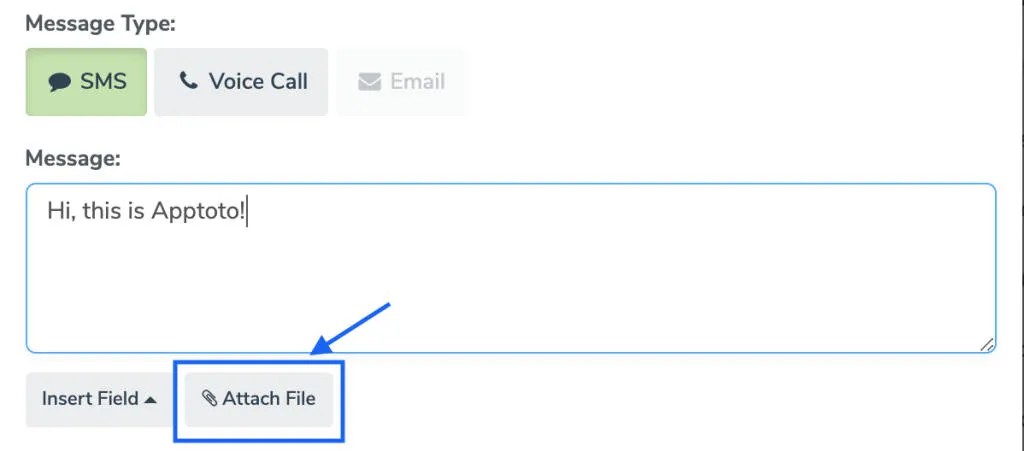
This is available in the following message types:
- Auto Messages
- Auto Message Auto Replies
- Message Templates
- Message Template Auto Replies
- Replies in conversation views
- Compose button
Attachment limitations and restrictions
Section titled “Attachment limitations and restrictions”Attachments to email messages do not impact credit usage and are limited to a file size of 2 MB. SMS message attachments have a few additional restrictions:
- Outgoing file size limit is 2 MB
- Each attachment counts as an additional message or credit.
- Photos (i.e., PNG, JPEG, GIF files) are fully supported.
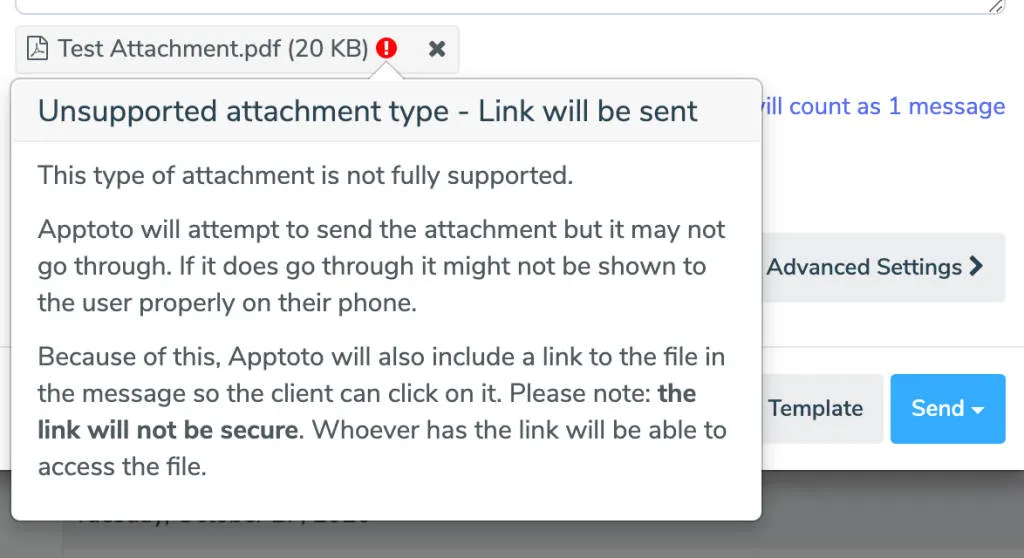
- Other file types can be attached (e.g., PDF files); however, they are not guaranteed to get through, or if they do go through, they might not be viewable on the end-user’s phone. Attachments that are not in a supported format will include a link to the attachment in the outgoing message.
- Please note: The link included is NOT secure and anyone who receives the link can open the attachment. Your Apptoto portal will show a warning icon when a file type that is not fully supported is attached to an SMS message.
Incoming attachments
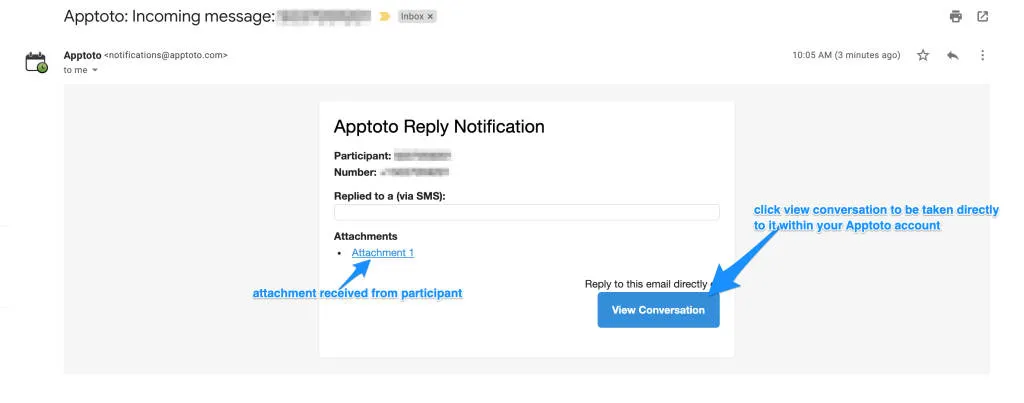
Section titled “Incoming attachments”Incoming attachments can be received through incoming SMS replies and incoming email replies. An email notification will be sent notifying you about a reply including a list of the attachments that were received. You must log in to Apptoto to download the attachment.
Emoji / emoticon support
Section titled “Emoji / emoticon support”Apptoto offers emoticon support. Emoticons received will show up in the inbox/outbox and in notifications.
You can send emoticons, but you have to know how to paste an emoticon into a message. For example, on a Mac you can use the Command-Control-Space key combo to bring up a menu and insert an emoticon into an Auto Message, Message Template, or reply.