
Caller ID
By default, Apptoto sends all SMS and voice calls from a randomly assigned number with a 925 area code. You can change this by adding your own number or reserving a dedicated number.
To get started, navigate to Settings > Caller ID
Add your number
Section titled “Add your number”Use this option to send voice messages from an existing phone number you already own (such as your office line or cell phone). This option supports voice calls only. It does not enable SMS from your existing number.
- Go to Caller IDs: Navigate to Settings > Caller IDs and click Add Your Number.
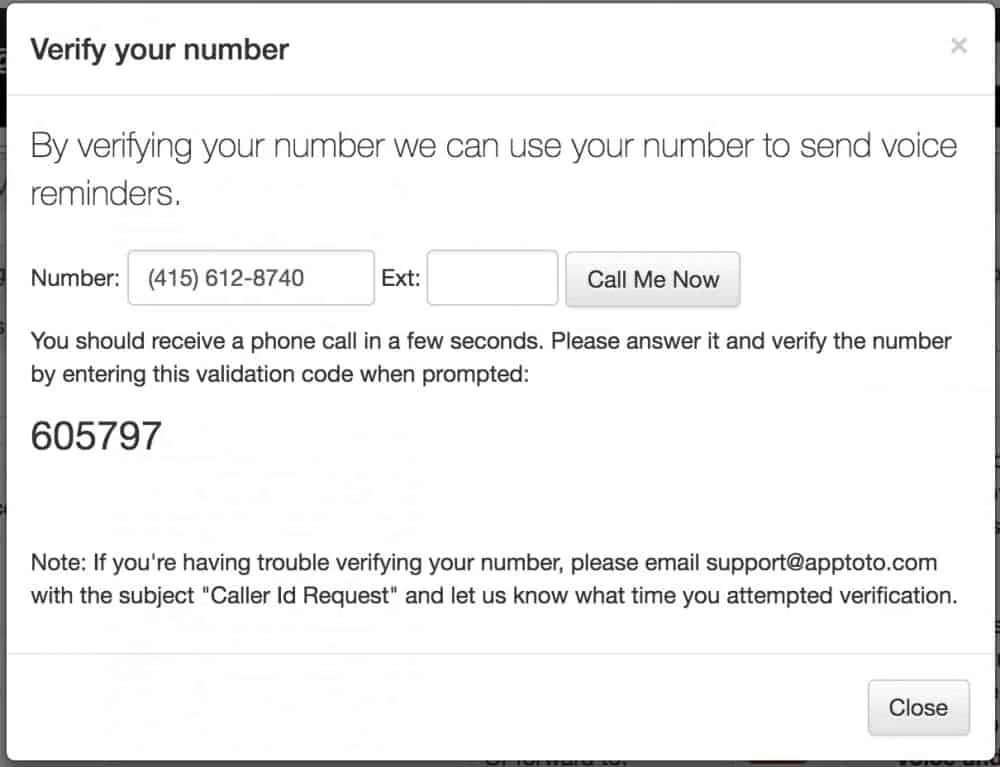
- Enter your phone number: Type your existing phone number in the pop-up and click Call Me Now.
- Verify the number: Apptoto calls you and prompts you to enter the 6-digit verification code shown in the pop-up. Once entered, your number is added and ready for voice calls.
Reserve a number
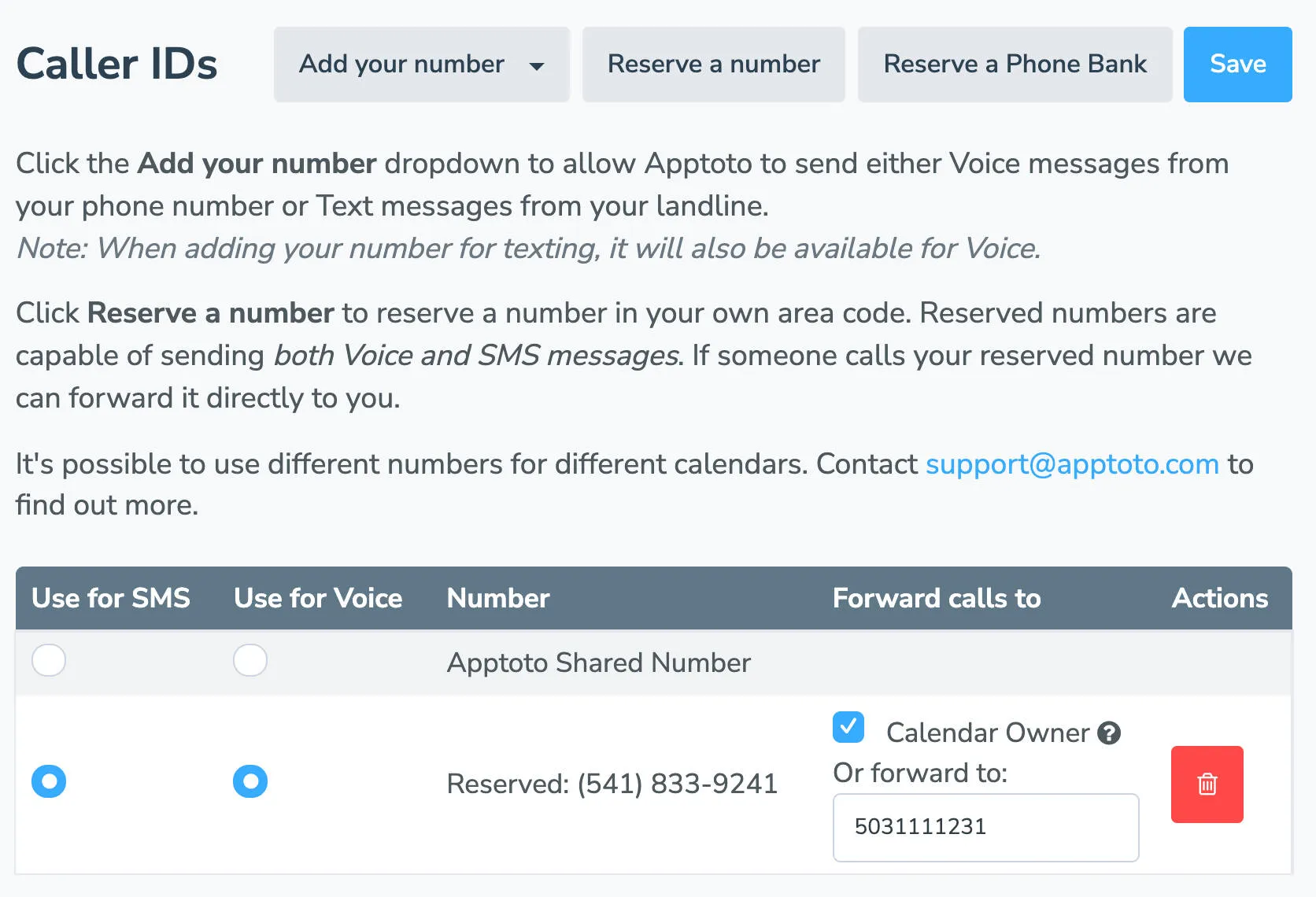
Section titled “Reserve a number”Reserve a permanent number that Apptoto uses for both SMS and voice calls. You can choose your preferred area code so the number looks familiar to your clients.
- Click Reserve a Number: On the Settings > Caller ID tab, click Reserve a Number.
- Choose your area code: Enter your preferred area code and select a number from the available options.
- Configure call forwarding: Apptoto automatically sets up call forwarding. Incoming calls and SMS are forwarded to the Calendar Owner for each appointment, or you can specify a universal forwarding number for all messages.
Forwarded calls in your inbox
Section titled “Forwarded calls in your inbox”Every call forwarded from a reserved Apptoto number gets its own record in the Inbox, showing who called, where the call went, whether anyone answered, and how long it lasted. Forwarded minutes use message credits at the usual call rate of one credit per started two minutes.