
Secure Messaging
Secure Messaging protects sensitive information by replacing direct message content with a link to a private conversation page. Clients click the link to read and reply to your messages. This is especially valuable for healthcare, legal, and financial businesses that handle confidential client information.
How it works
Section titled “How it works”When you enable Secure Messaging for a message:
- Apptoto sends a short notification (SMS or email) containing a secure link.
- The client clicks the link and lands on a private conversation page hosted by Apptoto.
- If a PIN is required, the client enters it before viewing the message.
- The client reads the message and can reply — all within the secure portal.
Links are valid for 24 hours by default. If a link expires, the client can request a new one directly from the conversation page — no action needed from you.
Setting up Secure Messaging
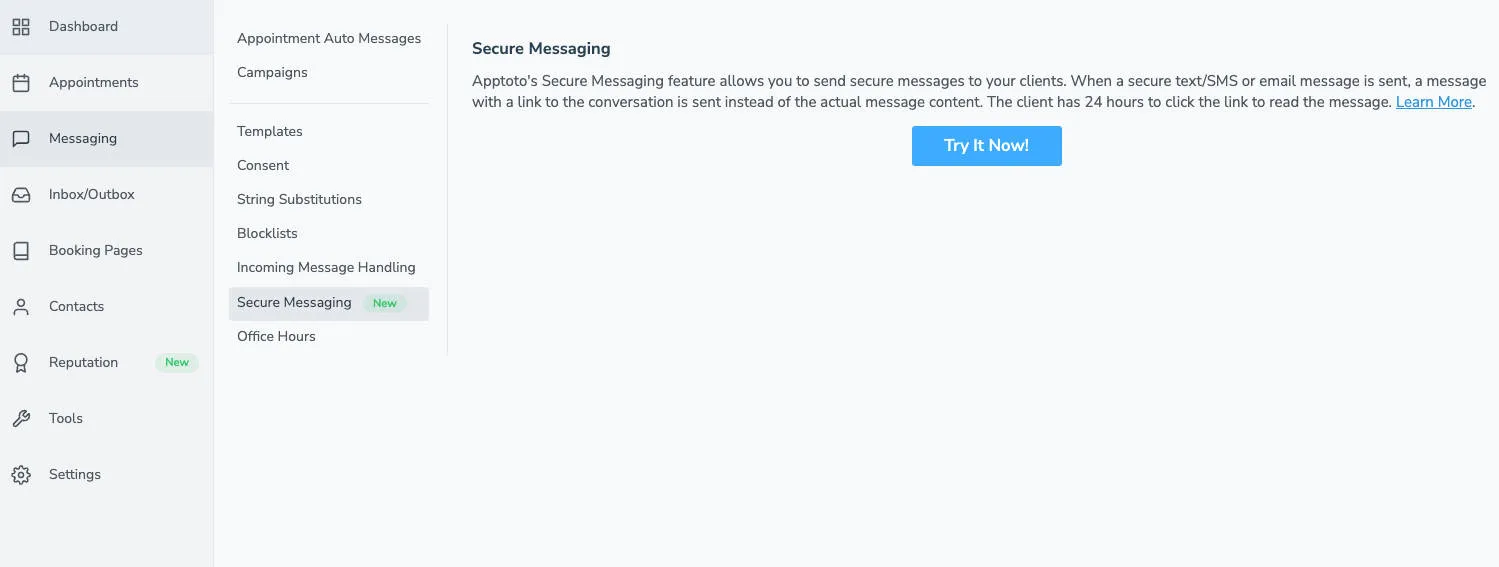
Section titled “Setting up Secure Messaging”- Enable Secure Messaging: Go to Messaging > Secure Messaging and click Try it Now. Toggle Enable Secure Messaging to ON.
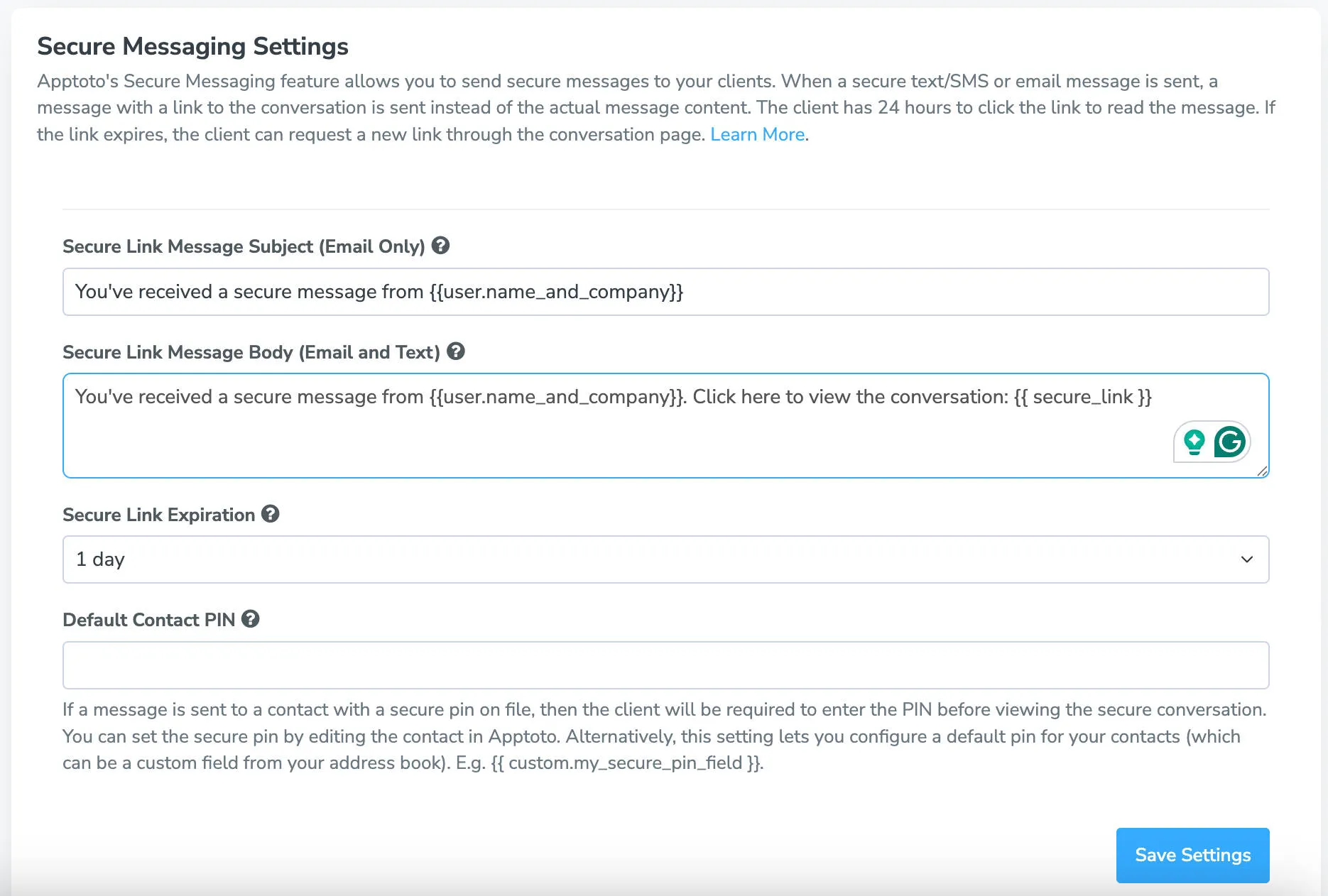
- Configure the notification message: Set the subject (email only), body, and link expiration. The body must include
{{ secure_link }}, which Apptoto replaces with the client’s unique link.
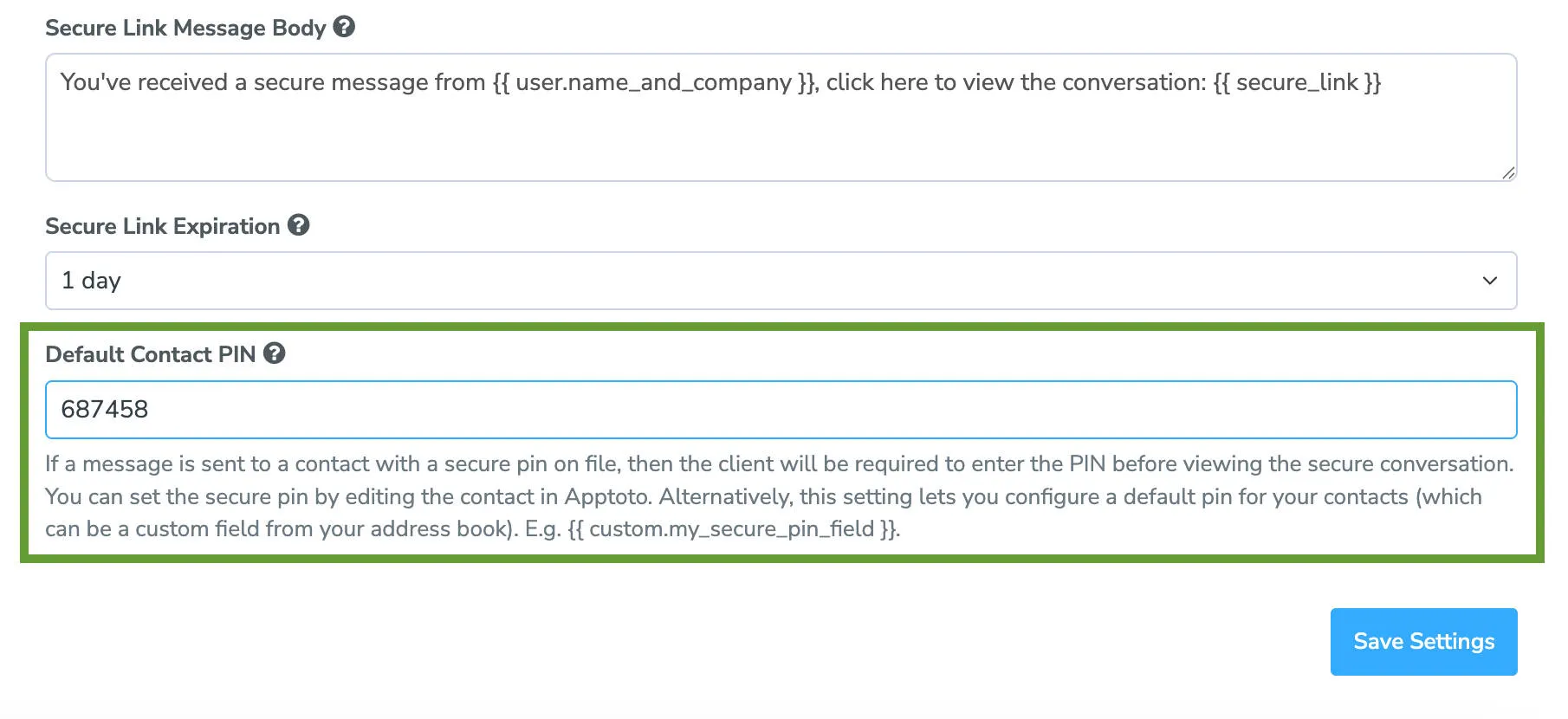
Default notification body:You've received a secure message from {{ user.name_and_company }}, click here to view the conversation: {{ secure_link }} - Optionally set a default PIN: Enter a default PIN that all clients must enter before accessing their messages. You can override this on a per-contact basis.
- Optionally add a default PIN requirement for accessing messages.
- Save: Click Save Settings.
Sending Automated Messages securely
Section titled “Sending Automated Messages securely”After enabling Secure Messaging, you can mark individual auto messages to send securely:
- Open the Message Editor: Go to Messaging > Appointment Auto Messages and click an SMS or email message to edit it.
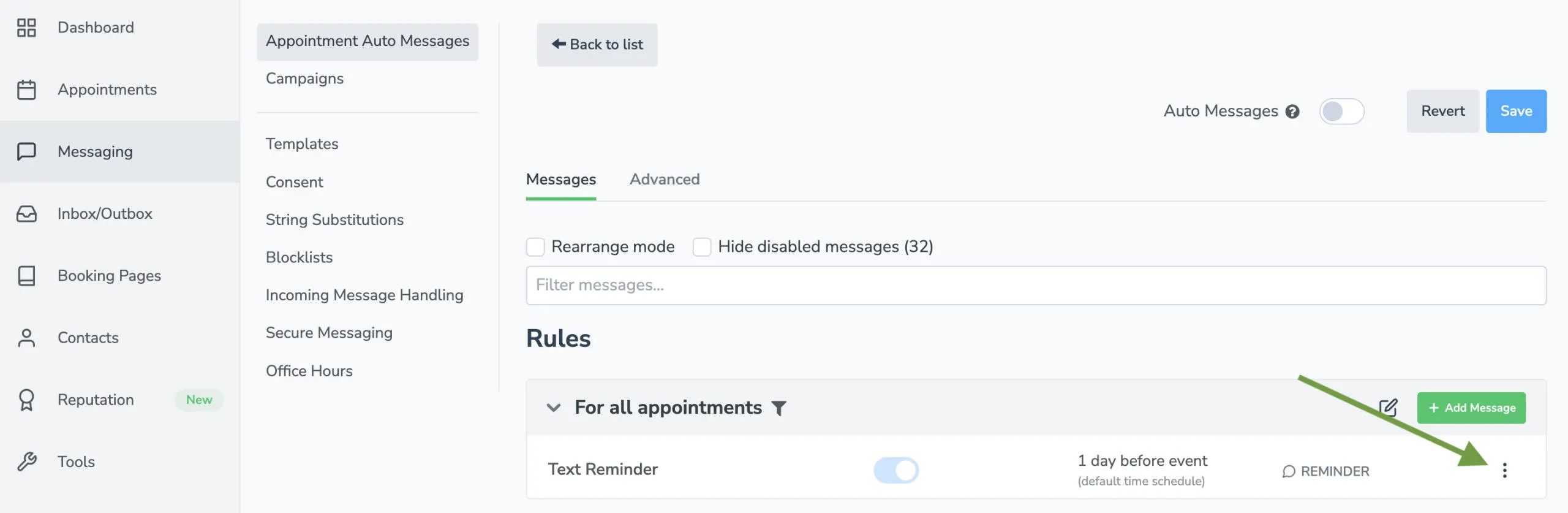
- Toggle Send Securely: Find the Send Securely toggle and switch it ON.
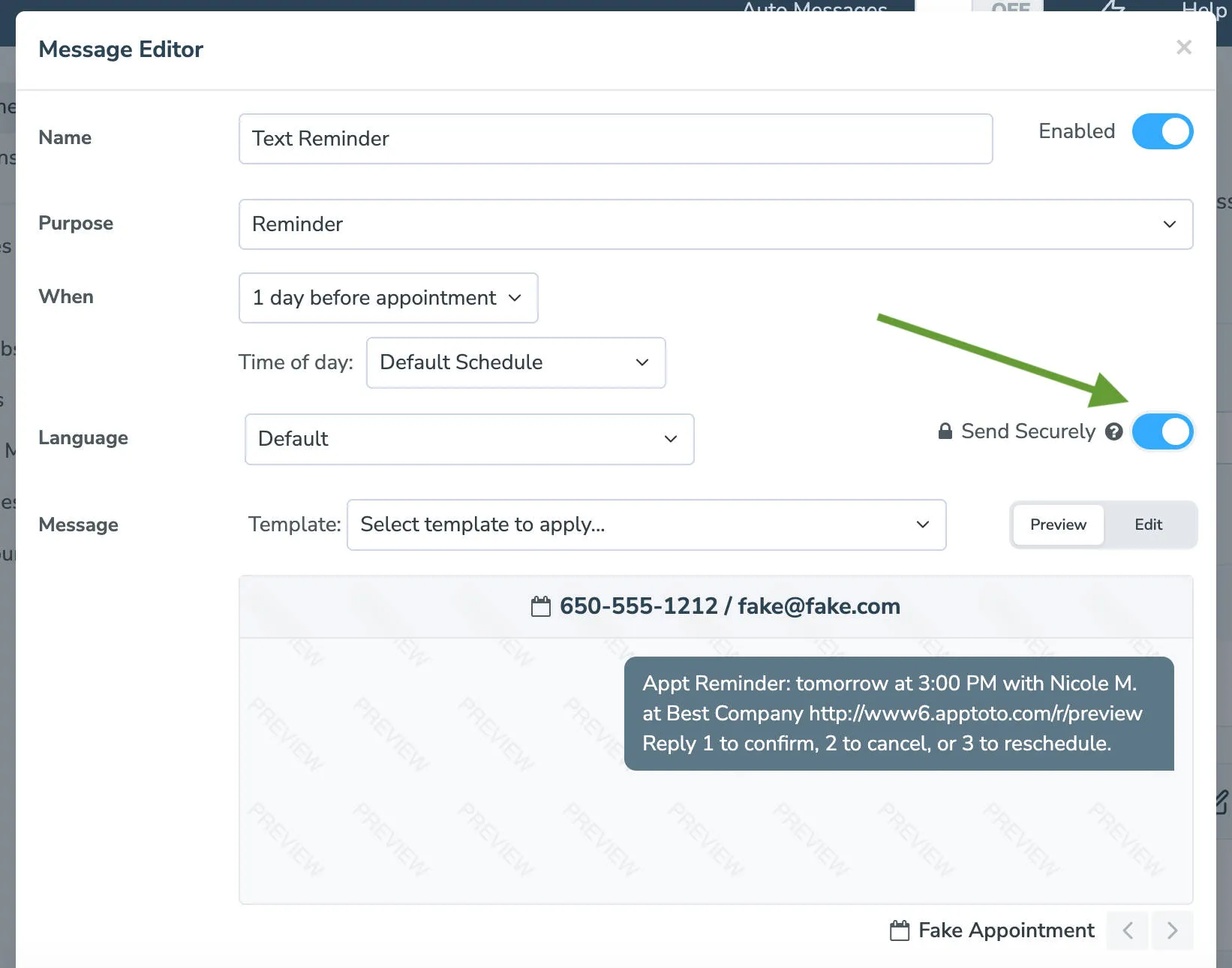
- Repeat for other messages: Repeat for every reminder, booking, or follow-up message you want to deliver securely.
- Save Click Save Settings.
Sending one-time messages securely
Section titled “Sending one-time messages securely”Using the Compose button, you can send individual secure messages:
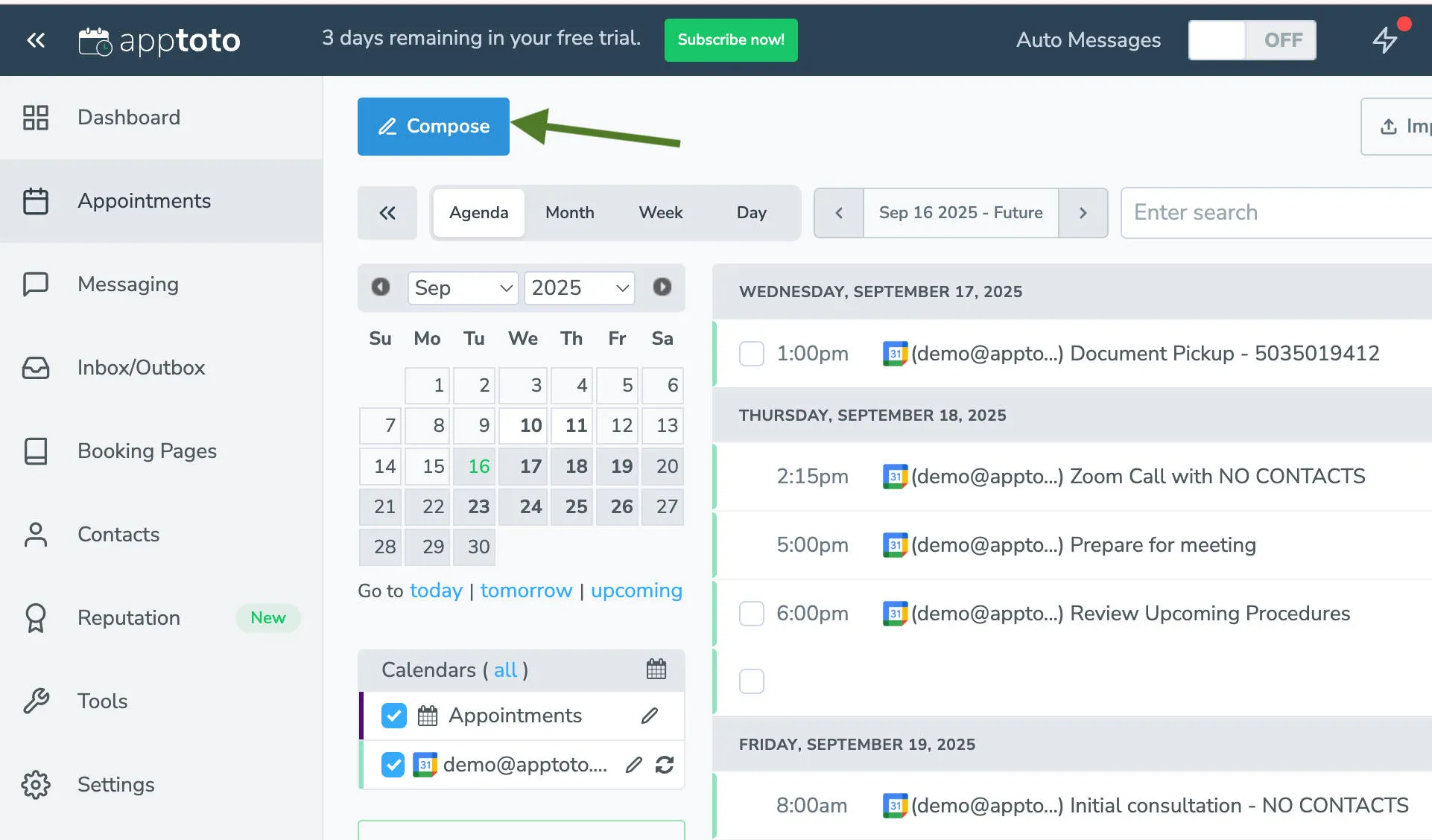
- Open Compose: Click the blue Compose button on the top of the Appointments tab and enter recipients.
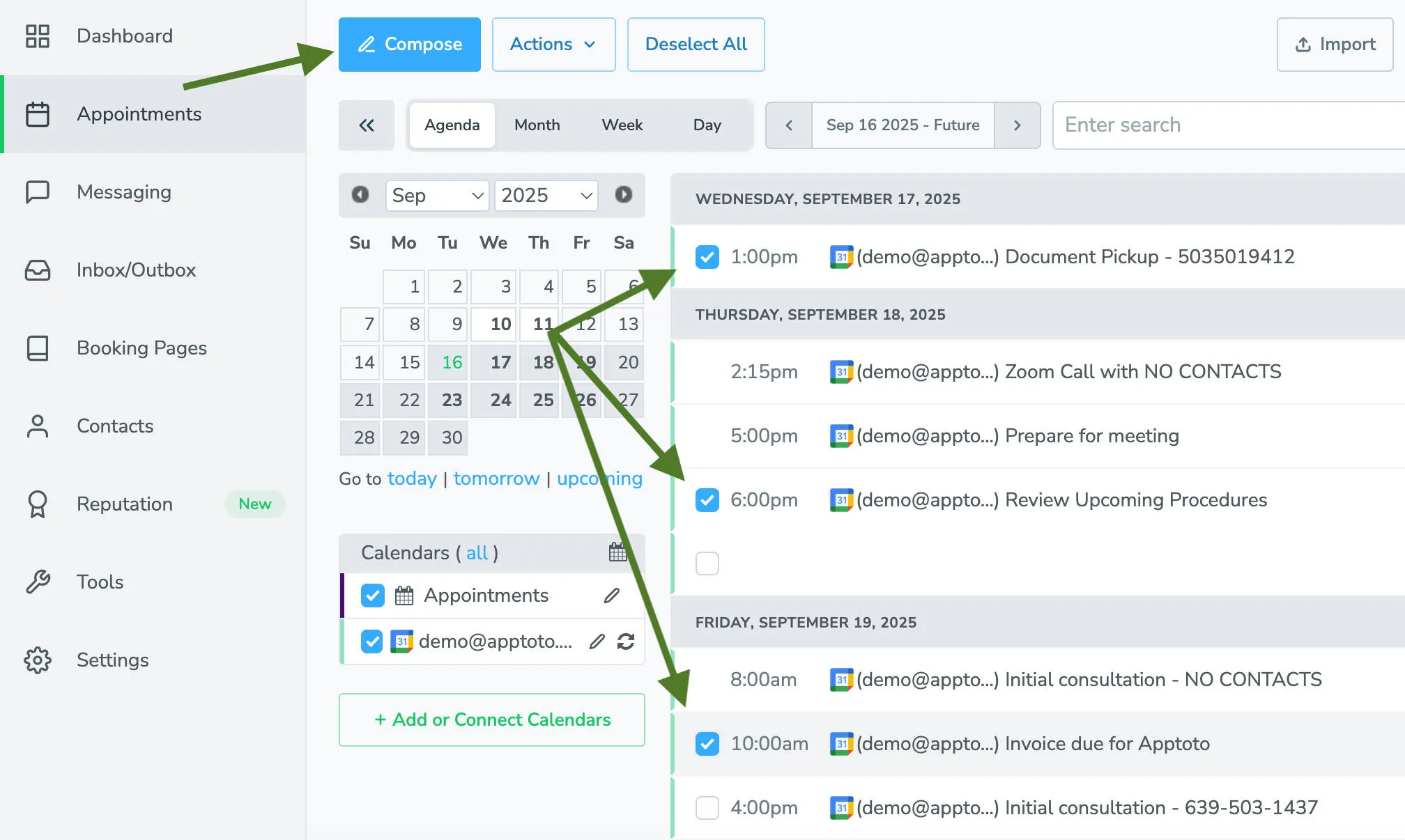
- Optional: Select appointments: Instead of adding individual contacts, select appointments using the checkboxes, then click Compose.
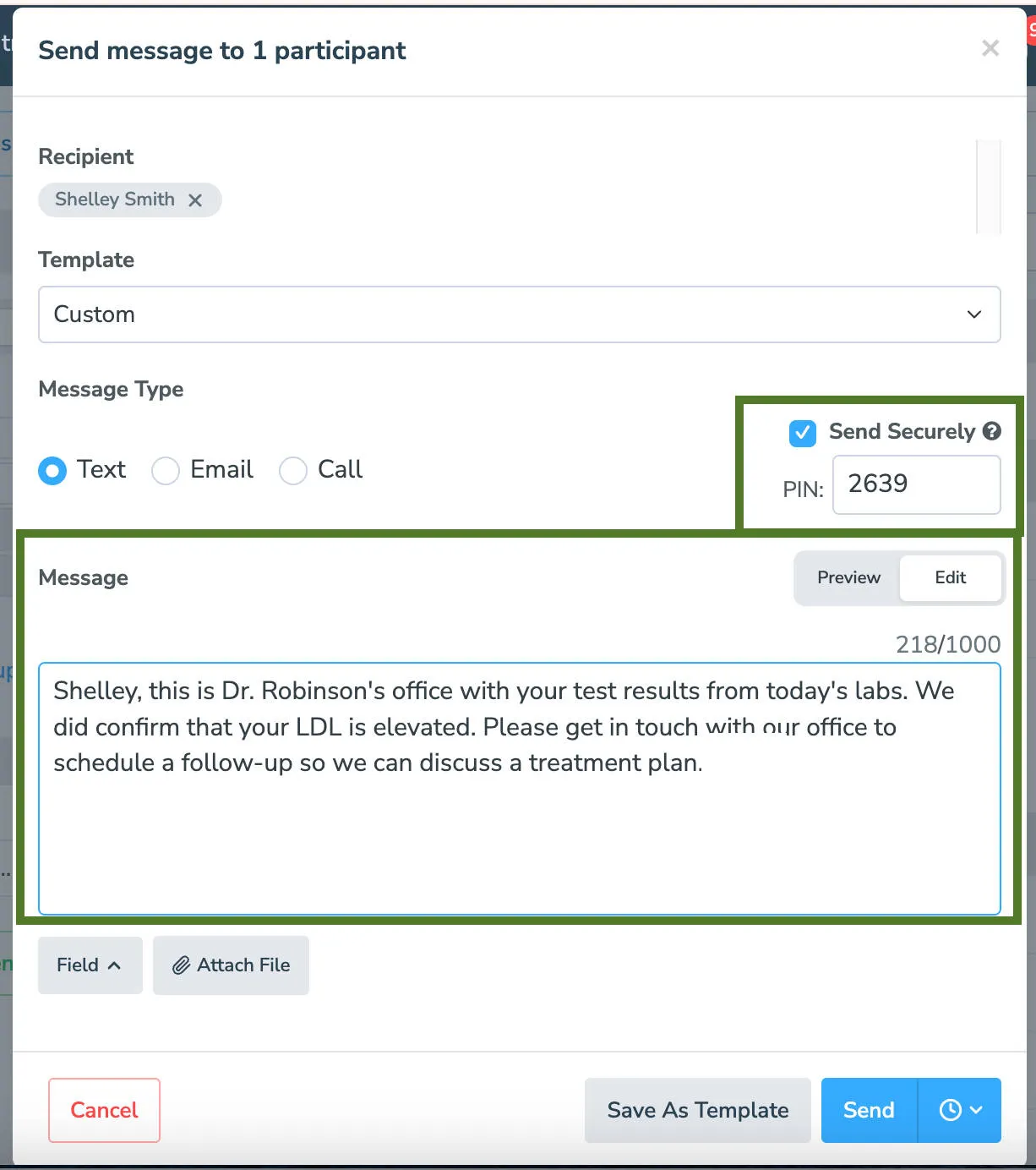
- Choose SMS or email: Secure Messaging does not support voice calls.
- Enable Send Securely: Check Send Securely. Optionally, add a PIN for the specific send.
- Edit and send: Click Edit to customize message content, then preview and send.
Customizable templates
Section titled “Customizable templates”Default secure link templates include:
- Subject:
You've received a secure message from {{ user.name_and_company }} - Body: Message notification with
{{ secure_link }}placeholder
Link expiration settings
Section titled “Link expiration settings”Links expire after 24 hours by default. Alternative timeframes include 10 days, 6 months, or 1 year. Expired links prompt users to request fresh ones automatically.
PIN protection
Section titled “PIN protection”Three PIN configuration options exist:
- Set a default PIN for all contacts via Messaging > Secure Messaging.
- Manually assign PINs to individual contacts in the Contacts tab.
- Use custom address book fields with dynamic PIN references.
See Secure Message Contact PINs for details.
Activity tracking
Section titled “Activity tracking”Access the Tools > Log section to monitor secure message activity. Email logs show open rates and PIN entries; SMS logs display PIN entry confirmation, indirectly confirming message viewing.
Compliance considerations
Section titled “Compliance considerations”While Secure Messaging protects sensitive data, full HIPAA compliance depends on your organization’s usage and policies.