
Auto Replies & Actions
You can set up Apptoto to automatically reply (or take other actions) when a client responds to one of your Auto Messages. You can set up Auto Replies for specific messages in a messaging sequence or for all messages.
Setting up Auto Replies for a specific message
Section titled “Setting up Auto Replies for a specific message”- Open the Message Editor: Go to Messaging > Appointment Auto Messages and click the message you want to edit.
- Add an auto reply: Near the bottom of the Message Editor, click + Add Auto-Reply.
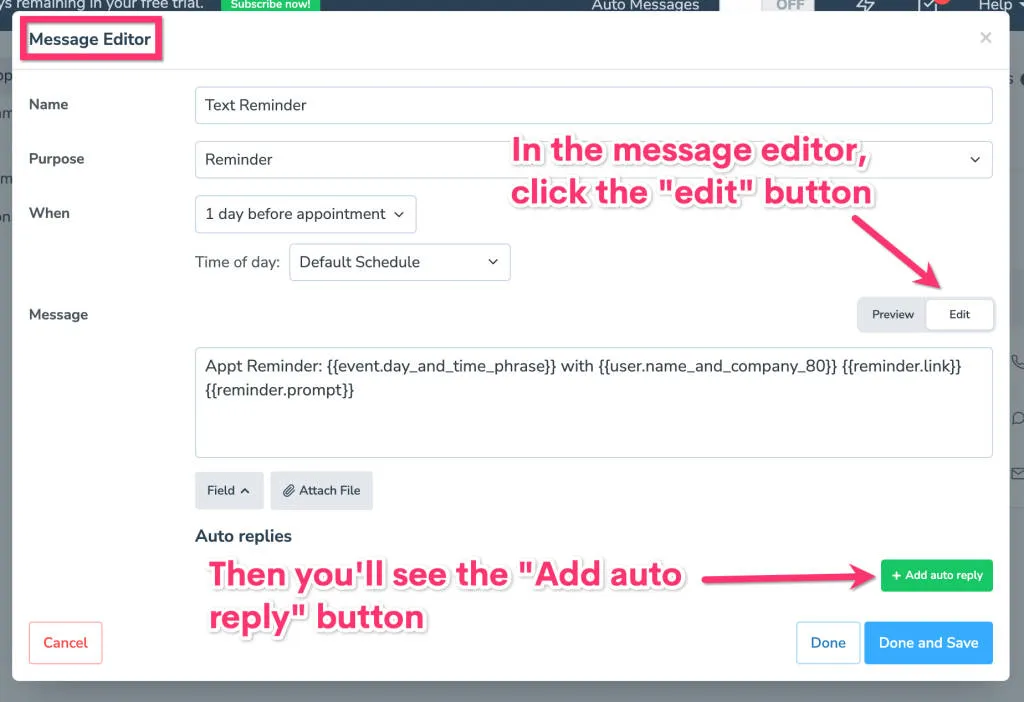
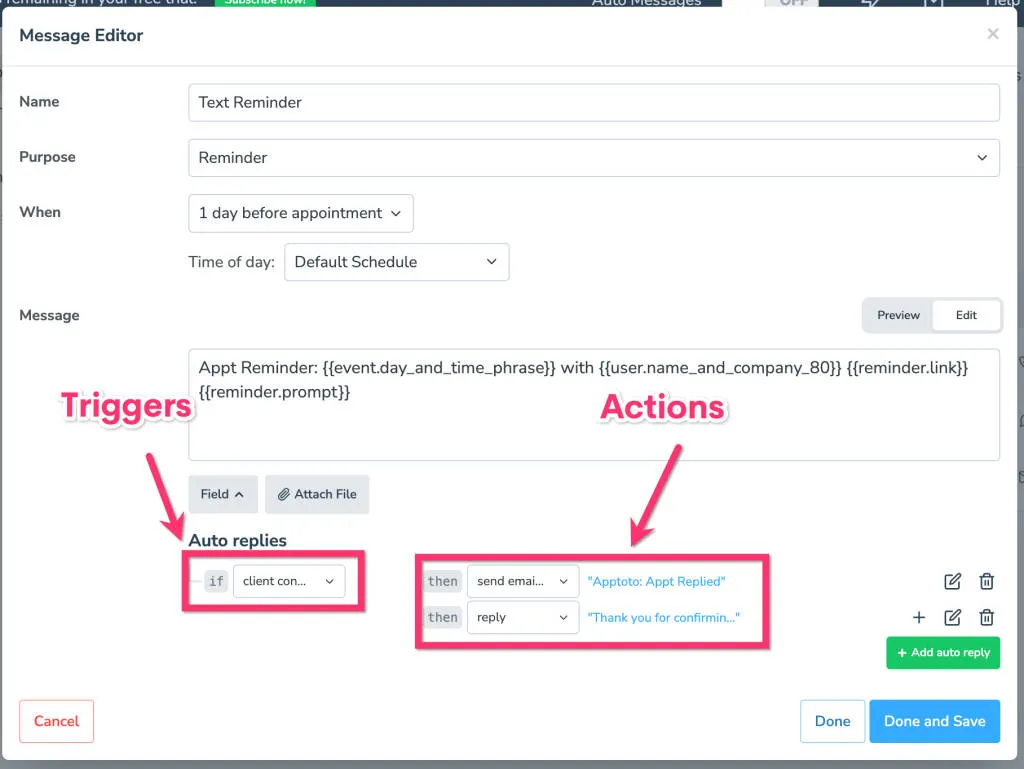
- Set a trigger: Choose from the available triggers (see table below)
- Set an action: Choose what Apptoto should do when the trigger fires (see table below).
- Save: Click Save to apply changes.
Each message can have multiple triggers, and each trigger can have multiple actions.
Setting up default Auto Replies for all messages
Section titled “Setting up default Auto Replies for all messages”Default auto-replies apply to every message in your schedule, not just a specific one.
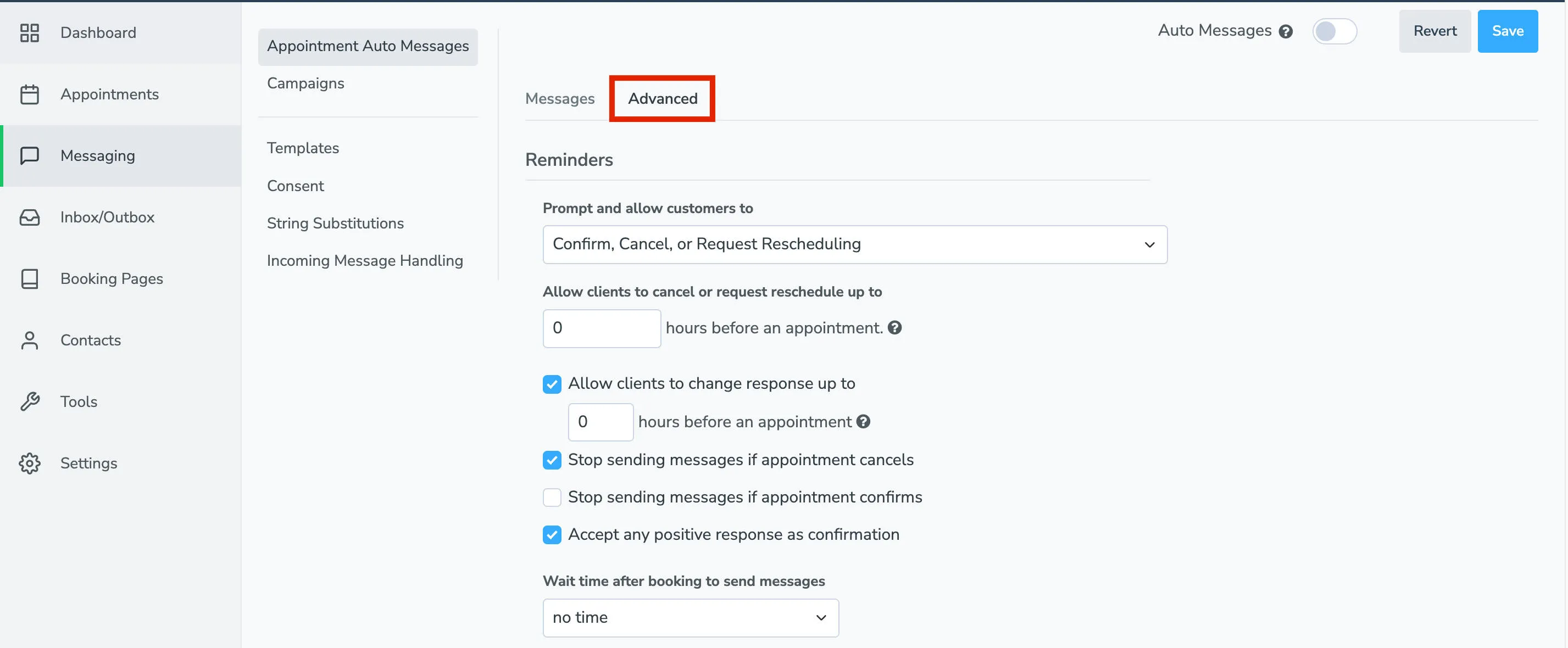
- Open Advanced Settings: Go to Messaging > Appointment Auto Messages > Advanced.
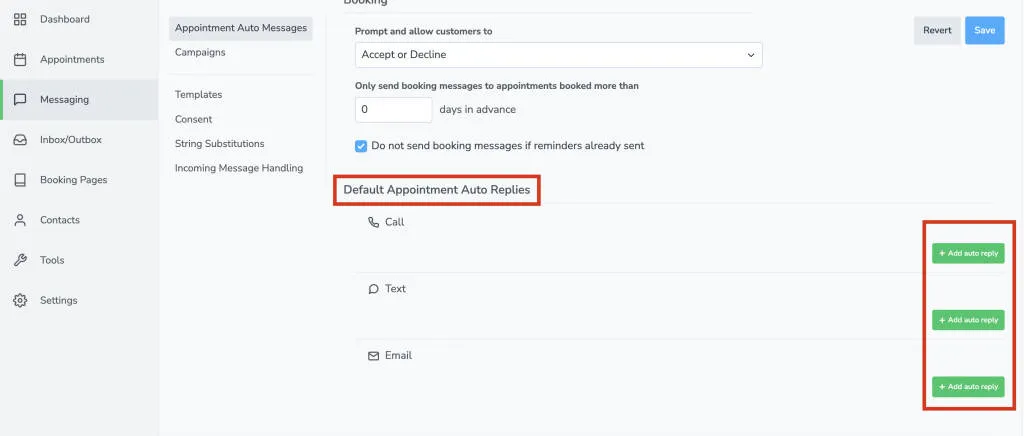
- Scroll to Default Appointment Auto Replies: Find the section at the bottom of the Advanced tab.
- Click + Add Auto Reply: A new reply is created. Click the edit icon to configure its trigger and action.
- Configure and save: Set the trigger and action for each default reply, then click Save.
Triggers
Section titled “Triggers”| Trigger | Description |
|---|---|
| reply is | Fires when the client replies with exactly the specified text (not case-sensitive) |
| reply includes | Fires when the reply contains a word or phrase |
| no response after X minutes | Fires if no reply is received within the specified time |
| message fails | Fires if the message cannot be delivered |
| client confirms | Fires when a client confirms via any method (default digit, appointment page, etc.) |
| client cancels | Fires when a client cancels via any method |
| client requests reschedule | Fires when a client requests a reschedule via any method |
| client accepts | Fires when a client accepts a booking message |
| client declines | Fires when a client declines a booking message |
| Trigger | Description |
|---|---|
| client dials | Fires when the client presses a specific digit |
| digit is not recognized | Fires when the client dials a digit that doesn’t match any trigger |
| no response | Fires if the client hangs up without dialing, doesn’t answer, or line is busy |
| call fails | Fires if the call cannot connect |
Actions
Section titled “Actions”| Action | Available For | Description |
|---|---|---|
| prompt | Calls | Respond to the client (during the same call) and then wait for the client to dial another digit. The same triggers will be re-used. To use a different set of triggers for the new prompt, consider using “transition to” instead. |
| say | Calls | Respond to the client (during the same call) and then hang up |
| repeat | Calls | Repeat the original message |
| forward | Calls | Forwards the call to the calendar owner or a different number. This feature is not available to all accounts, please contact support@apptoto.com if you want to use this action. |
| reply | SMS and Email | Reply with a SMS or Email message back to the client |
| do nothing | All | Do nothing. Used to override the default behavior if desired. |
| transition to | All | Transition to a different Auto Message by saying or sending its message, and using its triggers if the client replies again. Please note that the conditions of the other message will not be take into account (i.e. the transition will occur regardless of if the target message is still valid for the appointment). |
| enable message | All | Enable another message for the participant of the appointment. Use this instead of “transition to” if you want the timing options of the message to still be applied, or if you want the conditions to be considered. |
| disable message | All | Disable another message for the participant of the appointment. |
| send email notification | All | Send an email notification to the user or calendar owner (destination will be determined by the settings on the Settings > Notifications tab unless you override it with a custom “to” email address). |
| mark as confirmed | Reminders | Records the client as having confirmed the appointment, and adds [CONFIRMED] to the title of the appointment |
| mark as cancelled | Reminders | Records the client as having cancelled the appointment, and adds [NOT COMING] to the title of the appointment |
| mark as reschedule requested | Reminders | Records the client as having cancelled the appointment, and adds [RESCHEDULE] to the title of the appointment |
| mark as accepted | Booking | Records the client as having accepted the appointment, and adds [ACCEPTED] to the title of the appointment |
| mark as declined | Booking | Records the client as having declined the appointment, and adds [DECLINED] to the title of the appointment |
| disable default auto replies | Prevents any auto replies and actions specified in the “Default Auto Replies” section of the schedule from executing. Useful if you want most of the messages to behave in a certain way but only one or a few to not. You can set up the defaults for the majority of the messages, and then override them in the other messages. |
Default Triggers and Actions
Section titled “Default Triggers and Actions”Depending on the purpose of the original message, Apptoto will handle replies automatically for some responses.
Default triggers and actions are not performed if an auto-reply trigger matches the reply. (E.g., if you set up an auto reply that says “if reply includes ‘1’” then the default actions described in this section for “1” will not be performed).
This is useful if you want to override the default behavior. If you don’t want to override the default behavior, and simply want to add an action, then consider using one of the ‘client confirms’, ‘client cancels’, etc. triggers listed above.
Triggers and Actions for Reminders:
Section titled “Triggers and Actions for Reminders:”| Trigger | Call Type | Actions |
|---|---|---|
| replies “1” | SMS Reminders | Marks the appointment as confirmed and sends an email notification (if configured on Settings > Notifications tab) |
| dials “1” | Call Reminders | Same |
| replies “confirm” | Email Reminders | Same |
| replies “2” | SMS Reminders | Marks the appointment as cancelled and sends an email notification (if configured on Settings > Notifications tab) |
| dials “2” and then “2” | Call Reminders | Same |
| replies “cancel” | Email Reminders | Same |
| replies “3” | SMS Reminders | Marks the appointment as reschedule requested and sends an email notification (if configured on Settings > Notifications tab) |
| dials “2” and then “1” | Call Reminders | Same |
| replies “reschedule” | Email Reminders | Same |
Triggers and Actions for Booking messages:
Section titled “Triggers and Actions for Booking messages:”| Trigger | Call Type | Actions |
|---|---|---|
| replies “1” | SMS Booking | Marks the appointment as accepted and sends an email notification (if configured on Settings > Notifications tab) |
| dials “1” | Call Booking | Same |
| replies “accept” | Email Booking | Same |
| replies “2” | SMS Booking | Marks the appointment as declined and sends an email notification (if configured on Settings > Notifications tab) |
| dials “2” | Call Booking | Same |
| replies “declined” | Email Reminders | Same |
Triggers and Actions for all messages:
Section titled “Triggers and Actions for all messages:”| Trigger | Call Type | Actions |
|---|---|---|
| replies “STOP”, “END”, “QUIT”, or “UNSUBSCRIBE” | SMS messages | Phone number is added to stop list |
| replies “STOP”, or “UNSUBSCRIBE” | Email messages | Email address is added to stop list |
| dialing 9 | Calls | Phone number is added to stop list |
Going on the stop list this way always happens, whatever your auto replies say. Coming back off it is a separate matter: a client who replied STOP by mistake gets back on by texting SUBSCRIBE to your Apptoto number, which relies on an auto reply you can edit. See Stoplists.