
Appearance
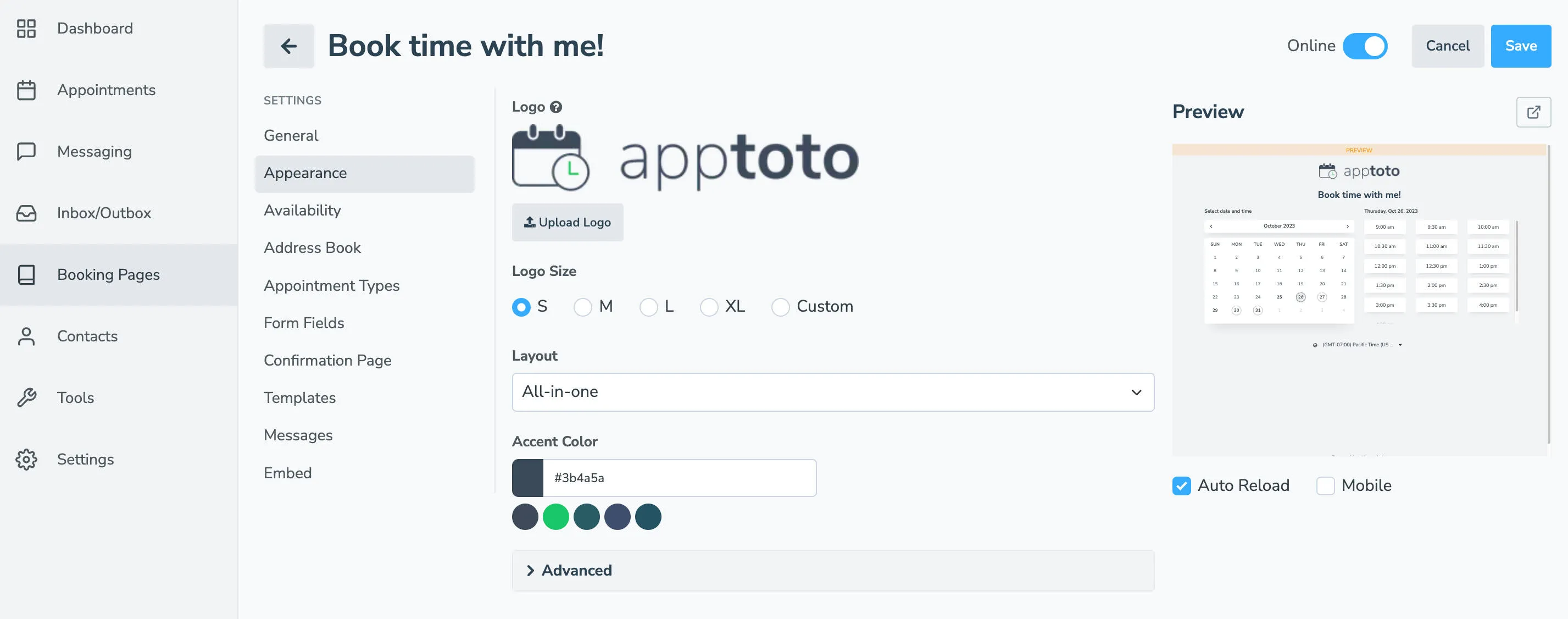
Every booking page has an Appearance tab where you control how the page looks to clients. You can also configure what happens after a booking is submitted and what messages clients receive.
Logo & logo size
Section titled “Logo & logo size”Click Upload Logo to add your business’s logo to your booking page. Use the Logo Size setting to control how large it appears on the page.
Layout
Section titled “Layout”Choose from the following layouts in the Layout dropdown:
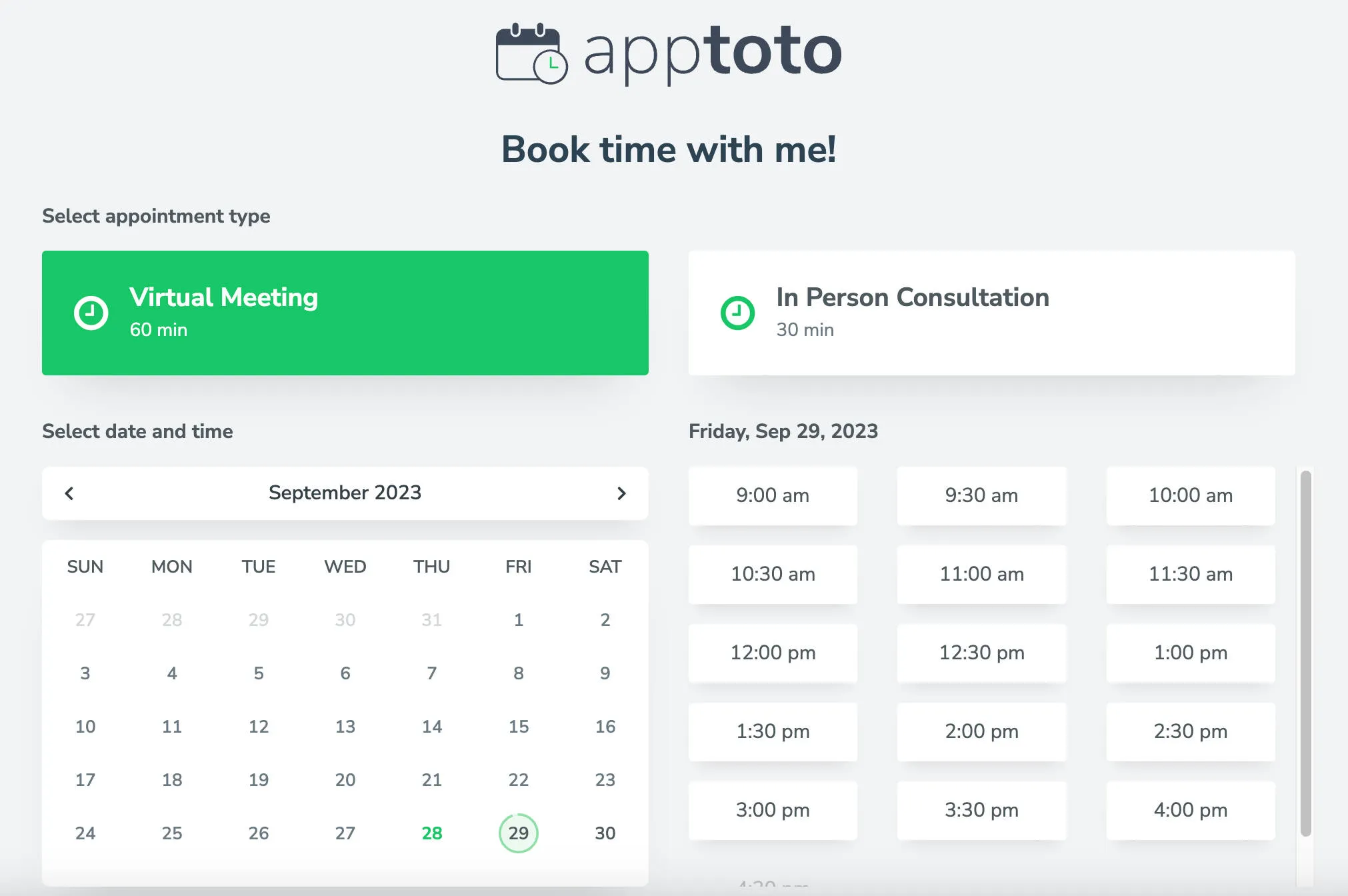
Combines appointment type selection and time picking in a single view (recommended for new pages)
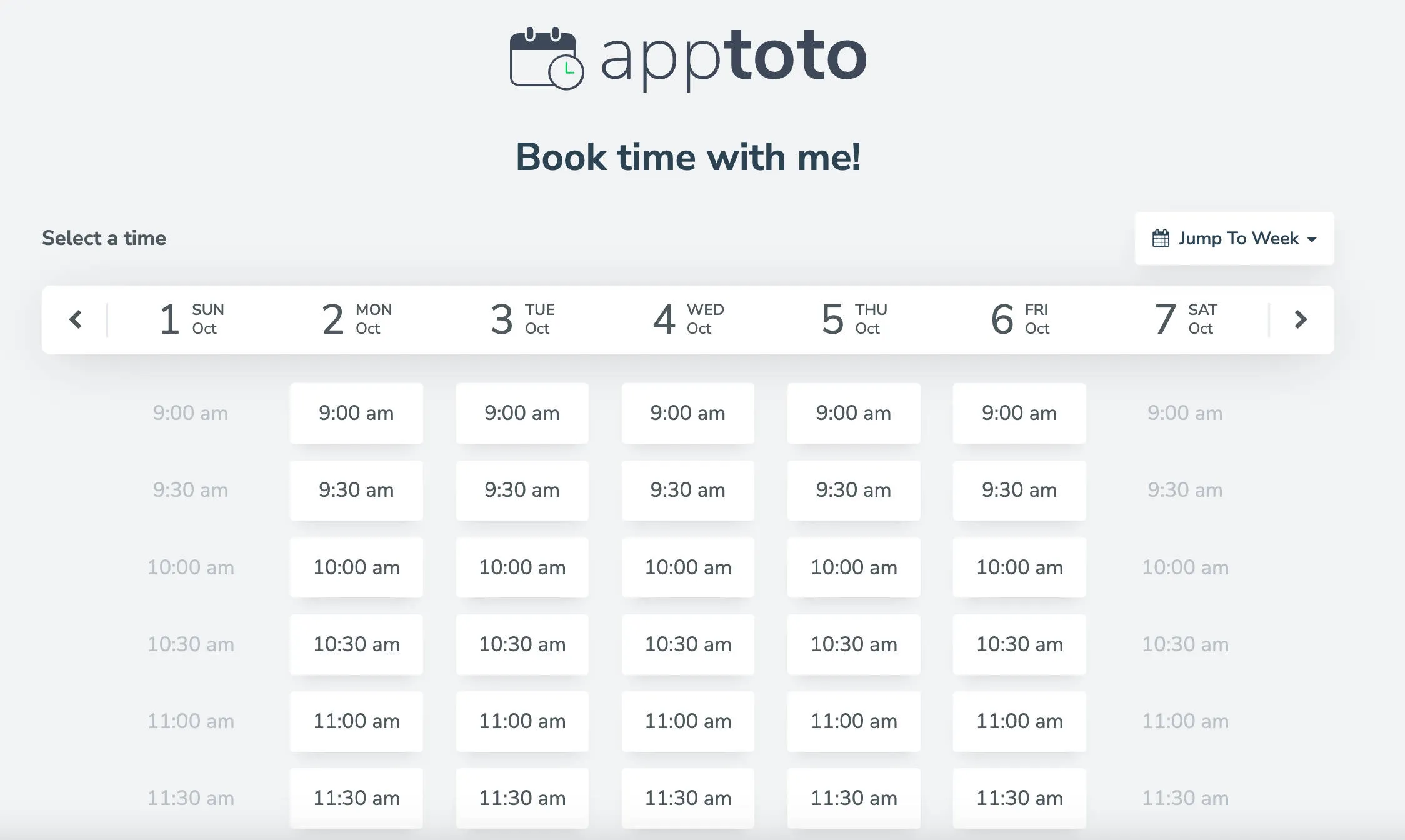
Shows an entire week of available times at once
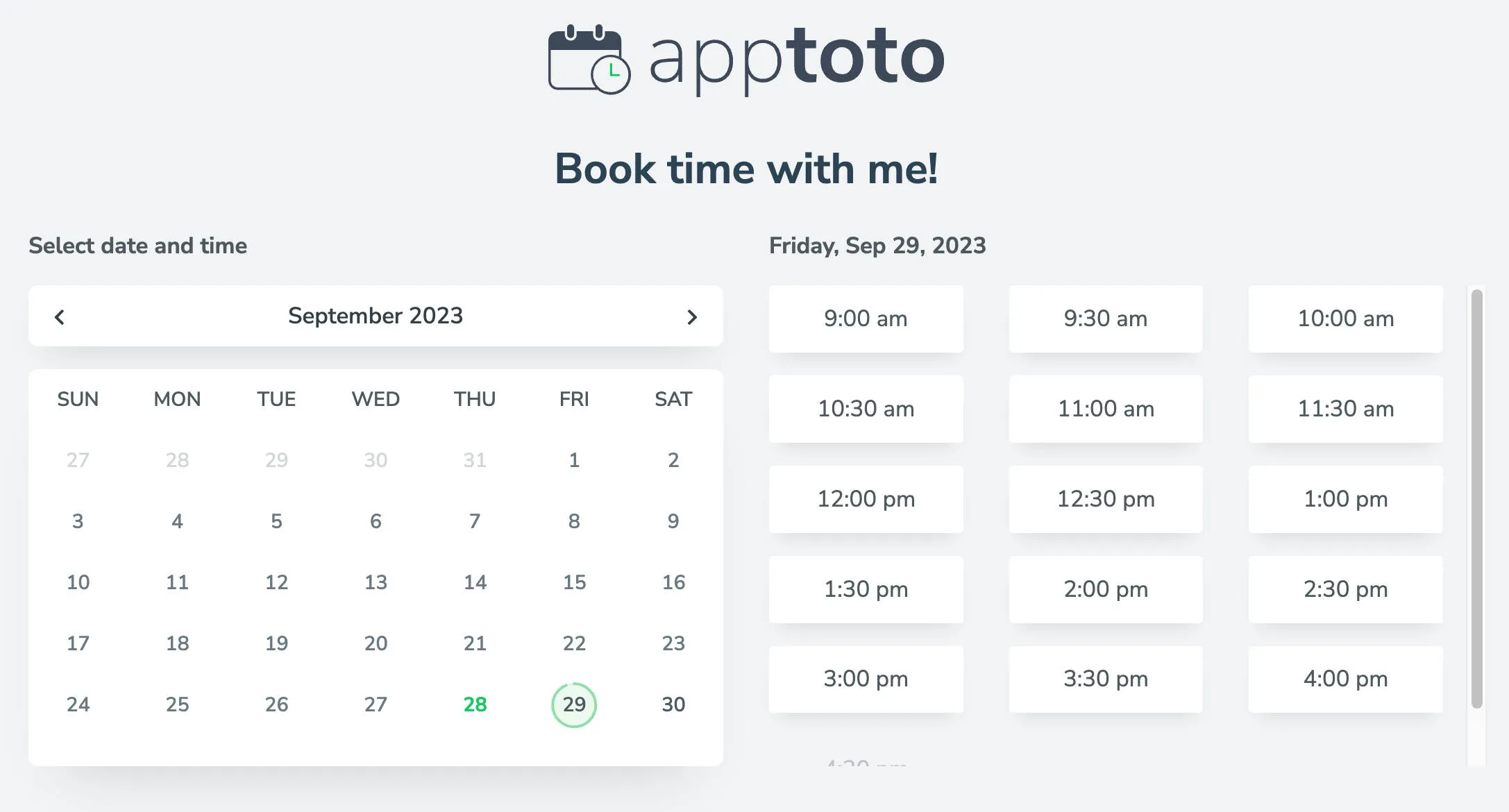
Shows a monthly calendar for date selection
Original single-column layout
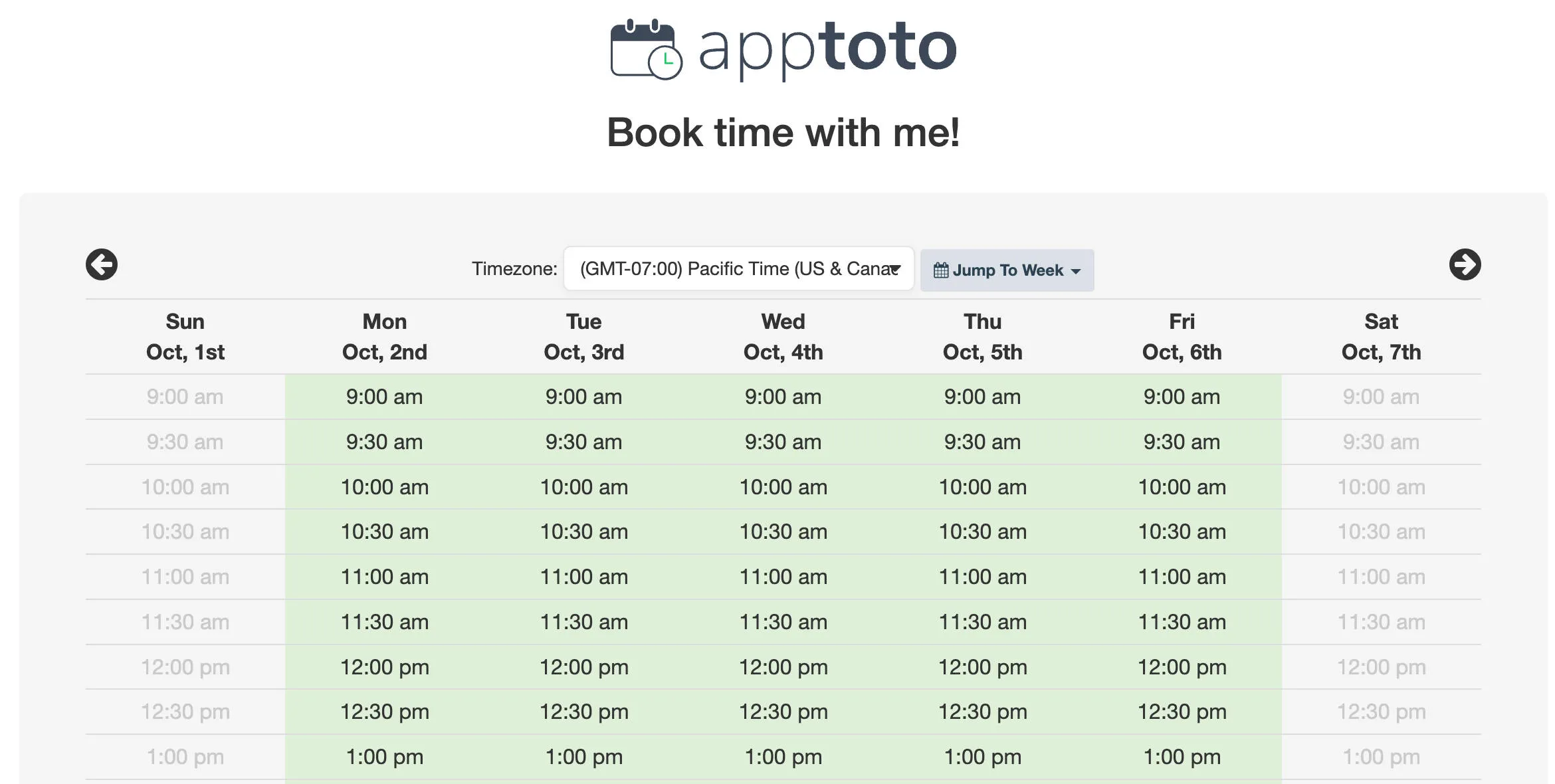
Older single-column layout with content editing
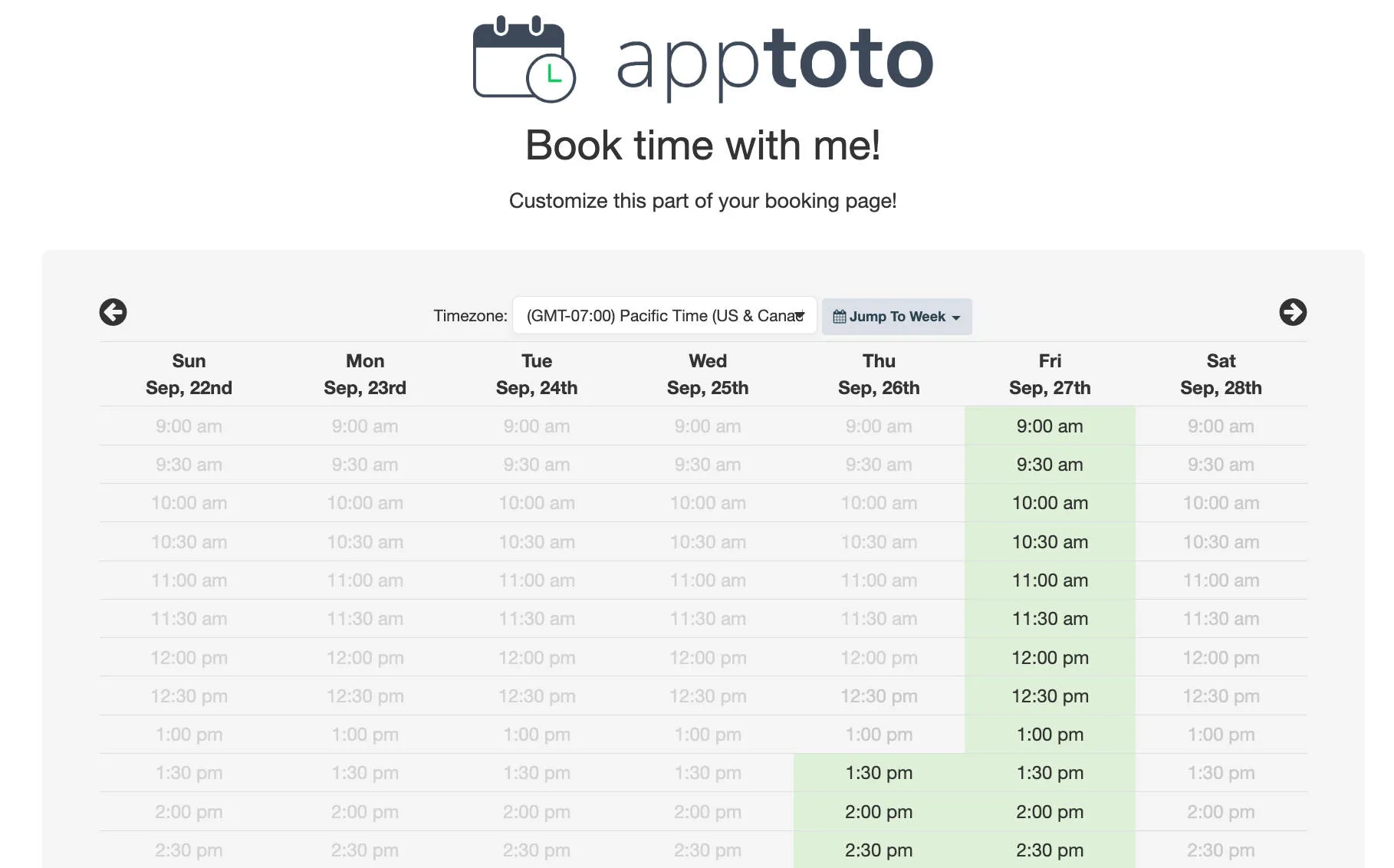
Two-column layout with editable left and right column content
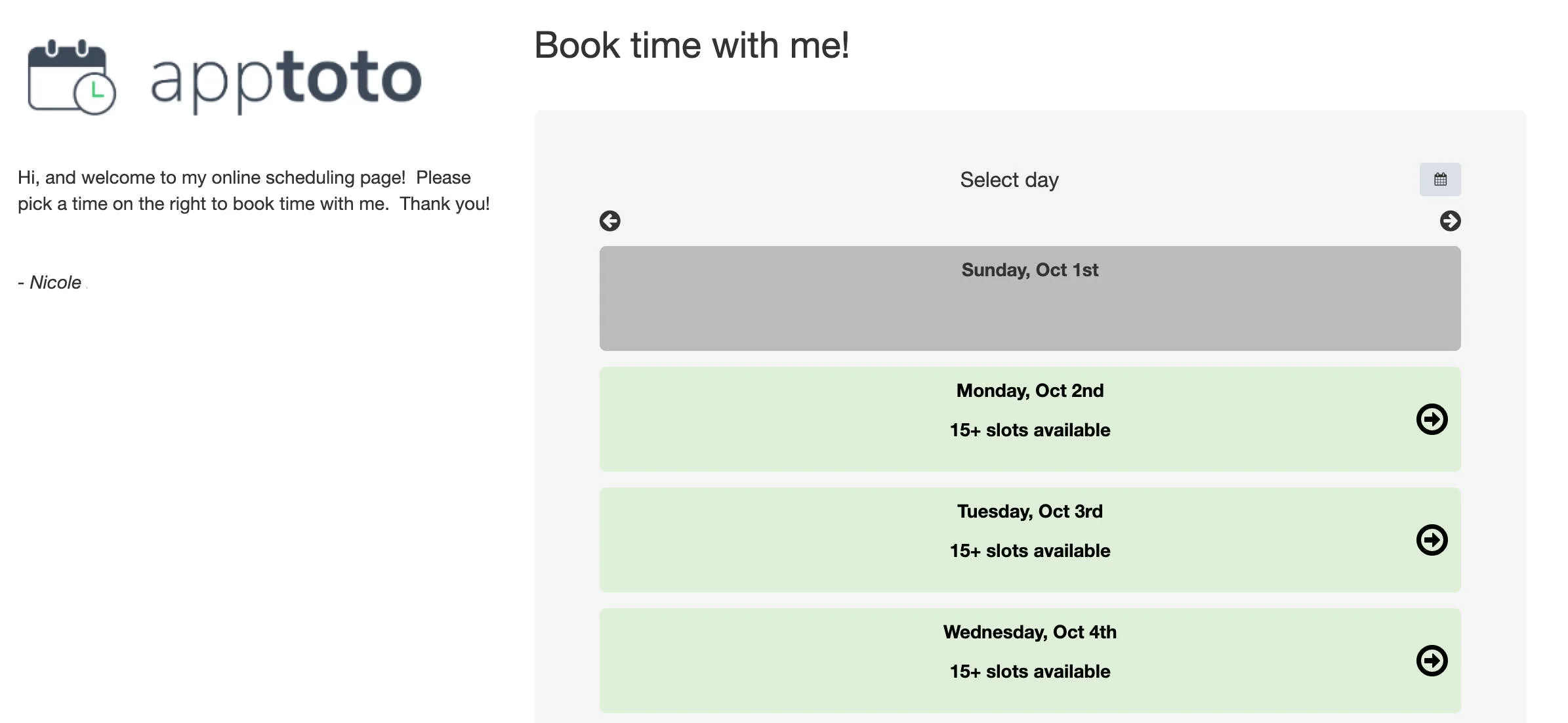
Two-column layout with equal-width columns
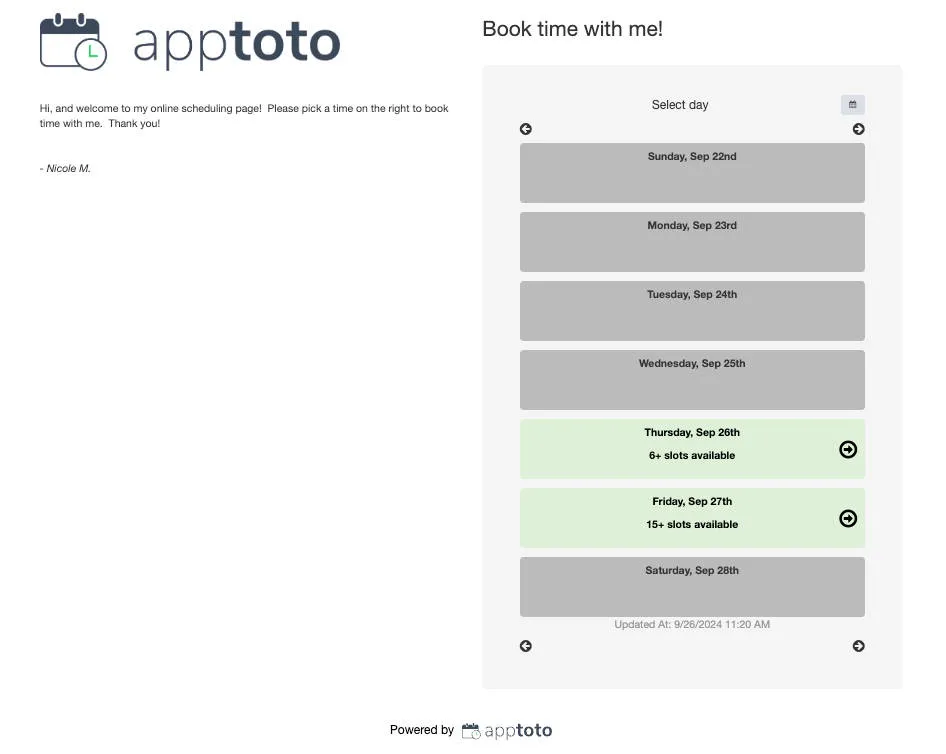
Accent color
Section titled “Accent color”On the newer layouts (All-in-One, Week View, Month View), choose an Accent Color that highlights selectable appointment times when clients hover over them. This is typically set to match your brand color.
Colors and fonts (legacy layouts)
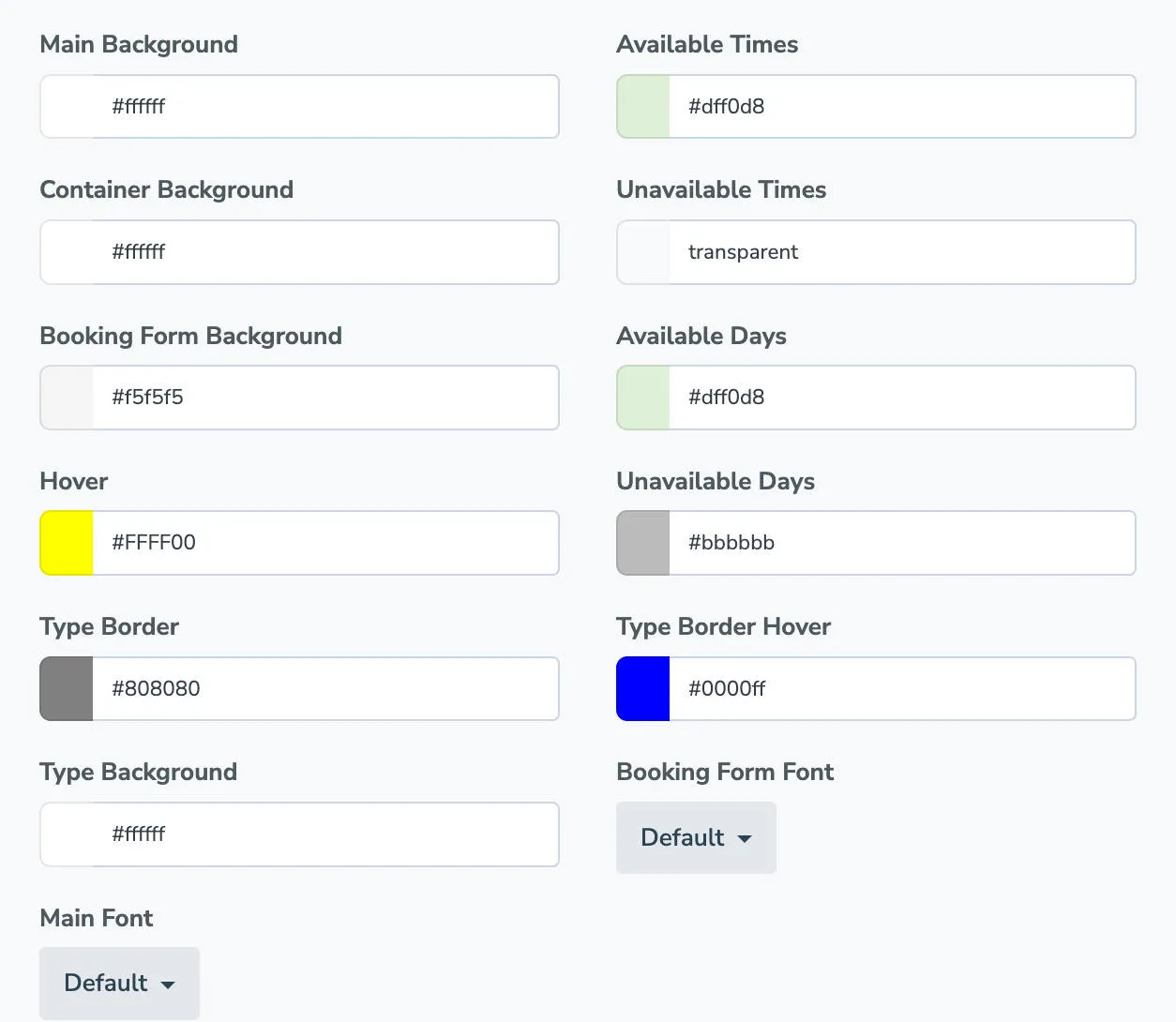
Section titled “Colors and fonts (legacy layouts)”Legacy layouts expose individual color pickers for page elements: background, text, header, button color, and more. You can also set custom font styles for these layouts.
Advanced Settings
Section titled “Advanced Settings”| Setting | What it does |
|---|---|
| Hide Unavailable Times | When toggled off, hides time slots you’re not available (not available on legacy layouts) |
| Remove “Powered by Apptoto” | Removes the Apptoto branding from the booking page footer (not available on free trial or Starter plans) |
| Custom CSS | Paste CSS to override specific styles — for example, .logo-img { max-width: 150px; } |