Availability
The Booking Page > Availability page lets you specify when you should appear as available on your booking page.
Standard Availability Settings
Section titled “Standard Availability Settings”Calendar
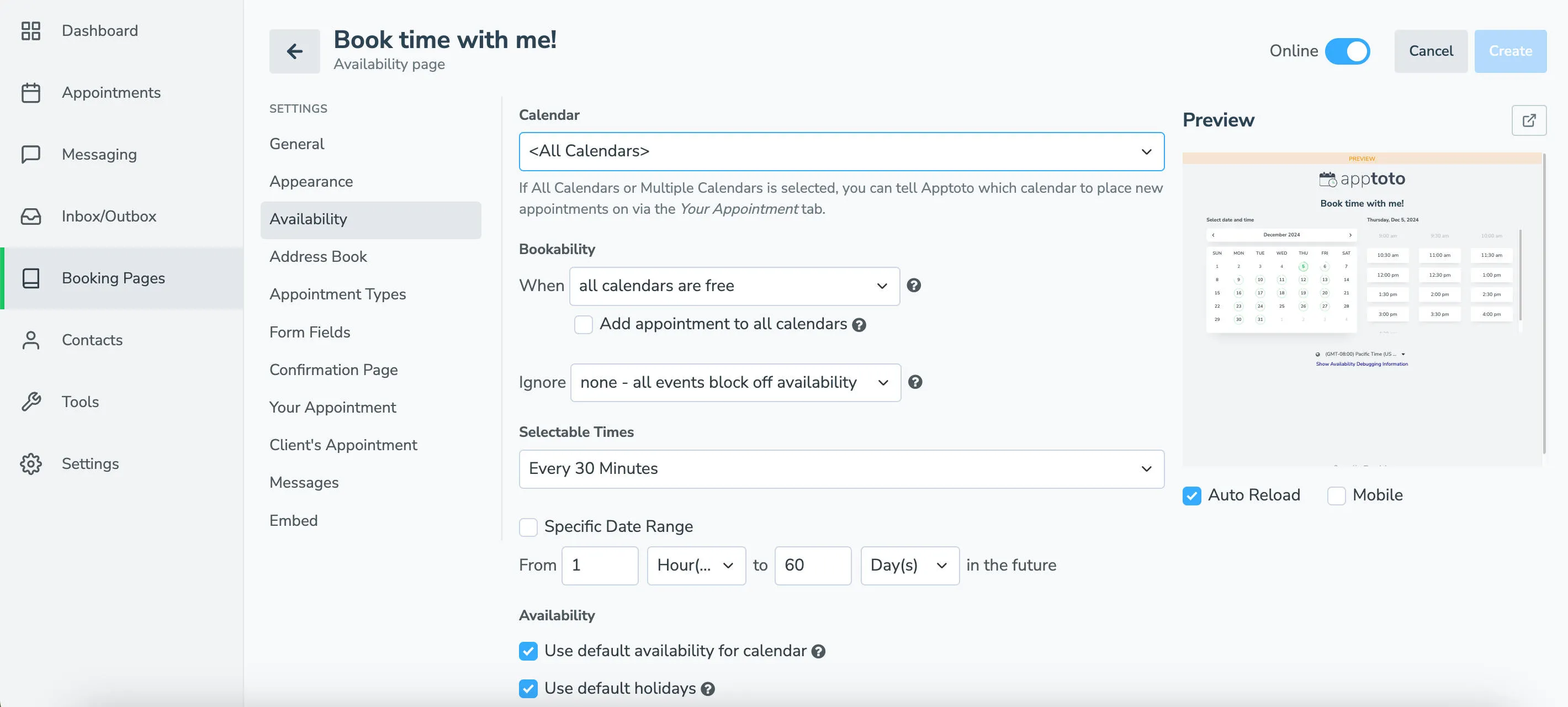
Section titled “Calendar”Select which calendar Apptoto assigns new appointments to and checks for conflicts. If you want to connect multiple calendars to a page, see our article on Multiple Calendar Support.
Bookability
Section titled “Bookability”The When and Ignore settings give you fine-grained control over what counts as “available.”
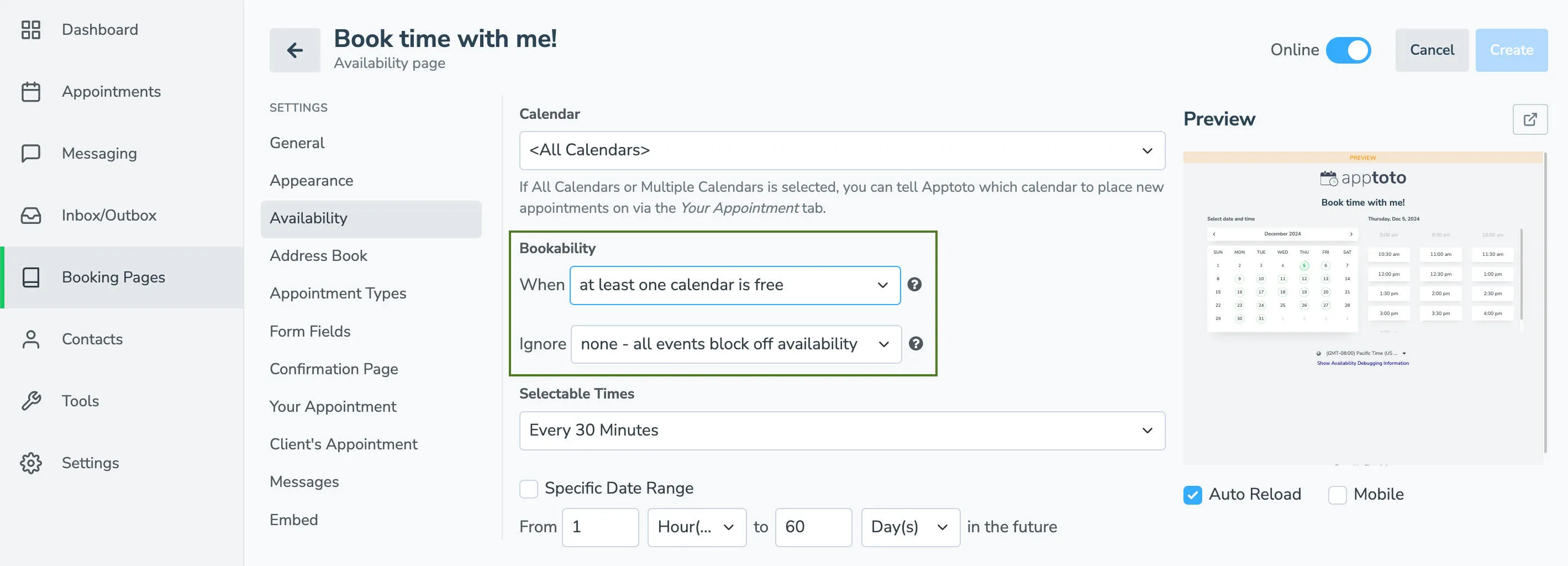
WHEN - when to show a time slot as available:
- At least one calendar is free: Apptoto will show availability whenever one or more of the calendars checked are free.
- All calendars are free: Apptoto will only show availability whenever all of the calendars are free at a specific time.
- Appointment exists on any calendar with specific title: Apptoto will show availability whenever one or more calendars have an appointment with an exact title, and are free.
- Appointment exists on any calendar and title includes: Apptoto will show availability whenever one or more calendars have appointments that include a specific keyword, whether independently or tucked in with other info.
- Appointment exists on any calendars and matches condition: Apptoto will show availability whenever one or more calendars have an appointment that matches specific criteria beyond simple keywords, operating similarly to the Rules feature of the Auto Messages tab.
- Appointment exists on all calendars with specific titles: Apptoto will show availability whenever all calendars have an appointment with an exact title and are free.
- Appointment exists on all calendars with titles that include: Apptoto will show availability whenever all calendars have appointments that include a specific keyword, whether independently or tucked in with other info.
- Appointment exists on all calendars that match condition: Apptoto will show availability whenever all calendars have an appointment that matches specific criteria beyond simple keywords, operating similarly to the Rules feature of the Auto Messages tab.
IGNORE - when to treat existing calendar events as non-blocking:
- Ignore None – all events block off availability: By default, Apptoto will block off availability on your calendar if you have any appointments on your calendar at that time
- Events with a Specific Title: This allows Apptoto to ignore certain events on your calendar with an exact title (e.g.: Lunch or “Check Email” task) and will allow appointments to be scheduled during that time.
- Events whose Title Includes: This allows Apptoto to ignore certain events on your calendar with certain keywords in the title and will allow appointments to be scheduled during that time.
- Events that Match a Condition: This allows Apptoto to ignore certain events on your calendar that match specific criteria beyond simple keywords. This will allow appointments to be scheduled during those times.
The When options are different if multiple calendars are connected. See Multiple Calendar Support for more information.
Selectable Times
Section titled “Selectable Times”Controls the time slot increments clients see. Options include every 15, 30, or 60 minutes, a custom interval (divisible by 5 minutes), or Specific Times where you manually add each available slot per day.
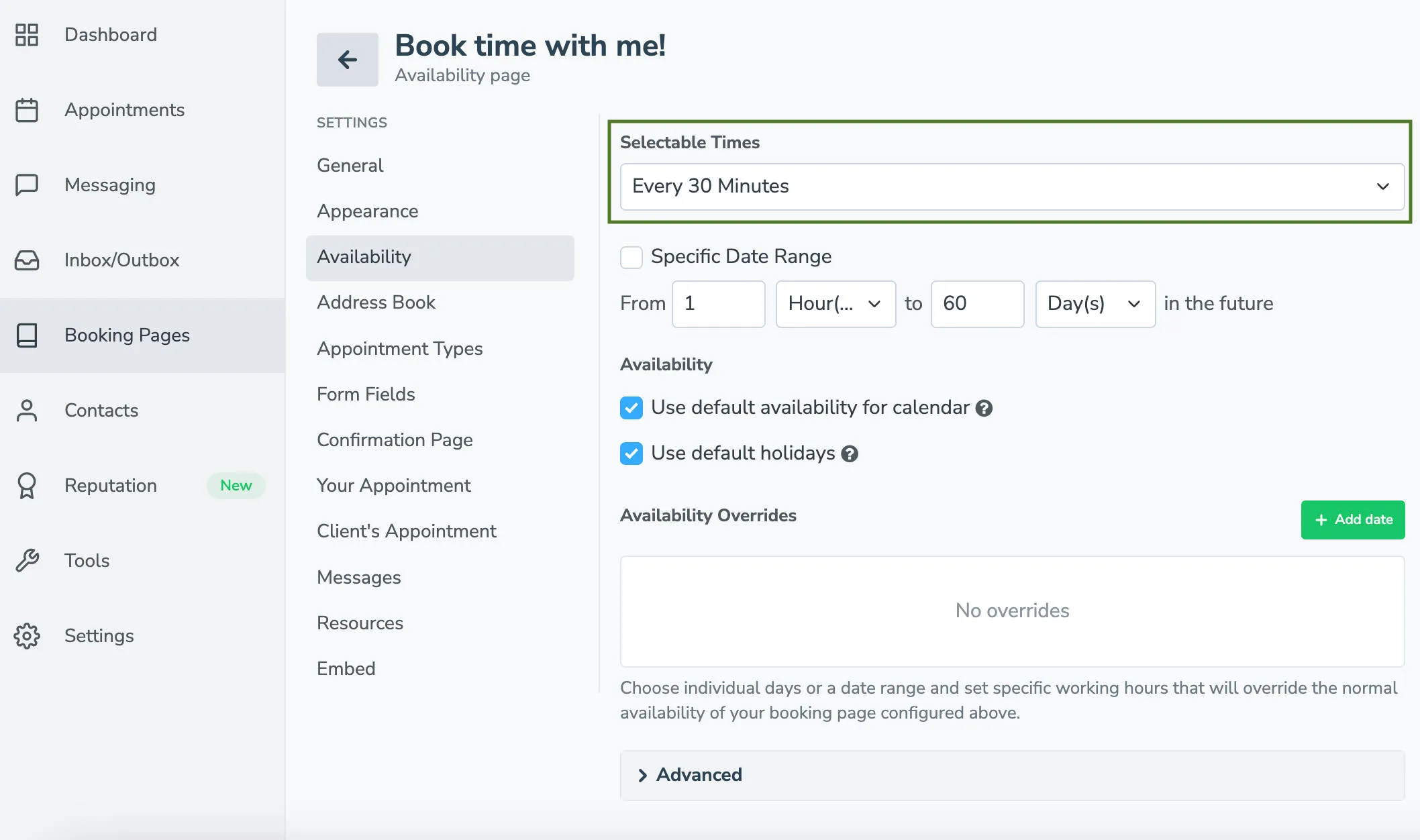
By default, the option is set to Every 30 Minutes This means clients can choose a start time in 30-minute increments. For example, they can choose 8:00 a.m., 8:30 a.m., 9:00 a.m., etc. If you change this to Every 60 Minutes, they can choose 8:00 a.m., 9:00 a.m., 10:00 a.m., etc. There are several preset options you can choose from.
Specific Times
Section titled “Specific Times”The Specific Times option will allow you to select each available slot on any given day. Clicking the + button lets you select a time you are available and add it to a specific day or to all days.
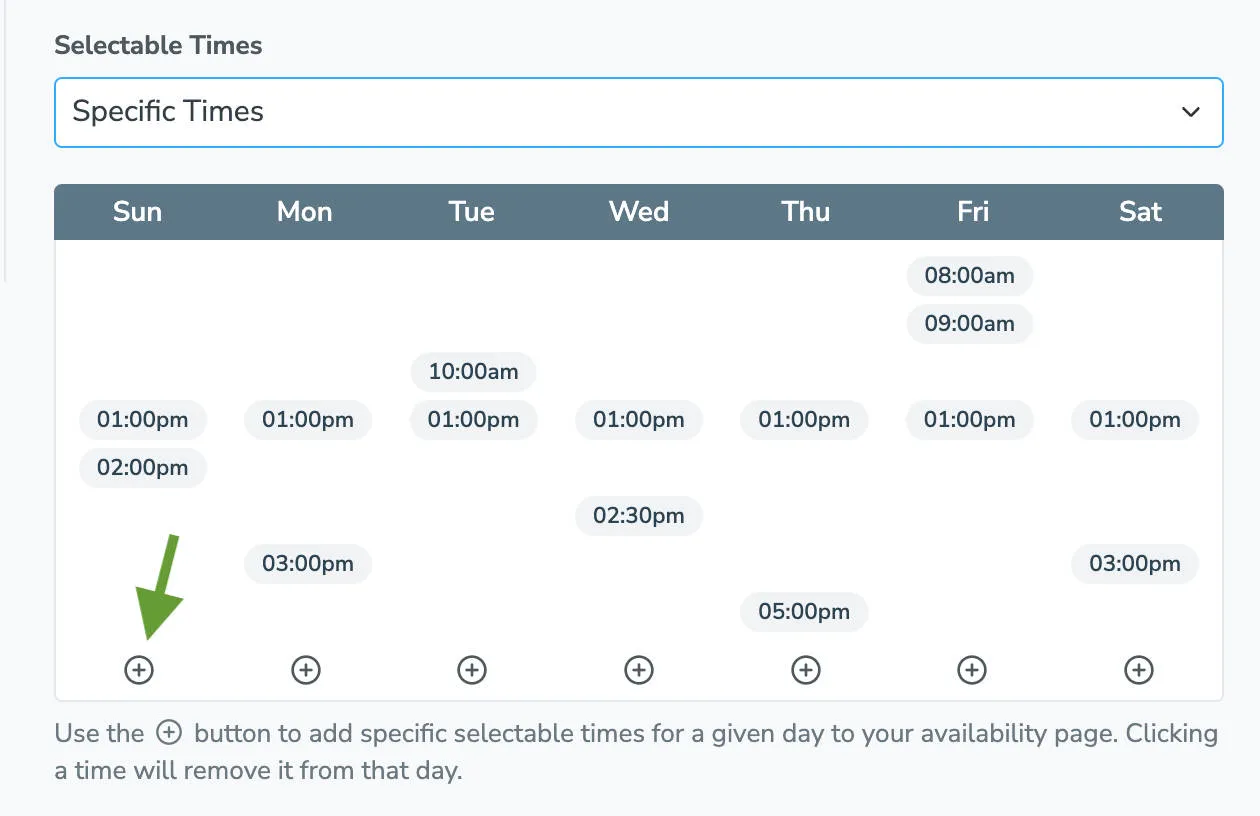
If you want to remove a time from your Specific availability, hover over the time, and a red X will appear. Click this, and the time will be removed from your availability.
Setting Up Multiple Ranges Using Selectable Times
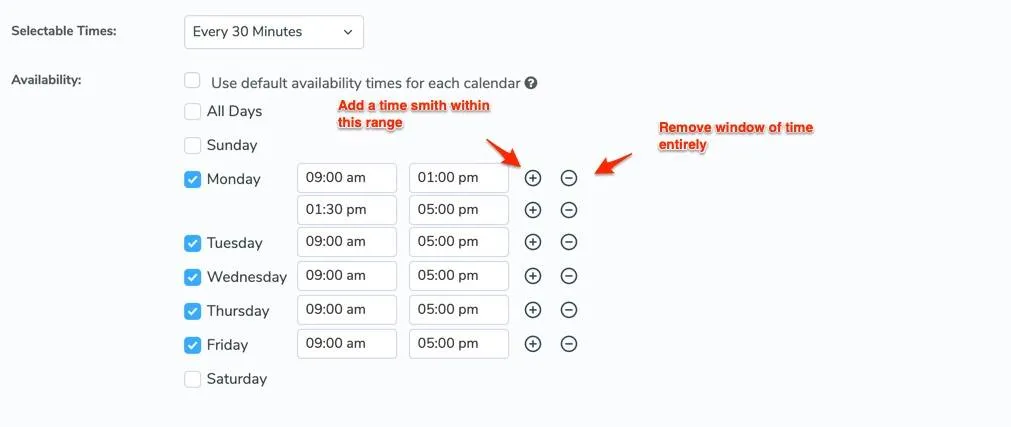
Section titled “Setting Up Multiple Ranges Using Selectable Times”Using any other option than the “Specific Times” will allow you to set up multiple ranges or windows of time that will be shown as bookable slots. This is handy for setting up a lunch hour that your clients are not able to book:
Date Range
Section titled “Date Range”Set how far in advance clients can book:
- From…To: a rolling window (e.g., 1 hour to 60 days in the future)
- Specific Date Range: fixed start and end dates (e.g., 9/15/2027 to 12/24/2027)
Availability hours
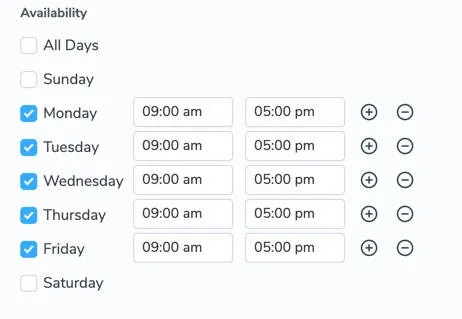
Section titled “Availability hours”By default, Apptoto uses your hours of availability set for each linked calendar (Settings > Calendar > Select Calendar > Scheduling tab). Uncheck “Use default availability” for each calendar to override hours specifically for this booking page.
To close specific days, uncheck “All Days” and then check only the days you want available.

Holidays
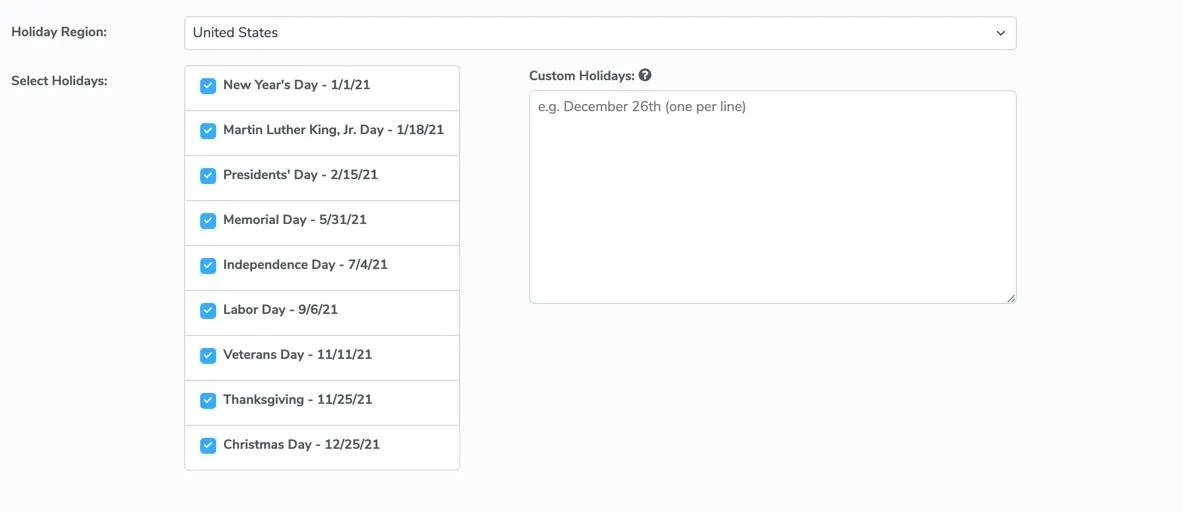
Section titled “Holidays”Apptoto can automatically block holidays. By default, it uses your account-level holiday settings (Settings > Holiday). To set holidays per page:
-
Navigate to Booking Pages > Availability. Uncheck Use default holidays.
-
Select your Holiday Region, choose which holidays to observe, and add any Custom Holidays.
Availability Overrides
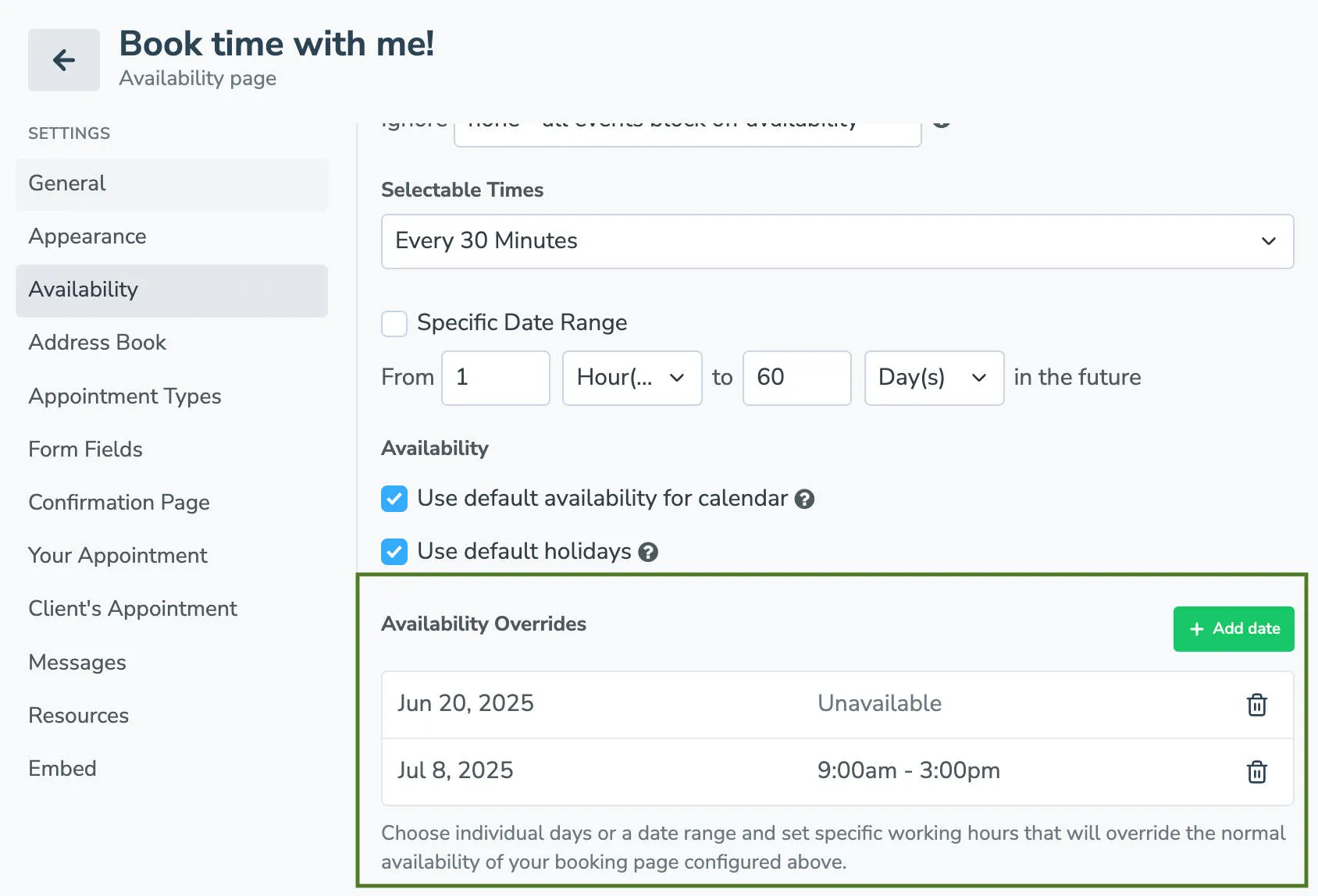
Section titled “Availability Overrides”Overrides let you change your hours for specific dates — useful for early closures, vacations, or seasonal schedules.
For example, if you know you will be leaving early on a specific Friday for a trip, you can create an override for that specific Friday with the start time as 9 a.m. and the stop time as 1 p.m. They also allow you to remove availability for a specific date easily. For example, if you will be out of the office on vacation for a week, you can create an override for that specific week that removes all availability.
-
Navigate to Booking Pages > Availability. Click Add Override.
-
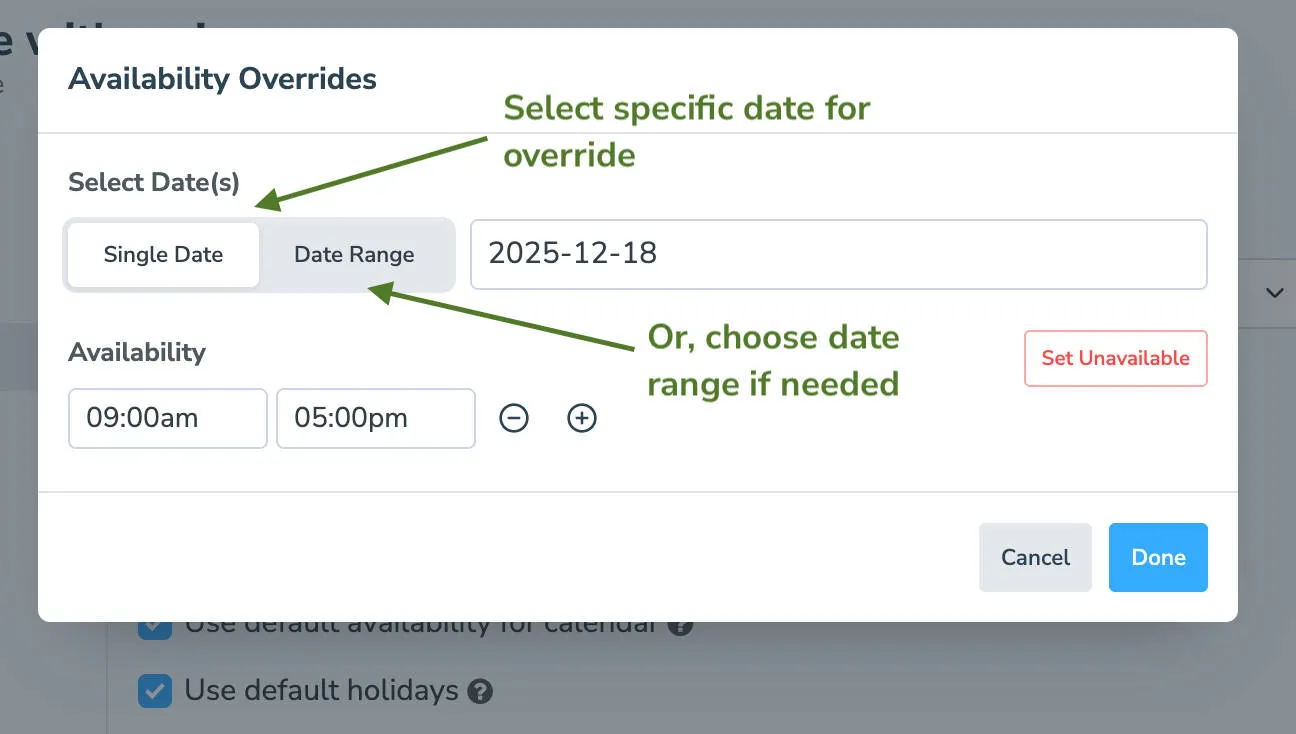
Choose a single date or date range for the availability.
-
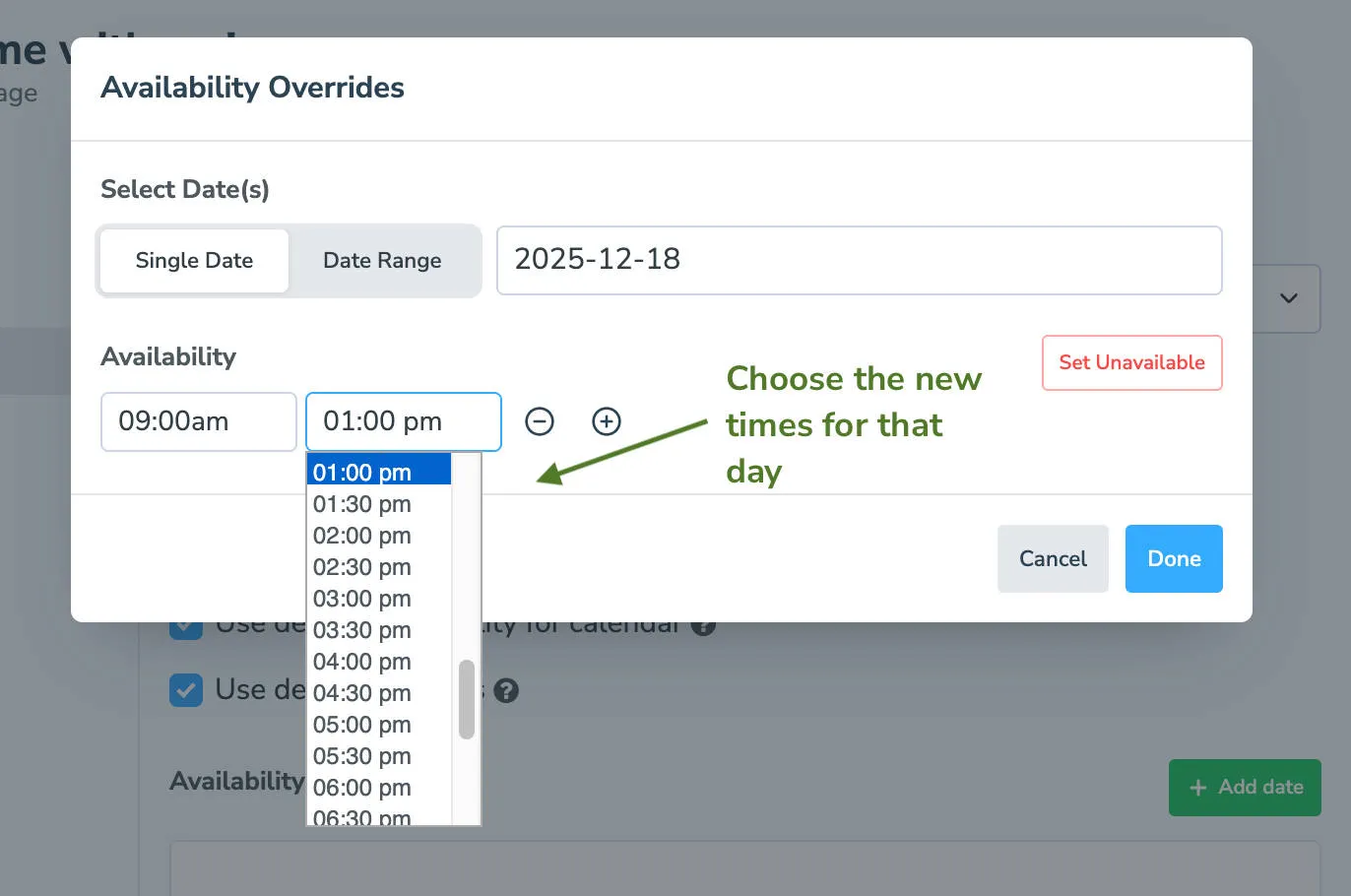
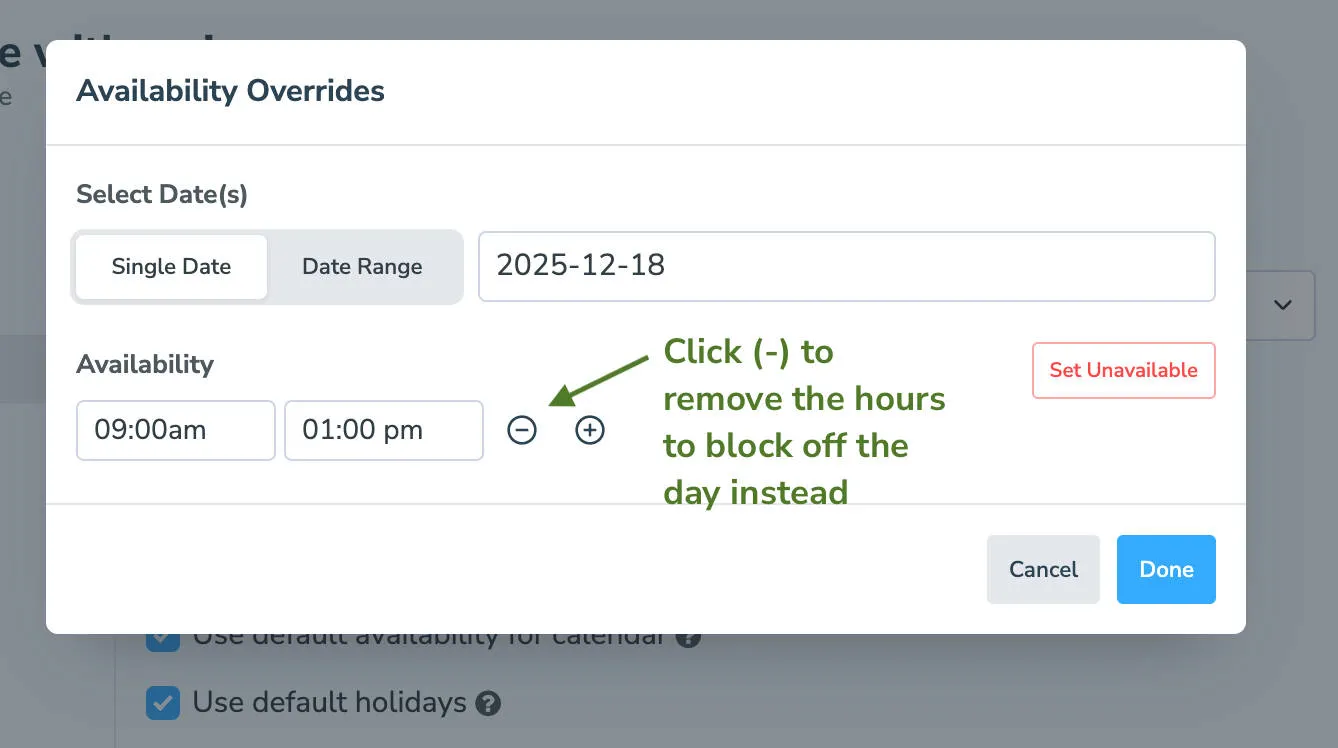
Set new hours by entering the start and stop times you’ll be available on for those dates. To mark yourself completely unavailable, click the - button to remove all hours.
-
Click Done to save your changes.
Seasonal availability
Section titled “Seasonal availability”To set up a completely different schedule for a season or date range, create an seasonal override and enter the new hours. You can stack multiple overrides with different date ranges on the same page.
Booking more than one appointment at a time
Section titled “Booking more than one appointment at a time”By default a time slot disappears from your booking page as soon as one client books it. To let a slot hold more than one appointment, set Allow up to X appointments at a time on the Availability tab.
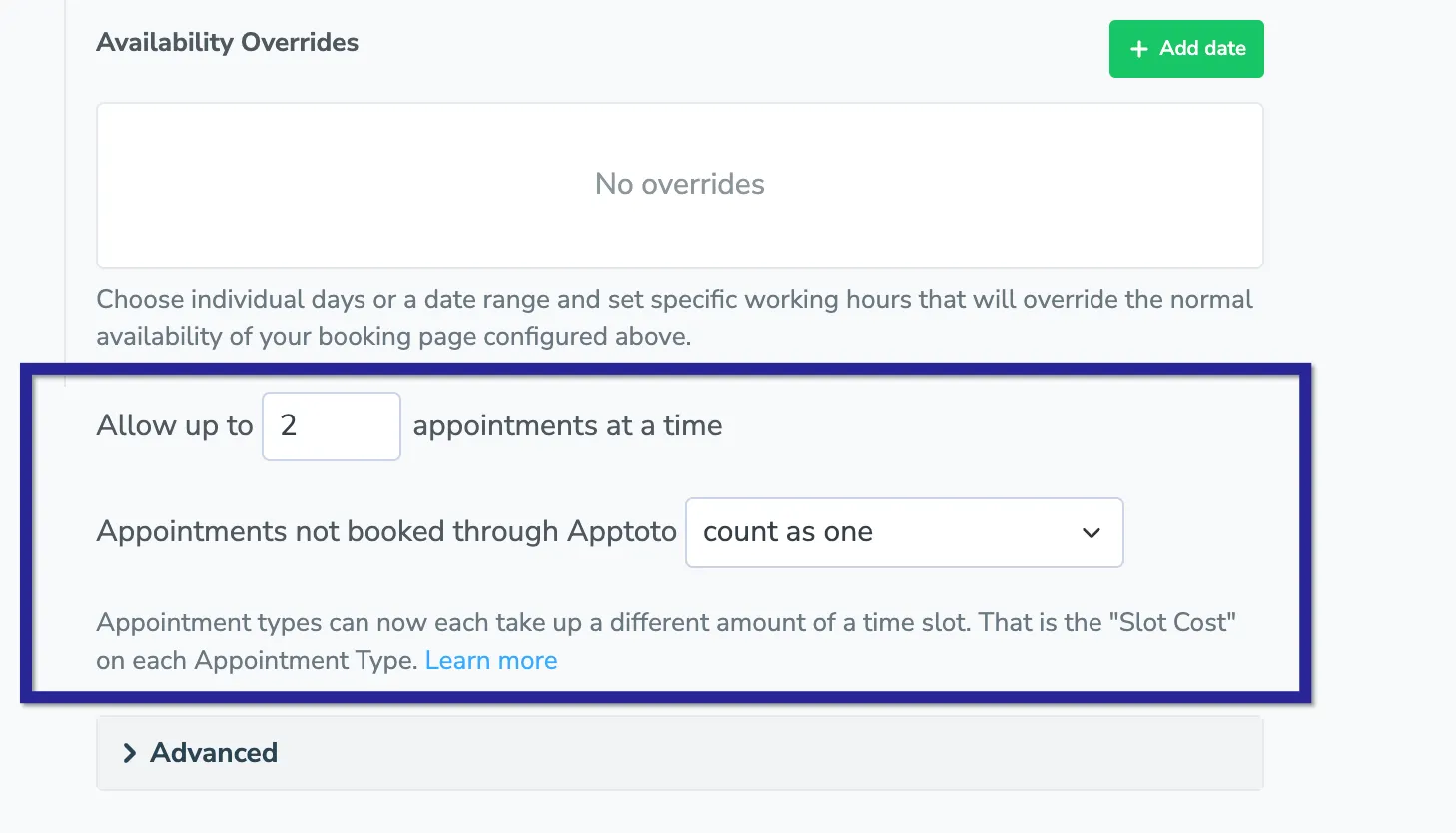
Two settings appear once that number is above 1:
| Setting | Description |
|---|---|
| Slot Cost | How much of a slot one appointment of each type uses up. See below. |
| Appointments not booked through Apptoto | Whether an appointment that came from your calendar or another system counts as one, or fills the slot so nothing can be booked on top of it |
Slot Cost
Section titled “Slot Cost”Every appointment type has a Slot Cost, which is 1 unless you change it. A slot stays bookable for a type while the appointments already in it leave room for that type’s cost.
Say you allow up to 2 appointments at a time. Giving a short follow-up visit a cost of 1 and a new patient visit a cost of 2 means a slot can hold either two follow-ups or one new patient, and a new patient can never be booked alongside a follow-up.
Set it under Slot Cost on each of your appointment types. If your account uses account-wide appointment types, the cost lives on the type itself and applies to every booking page that offers it.
Appointments Apptoto did not book
Section titled “Appointments Apptoto did not book”Appointments that came from your calendar or another system, rather than through your booking page, do not have an appointment type, so Apptoto cannot tell how much of a slot they use. Choose count as one to keep filling the rest of the slot around them, or fill the slot so nothing is booked on top of them.
Advanced Booking Page Settings
Section titled “Advanced Booking Page Settings”| Setting | Description |
|---|---|
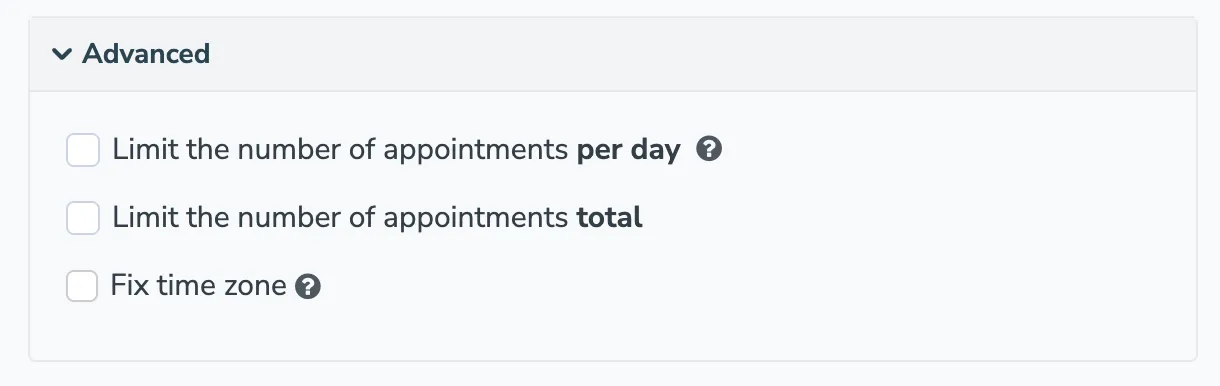
| Limit appointments per day | Caps the number of bookings per day (counting appointments booked through an Apptoto booking page or all “busy” calendar events) |
| Limit total appointments | Caps total appointments allowed for a single day (including non-client related) |
| Fix Time Zone | Locks the page to a specific time zone instead of adapting to the viewer’s browser |