Importing Contact Information
If your scheduling system, CRM, or other tool can export data as a CSV file, you can import that data directly into Apptoto. This includes contact information such as client names, phone numbers, emails, and communication preferences.
Import contact information
Section titled “Import contact information”You can import client contact information separately from appointment data. Imported contacts are stored in an Apptoto address book and can be matched against future appointments.
-
Prepare your contact CSV - Export a CSV file from your contact management system. At minimum, include columns for name, phone number, and/or email address. To set communication preferences during import, add separate columns for each channel with
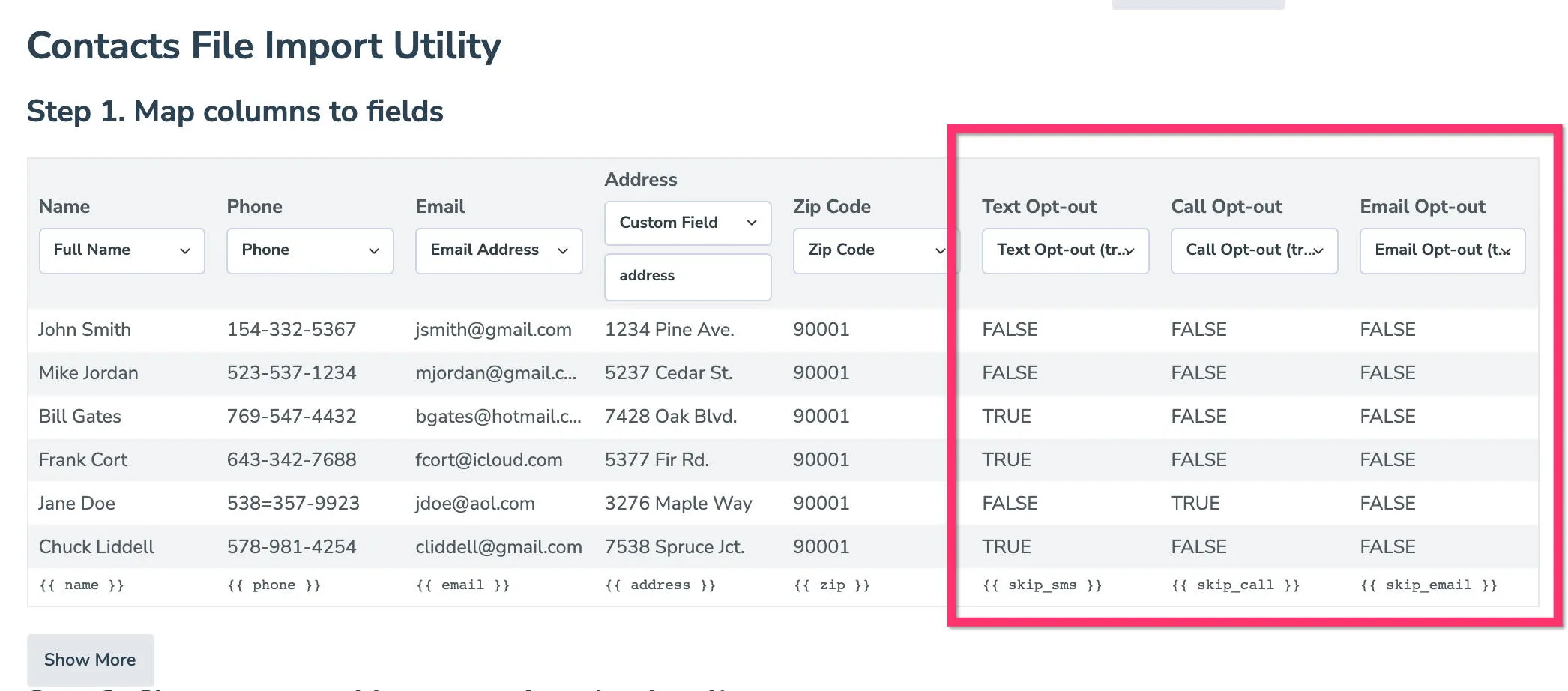
trueorfalsevalues (although these can be added manually later as well):- A column for SMS opt-in/opt-out
- A column for email opt-in/opt-out
- A column for call opt-in/opt-out
-
Open the Contacts tab & import Contacts - To upload your file to an address book, open the Tools > Contacts tab and select Import Contacts.
-
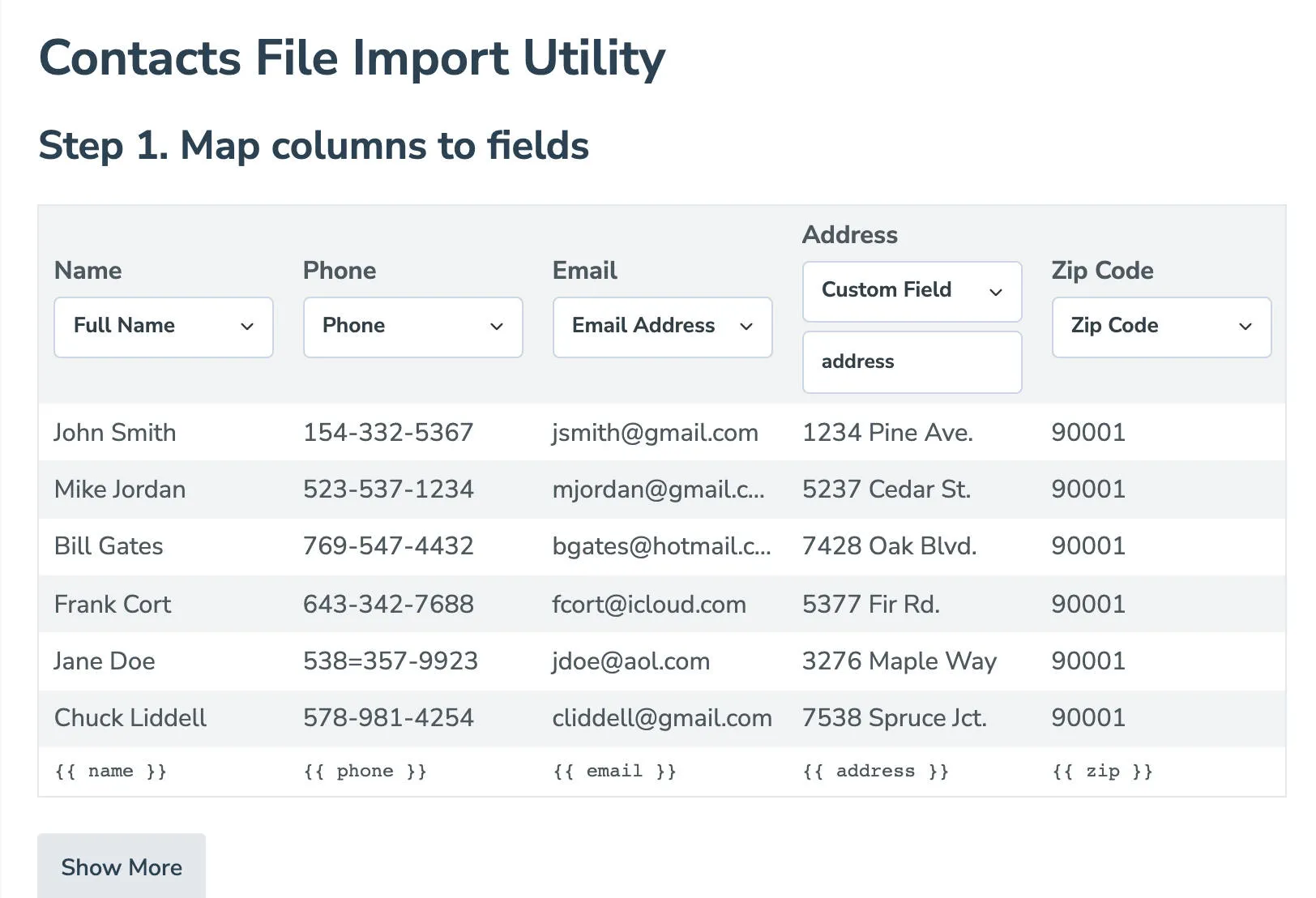
Map columns - After uploading your file, your column headers will be automatically detected and assigned to the correct fields (you’ll have the ability to modify them as needed).
##Set Contact Preferences
With new imports, you can now specify the client’s preferred contact methods (SMS, email, or call). Each specific method will need to have a separate column with true/false values to specify if they are Opted-in or out for that specific message type:
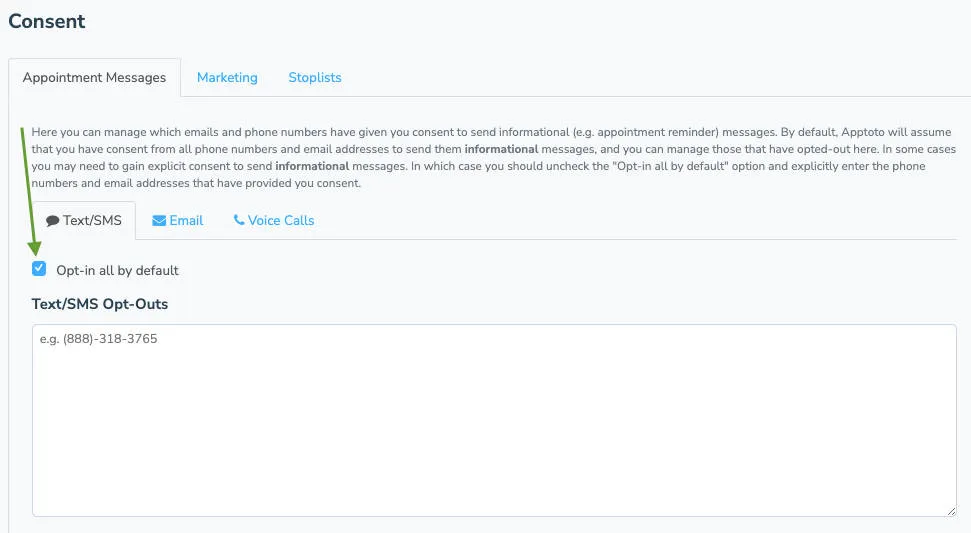
To see the Opt-in options in the import list, first ensure your settings are not configured to Opt-in all by default via the Messaging > Consent tab.