
Messages
Manage and track Auto Messages in Apptoto’s agenda view. View scheduled and sent messages, manually send or cancel, and take action easily.
Overview
Section titled “Overview”The Messages column shows the automated messaging status for each participant.
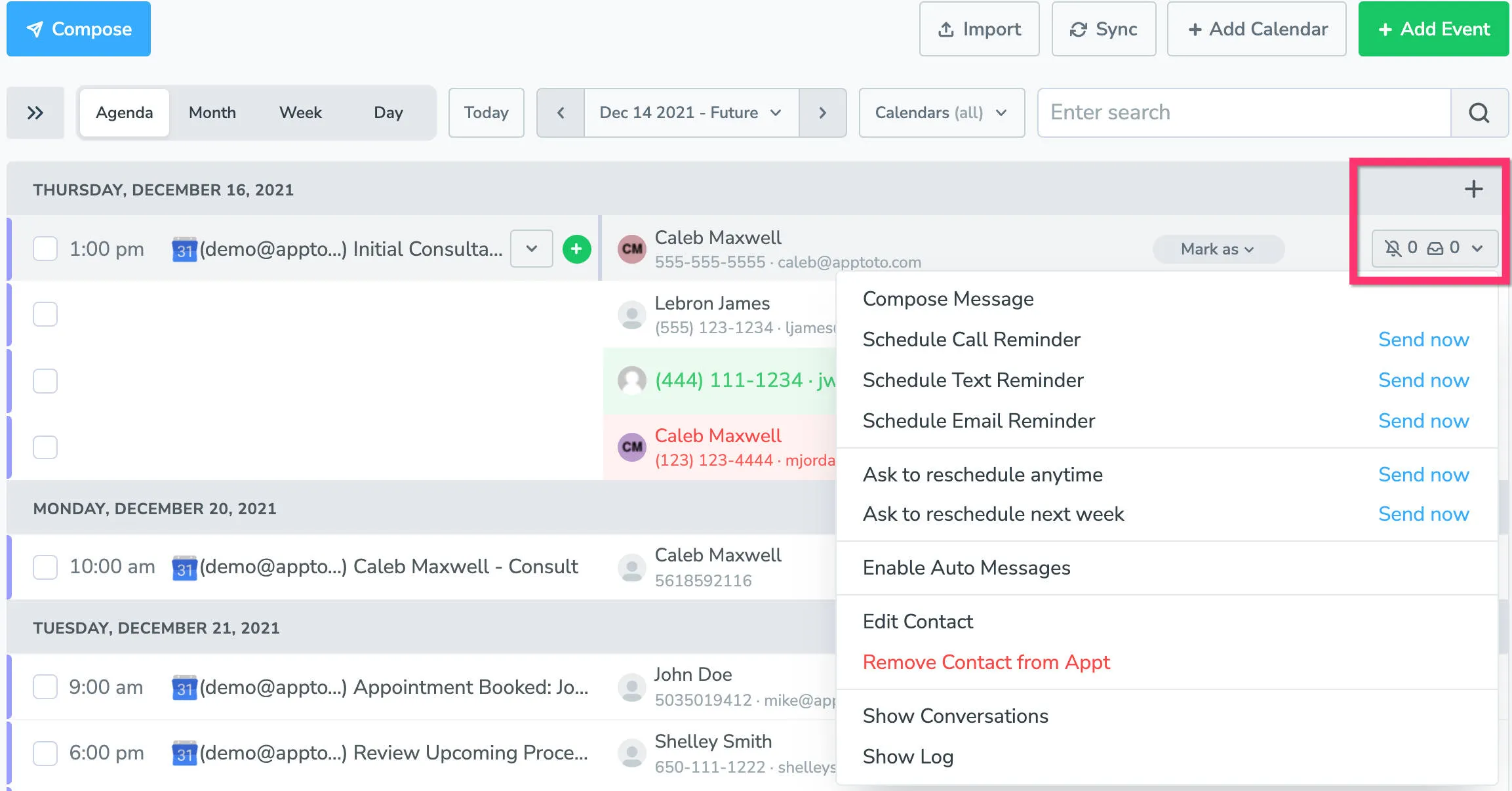
The bell/outbox button displays two counts at a glance:
- Left of the bell - messages scheduled to send
- Left of the outbox icon - messages already sent
Click the button to open the message detail window, where you can:
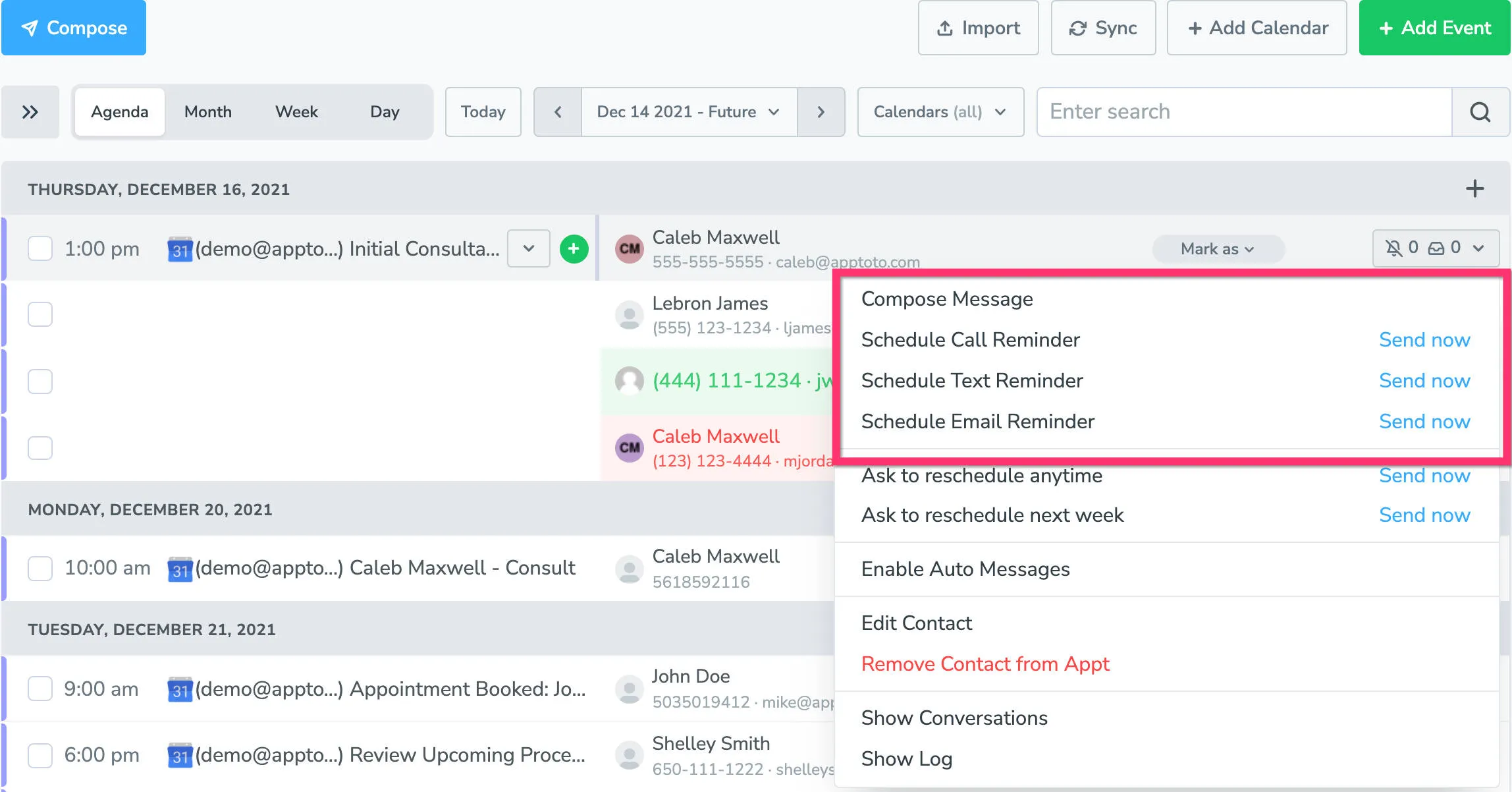
- View scheduled auto messages – view which messages are scheduled to go out, manually force send them using the “Send Now” button, or cancel them by clicking the red ‘x’)
- View messages that have already been sent
- Compose a one-time message to this participant
- Enable Auto Messages for this participant only, without turning them on account-wide
- Edit or remove the participant, or save them to your Address Book
- Manually mark a participant as Confirmed, Cancelled, or Reschedule Needed
- Open a full communication log for this participant on this appointment