Rule Blocks
Auto Message Rules are useful when you want to send different messages to different types of appointments based on keywords, location, calendars, etc.
Create an Auto Message Rule
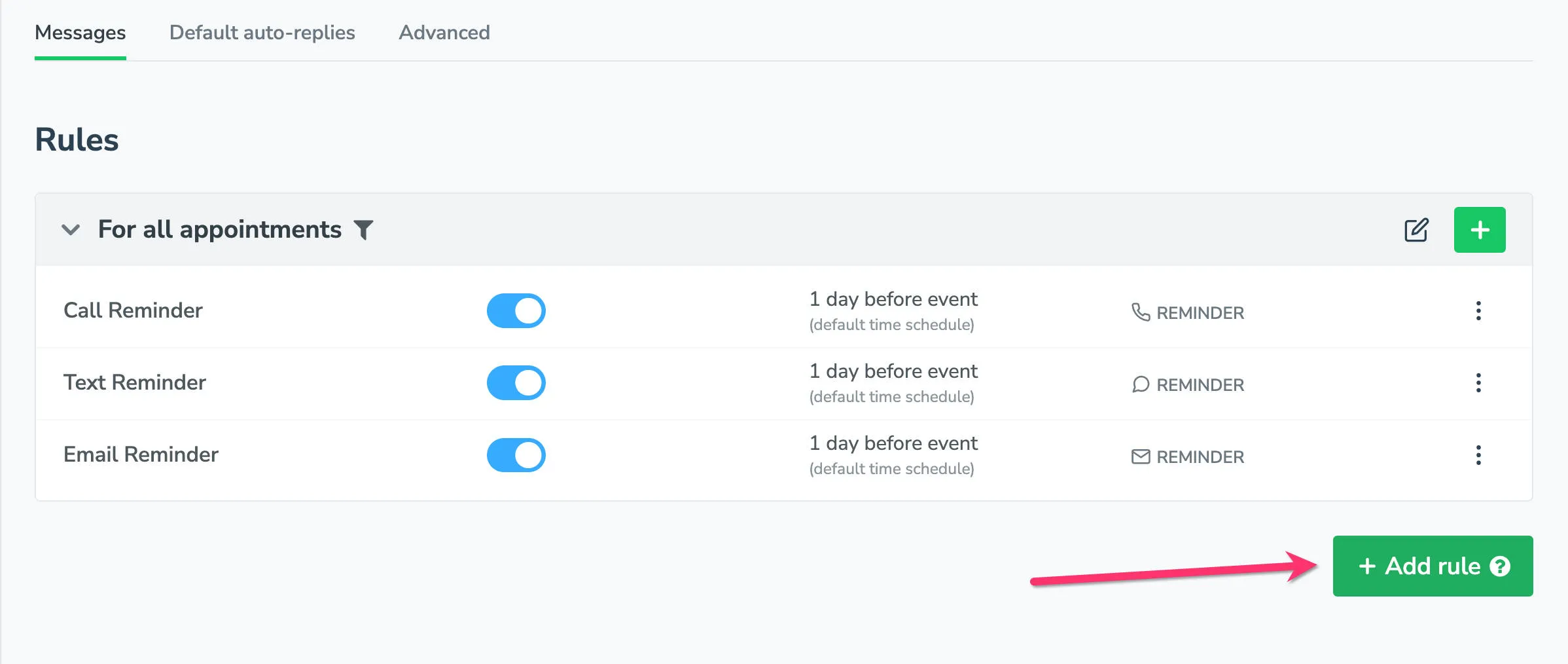
Section titled “Create an Auto Message Rule”- Navigate to Messaging > Appointment Auto Messages. Click the New Rule button in the bottom right-hand side of the Auto Messages tab.
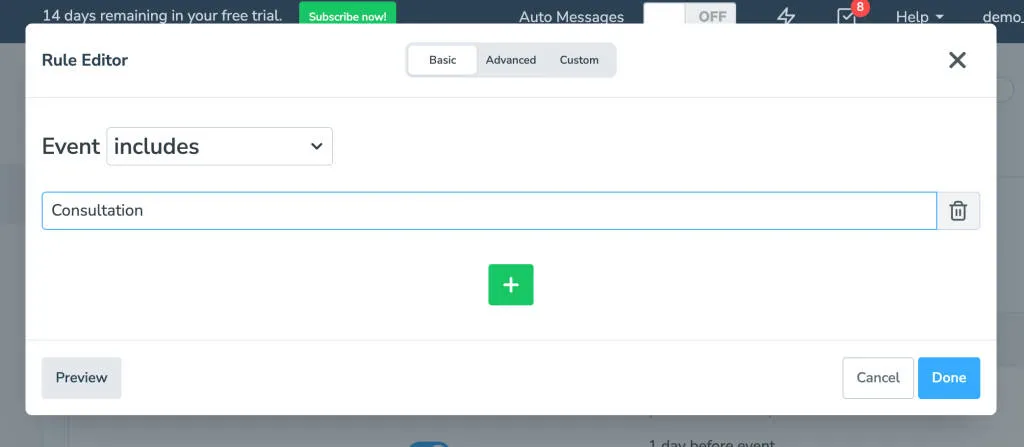
- Clicking the New Rule button will bring up the Rule Editor, showing a drop-down with a keyword box.
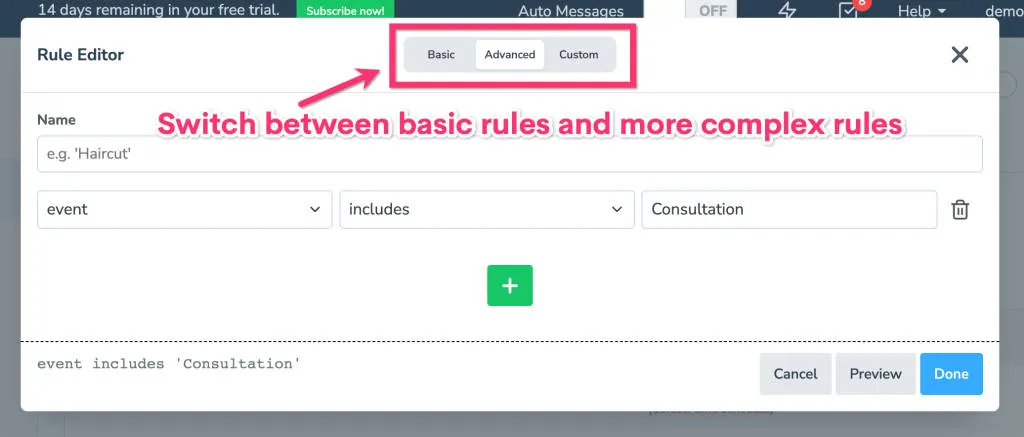
- Select Basic,Advanced, or Custom depending on the level of customization you need when creating your Rule.
- See Fields for field definitions.
- See Conditional Blocks for a description of the operators available (e.g. “includes”)
Complex Rules
Section titled “Complex Rules”Each rule block can include multiple rules separated by “and” or “or”.
For example, your rule could be event includes 'haircut' or event includes 'coloring' which would trigger if any event included either of those words. Or your rule could be event includes 'haircut' and event includes 'coloring' which would trigger only if the event included both haircut and coloring.
Nested Rules
Section titled “Nested Rules”You can nest rules for convenience and to effectively mix “ands” and “ors”. For example, if you wanted an SMS text message to be sent only if event includes the words “haircut” and “coloring”, then you would set up your conditions in this way:
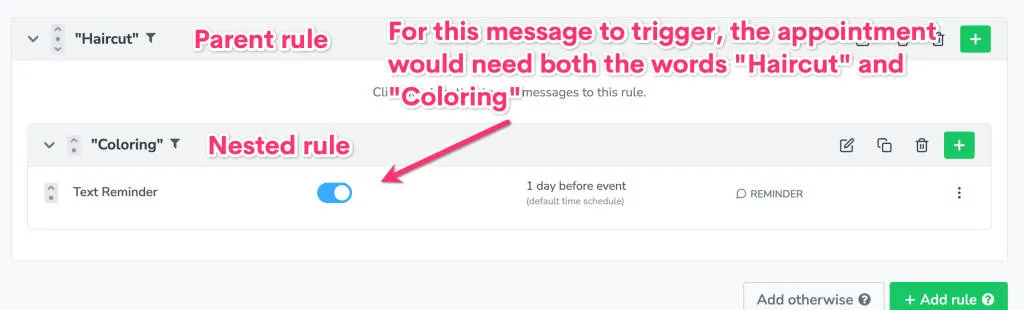
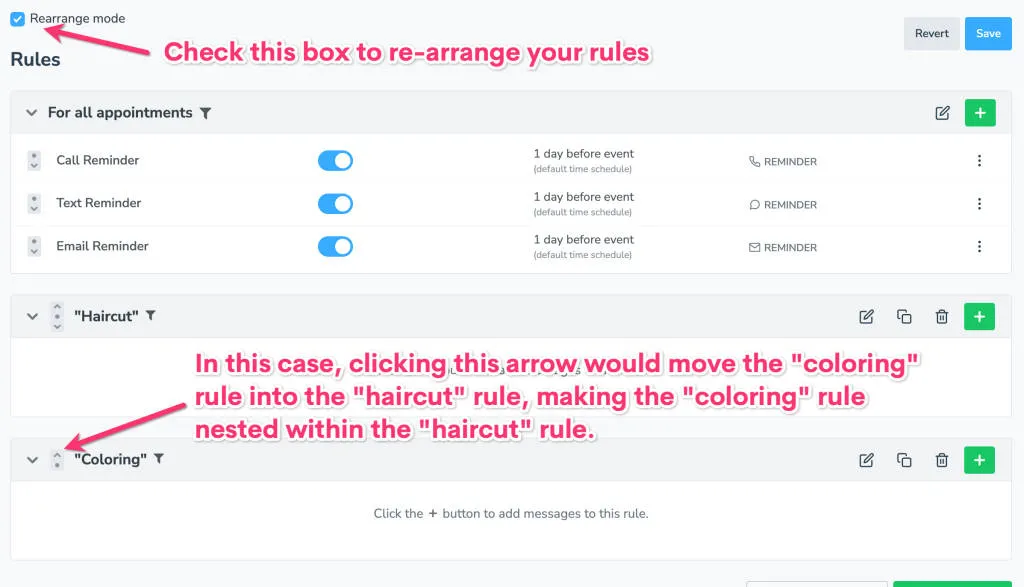
You can create nested rules by clicking the “Re-arrange mode” checkbox and using the arrows to move one rule into another.
Skipping people who have already filled out a form
Section titled “Skipping people who have already filled out a form”A rule can ask whether the person has filled out one of your forms. Attach it to a message that contains the form’s link, and the message only goes to the people who still owe it to you:
forms.new_patient_paperwork.needed == trueforms.KEY.needed, forms.KEY.submitted, and forms.KEY.days_since_submitted are all offered in the field list of the Rule Editor, one set per form. They ask about the person rather than the appointment, so somebody who filled the form out at a previous visit is not asked again.
Chasing an appointment that is not finished
Section titled “Chasing an appointment that is not finished”An appointment the AI Receptionist booked in Capture Mode is booked on a name, a phone number, and a time, with the rest of your booking page’s questions sent afterwards as a link. This rule matches the ones still waiting on those answers:
booking.incomplete == truePut {{ booking.finish_link }} in the message on that rule and it asks again, for those people only. Unlike the form fields above, this one is about the appointment: it turns false the moment that booking is finished.
Otherwise
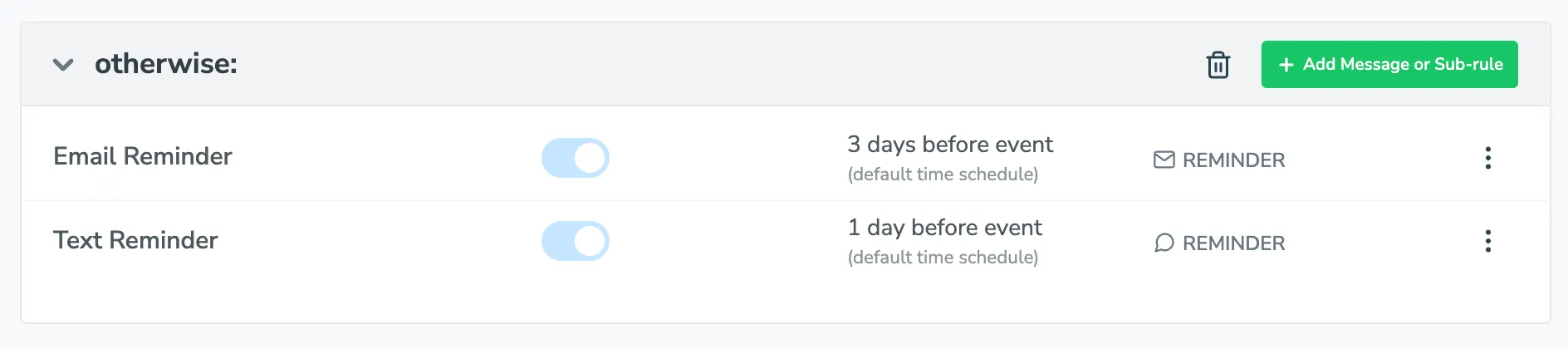
Section titled “Otherwise”Using the Add Otherwise Rule feature will allow you to have a “negative rule,” meaning if an appointment doesn’t satisfy the criteria of your other rules, send a different group of messages. This differs from the Send to all appointments portion of the Auto Messages tab in that it allows you to send a more generic message only to the appointments that don’t fit the criteria for your other rules.