Text Messaging Consent
Before sending appointment reminder text messages to your clients or patients, you may need to obtain their consent. Obtaining consent to send your clients or patients text messages is important for several reasons:
- Legal Compliance: Certain countries have regulations about sending electronic communications. For example, in the U.S., the Telephone Consumer Protection Act (TCPA) requires businesses to obtain consent before sending promotional texts. The General Data Protection Regulation (GDPR) enforces similar protections/requirements for the EU.
- Trust: Businesses break trust (and annoy prospects and clients) when they send unsolicited text messages
- Spam Reduction: By granting a business the right to text them, people receive content they are interested in and are less likely to mark messages as spam or block the business.
Sending an Initial Consent Message in Apptoto
Section titled “Sending an Initial Consent Message in Apptoto”Apptoto has a default consent message build into the system. This message will be sent the first time Apptoto sends an automatic text message to a new phone number. To enable it:
-
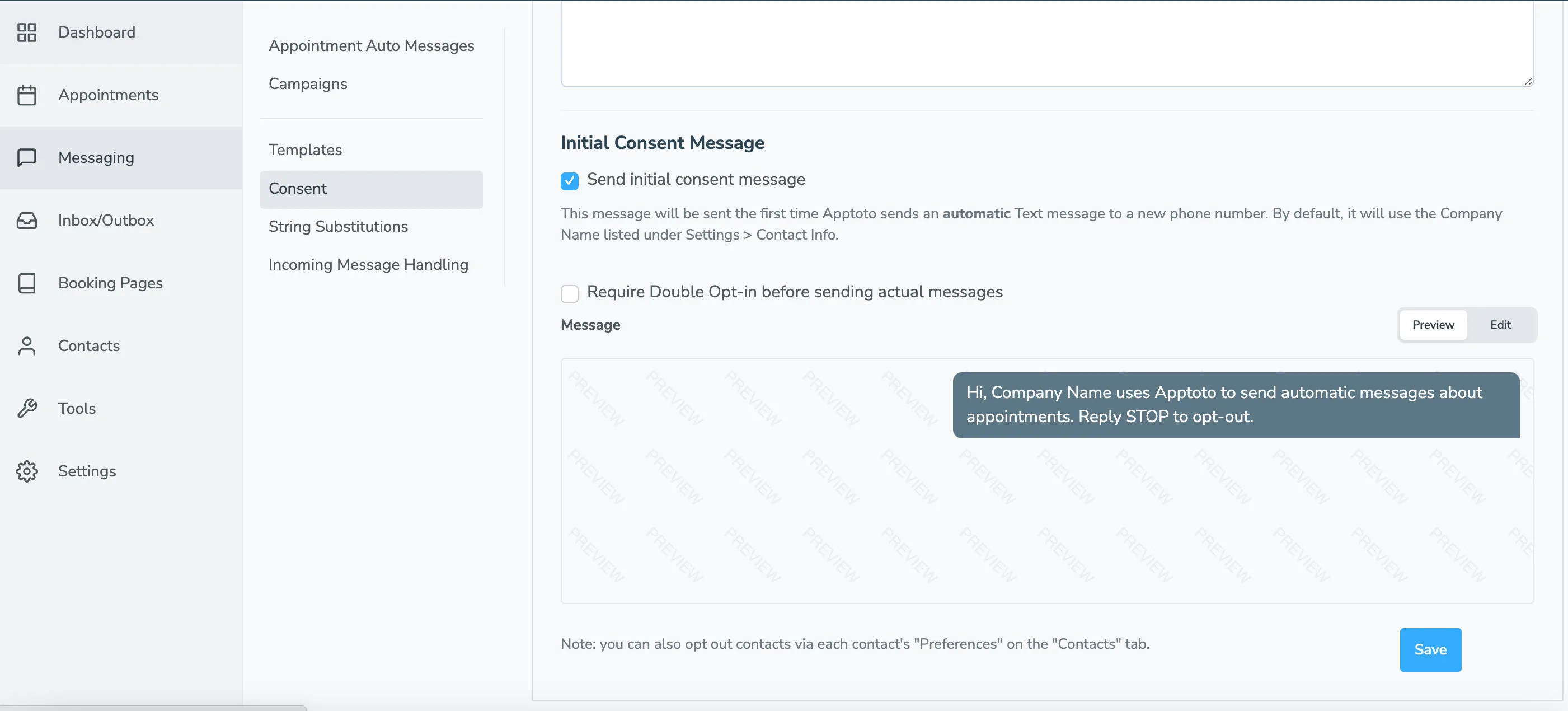
Navigate to the Messaging > Consent tab.
-
Once on the Consent tab, scroll down to the Initial Consent Message section.
-
Click the checkbox next to Send initial consent message.
-
Apptoto has a preset initial consent message built-in. Where “Company Name” is shown above will automatically reflect your Company Name as listed under the Settings > Contact Info section.
-
Click Save.
Clients/patients who receive the initial consent message will be automatically opted into receiving messages unless they reply “stop” to opt-out.
Requiring Double Opt-In by Clients/Patients
Section titled “Requiring Double Opt-In by Clients/Patients”However, if you want to require your clients’/patients’ explicit approval to opt-in to messages, enable Double Opt-In. To do so:
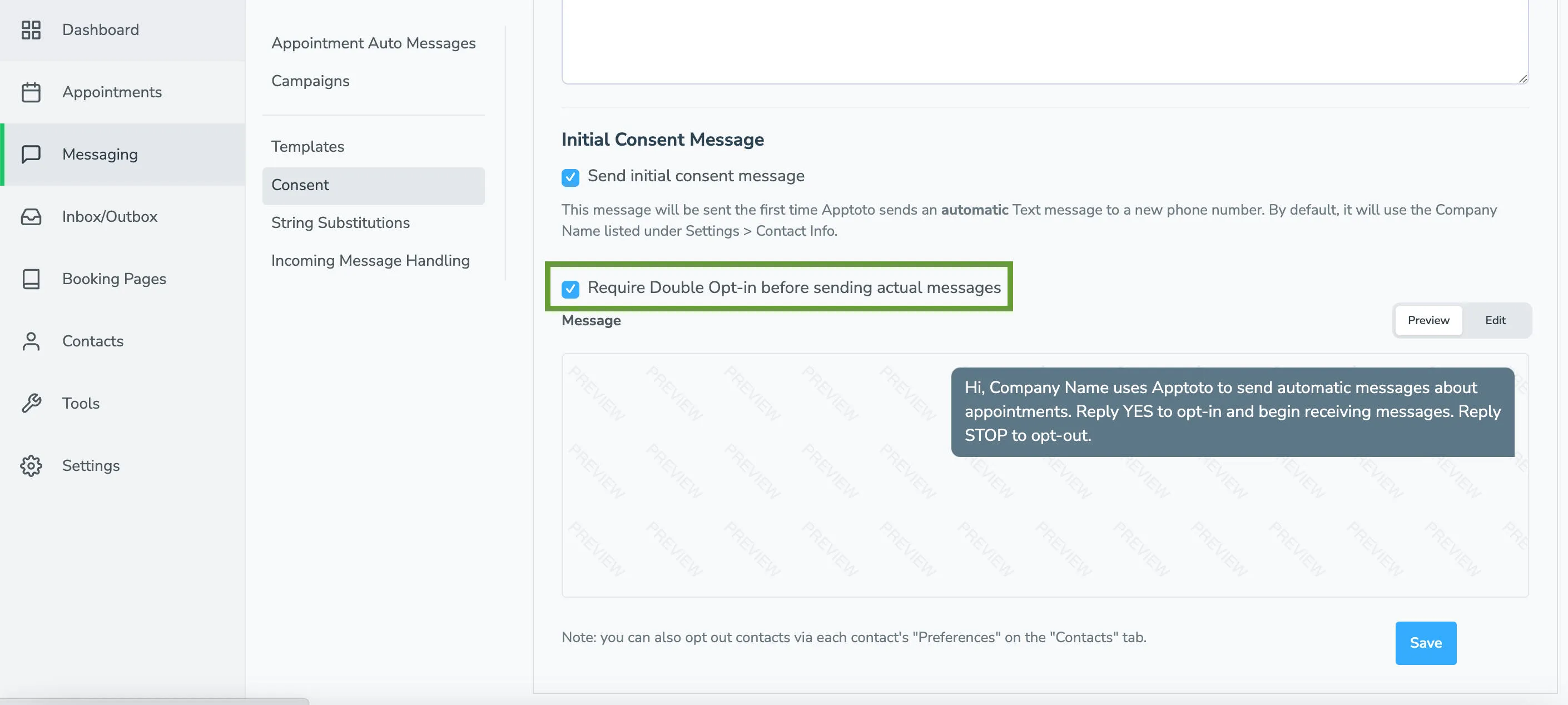
- Click the checkbox next to the Require Double Opt-In before sending actual messages checkbox directly below the Send initial consent message section.
- When you enable double opt-in, the template message will update to ask clients to “Reply YES to opt-in and begin receiving messages. Reply STOP to opt-out.”
- Preview and update your consent message as needed, being sure to include the “YES” opt-in requirement.
- Click “Save.”