
Billing
Subscribe to Apptoto
Section titled “Subscribe to Apptoto”During your free 14-day trial, you can subscribe at any time using the “Subscribe Now” button in the top navigation or by visiting the Settings > Account & Billing page.
To subscribe and choose your preferred pricing plan:
- Click the Subscribe Now! button on the Settings > Account & Billing page.
- On the pricing page that appears, select whether you’d like to pay monthly or annually. Annual plans offer a discount.
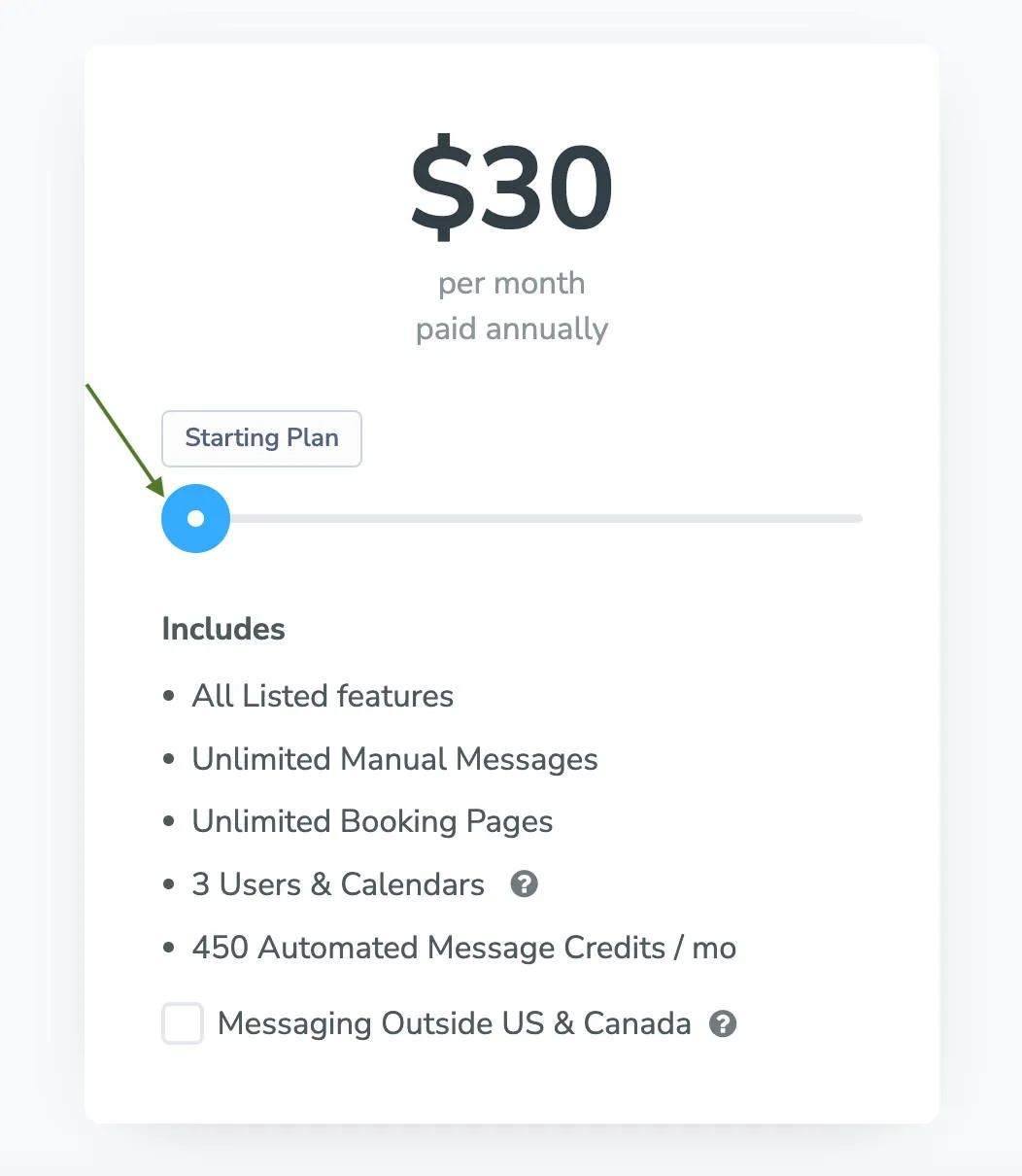
- Use the pricing slider tool to select a plan based on the number of users, calendars, and auto message credits you need. Optionally, add Premium Setup for white-glove onboarding with Apptoto’s customer success team or the Reputation Management add-on.
- Add a coupon code if you have one and then click Proceed to Payment.
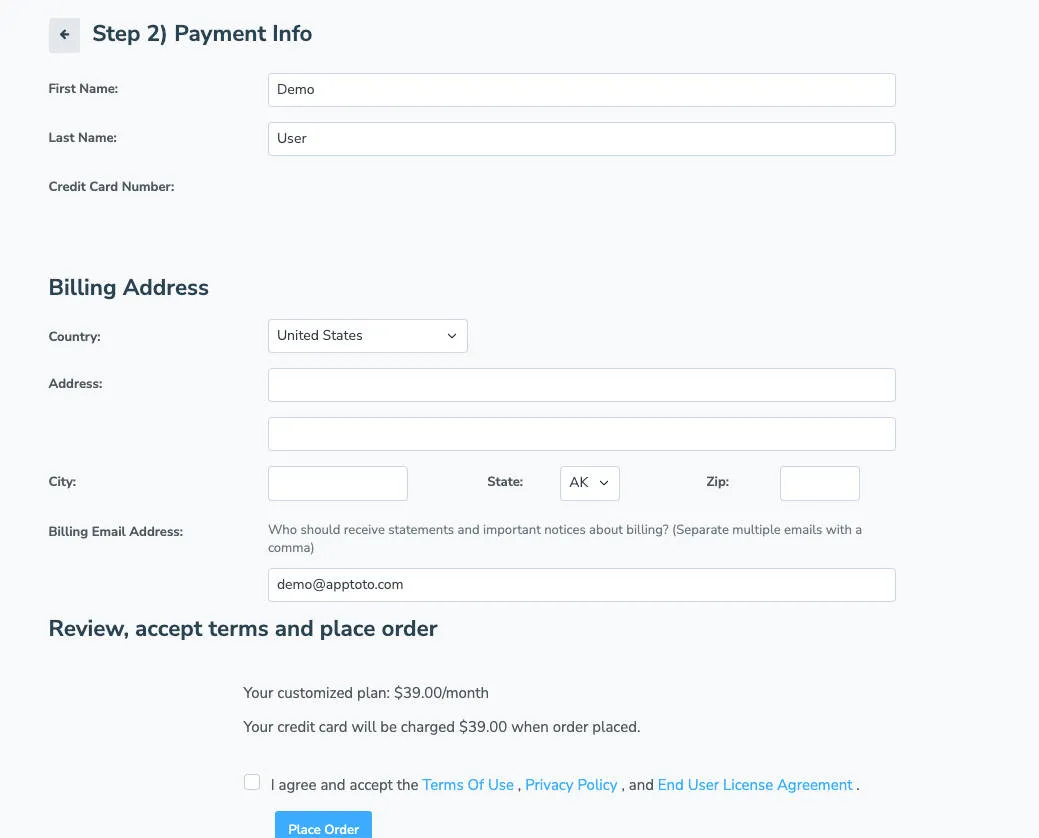
- Enter your payment info, payment method, billing address, and agree to Apptoto’s Terms of Use, Privacy Policy, and End User License Agreement.
- Click Place Order to subscribe to Apptoto.
Upgrading/downgrading your subscription
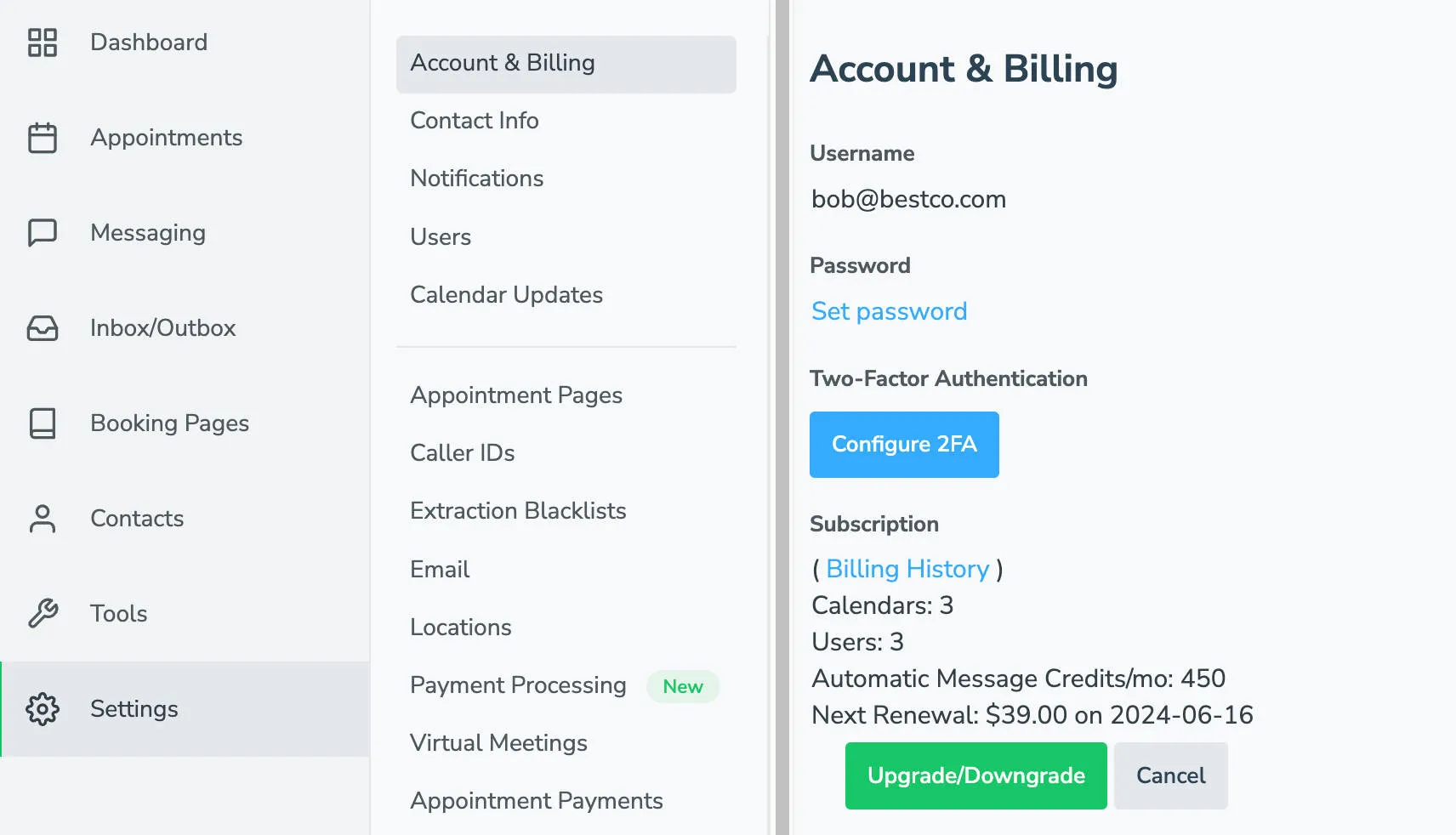
Section titled “Upgrading/downgrading your subscription”- Navigate to Settings > Account & Billing page. Your current plan details, usage history, and renewal date are displayed.
- Underneath your subscription plan, you’ll see an option to upgrade or downgrade. Click the Upgrade/Downgrade button.
- Select the new plan you want on the pricing page and click Preview Changes. Then follow the prompts to confirm.
Viewing Past Billing Statements
Section titled “Viewing Past Billing Statements”On Settings > Account & Billing, click the Billing History link under your subscription details. Your current and past invoices load as a list. Click any entry to open a PDF version.
Allowing overage charges
Section titled “Allowing overage charges”If you occasionally exceed your message credit limit without wanting to upgrade, enable overage charges on the Settings > Account & Billing tab. Check the Allow overage charges box and Apptoto bills you $0.12 per credit above your plan threshold.
Updating payment method and billing email
Section titled “Updating payment method and billing email”Both your Payment Method and Billing Email Address can be updated near the bottom of the Settings > Account & Billing page. Click Save after making any changes. For help updating billing contact information or adding a secondary billing contact, email support@apptoto.com.
Pausing your subscription
Section titled “Pausing your subscription”You can pause your subscription for up to 3 months at no cost. After 3 months, a $10/month fee applies to maintain your paused account.
- Navigate to Settings > Account & Billing.
- Click the Cancel button next to Upgrade/Downgrade.
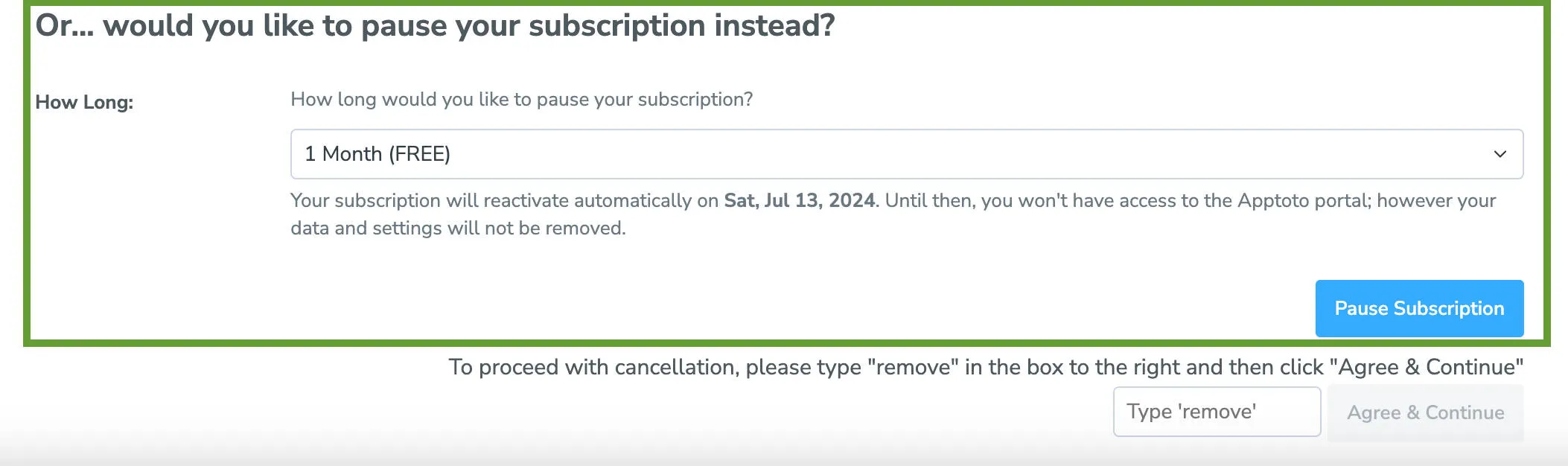
- Scroll to the Pause your subscription instead? section.
- Select your pause duration and click Pause Subscription.
Cancelling Your Subscription
Section titled “Cancelling Your Subscription”- Before canceling, export your data, including appointment data, messages, and bookings, as these are permanently deleted 7 days after cancellation.
- Navigate to Settings > Account & Billing.
- Click the Cancel button next to Upgrade/Downgrade.
- Scroll to the To proceed with cancellation… section.
- Type
removein the provided field. Then click Agree & Continue.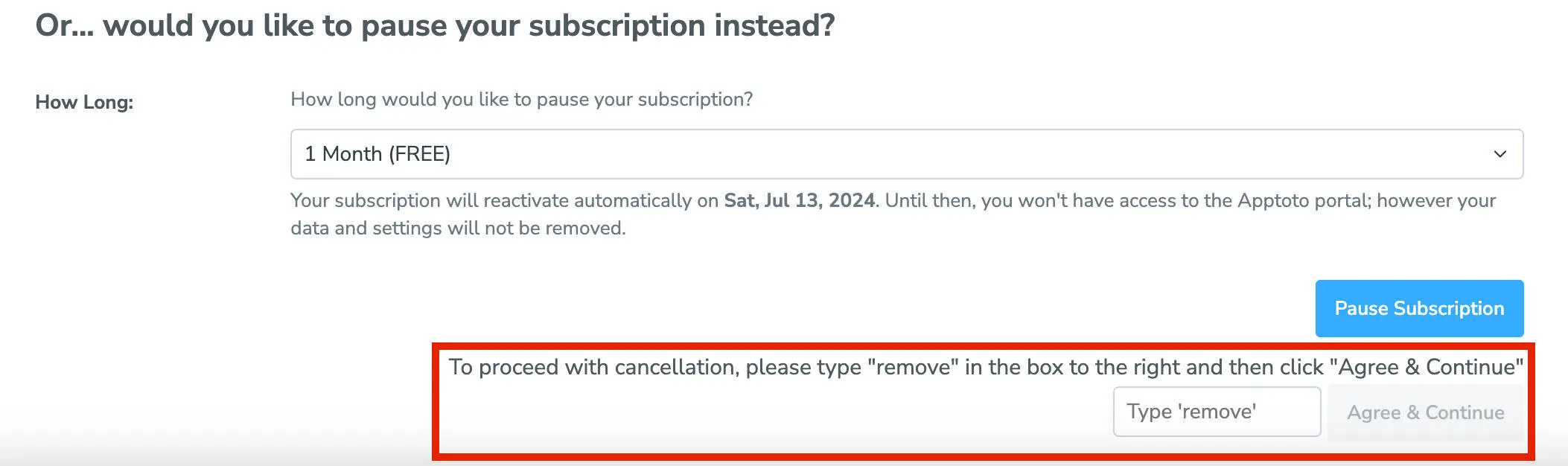
Have more billing questions not listed here? Contact our support team to get expert guidance on your billing questions and concerns.