
Outlook / Microsoft 365 Sync Troubleshooting
What this is and why it happens
Section titled “What this is and why it happens”Microsoft Entra is a service that helps your company control who can access what in your organization. It allows your IT team or an admin to manage users, their devices, and the apps they use.
Often, companies prevent team members from granting third-party applications access to their company’s data without administrator review and approval, to ensure the app meets security and compliance standards.
Granting users access to use Apptoto
Section titled “Granting users access to use Apptoto”You may see one of the two permission screens below when connecting Microsoft Outlook, Microsoft 365, or another Microsoft account to Apptoto. Follow the steps in the section that matches the screen you’re currently on.
Need admin approval
Section titled “Need admin approval”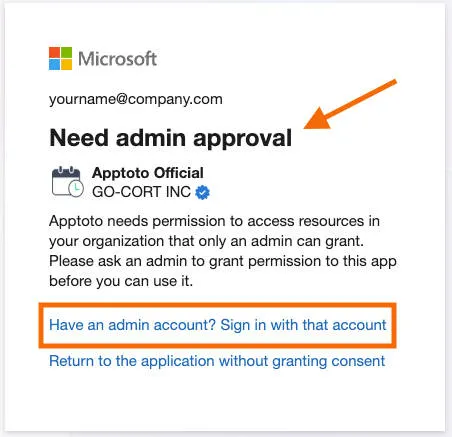
If you see the screen above when attempting to sync your Microsoft property to Apptoto, you’ll need to work directly with your Microsoft admin to get Apptoto approved before you can sync your calendar.
Option 1: Have an admin from your company navigate to https://secure.apptoto.com/office365/start_microsoft_graph?admin_consent=true to sign in with their account to review and approve Apptoto’s requested permissions. Once approved, all team members should then be able to follow these steps to sync their calendars and contacts to Apptoto.
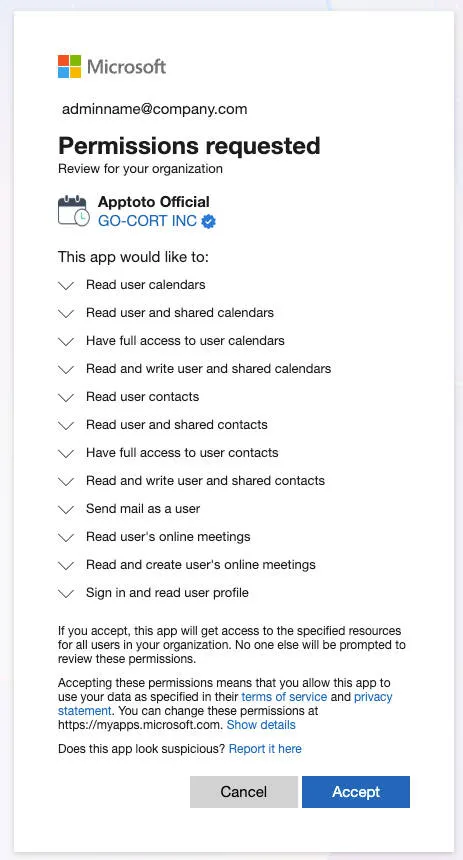
Option 2: Have your administrator log in to the Microsoft Entra Admin Center and proceed with the following steps.
-
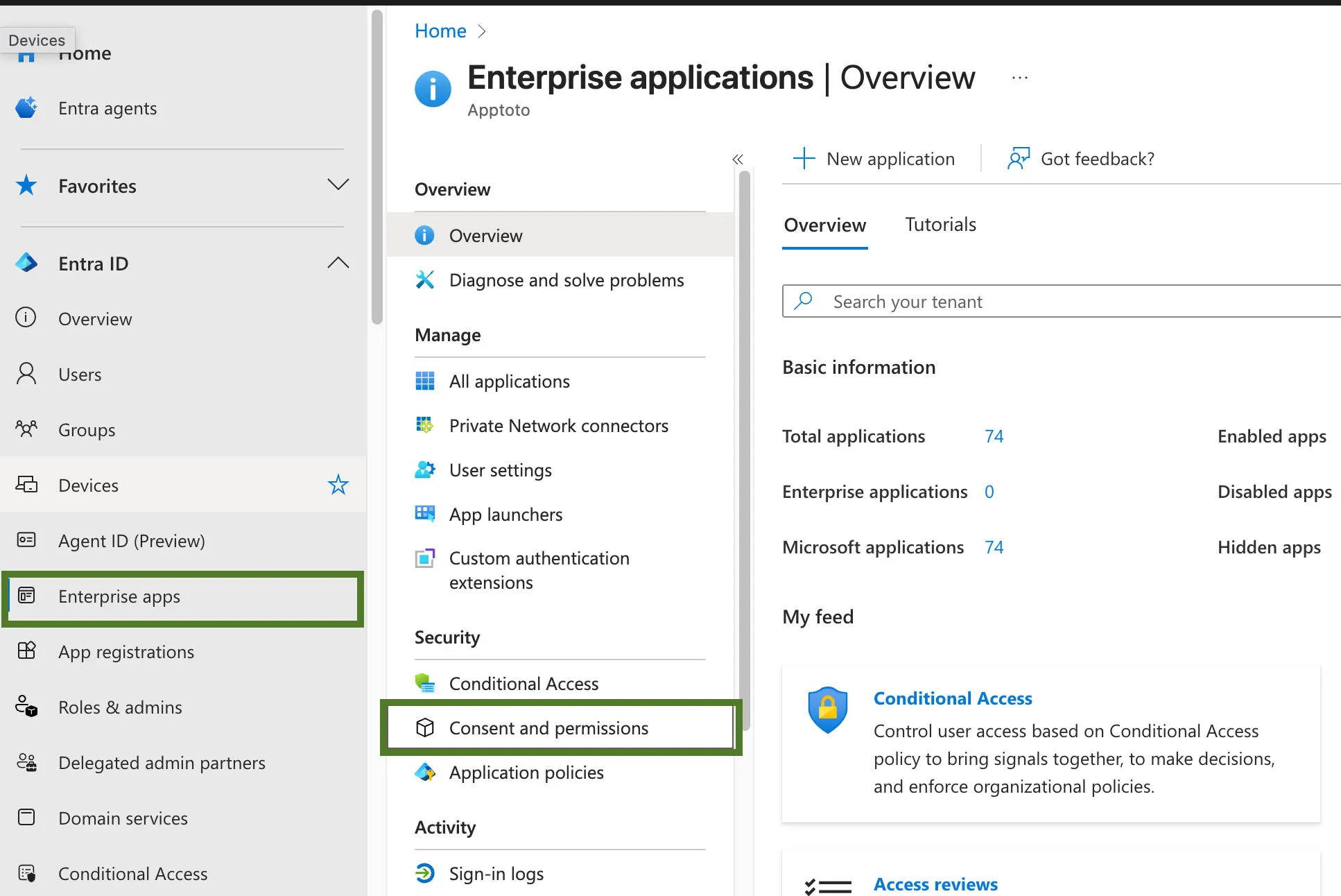
Click Enterprise Apps, then Consent & Permissions.
-
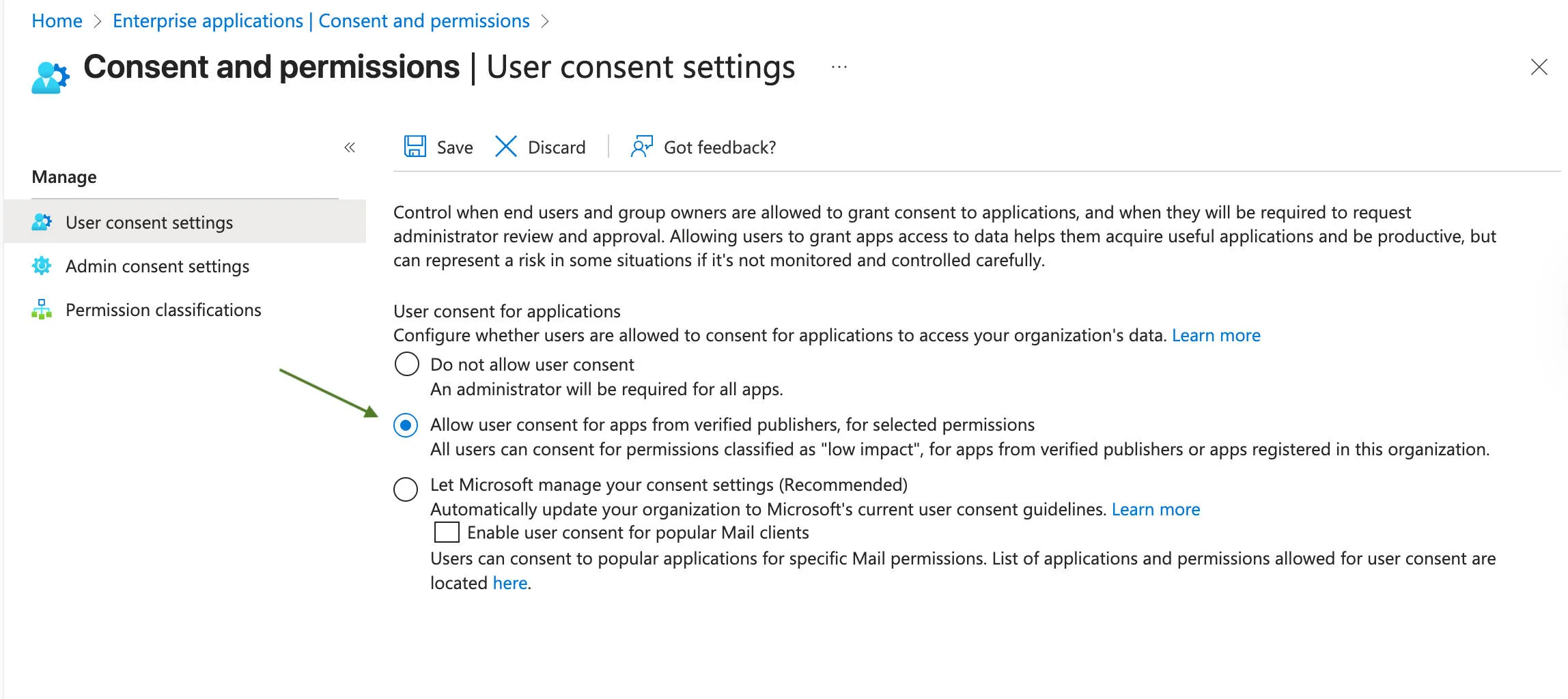
In the User consent settings tab, set User consent for applications to Allow user consent from verified publishers for selected permissions, then click Save.
-
Have the Apptoto user navigate back to either the Appointments tab or the Settings > Integrations tab to resync their Microsoft connection.
Approval Required (Request-Submitted)
Section titled “Approval Required (Request-Submitted)”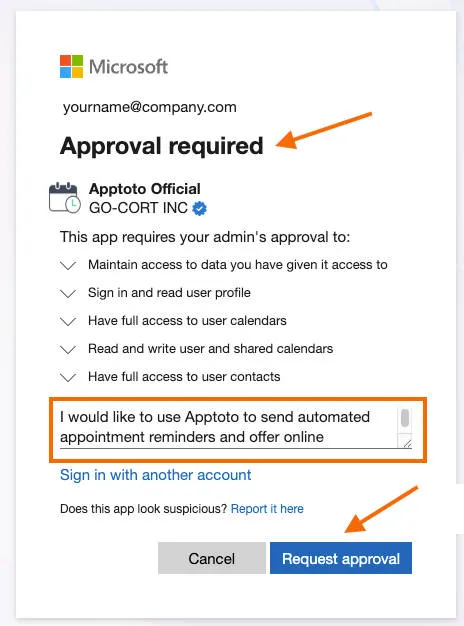
-
If you see the screen above when trying to connect your Microsoft account to Apptoto, enter a brief reason for your sync request, then click Request Approval to notify your administrator.
-
An email notification will immediately be sent to your Microsoft Entra administrator(s).
-
Your administrator should log in to the Microsoft Entra Admin Center and follow these steps:
-
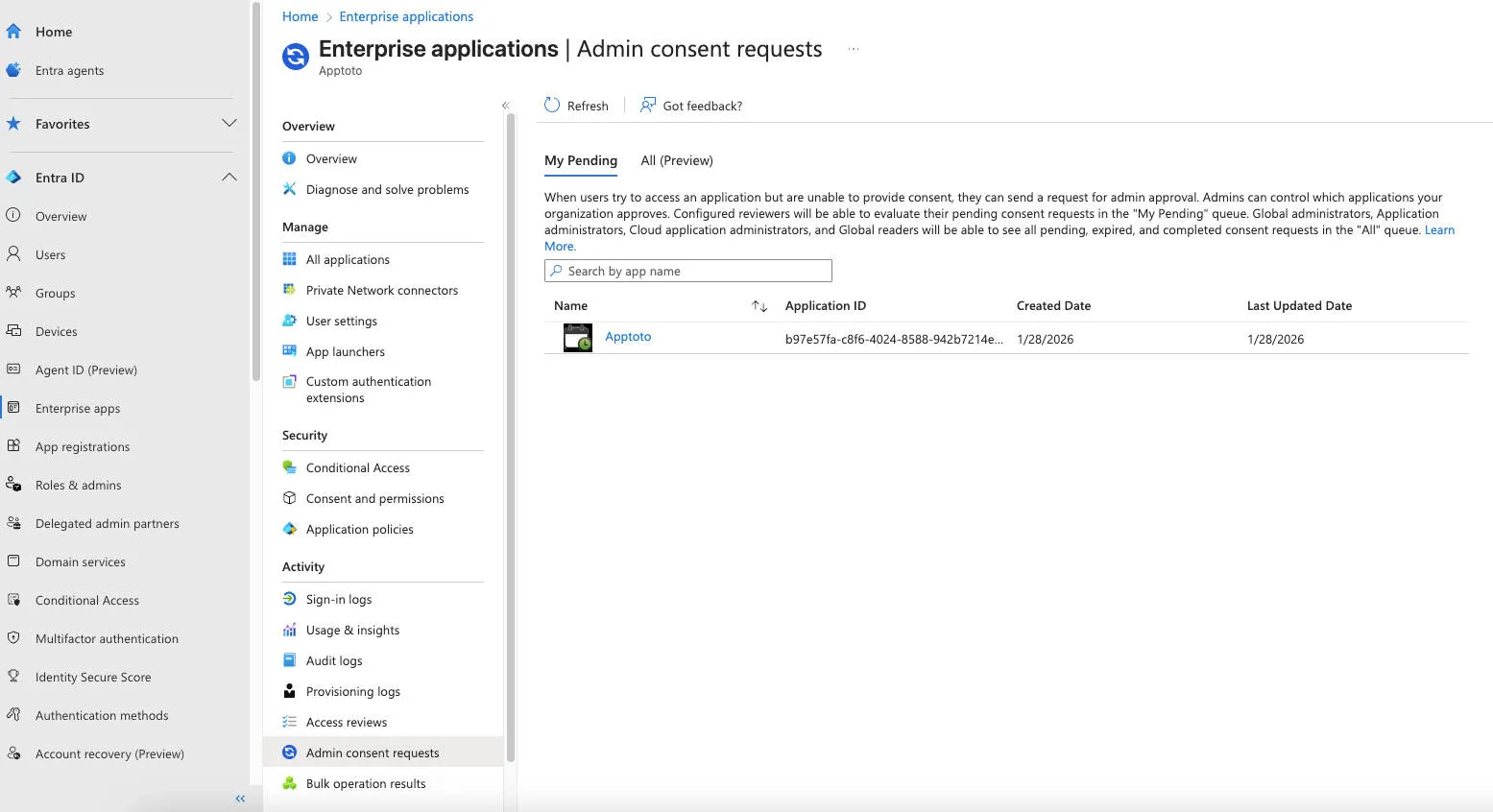
Click Enterprise Apps in the left-hand navigation menu.
-
Navigate to Admin Consent Requests and click Apptoto under the My Pending list.
-
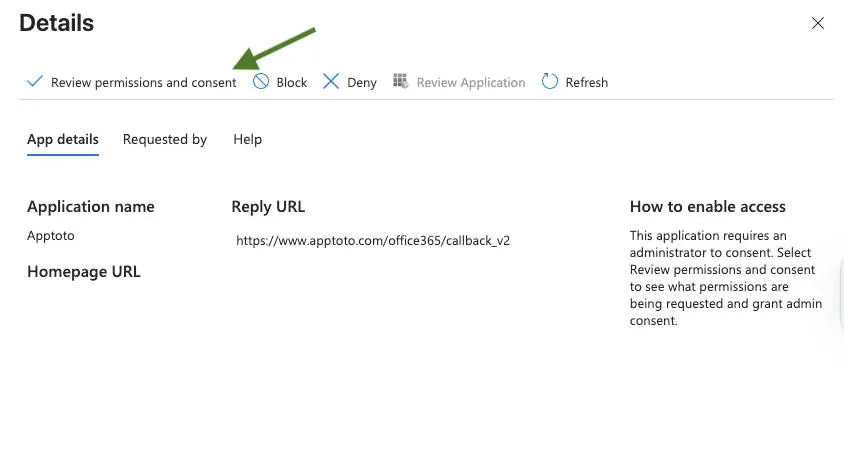
On the Details screen that appears, click Review permissions and consent for Apptoto.
-
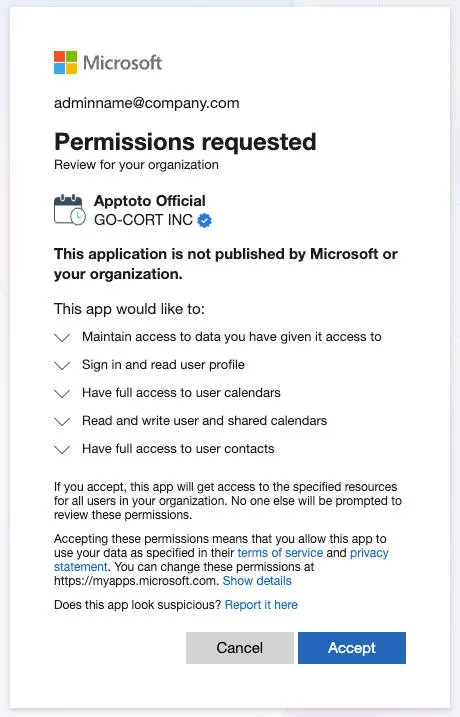
Review the data access Apptoto is requesting, then click Accept to grant the user(s) permission to use Apptoto.
-
-
Once approved, the requesting user should return to Apptoto and resync their Microsoft connection in the Appointments or Settings > Integrations tab.
Still having trouble?
Section titled “Still having trouble?”If the steps above do not resolve the issue, contact Apptoto Support with:
- A screenshot of the error message
- The email address of the affected user
- Confirmation that admin consent has been granted