
Contacts & Address Book Integration
The Booking Page > Address Book tab lets you specify how your Booking Page should work with your Address Books.
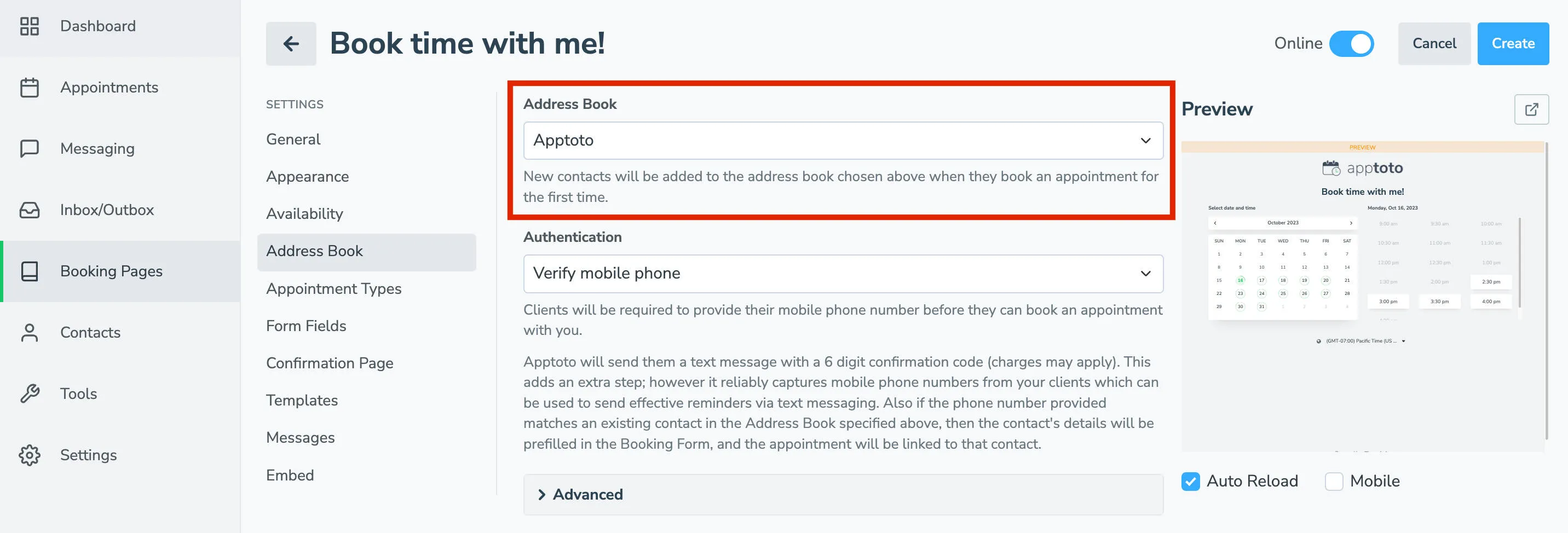
Address Book
Section titled “Address Book”This option lets you specify which Address Book should be used with your Booking Page. New contacts will be created in your default Apptoto address book by default. However, you can tell Apptoto to add new contacts to a different address book (e.g., your Google address book or Salesforce address book).
If you do not see the address book that you want Apptoto to add contacts to, then navigate to Settings > Address Books and connect the address book first, then come back to your Booking Page settings and configure the newly connected address book.
Authentication
Section titled “Authentication”This option allows you to choose how your clients prove they are who they say they are or, at least, that they are human.
Authenticating via mobile phone
Section titled “Authenticating via mobile phone”If you set the Authentication method to Verify Mobile Phone, your clients will be asked to enter their mobile phone before booking an appointment.
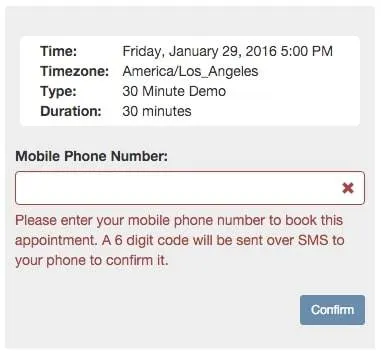
After entering their phone number, they will be sent a 6-digit code (via text message) to enter before they can complete the booking. The text message they receive will contain a 6-digit code and a link to complete the booking.
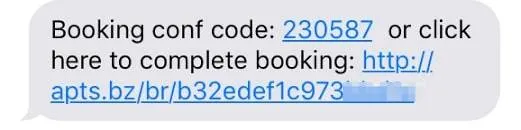
Once they’ve confirmed the mobile phone by entering the 6-digit code or clicking the booking link, the client can continue booking an appointment with you.
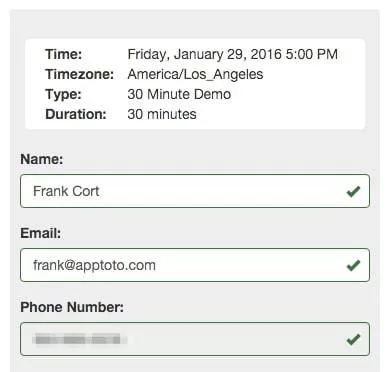
If the Address Book selected above contacts a contact that has the phone number they confirmed with, then the client will not have to fill out the contact details. Instead, those details will be filled out using the information in the Address Book.
Authenticating via email
Section titled “Authenticating via email”If you set the Authentication method to Verify Email, your clients will be asked to enter their email addresses before booking an appointment. They will be sent a 6-digit code (via email) to enter before they can complete the booking. Once they’ve entered the 6-digit code in the link provided, they can confirm their booking.
Require campaign booking link
Section titled “Require campaign booking link”If you set the Authentication method to Require Campaign Booking Link, the client must have received a booking link via an Apptoto Campaign. Clicking on that link will take them to a unique campaign booking link they must use to book their appointment.
Authenticating via captcha
Section titled “Authenticating via captcha”By changing the Authentication method to Captcha, Apptoto will use Google’s Re-Captcha mechanism to verify that the client is human.
No authentication method is needed.
Advanced Settings
Section titled “Advanced Settings”Depending on which authentication method you choose, you may see some or all of these advanced settings in the expandable Advanced tab.
Contact must exist in address book in order to book: This requires anyone booking an appointment to be a contact in your address book already (helpful for reducing SPAM).
Match Contacts by: If you use a captcha authentication method or no authentication method, you have the option to match contacts to your address book using the options below:
- Phone and Email
- By Phone
- By Email
- None
Provided name must be close to an existing contact in order to match: Activate this toggle to allow Apptoto to match the name provided by the client/patient during booking to a close/similar name in your existing address book.
Limit contacts to # appointment: Prevent clients from booking more than a set number of appointments at a given time.
Allow staff to skip mobile/email authentication: Lets your team book on behalf of a client/patient without waiting for the verification code to reach them. This setting is only shown when Authentication is Verify Mobile Phone or Verify Email, and it is turned on for new booking pages.
When it’s on, anyone logged into your Apptoto account — including team members with the Booking Pages Only permission — sees a few extra things on the booking page:
- A red Staff banner at the top showing who is logged in.
- Two buttons in place of Continue after entering the client’s phone or email: Send 6-digit code to verify (the normal client check) and Skip Verification.
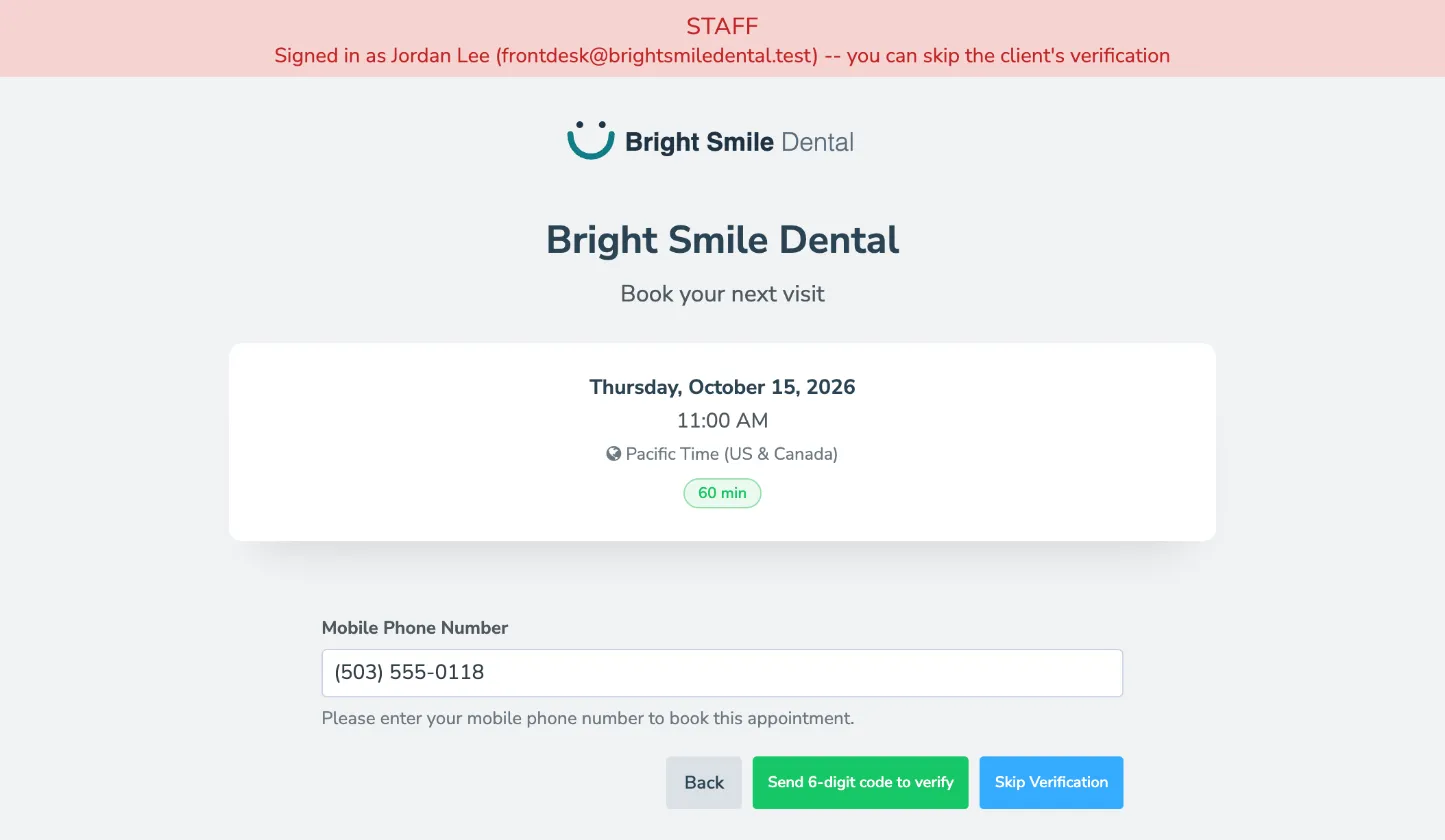
When someone uses Skip Verification, the appointment remembers which team member booked it. Use the {{ booked_by }} placeholder to include their name in your messages.
Clients who aren’t logged in to your account never see the banner or the skip button.
Secret staff codes: Booking pages that already have secret staff codes keep a box for them under this setting, and those codes still work: anyone who types one into the For office use only box on the booking page skips verification. New booking pages don’t offer staff codes. To give a team member a way to skip verification, add them as a user with the Booking Pages Only permission instead — see Adding Users to Your Account.