Exporting Message Data
Follow this guide to export all messages that your business has sent using Apptoto.
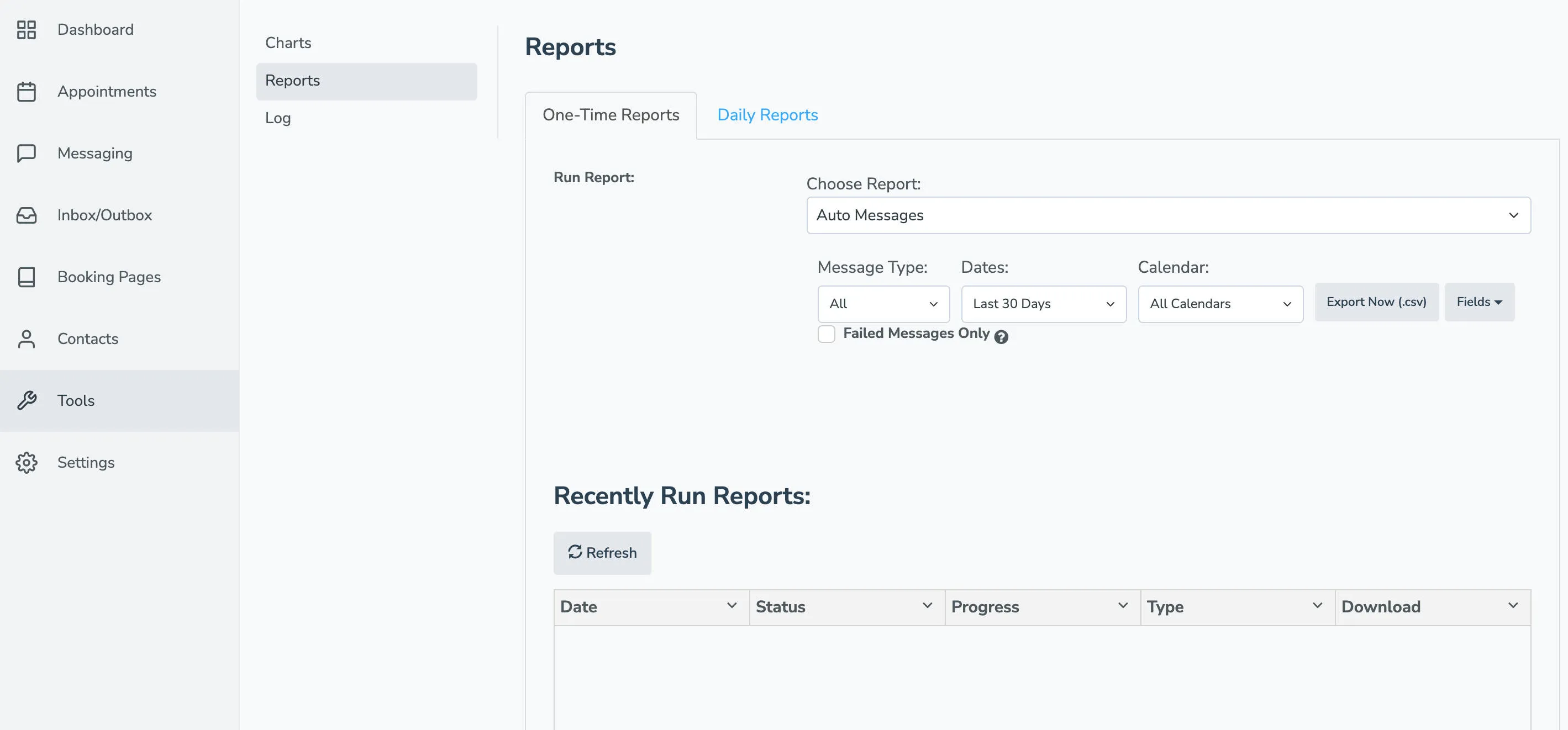
- Open the Tools > Reports tab.
- Find the Choose Report dropdown and select Auto Messages.
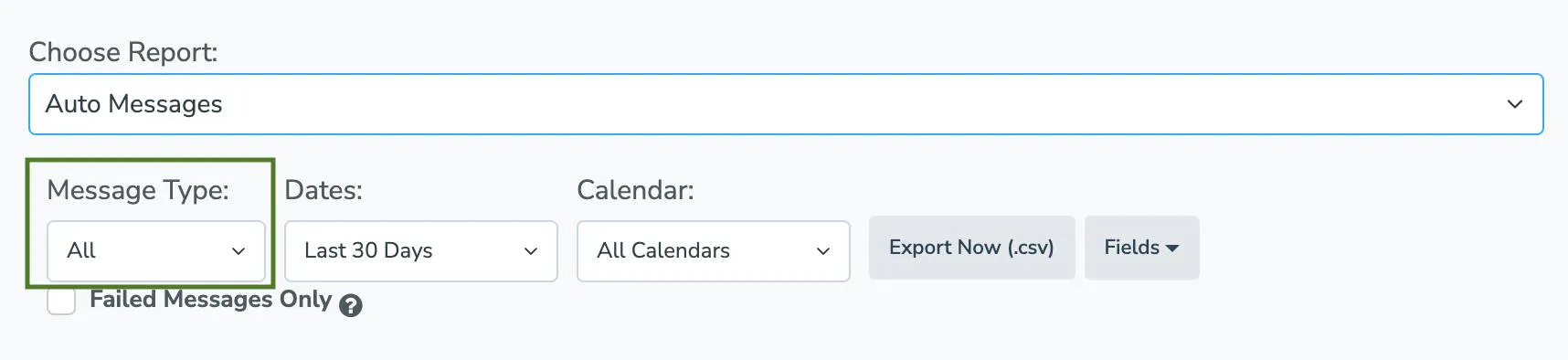
- Leave Message Type set to All. Under the Dates field, select All Time.
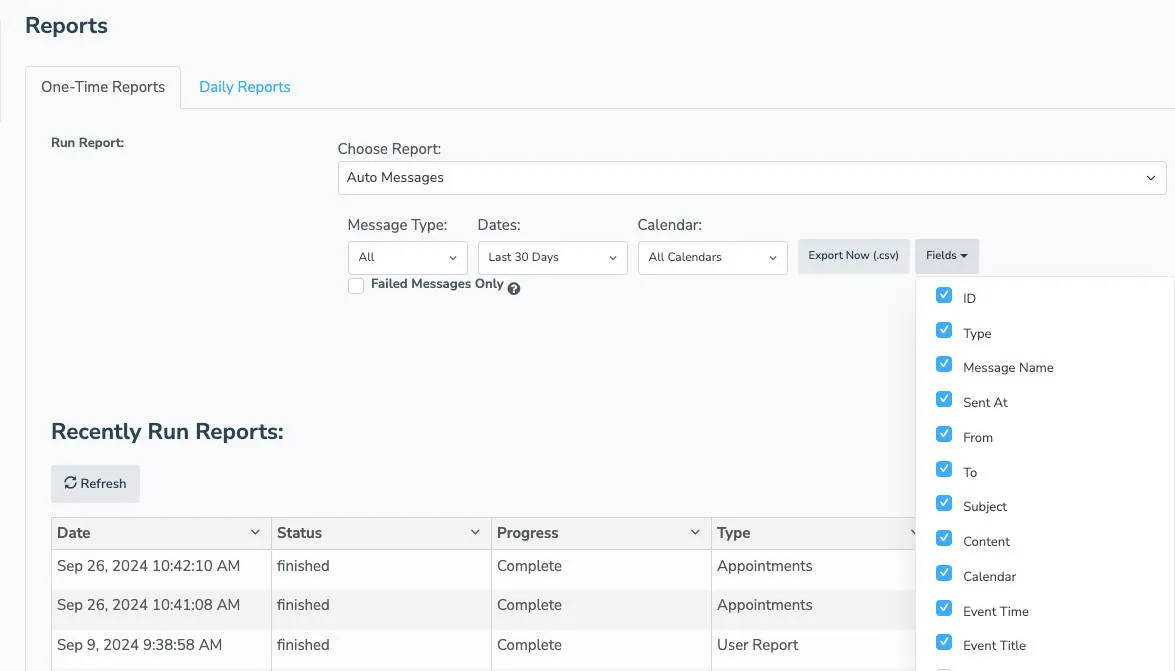
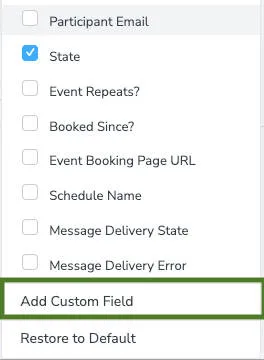
- Click the Fields dropdown, and select all of the relevant data that you’d like to include in the export.
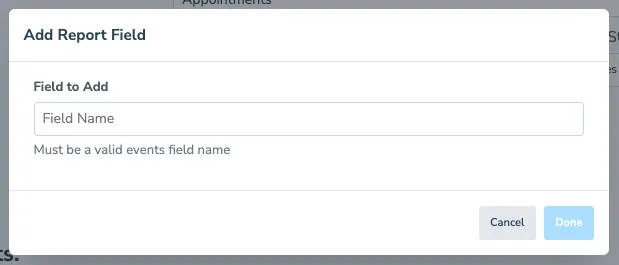
- If you used any custom fields in your events and need to include that in the report, click Add Custom Field. Repeat this step for each custom field you would like to include.
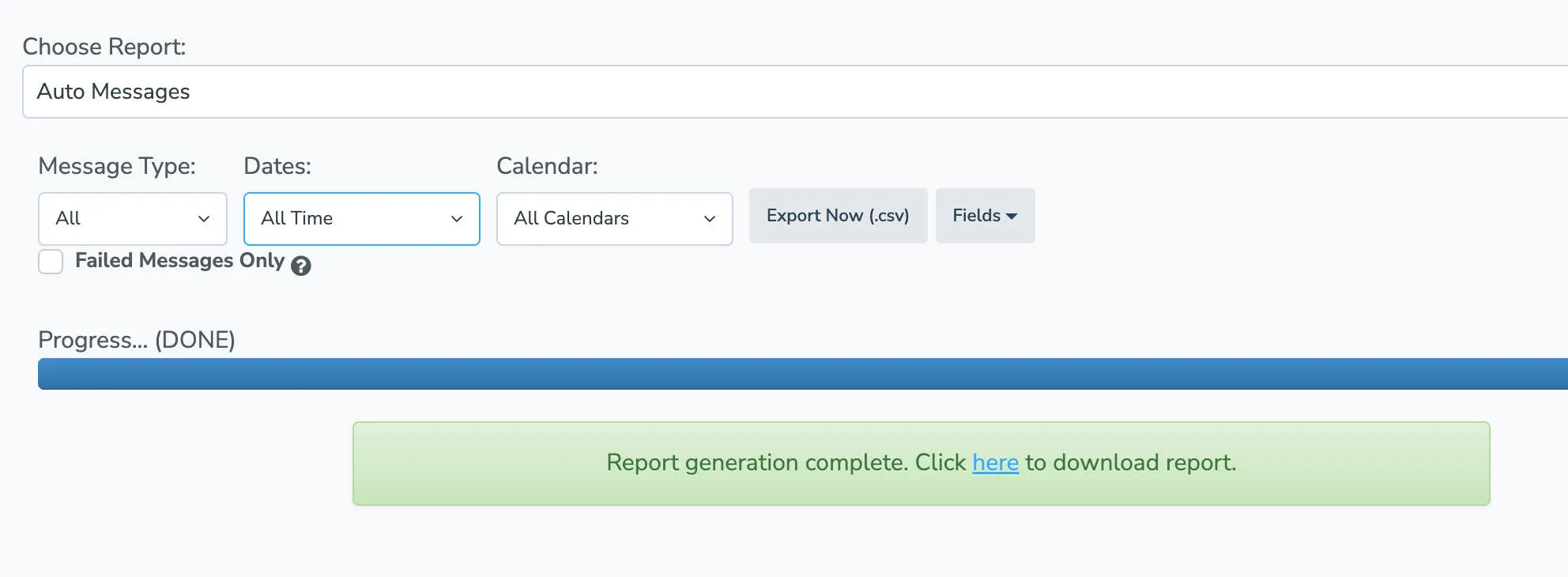
- Click Export Now (.csv). Wait for Apptoto to finish generating the file, then download it from the account portal.