
Dealing With Multiple Time Zones
It goes without saying that appointment reminders should say the right time or else you risk hurting your business as opposed to helping. Sometimes getting the time right can actually be tricky. This typically applies if you hold appointments with clients in multiple time zones.
Follow the steps below to ensure reminders display the correct time (if your business conducts appointments across multiple time zones).
Step 1: Include the time zone in messages
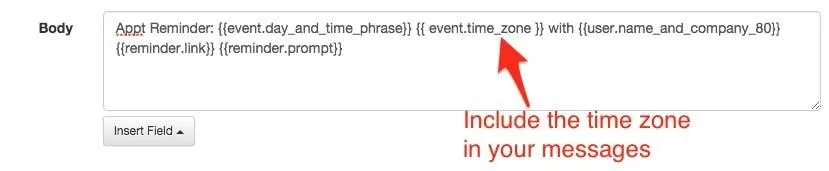
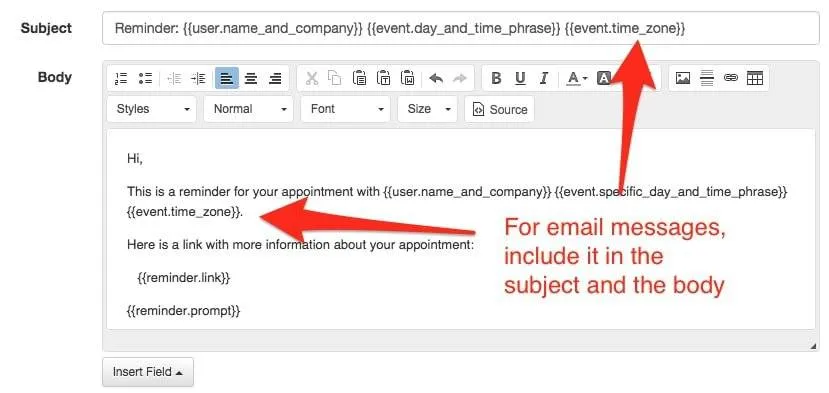
Section titled “Step 1: Include the time zone in messages”Add the {{ event.time_zone }} field immediately after the appointment time in your SMS, voice, and email message templates. This ensures clients see which time zone the appointment is in even if it differs from their local time.
Do this by clicking on the “Auto Messages” tab and then editing your SMS, email, and voice messages.
Here is how the message should look after you’ve added the time zone field for voice calls and SMS:
Here is how the message should look after you’ve added the time zone field to the subject and/or body of an automated email:
Step 2: Use browser time on appointment pages
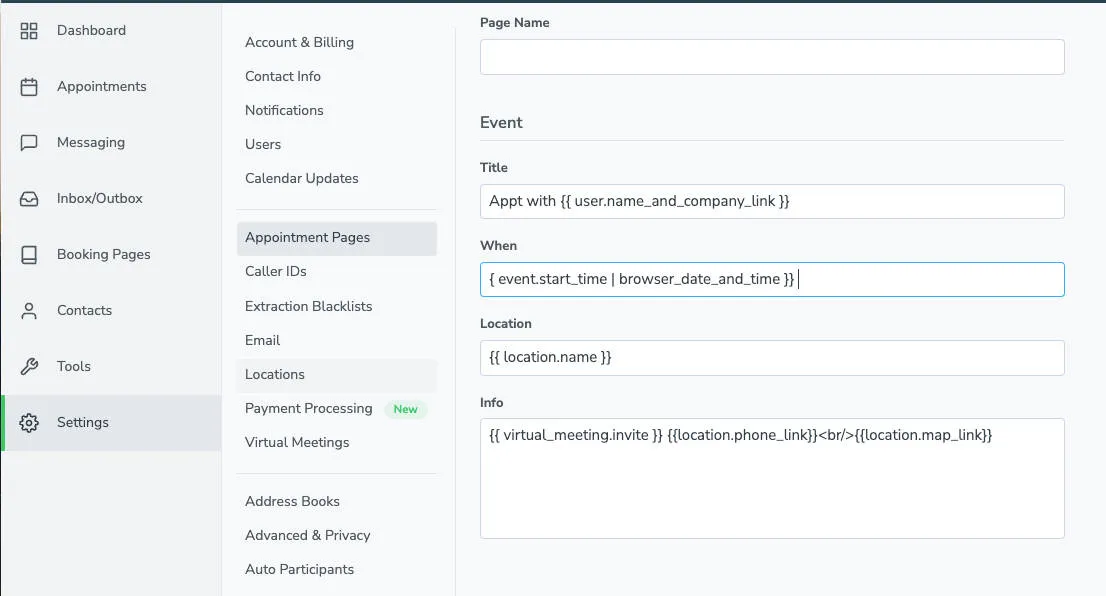
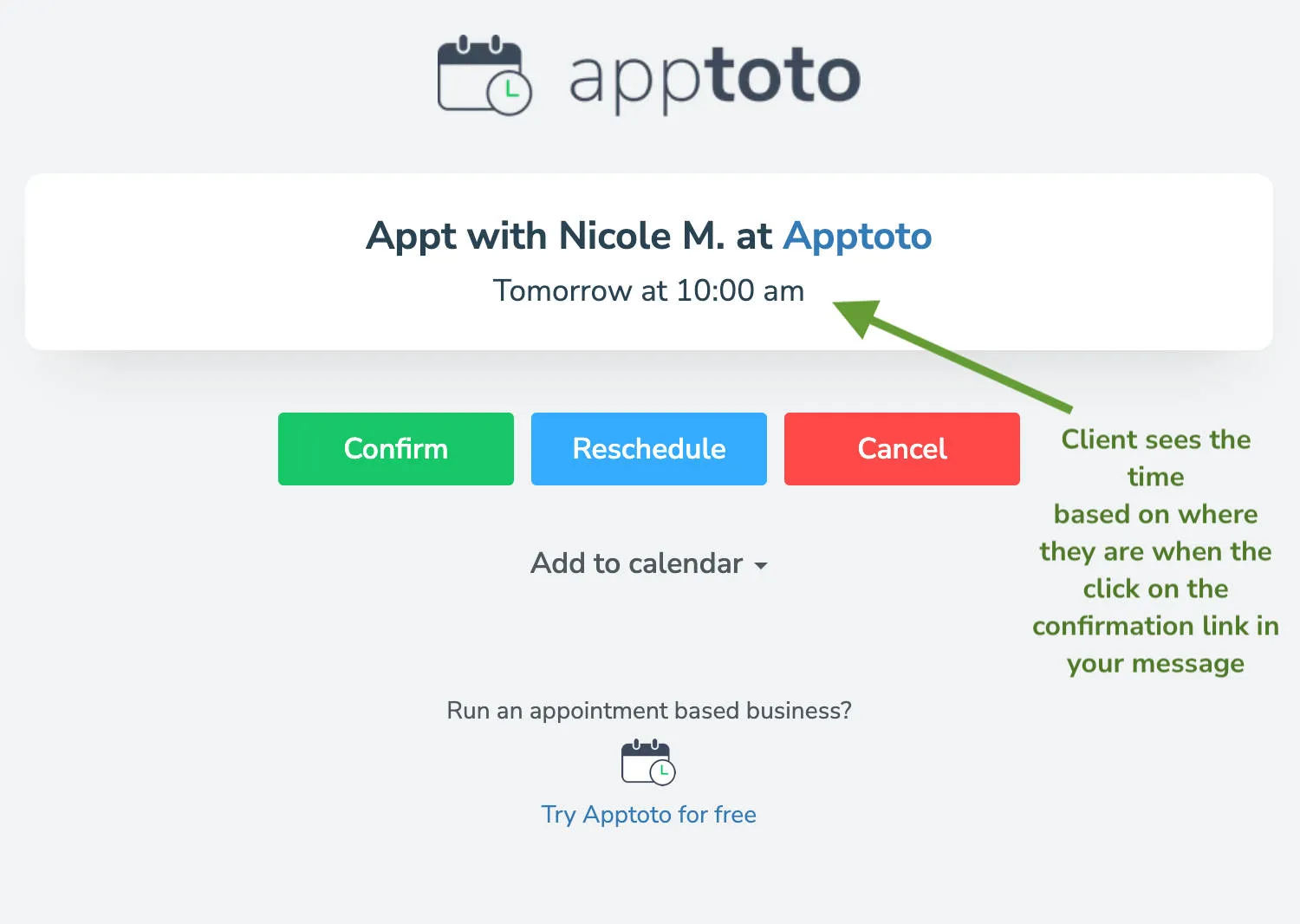
Section titled “Step 2: Use browser time on appointment pages”The Appointment Page is the page that a client sees when they click on the link that Apptoto includes in a SMS or Email reminder message (via the {{ reminder.link }} field). You can customize the time that appears on that page on the Settings > Appointment Page tab in Apptoto.
You can take advantage of the fact that the browser knows what time zone the client is currently in by using {{ event.start_time | browser_date_and_time }} or {{event.start_time | browser_time }} in the appointment page settings.
Here is what the appointment page then looks like for the client when they click on the link:
Step 3: Tell Apptoto which time zone your client is in
Section titled “Step 3: Tell Apptoto which time zone your client is in”If your client’s time zone is different than your time zone then you need to tell Apptoto which time zone your client is in. There are 4 ways you can do that:
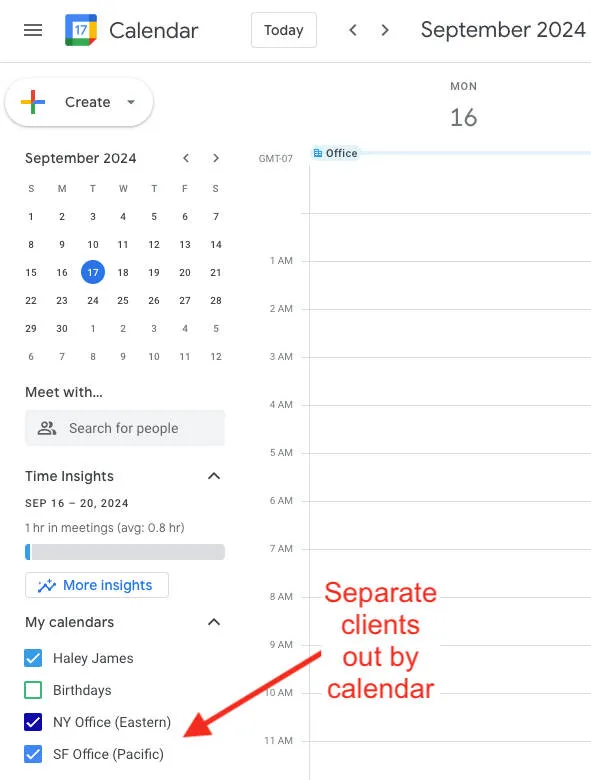
3A: Segment your client’s time zones by calendar
Section titled “3A: Segment your client’s time zones by calendar”Create separate calendars for each time zone you have clients in and place appointments on the appropriate calendar. This works well if you already have regional calendars set up.
3B: Set the timezone on the event
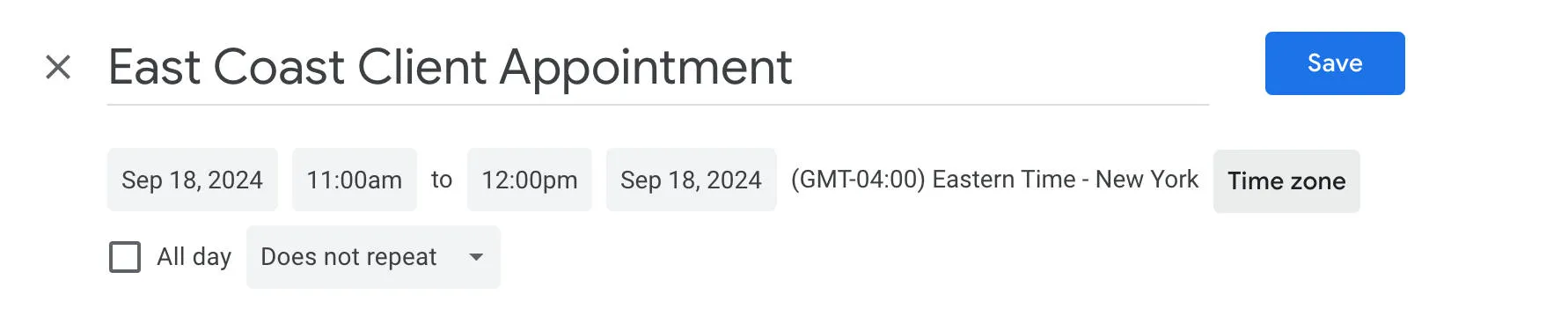
Section titled “3B: Set the timezone on the event”Some of the calendaring systems that Apptoto integrates with (e.g. Google, Office 365, and Outlook) allow you to specify the time zone for each event. For example in Google, you can change the time zone for an event by clicking “Time zone” to the right of the time on the “Edit Event” screen:
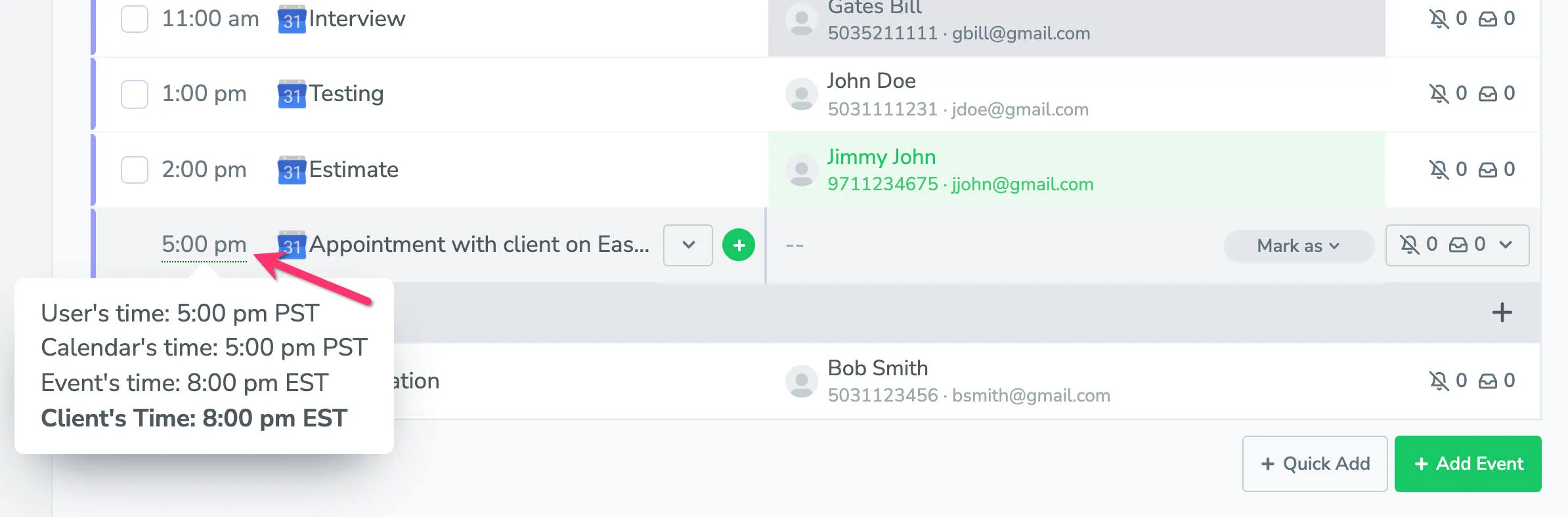
3C: Include the time zone or zip code in the event body
Section titled “3C: Include the time zone or zip code in the event body”Add a line like time zone: EDT or zip: 10001 in the body of the appointment. Apptoto will recognize all standard time zone names and abbreviations. For example, you can put the following in the body of the appointment and Apptoto will use Eastern time when sending the message.
time zone: EDT
Alternatively, you can put the zip code in the appointment (US Only). For example:
zip: 10001
The time zone abbreviations we support include:
Abbreviation → Timezone Nickname
| Abbreviation | Timezone Nickname |
|---|---|
| PT | Pacific Time (US & Canada) |
| PST | Pacific Time (US & Canada) |
| PDT | Pacific Time (US & Canada) |
| MT | Mountain Time (US & Canada) |
| MDT | Mountain Time (US & Canada) |
| MST | Mountain Time (US & Canada) |
| CT | Central Time (US & Canada) |
| CDT | Central Time (US & Canada) |
| CST | Central Time (US & Canada) |
| ET | Eastern Time (US & Canada) |
| EDT | Eastern Time (US & Canada) |
| EST | Eastern Time (US & Canada) |
| HT | Hawaii |
| HDT | Hawaii |
| HST | Hawaii |
| AZ | Arizona |
We also support any of the following nicknames or official names:
Nickname → Official Name
| Nickname | Official Name |
|---|---|
| International Date Line West | Pacific/Midway |
| Midway Island | Pacific/Midway |
| American Samoa | Pacific/Pago_Pago |
| Hawaii | Pacific/Honolulu |
| Alaska | America/Juneau |
| Pacific Time (US & Canada) | America/Los_Angeles |
| Tijuana | America/Tijuana |
| Mountain Time (US & Canada) | America/Denver |
| Arizona | America/Phoenix |
| Chihuahua | America/Chihuahua |
| Mazatlan | America/Mazatlan |
| Central Time (US & Canada) | America/Chicago |
| Saskatchewan | America/Regina |
| Guadalajara | America/Mexico_City |
| Mexico City | America/Mexico_City |
| Monterrey | America/Monterrey |
| Central America | America/Guatemala |
| Eastern Time (US & Canada) | America/New_York |
| Indiana (East) | America/Indiana/Indianapolis |
| Bogota | America/Bogota |
| Lima | America/Lima |
| Quito | America/Lima |
| Atlantic Time (Canada) | America/Halifax |
| Caracas | America/Caracas |
| La Paz | America/La_Paz |
| Santiago | America/Santiago |
| Newfoundland | America/St_Johns |
| Brasilia | America/Sao_Paulo |
| Buenos Aires | America/Argentina/Buenos_Aires |
| Montevideo | America/Montevideo |
| Georgetown | America/Guyana |
| Greenland | America/Godthab |
| Mid-Atlantic | Atlantic/South_Georgia |
| Azores | Atlantic/Azores |
| Cape Verde Is. | Atlantic/Cape_Verde |
| Dublin | Europe/Dublin |
| Edinburgh | Europe/London |
| Lisbon | Europe/Lisbon |
| London | Europe/London |
| Casablanca | Africa/Casablanca |
| Monrovia | Africa/Monrovia |
| UTC | Etc/UTC |
| Belgrade | Europe/Belgrade |
| Bratislava | Europe/Bratislava |
| Budapest | Europe/Budapest |
| Ljubljana | Europe/Ljubljana |
| Prague | Europe/Prague |
| Sarajevo | Europe/Sarajevo |
| Skopje | Europe/Skopje |
| Warsaw | Europe/Warsaw |
| Zagreb | Europe/Zagreb |
| Brussels | Europe/Brussels |
| Copenhagen | Europe/Copenhagen |
| Madrid | Europe/Madrid |
| Paris | Europe/Paris |
| Amsterdam | Europe/Amsterdam |
| Berlin | Europe/Berlin |
| Bern | Europe/Zurich |
| Zurich | Europe/Zurich |
| Rome | Europe/Rome |
| Stockholm | Europe/Stockholm |
| Vienna | Europe/Vienna |
| West Central Africa | Africa/Algiers |
| Bucharest | Europe/Bucharest |
| Cairo | Africa/Cairo |
| Helsinki | Europe/Helsinki |
| Kyiv | Europe/Kiev |
| Riga | Europe/Riga |
| Sofia | Europe/Sofia |
| Tallinn | Europe/Tallinn |
| Vilnius | Europe/Vilnius |
| Athens | Europe/Athens |
| Istanbul | Europe/Istanbul |
| Minsk | Europe/Minsk |
| Jerusalem | Asia/Jerusalem |
| Harare | Africa/Harare |
| Pretoria | Africa/Johannesburg |
| Kaliningrad | Europe/Kaliningrad |
| Moscow | Europe/Moscow |
| St. Petersburg | Europe/Moscow |
| Volgograd | Europe/Volgograd |
| Samara | Europe/Samara |
| Kuwait | Asia/Kuwait |
| Riyadh | Asia/Riyadh |
| Nairobi | Africa/Nairobi |
| Baghdad | Asia/Baghdad |
| Tehran | Asia/Tehran |
| Abu Dhabi | Asia/Muscat |
| Muscat | Asia/Muscat |
| Baku | Asia/Baku |
| Tbilisi | Asia/Tbilisi |
| Yerevan | Asia/Yerevan |
| Kabul | Asia/Kabul |
| Ekaterinburg | Asia/Yekaterinburg |
| Islamabad | Asia/Karachi |
| Karachi | Asia/Karachi |
| Tashkent | Asia/Tashkent |
| Chennai | Asia/Kolkata |
| Kolkata | Asia/Kolkata |
| Mumbai | Asia/Kolkata |
| New Delhi | Asia/Kolkata |
| Kathmandu | Asia/Kathmandu |
| Astana | Asia/Dhaka |
| Dhaka | Asia/Dhaka |
| Sri Jayawardenepura | Asia/Colombo |
| Almaty | Asia/Almaty |
| Novosibirsk | Asia/Novosibirsk |
| Rangoon | Asia/Rangoon |
| Bangkok | Asia/Bangkok |
| Hanoi | Asia/Bangkok |
| Jakarta | Asia/Jakarta |
| Krasnoyarsk | Asia/Krasnoyarsk |
| Beijing | Asia/Shanghai |
| Chongqing | Asia/Chongqing |
| Hong Kong | Asia/Hong_Kong |
| Urumqi | Asia/Urumqi |
| Kuala Lumpur | Asia/Kuala_Lumpur |
| Singapore | Asia/Singapore |
| Taipei | Asia/Taipei |
| Perth | Australia/Perth |
| Irkutsk | Asia/Irkutsk |
| Ulaanbaatar | Asia/Ulaanbaatar |
| Seoul | Asia/Seoul |
| Osaka | Asia/Tokyo |
| Sapporo | Asia/Tokyo |
| Tokyo | Asia/Tokyo |
| Yakutsk | Asia/Yakutsk |
| Darwin | Australia/Darwin |
| Adelaide | Australia/Adelaide |
| Canberra | Australia/Melbourne |
| Melbourne | Australia/Melbourne |
| Sydney | Australia/Sydney |
| Brisbane | Australia/Brisbane |
| Hobart | Australia/Hobart |
| Vladivostok | Asia/Vladivostok |
| Guam | Pacific/Guam |
| Port Moresby | Pacific/Port_Moresby |
| Magadan | Asia/Magadan |
| Srednekolymsk | Asia/Srednekolymsk |
| Solomon Is. | Pacific/Guadalcanal |
| New Caledonia | Pacific/Noumea |
| Fiji | Pacific/Fiji |
| Kamchatka | Asia/Kamchatka |
| Marshall Is. | Pacific/Majuro |
| Auckland | Pacific/Auckland |
| Wellington | Pacific/Auckland |
| Nuku’alofa | Pacific/Tongatapu |
| Tokelau Is. | Pacific/Fakaofo |
| Chatham Is. | Pacific/Chatham |
| Samoa | Pacific/Apia |
3D: Use the contact’s zip code (US Only)
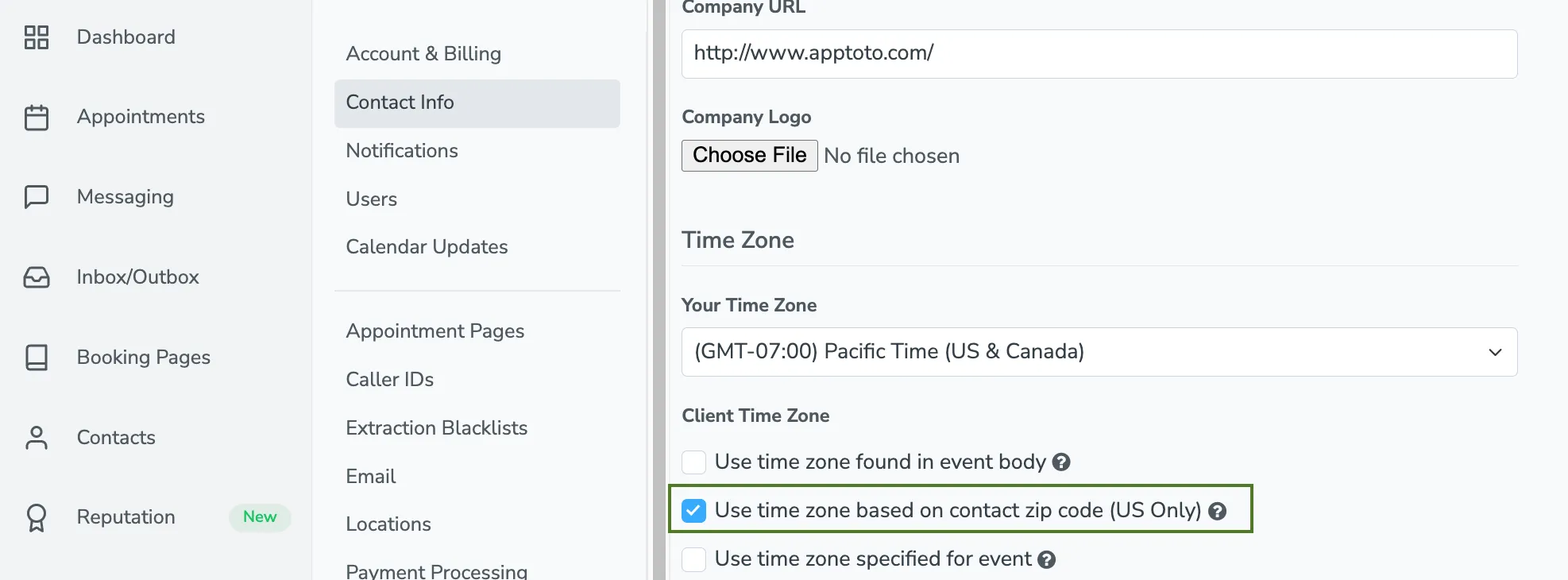
Section titled “3D: Use the contact’s zip code (US Only)”If contact matching is enabled and your contact records include a US zip code, Apptoto can automatically derive the time zone from that zip code.
Enable this in Settings > Contact Info > Timezone > Client Timezone by turning on Use time zone based on contact zip code (US Only).
This is popular with Salesforce users, where zip codes are typically stored on contact or lead records.
See more at: https://www.apptoto.com/best-practices/getting-the-time-right-dealing-with-multiple-time-zones