
Issuing Refunds
Issue full or partial refunds to clients from the Appointment Editor, the Agenda view, or the Contacts tab, and customize the messages clients receive.
You can issue refunds for any payment collected through Apptoto — whether it was charged at booking, captured as a deposit remainder, or billed as a no-show fee.
Refunds for Appointment payments
Section titled “Refunds for Appointment payments”Refunds for payments tied to an appointment can be issued through the Appointment Editor or the Agenda View.
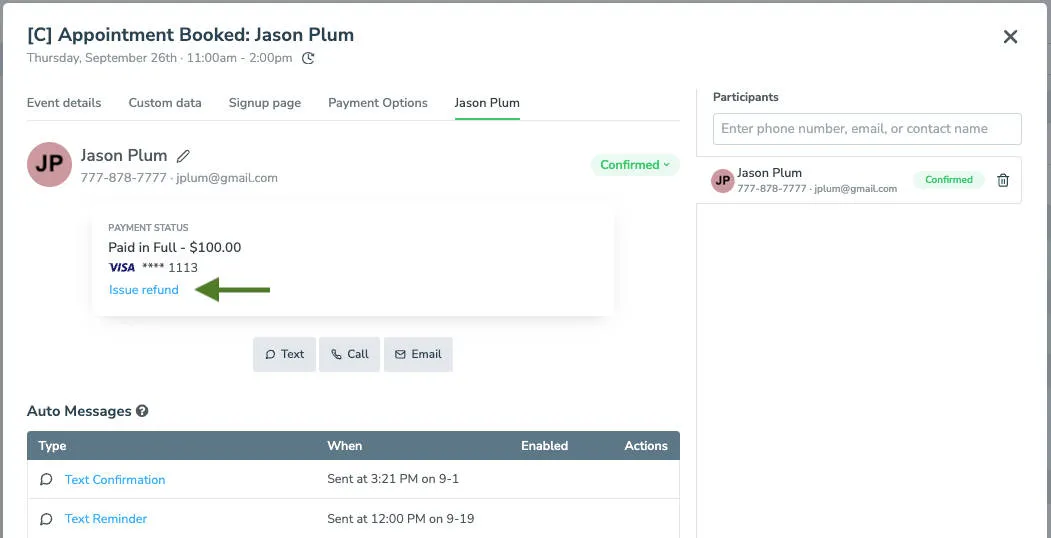
- Open the appointment: Navigate to Appointments tab and click on the appointment to open the Appointment Editor.
- Find the payment action: Find the contact’s name and payment card. Click Issue Refund.
- Confirm: Review the refund amount and confirm. The refund is submitted to your payment processor immediately.
- Locate the participant on the Agenda View: Go to Appointments tab and find the appointment on the Agenda View.
- Open the payment menu: Click the **$**icon next to the participant’s name.
- Select Issue Refund: Choose Issue Refund from the dropdown and confirm.

Issuing refunds for non-appointment payments
Section titled “Issuing refunds for non-appointment payments”Payments charged directly from a contact record (one-time charges) are refunded from the Contactstab:
Note that payments associated with appointments will also show up there if the appointment was booked through an authenticated Booking Page.
Refund Timing and Details
Section titled “Refund Timing and Details”The time it takes for funds to return to the client depends on the payment processor you use. Refer to your processor’s documentation for details:
Square: See Square’s refund overview
Stripe: See Stripe’s refunds documentation