
Managing Your Time Zone Settings
Set the default account time zone and per-calendar time zones in Apptoto.
Accurate time zones are critical for appointment reminders. Sending a reminder with the wrong time can cause more harm than not sending one at all. This page covers how to configure your account time zone (and calendar time zones if needed).
Account time zone
Section titled “Account time zone”Check your account time zone
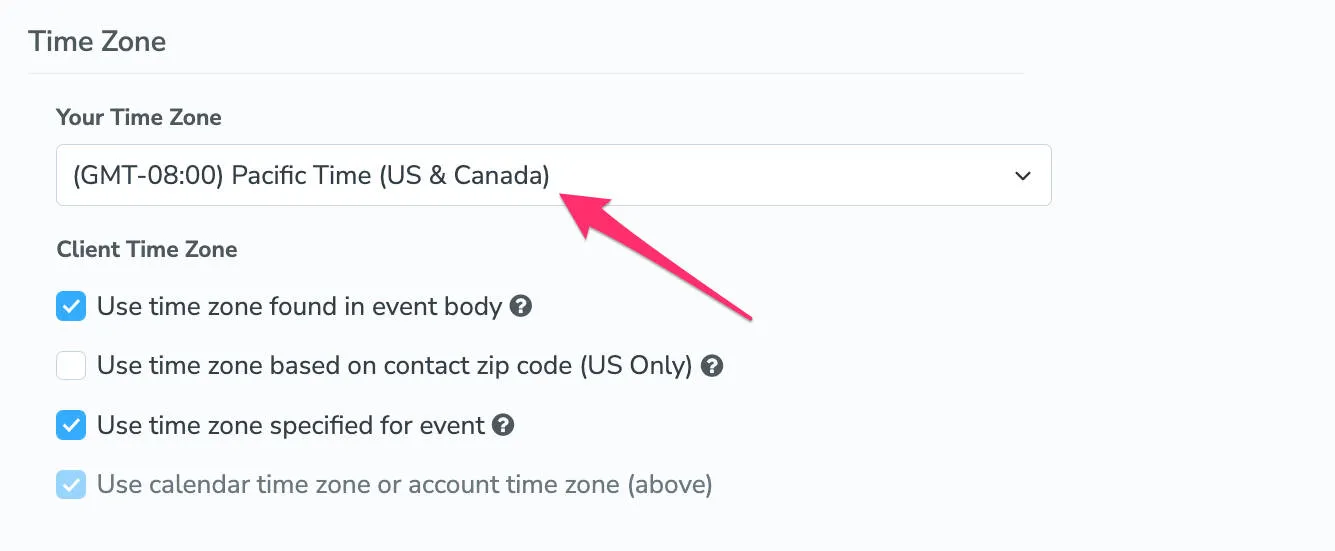
Section titled “Check your account time zone”Navigate to Settings > Contact Info and verify the default time zone is set correctly for your business.
Calendar time zone
Section titled “Calendar time zone”Each calendar in your Apptoto account can be set to use a different default time zone, so it’s important to check that the time zone settings are correct for each calendar
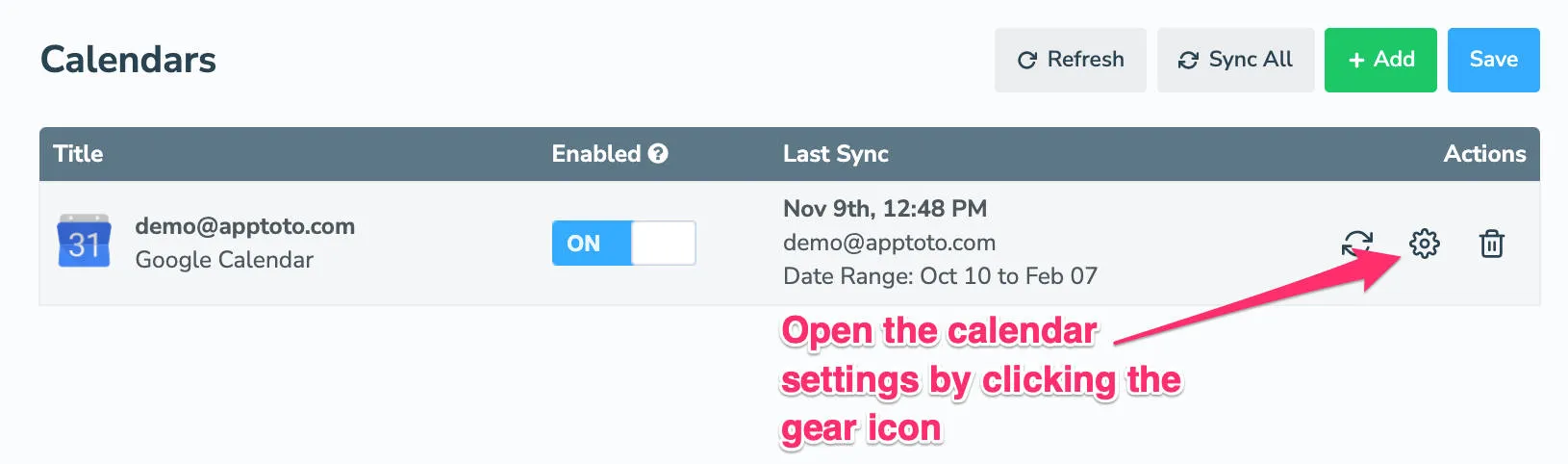
Navigate to Settings > Calendars. Click the gear icon next to your Calendar name.
On the “Basic” tab, scroll down to “Timezone” and confirm it is set correctly.
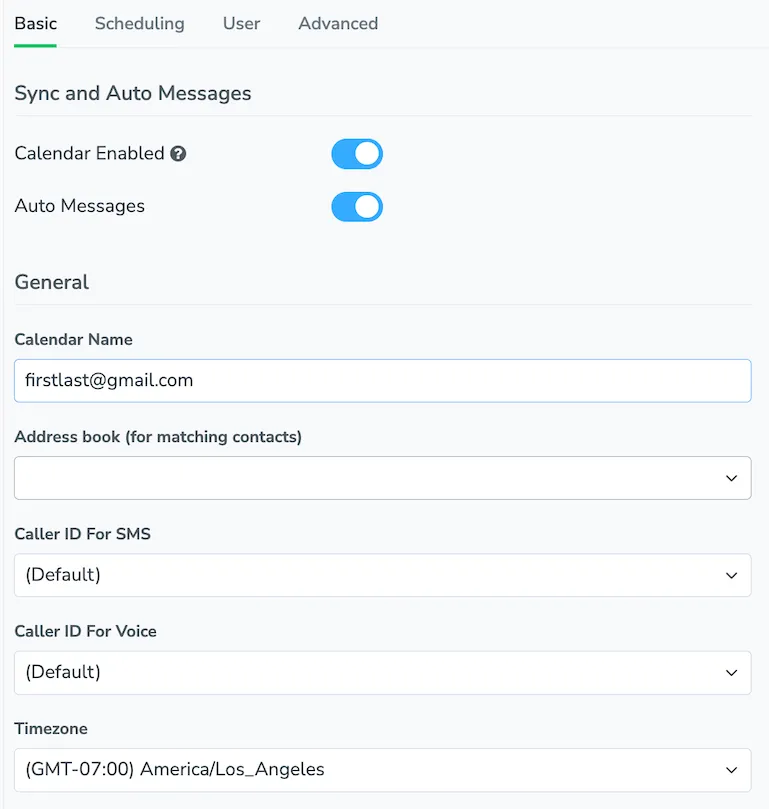
Be sure to click “Save Changes” if you make any changes.