Google Analytics Tracking
Apptoto supports Google Analytics tracking on your booking pages so you can measure how many visitors book appointments and where they come from.
Integrating Google Analytics 4
Section titled “Integrating Google Analytics 4”To add Google Analytics 4 tracking to your Booking Pages:
- Find your Google Tag Manager Container ID.
- In Apptoto, navigate to Settings > Integrations > Advanced Integration Options, and under Marketing & Analytics open Google Tag Manager.
- Enter your ID in the Google Tag Manager Container Id field.
- Click Save Google Settings.
Which tags load through Google Tag Manager
Section titled “Which tags load through Google Tag Manager”For security, only Google tags (Google Analytics, Google Ads, and other Google-built tags) load through Google Tag Manager on your Booking Pages. Other tags, including custom HTML or JavaScript, will not fire.
To add a Meta Pixel, use the dedicated Meta Pixel integration instead — see Meta Pixel Tracking.
Trackable data in Google Analytics
Section titled “Trackable data in Google Analytics”Once you successfully add your Google Tag Manager tag/Google Analytics tracking code to Apptoto, GA4 tracking code will be loaded on your booking pages any time a visitor clicks on one.
Within GA4, you’ll be able to view:
- Page views on /b/ : View on your booking pages
- Page views on /br/ : Views on your Appointment Pages (i.e., the page the user sees after they book an appointment)
- A Custom Event named “apptoto_booking”: An “apptoto_booking” event will be pushed to GA4 whenever someone books an appointment through an Apptoto booking page.
- To find this event (and/or make it a “Key Event”), navigate to GA4 > Admin > Data Display > Events.
- You can also view the booking page where the event occurred by setting up a custom dimension for “booking_page.” To do so, review the directions below.
- To find this event (and/or make it a “Key Event”), navigate to GA4 > Admin > Data Display > Events.
Additional configuration
Section titled “Additional configuration”Configure cross-domain tracking
Section titled “Configure cross-domain tracking”For your tracking to work properly, you must tell GA4 to track actions and events from the www#.apptoto.com domain. To do so:
- In Google Analytics, navigate to the Admin tab (gear icon).
- Find the Data Streams section under Data Collection and Modification.
- On the All tab, click the data stream for your primary domain/URL.
- Click the Configure Tag Settings option.
- Scroll down and click on Configure your domains.
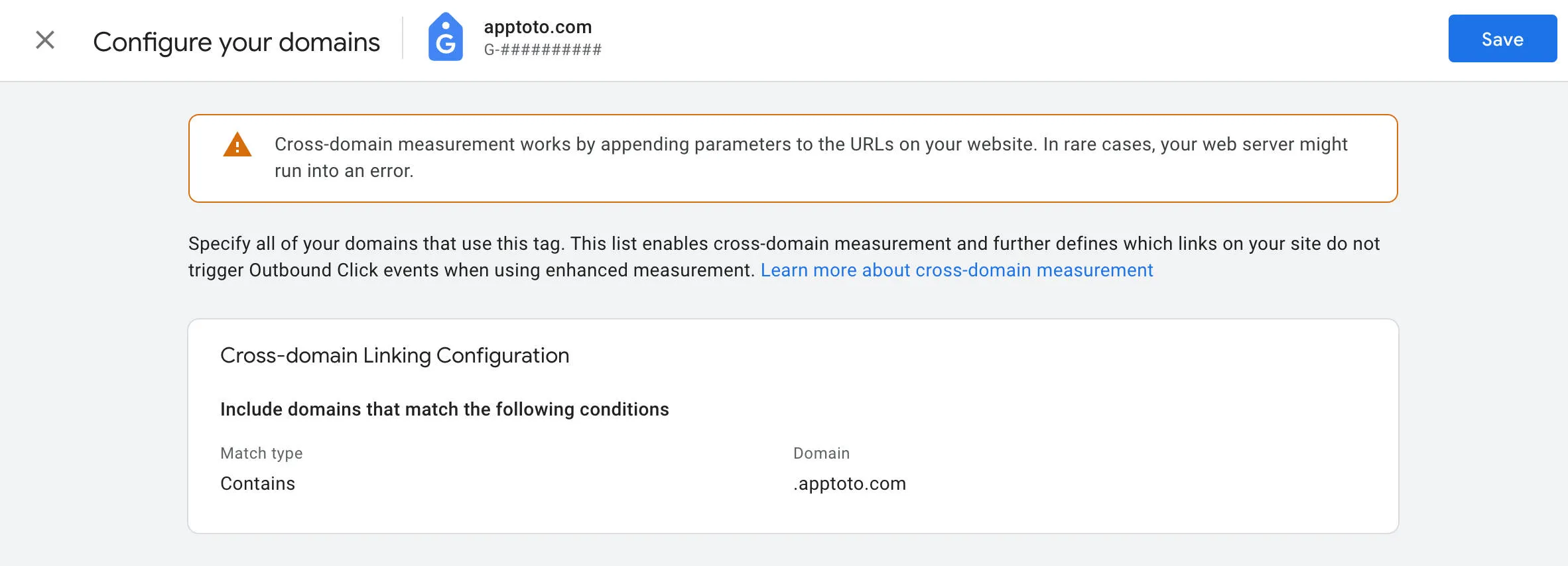
- Under Cross-domain Linking Configuration, click Add condition.
- Set match type to Contains
- In the Domain field, enter: .apptoto.com
- This will allow Google Analytics to recognize your GTM tag on any Apptoto book page you’ve created instead of you having to enter each one.
- This will allow Google Analytics to recognize your GTM tag on any Apptoto book page you’ve created instead of you having to enter each one.
Set Up a custom “Booking Page” dimension
Section titled “Set Up a custom “Booking Page” dimension”When a client books an appointment, Apptoto will automatically push an additional piece of custom information about the Booking Page that generated the reservation. However, you must tell GA4 to track the “Booking Page” custom dimension before using it to build and segment reports.
To do so:
- In Google Analytics, navigate to Admin (gear icon).
- Click the Custom Definitions link under the Data Display section.
- Click the blue create Custom Dimension button that appears
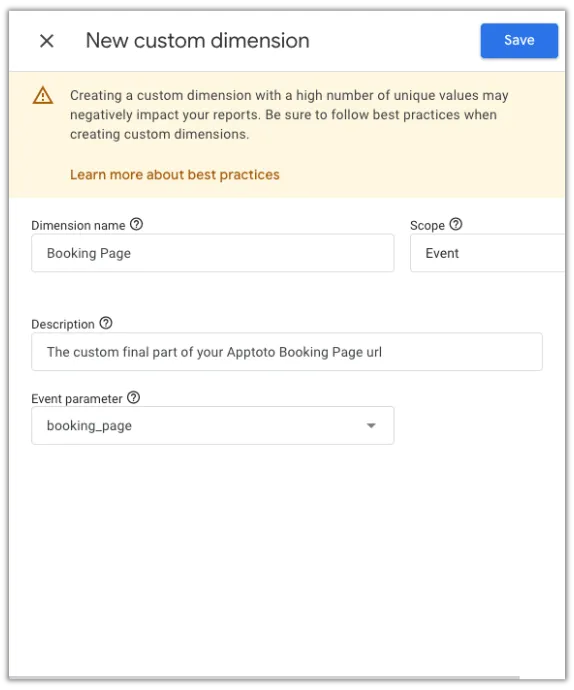
- In the New Custom Dimension form that appears, set:
- Dimension Name: Use “Booking Page” or something easily identifiable
- Scope: Set to “Event”
- Description: Optional text used to help users understand the custom dimension.
- Event Parameter: Select “booking_page” from the dropdown list.
- Click Save.