
Embedding Your Booking Page
The Embed tab on your booking page provides the code snippets you need to put your booking page directly on your website. Clients can book without leaving your site.
Embedding options
Section titled “Embedding options”There are a few embedding approaches: an IFrame (inline embed inside an existing page), HTML FrameSets (host Apptoto booking page on your own domain), a Book Now button (modal that opens when clicked), and a QR Code that links directly to your booking page.
An IFrame places your booking calendar directly inside a page on your website.
-
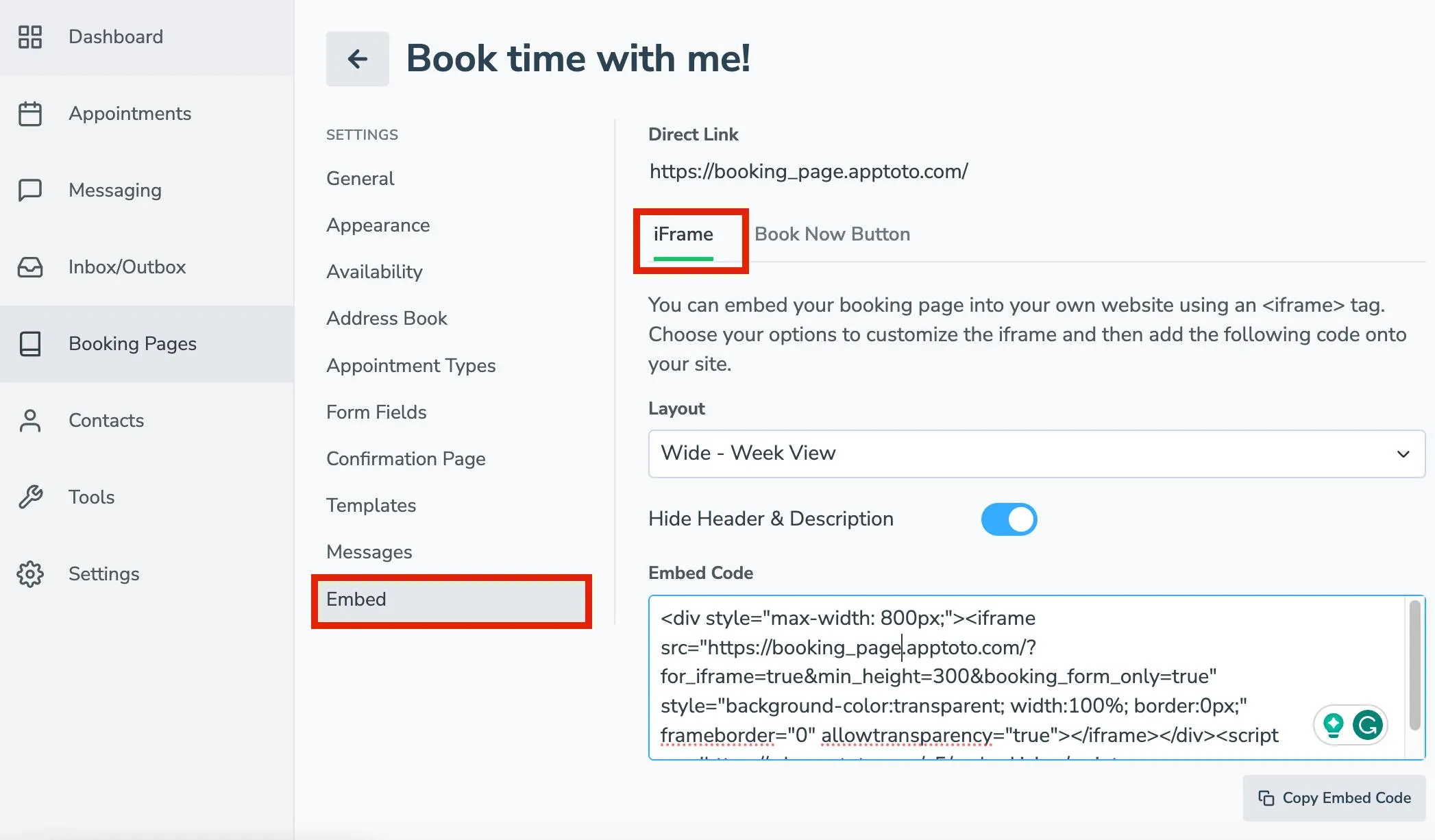
Open the Embed tab: Navigate to your booking page settings and click the Embed tab, then select IFrame.
-
Choose a layout: Select one of three size options:
- Wide – Week View (800px) — shows a full week of availability
- Medium – Single Day (600px) — clients pick a day, then a time
- Narrow – Single Day (350px) — compact single-day view, good for sidebars
-
Optional: hide header: Toggle Hide Header & Description if you want the calendar to blend into your page without the booking page title and description.
-
Copy the code: Copy the generated HTML and paste it into your website where you want the calendar to appear.
Use an HTML frameset to host your Apptoto booking page on your own domain name — for example, https://BookFredNow.com/.
Set the following as the default document at your domain:
<!DOCTYPE HTML PUBLIC "-//W3C//DTD HTML 4.01//EN" "http://www.w3.org/TR/html4/strict.dtd"><html><head> <title>Fred's Booking Calendar </title> <meta name="viewport" content="width=device-width,initial-scale=1"></head><frameset rows="100%,*" border="0"> <frame src="https://YOURBOOKINGPAGE.apptoto.com/" frameborder="0" /> <frame frameborder="0" noresize /></frameset></html>Replace YOURBOOKINGPAGE with your actual subdomain.
A Book Now button adds a call-to-action anywhere on your site. When clicked, a modal window opens with your booking calendar.
-
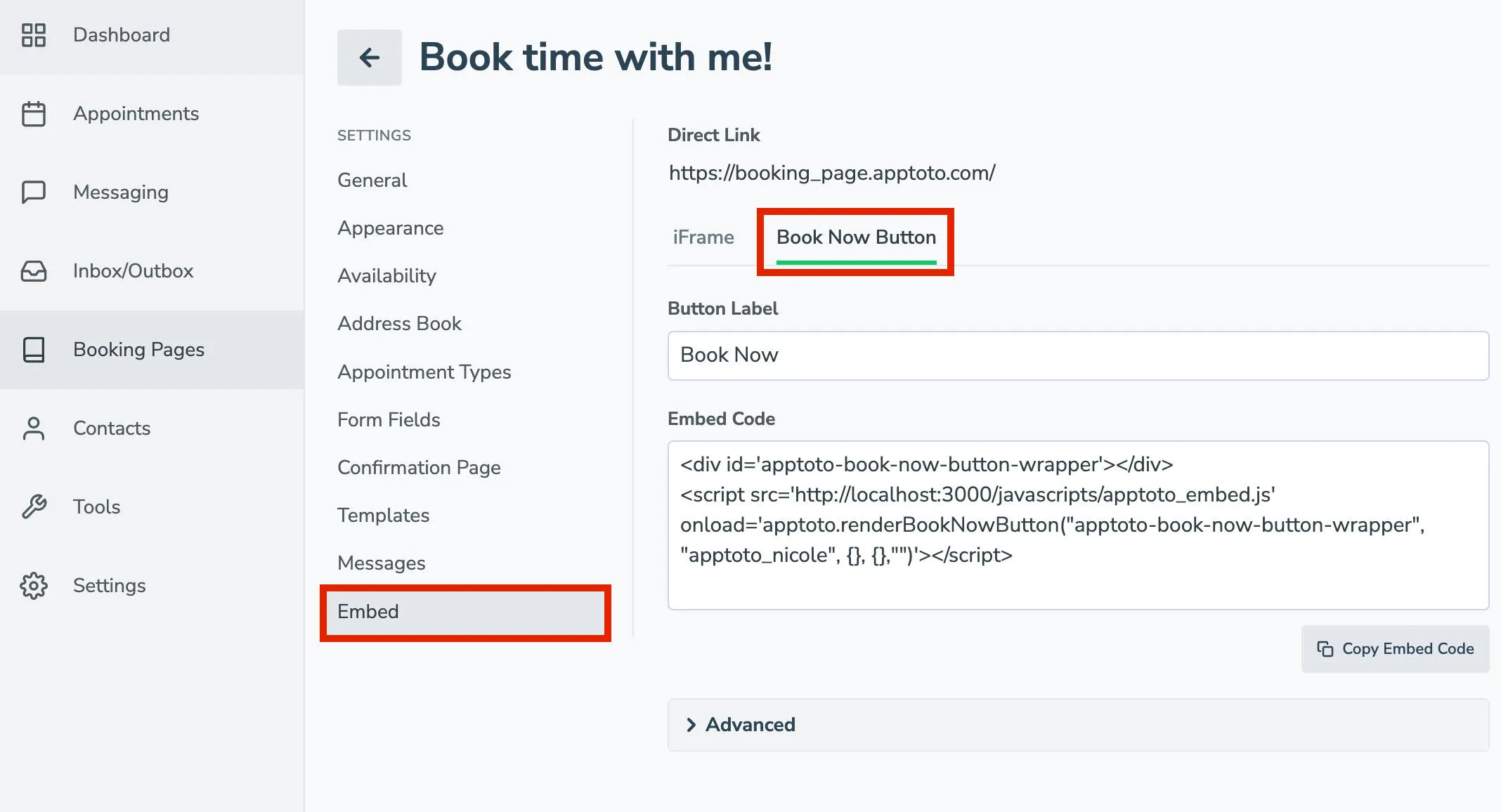
Open the Embed tab: Go to your booking page settings, click Embed, then select Book Now Button.
-
Enter button text: Type the label for your button (e.g., “Book an Appointment” or “Schedule Now”).
-
Customize styles (optional): Expand Advanced to adjust:
- Button CSS: Change button color, font size, border, etc.
- Modal CSS: adjust the width, height, background, or color of the popup modal
-
Copy the code: Copy the generated snippet and paste it into your website wherever you want the button to appear.
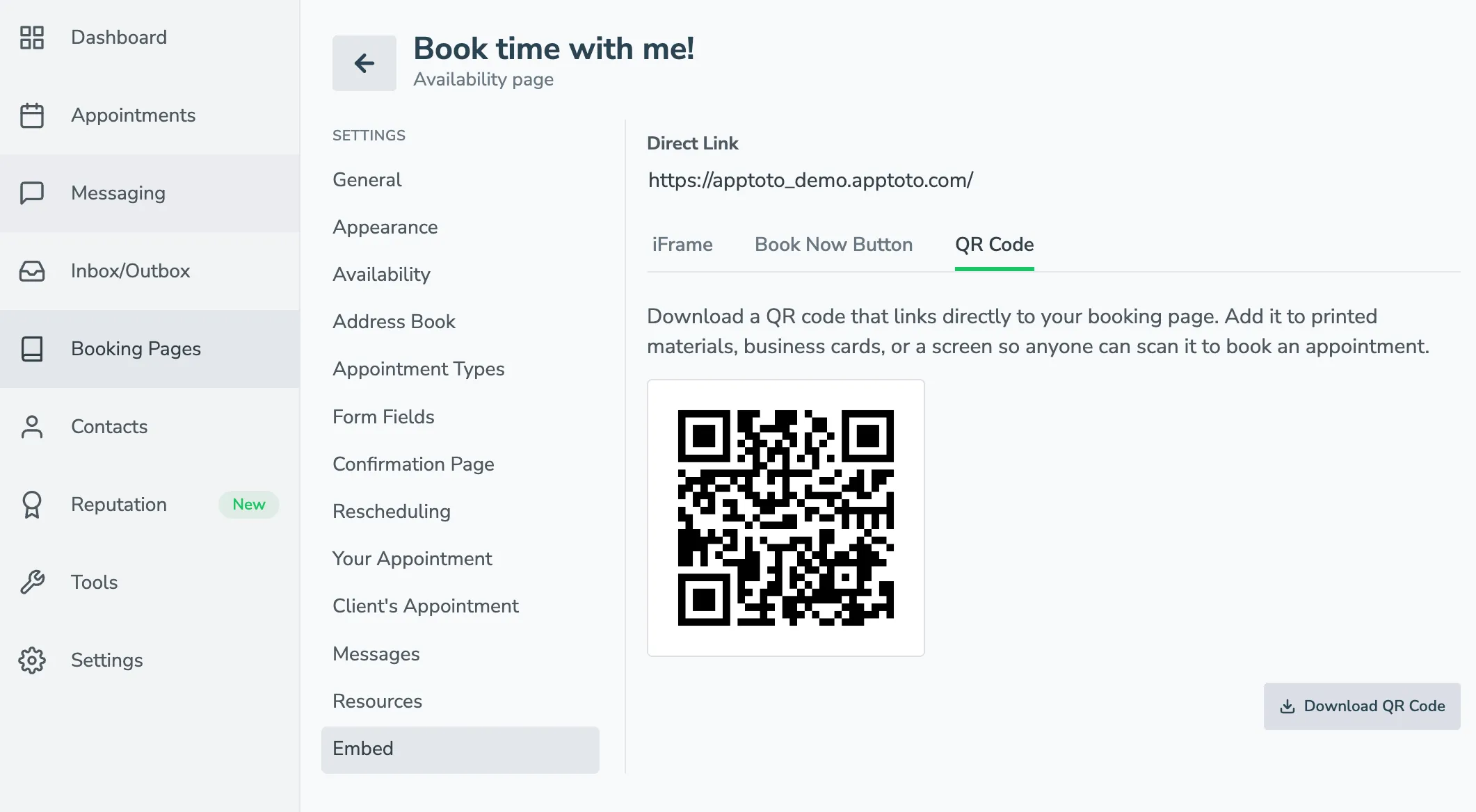
A QR code gives you a scannable link to your booking page that you can add to printed materials, business cards, flyers, signage, and more. Anyone who scans it is taken directly to your booking page.
-
Open the Embed tab: Navigate to your booking page settings and click the Embed tab, then select QR Code.
-
Download the QR code: A QR code linked to your booking page is pre-generated and ready to use. Click Download QR to save it as a PNG file.
-
Add it to your materials: Place the downloaded QR code image on business cards, brochures, posters, or anywhere else you want to make it easy for people to book an appointment.
Pre-filling Fields
Section titled “Pre-filling Fields”You can pre-fill fields for your clients by adding to the “query string” of the booking page URL. If you have a field named “source,” you can pre-fill that field with https://YOURBOOKINGPAGE.apptoto.com/?source=webform.
You can pre-fill custom and standard fields (i.e., name, email, and phone).