Online Booking Pages
Learn how Apptoto’s booking pages let clients schedule individual appointments or sign up for group events directly on your calendar.
Online Booking Pages allow your clients to book appointments directly on your calendars. You can access the feature via the Booking Pages tab.
Booking pages have now been split into Availability Pages and Signup Pages.
Availability Pages Clients pick an open time slot to create a new individual appointment on your calendar. Used for 1-on-1 meetings, consultations, haircuts, and any scenario where each booking creates its own event.
Signup Pages Clients add themselves to an existing group event — a class, seminar, webinar, or recurring series. No new event is created; clients join one you've already scheduled.
Your booking page URL
Section titled “Your booking page URL”Every booking page gets its own public URL at https://YOURNAME.apptoto.com/. You choose the subdomain when you create the page (letters, numbers, and underscores only; must be at least 5 characters). You can also send clients directly to a specific appointment type with https://YOURNAME.apptoto.com/TYPE.
What you can do with booking pages
Section titled “What you can do with booking pages”Both page types share a common set of features:
- Custom appearance — upload your logo, choose a layout, and set your accent color
- Address book integration — bookings automatically create or update contacts in your Apptoto address book
- Form fields — collect any information you need from clients at booking time
- Auto messages — trigger email, SMS, and voice reminders automatically before and after booked appointments
- Confirmation page — control where clients land after they book (custom template, appointment page, or external URL)
- Mobile number capture — require clients to book with a verified mobile phone number so Apptoto can send reliable SMS messages
- Appointment page — Clients see Appointment Pages with helpful information about date, time, location, and more about their upcoming appointment
- Add to Calendar — let clients add the booked event to their own calendar
- Embed — place your booking page inside your website as an iframe or “Book Now” button
Availability pages
Section titled “Availability pages”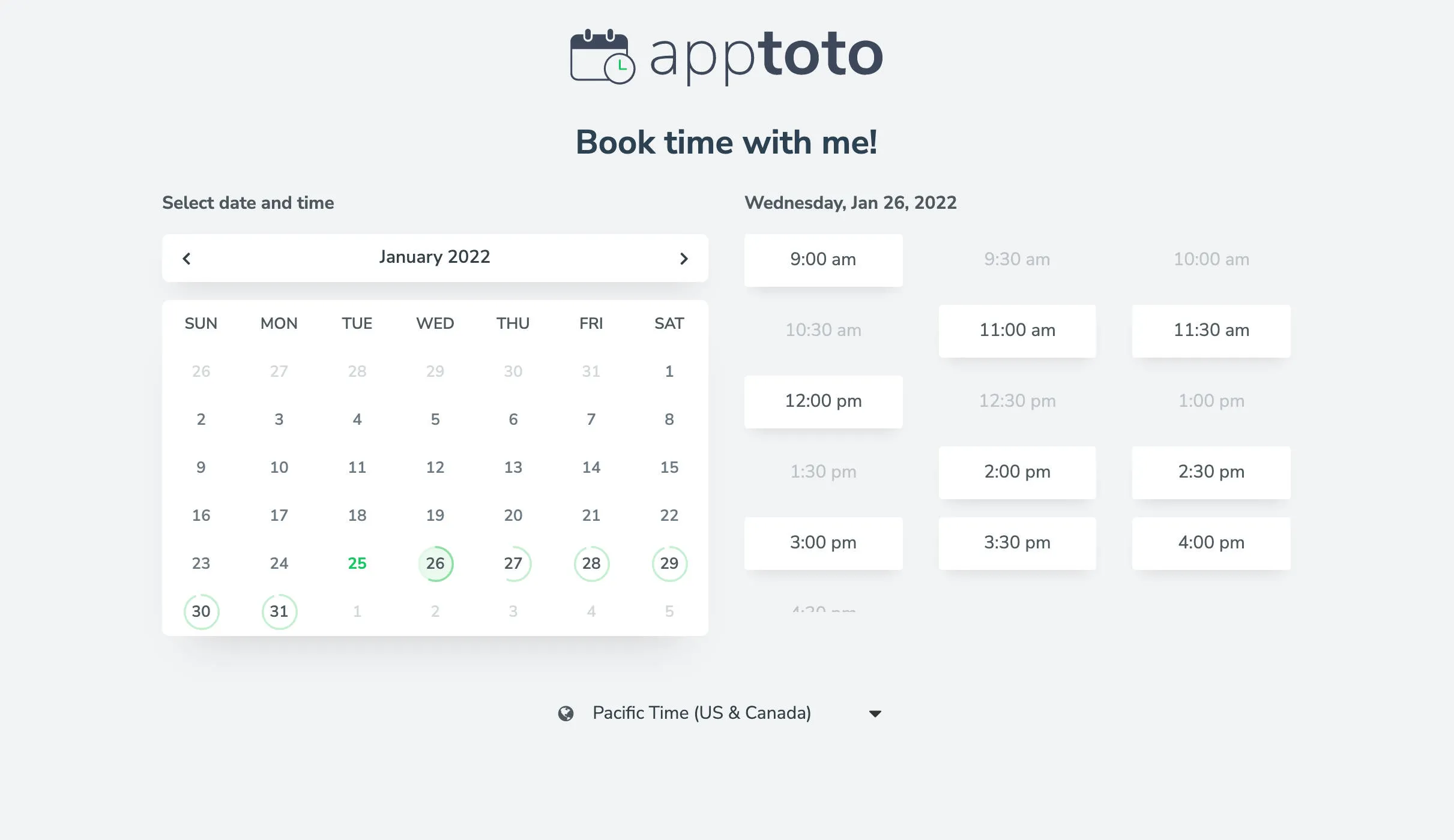
Availability Pages add:
- Multiple calendars — show availability across more than one calendar on a single page
- Appointment types — offer clients a choice of appointment types, each with its own duration, padding, and virtual meeting settings
- Flexible availability rules — set your hours, date ranges, holidays, and seasonal overrides
- Booking templates — control what appears on the calendar event created for you and the “Add to Calendar” event sent to your client
Signup pages
Section titled “Signup pages”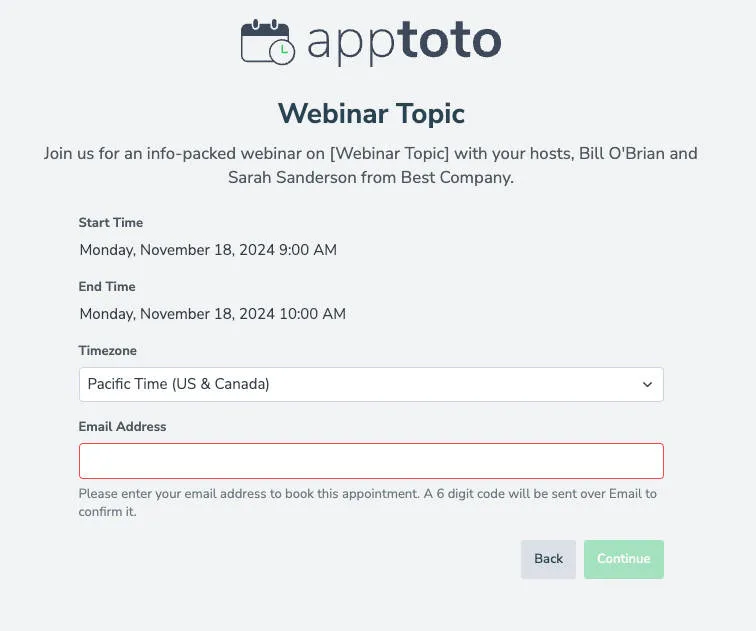
Signup Pages add:
- Event selection — let clients choose from a list of existing events rather than creating new ones
- Group capacity limits — track how many spots remain in each event
Desktop vs. mobile booking pages
Section titled “Desktop vs. mobile booking pages”Below are examples of the way the booking pages will appear to clients, depending on the method they use to book (mobile vs. desktop)
Desktop (week view)
Section titled “Desktop (week view)”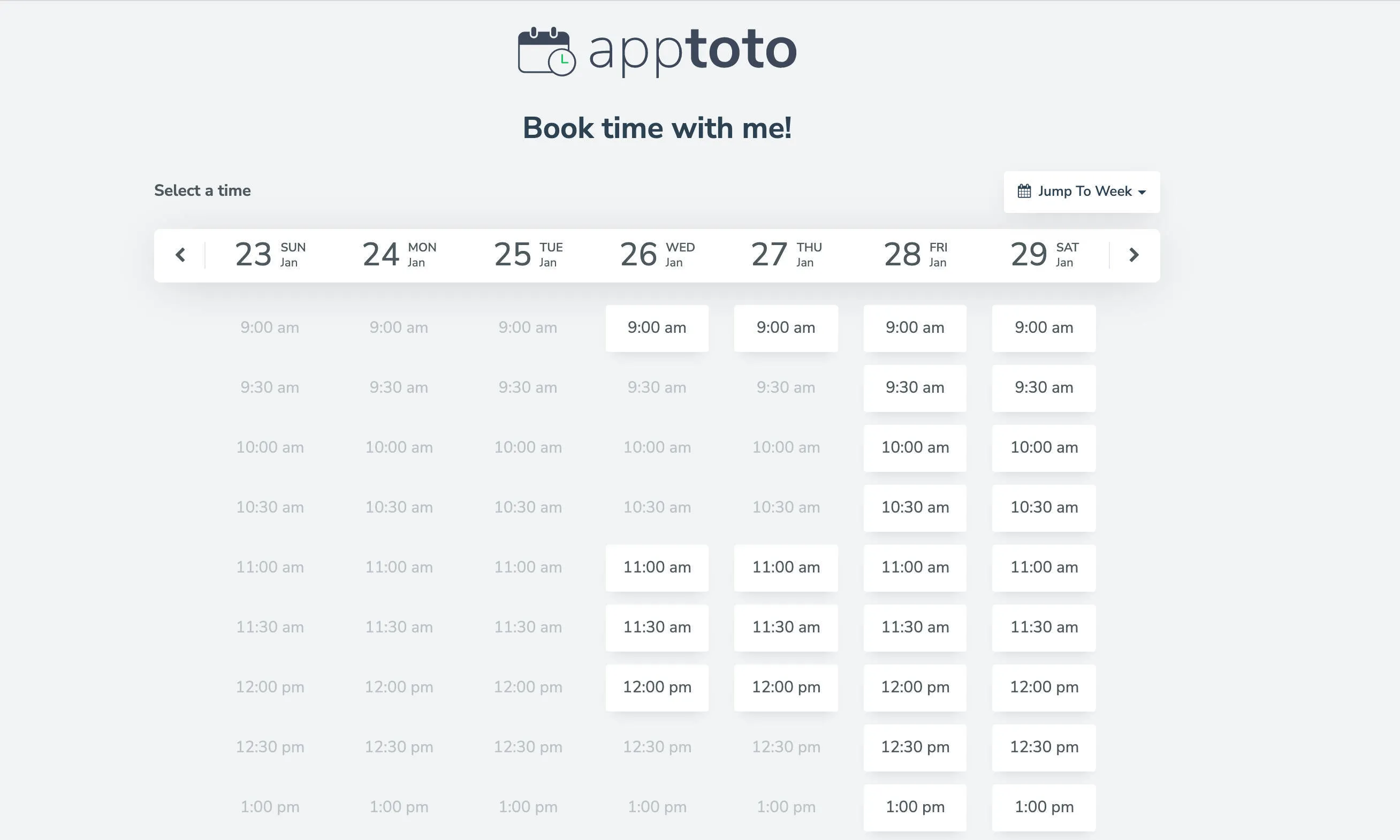
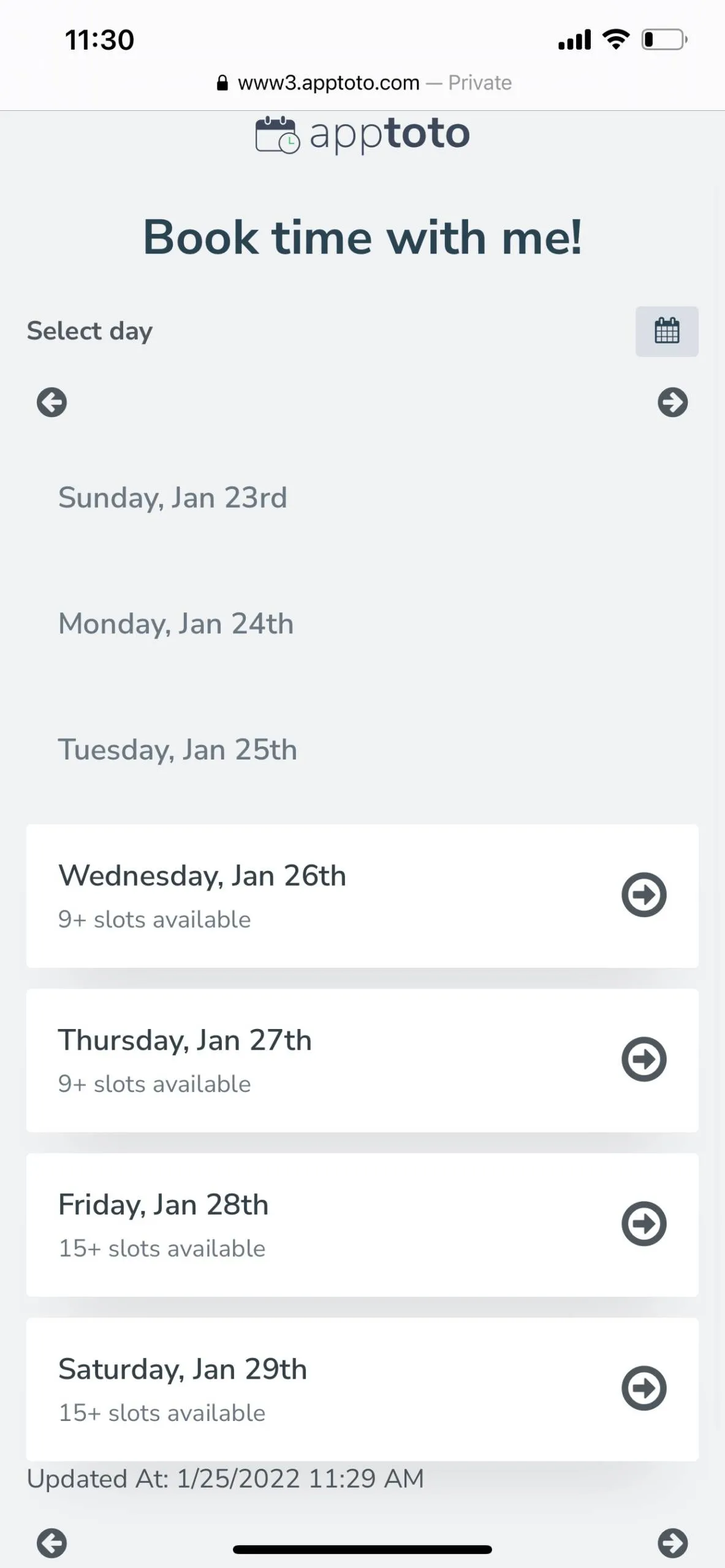
Mobile (single day view)
Section titled “Mobile (single day view)”