
One-Time Messages (Compose)
One-time messages let you contact one client or many at once, outside your regular auto message schedule. Use them to notify clients of a closure, weather delay, policy change, or any situation that requires a personal or broadcast message. You can also message contacts who don’t have an upcoming appointment.
The Compose tool
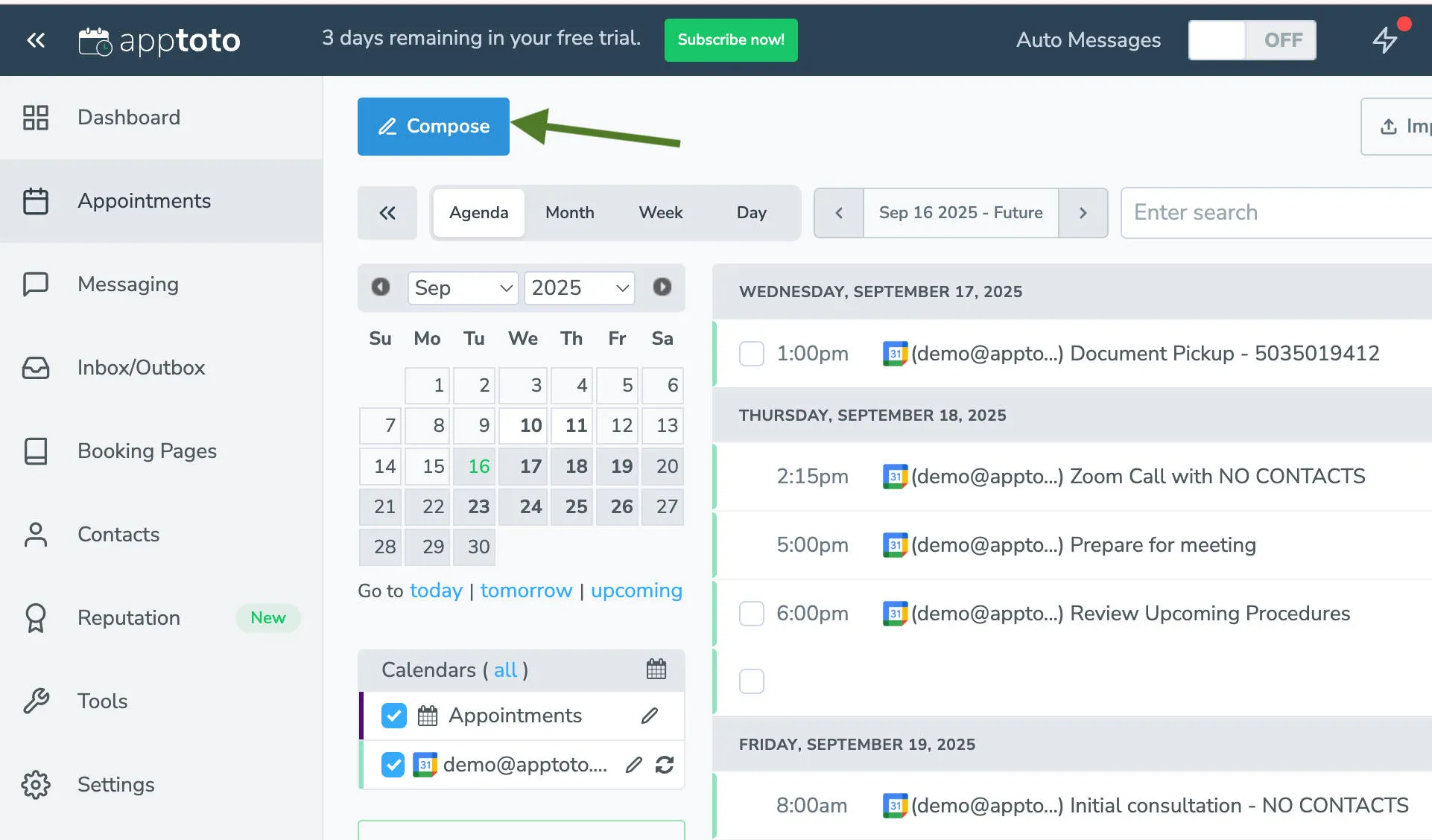
Section titled “The Compose tool”The Compose button (blue, upper right of the Appointments) opens the one-time message composer. You can reach it in two ways:
- Without pre-selecting appointments: Click Compose directly, then specify recipients in the composer window.
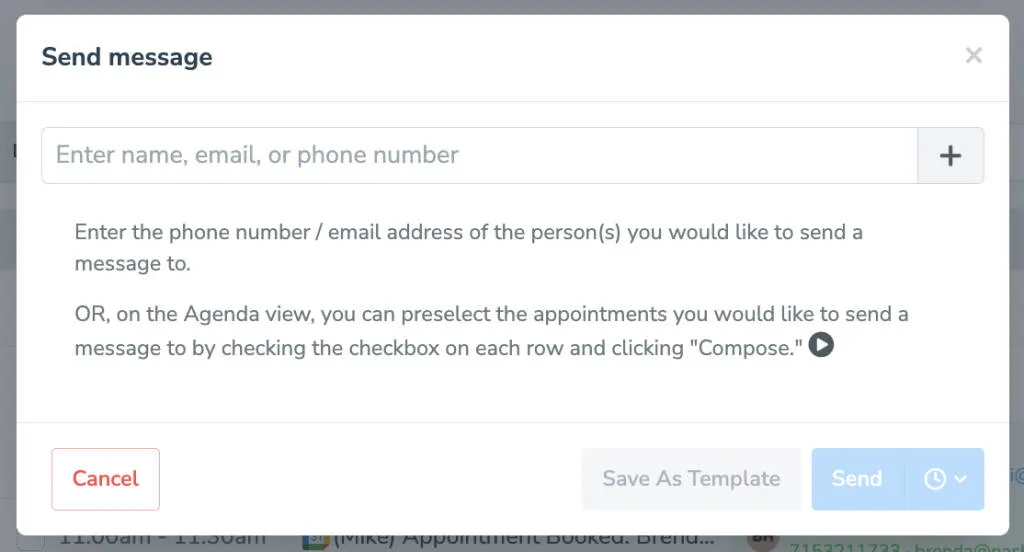
- With pre-selected appointments: Check the boxes next to appointments on the Appointments tab, then click Compose. The selected appointments populate the recipients list automatically.
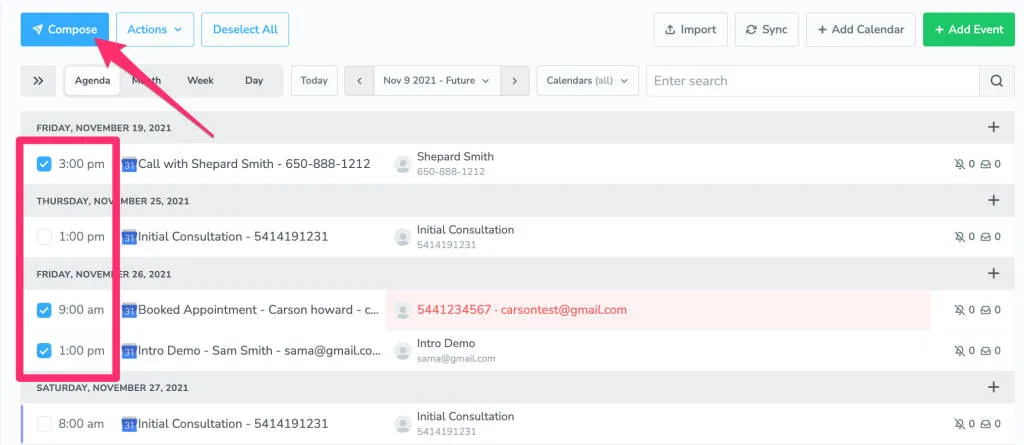
Composing a one-time message
Section titled “Composing a one-time message”- Open Compose: Click the blue Compose button from the Appointments tab.
- Select recipients: Enter contact names or phone numbers, or confirm the pre-selected appointments.
- Choose message type: Select SMS, Email, or Voice Call.
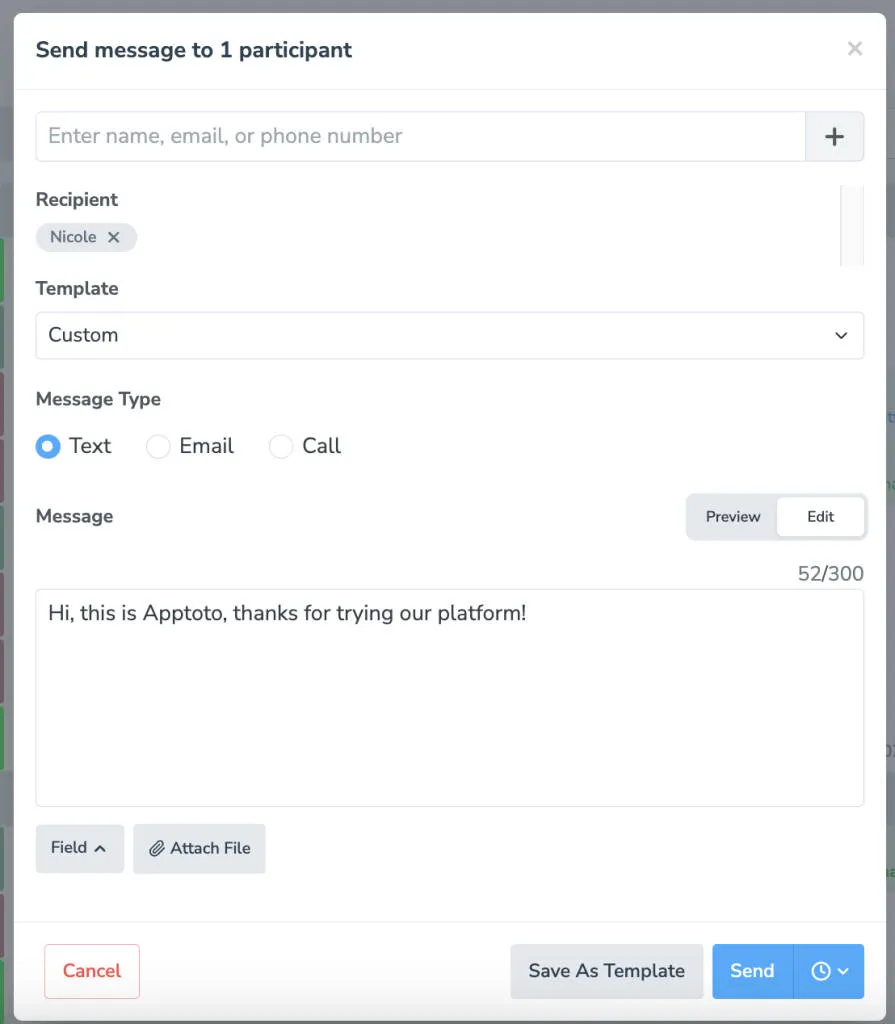 Once you have specified where you’d like to send the messages, Apptoto will bring up a new window for you to type your one-time message.
 - Write your message: Type the message content. You can use all standard template fields —
{{ participant.first_name }},{{ event.day_and_time_phrase }}, etc. - Attach a file (optional): Click Attach File to include an image or document. SMS attachments count as an additional credit; photos (PNG, JPEG, GIF) are fully supported. PDFs and other file types may not display on all phones.
- Send or Schedule: Click Send to deliver immediately, or set a future date and time and click Schedule.
For voice calls, you can upload MP3 files instead of relying on text-to-speech.
Advanced messaging options
Section titled “Advanced messaging options”Schedule a one-time message
Section titled “Schedule a one-time message”When you’re not ready to send immediately, choose a future send time:
- In the Compose window, click the clock icon to schedule the message.
- Pick the date and time.
- Click Schedule.
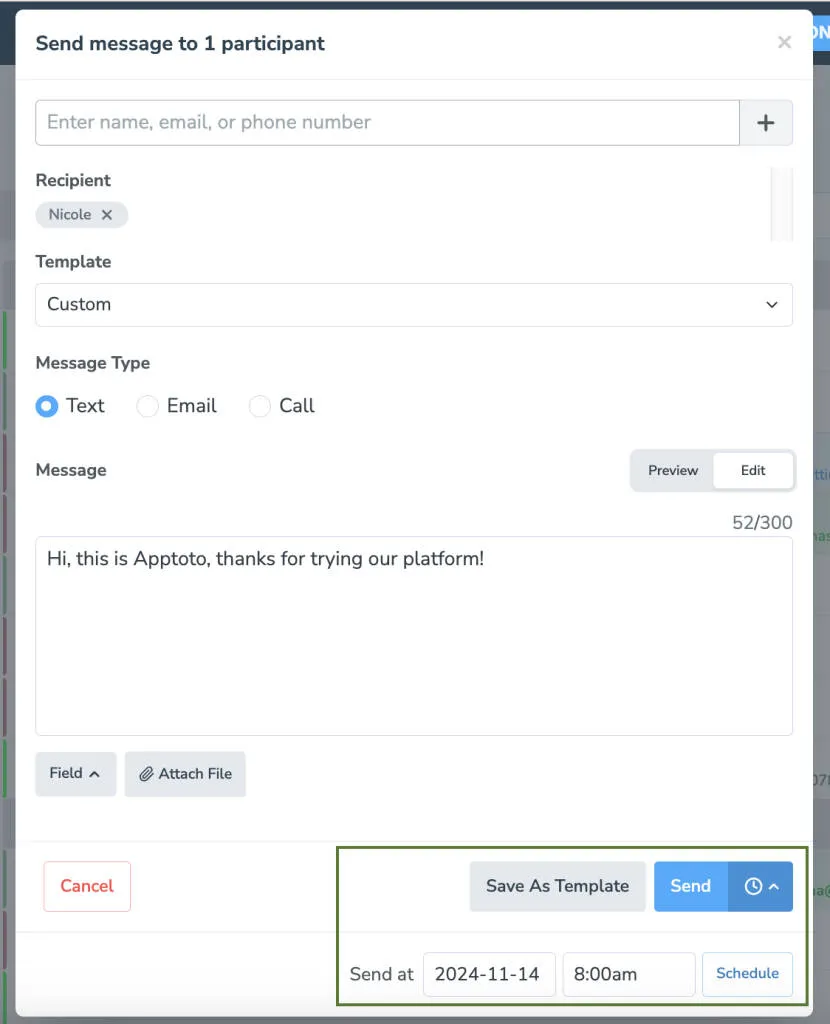
The message appears in the Scheduled folder of your Inbox/Outbox until it is sent. You can cancel a scheduled message from that folder before it goes out.
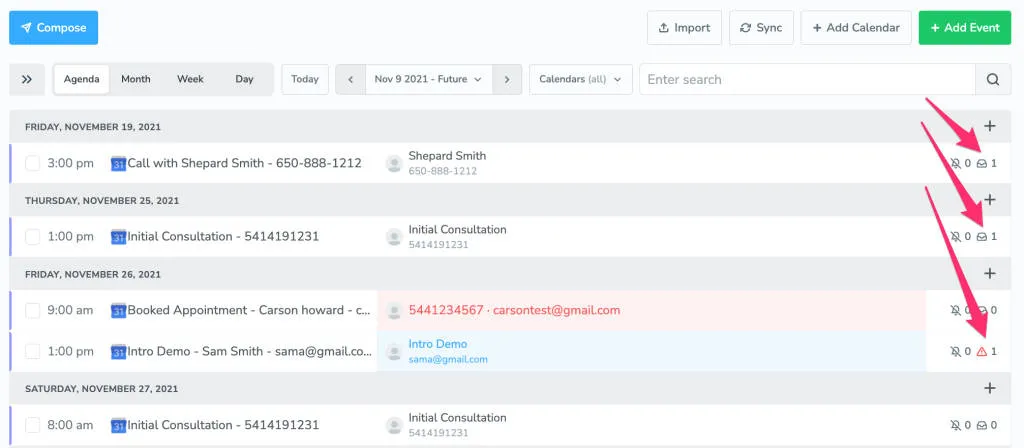
Once the message has been sent, the right-hand Messages column on the Appointments tab will show how many messages have been sent to each appointment.
Send a one-time message securely
Section titled “Send a one-time message securely”Another advanced feature is the ability to securely send a one-time message. Secure Messaging allows a business to send messages that they want kept private through a secure link. Recipients must first receive the secure link (and enter a PIN if enabled) before they can access the secure messaging portal.
- Navigate to Messaging > Secure Messaging. Click “Try It Now.”
- Toggle the Enable Secure Messaging option to ON.
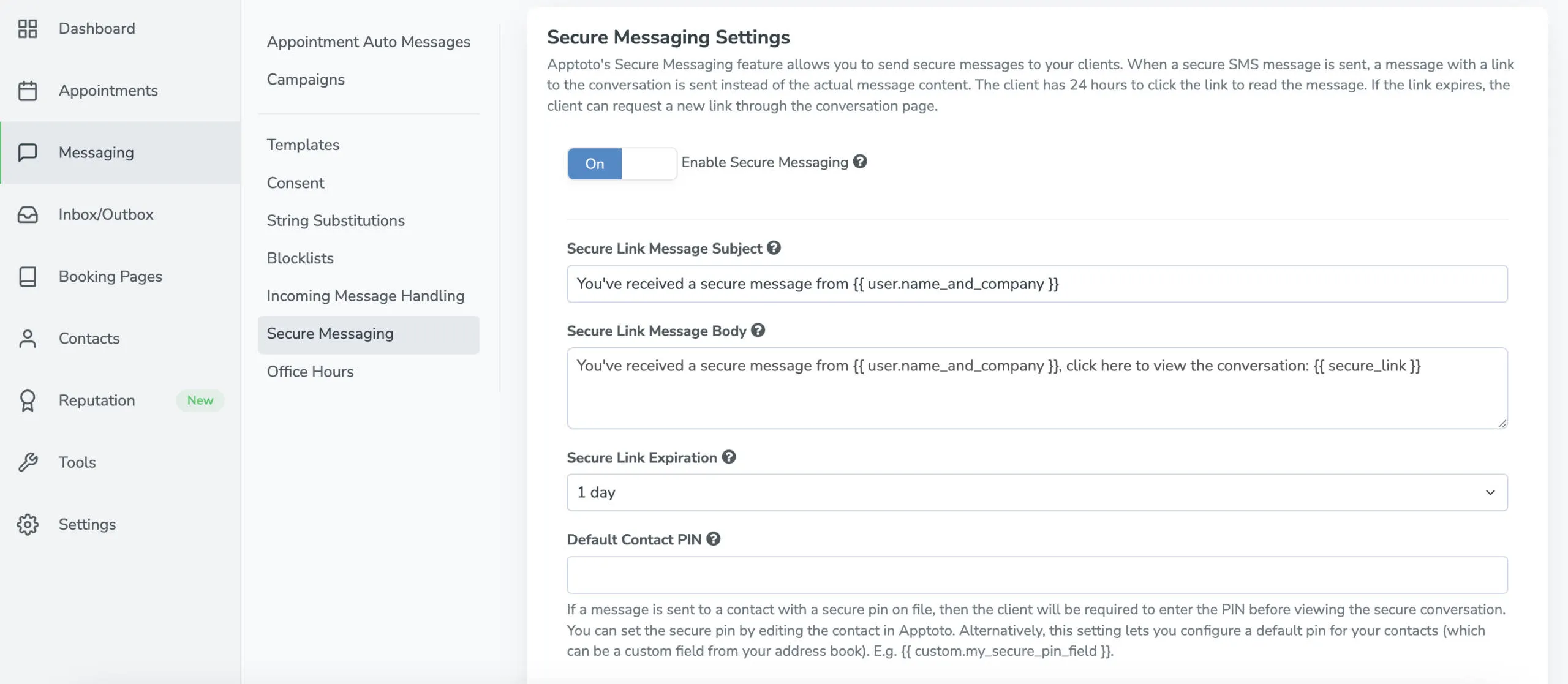
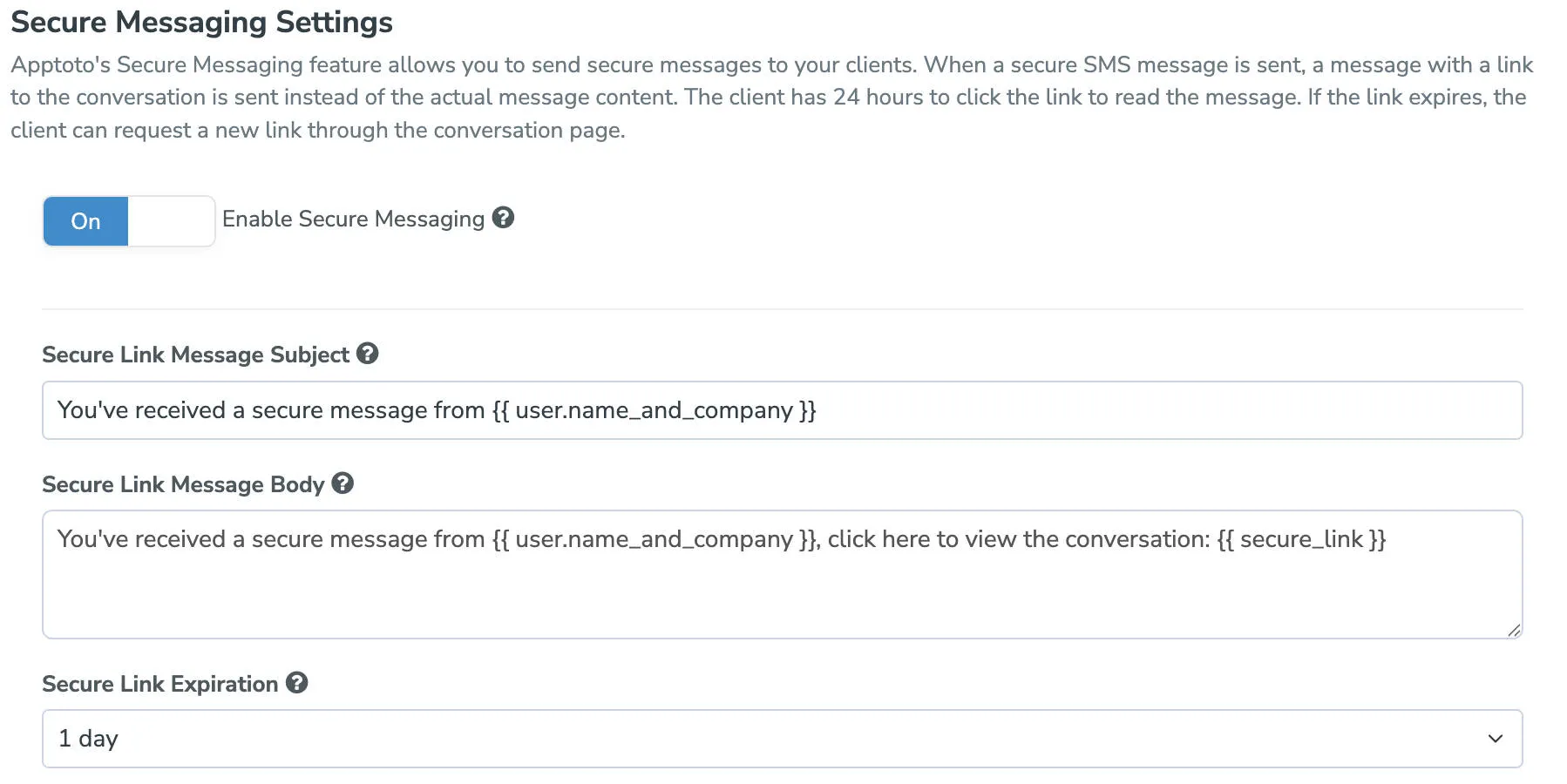
- Set your secure message subject (email only), body, and link expiration timing. This will control the look and content of the email or text message, which lets your recipient know they received a secure message.
- Navigate back to the Appointments tab and click the Compose button in the upper left-hand side of the screen.
- Choose either text or email as your message type (note: secure messaging is not available for voice messages).
- Select the checkbox next to Send Securely and add a PIN that the recipient will be required to enter before they can access their secure message.
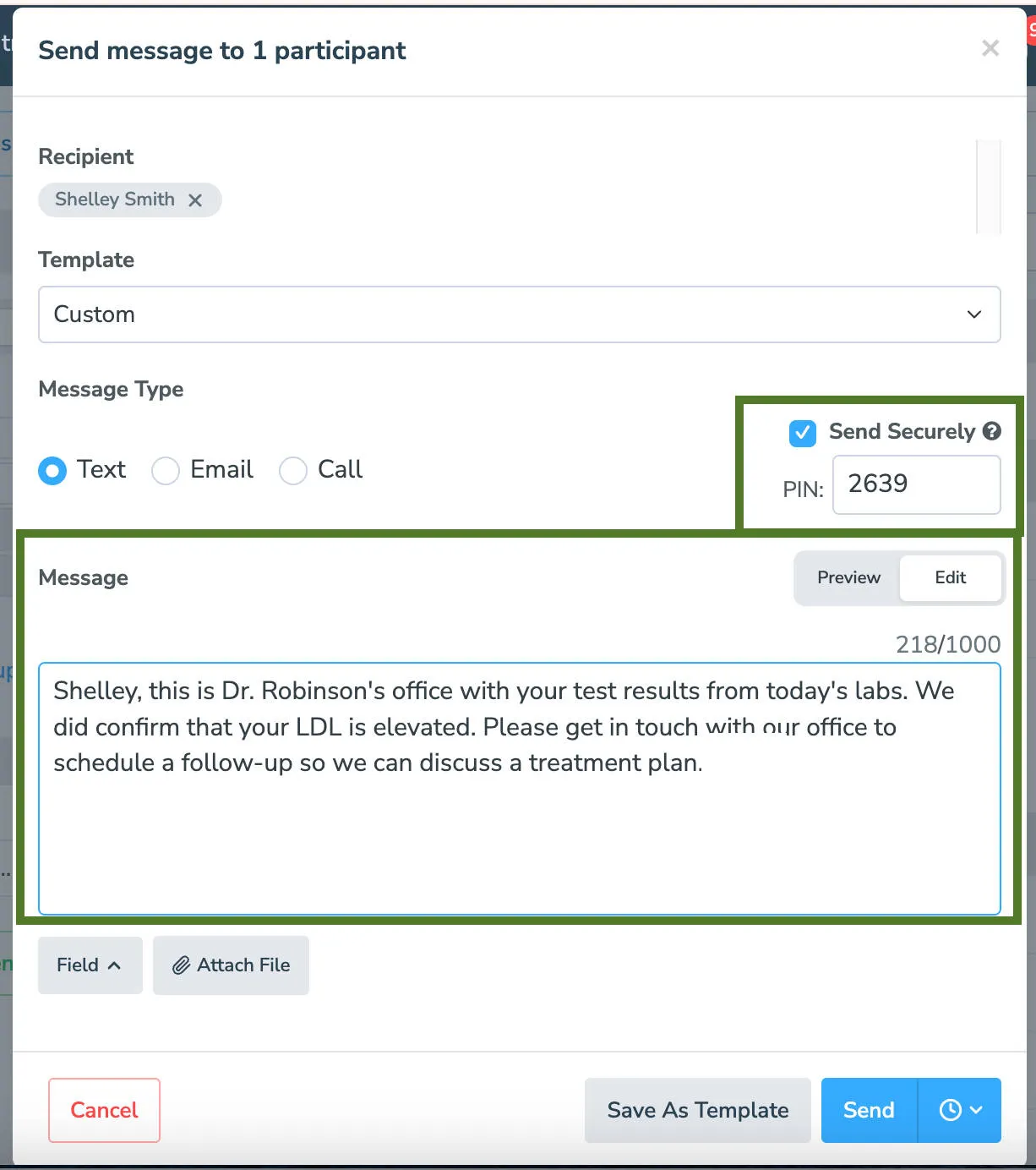
- Click Edit to update the one-time message you wish to send in a secure message chat screen, including any dynamic fields and attachments.
- Preview and Send.
Attachments
Section titled “Attachments”Apptoto now supports attachments to both incoming and outgoing SMS and emails. On the messages where this feature is available, there will be a clickable Attach File button.