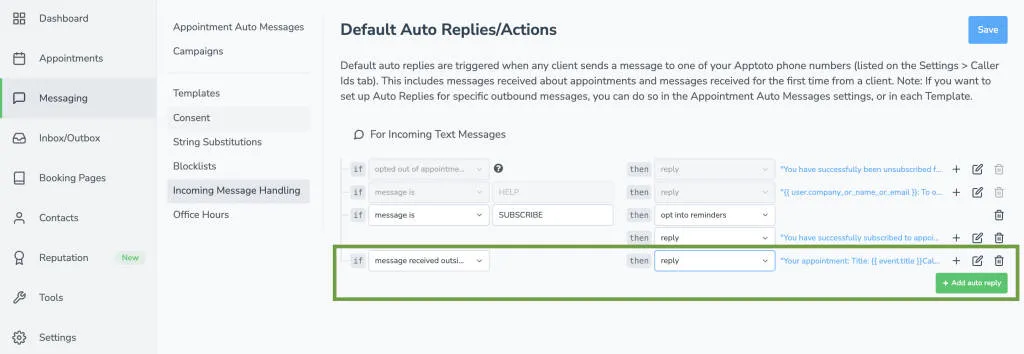
Outside Office Hours Auto Responder
Need a way to stay responsive even after business hours? Apptoto’s Outside office hours auto responder lets you automatically send messages to clients letting them know they’ve contacted you outside of business hours.
Whether via text or email, your clients will get a polite, timely message letting them know you’ve received their note and will follow up during regular hours.
Setting Up Auto Responders for messages received outside office hours
Section titled “Setting Up Auto Responders for messages received outside office hours”Setting office hours
Section titled “Setting office hours”To begin using outside office hours auto responders, you must first configure your business hours. These hours define when your system considers you available to receive messages.
Follow these steps to set your office hours:
- Navigate to the Messaging > Office Hours tab.
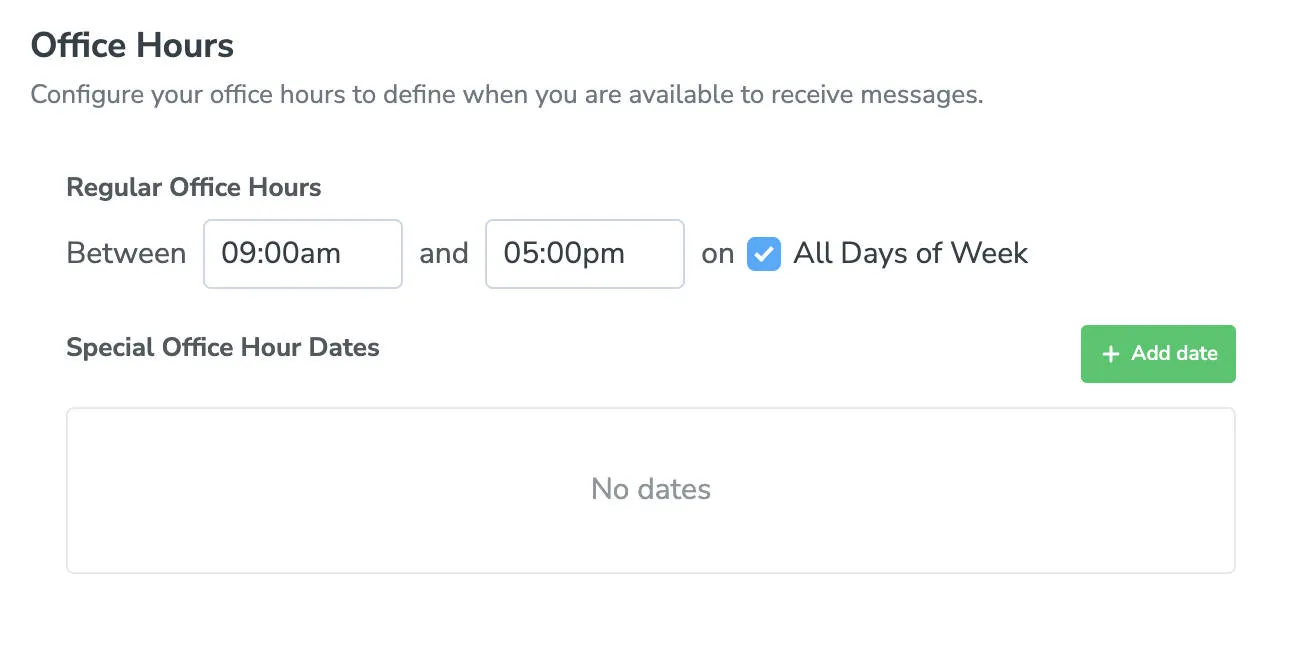
- Set the start and end time for your availability (e.g., 09:00 AM to 05:00 PM).
- Select the days of the week your business is open (e.g., Monday through Friday).
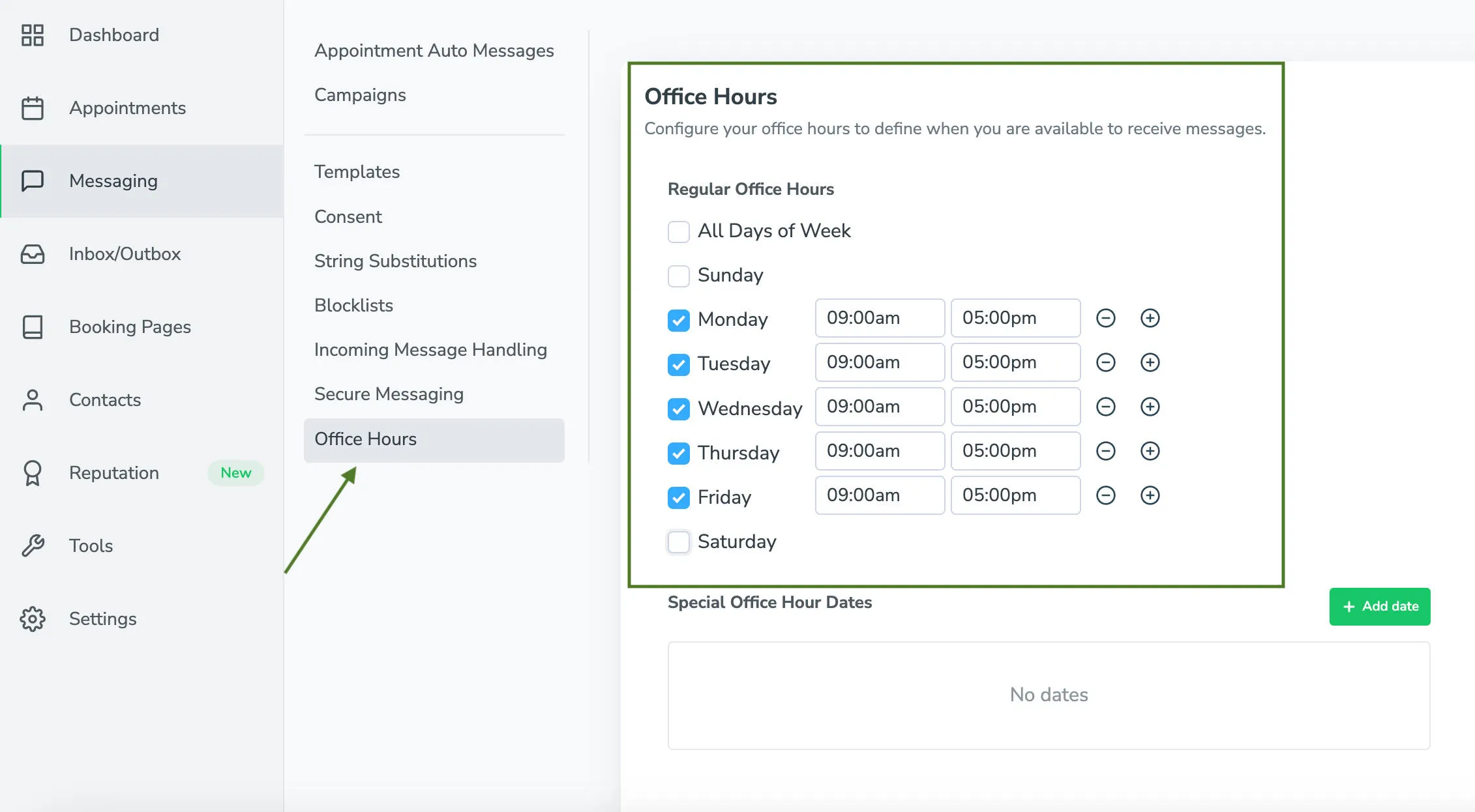
- Click the blue Save Settings button to confirm your settings.
Once office hours are configured, any message received outside the defined timeframe will trigger an automatic response if enabled.
Setting special office hour dates/times
Section titled “Setting special office hour dates/times”Special Office Hour Dates let you create custom hours for specific dates or date ranges (such as a holiday, special event, or season), without changing your regular business hours.
For example:
- Closing early this Friday for a company event? Set your hours to 9 a.m.–1 p.m. just for that day.
- Offering reduced hours during the summer? Set new office hours for that specific period.
To set special office hours:
- Click Add Date to set new office hours for a specific date or range. Use this for any date that differs from your regular schedule, like holidays or short weeks.
- Select the date(s) you want to adjust. This can be a single day (e.g., July 3rd) or a full range (e.g., Dec 23–27).
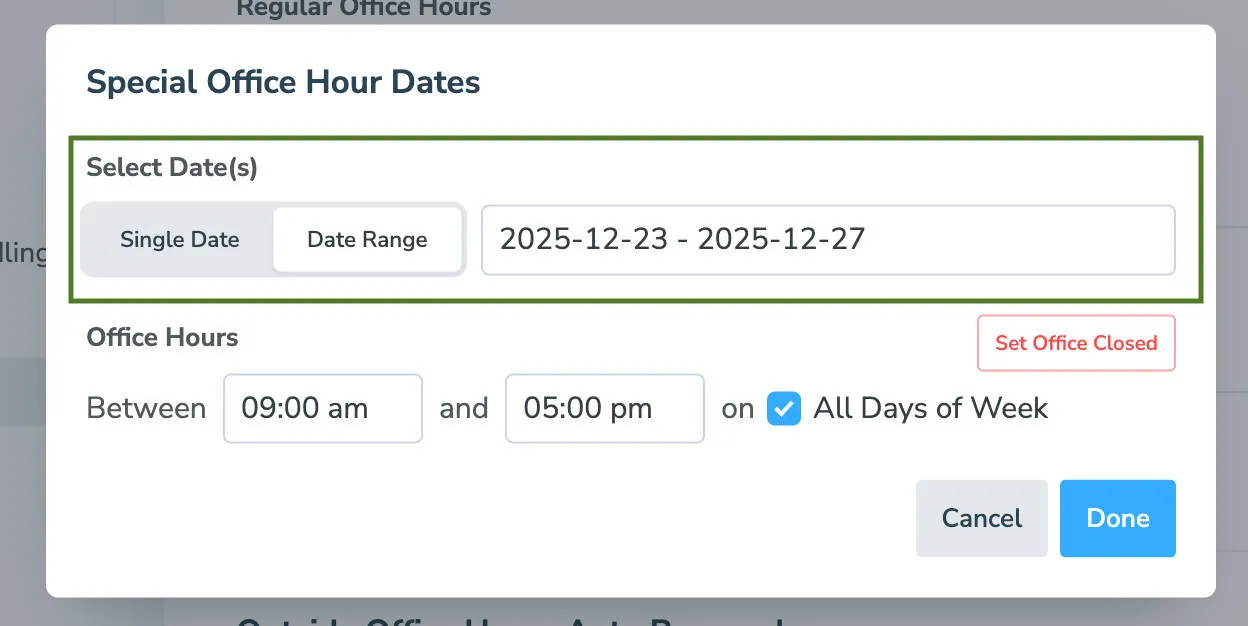
- Click the + button to adjust your special office hours for a single day or date range.
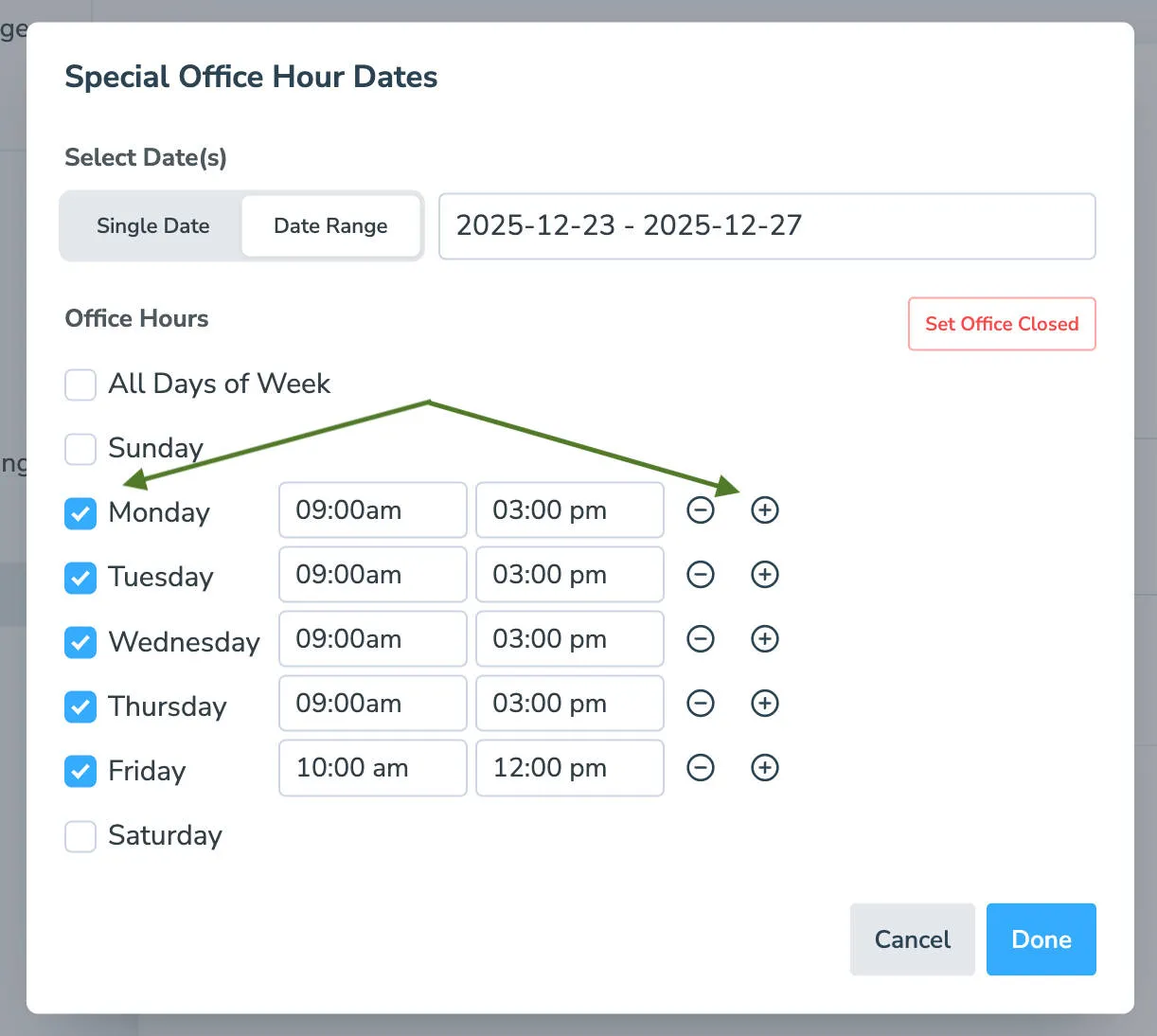
- To remove availability completely, click the “–” button to block off the day or range, or click Set Office Closed.
- Click Done and make sure to save your changes.
To add another date or time range, repeat the steps above and click the + sign to add more custom availability.
Setting up outside office hours Auto Responders
Section titled “Setting up outside office hours Auto Responders”To configure auto responders for incoming messages received outside your office hours, follow these steps:
- On the Messaging > Office Hours tab, you’ll see two separate auto responder options: one for SMS and one for Email.
- To enable an SMS auto-responder, toggle the switch on for Enable SMS Auto Responder.
- Customize the SMS template as desired:
-
SMS Auto Response Template
Sorry, your message has been received outside of our normal office hours, we will get back to you as soon as we can.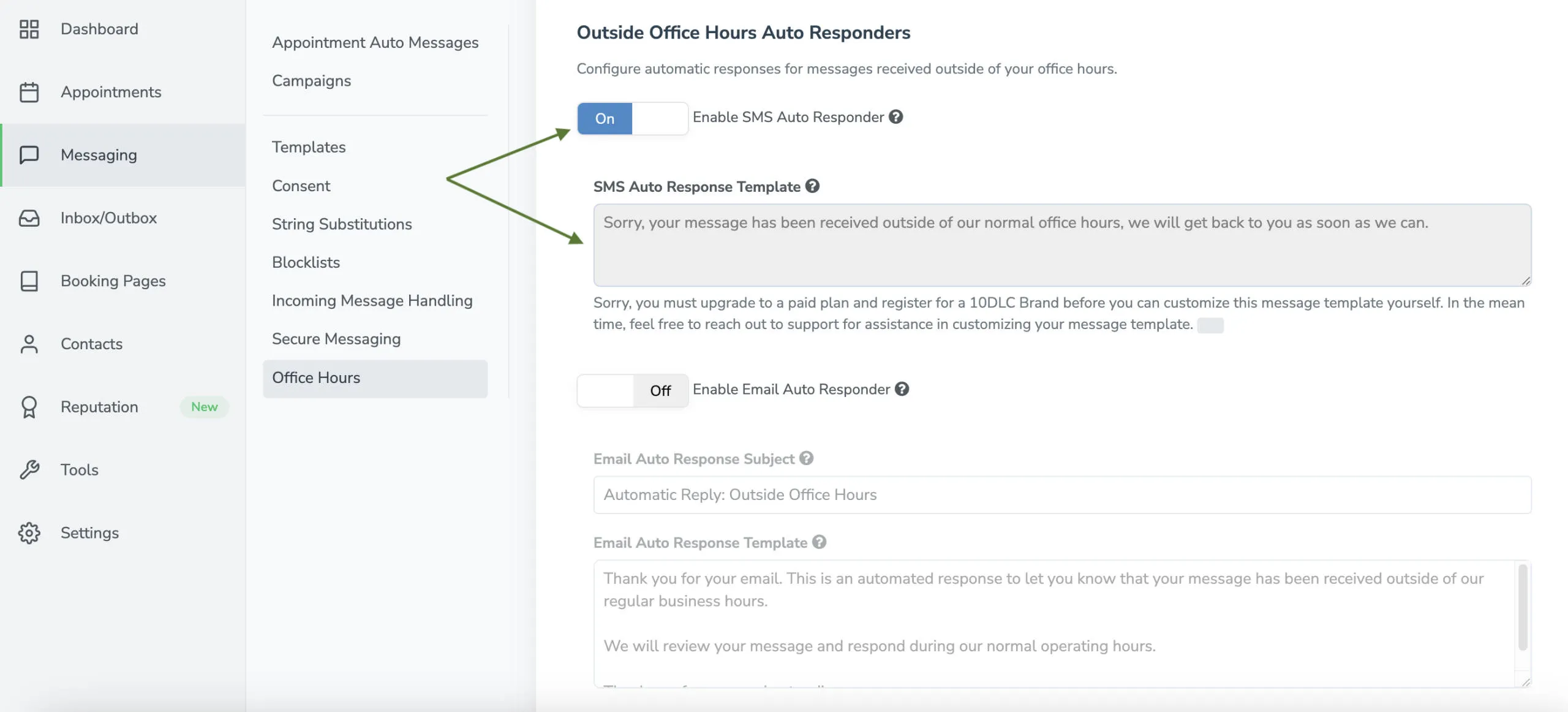
-
- To enable an Email auto-responder, toggle the switch on for Enable Email Auto Responder.
- Customize the Email subject and body as desired:
-
Email Auto Response Template
Subject:
Automatic Reply: Outside Office Hours
Body:
Thank you for your email. This is an automated response to let you know that your message has been received outside of our regular business hours. We will review your message and respond during our normal operating hours. Thank you for your understanding.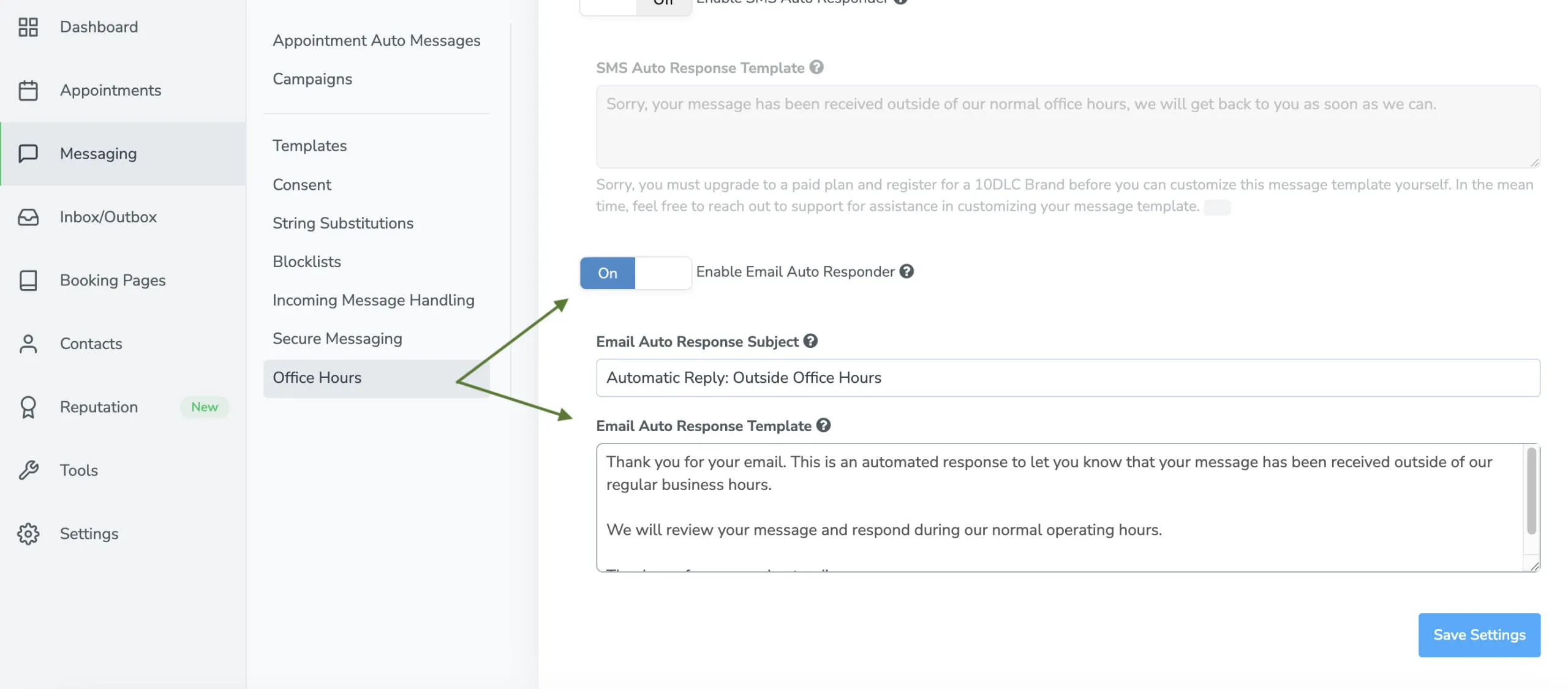
-
- After making your changes, click the blue Save Settings button.
Important Notes:
Section titled “Important Notes:”- Outside hours auto responders will only trigger if the incoming message is received outside of the configured office hours.
- If both SMS and Email auto responders are enabled, the system will use the channel the client used to message you.
This feature helps maintain communication professionalism while respecting your availability.
For more advanced use cases, you can combine this with other auto reply rules under the “Incoming Message Handling” section.