
Buttons (Email Only)
Email messages can contain buttons. Buttons can send the user to a specific URL.
Inserting a generic button into your email message
Section titled “Inserting a generic button into your email message”You can insert a generic button easily via the Insert Field menu when editing an email message.
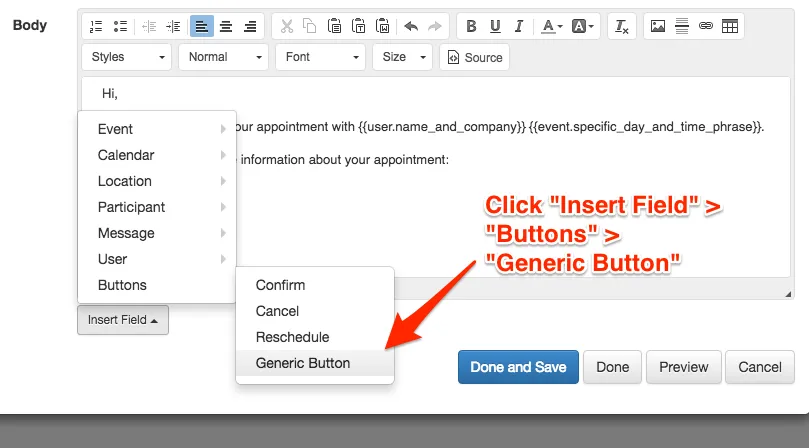
Doing so will insert:
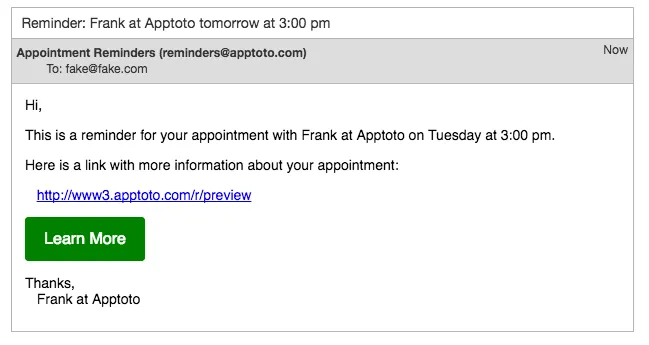
{{ URL | button: CAPTION, COLOR }}So, for example:
{{ "https://www.apptoto.com/" | button: "Learn More", "green" }}Which would result in:
Using buttons to have clients confirm, cancel, etc. (Action Buttons)
Section titled “Using buttons to have clients confirm, cancel, etc. (Action Buttons)”Reminder messages can include confirm, cancel, and reschedule buttons using the message.confirm_button, message.cancel_button, and message.reschedule_button fields.
Booking messages can include accept and decline buttons using the message.accept_button and message.decline_button fields.
For example, to include both a confirmation button and a reschedule button, use:
{{ message.confirm_button }} {{ message.reschedule_button }}That will generate:
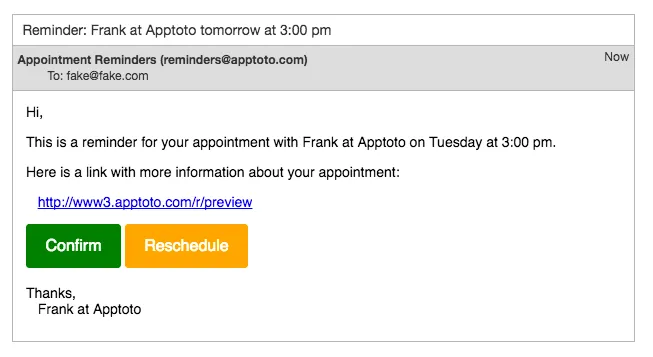
The message.confirm_button form will trigger an immediate confirmation if the client clicks it. Alternatively, you can use participant.confirm_button, which will ask the client whether they’d like to confirm before marking the appointment as confirmed.