
Common Appointment Availability Issues
Below is a list of the most common reasons you will see impacting availability on your booking pages.
If you have yet to enable the Troubleshoot Availability tool on your booking pages, please do so using the “Fix Availability Issues” help article before moving on to the information below.
Time slot is marked “Blocking”
Section titled “Time slot is marked “Blocking””When you hover over a specific time slot, and it is marked Blocking, that means there is another event or setting blocking availability for that time.
In the example below, two appointments are offered during every time slot. You want to identify why the 10:00 AM timeslot on January 15 only displays one spot available. Hovering over the 10 AM timeslot displays the following:
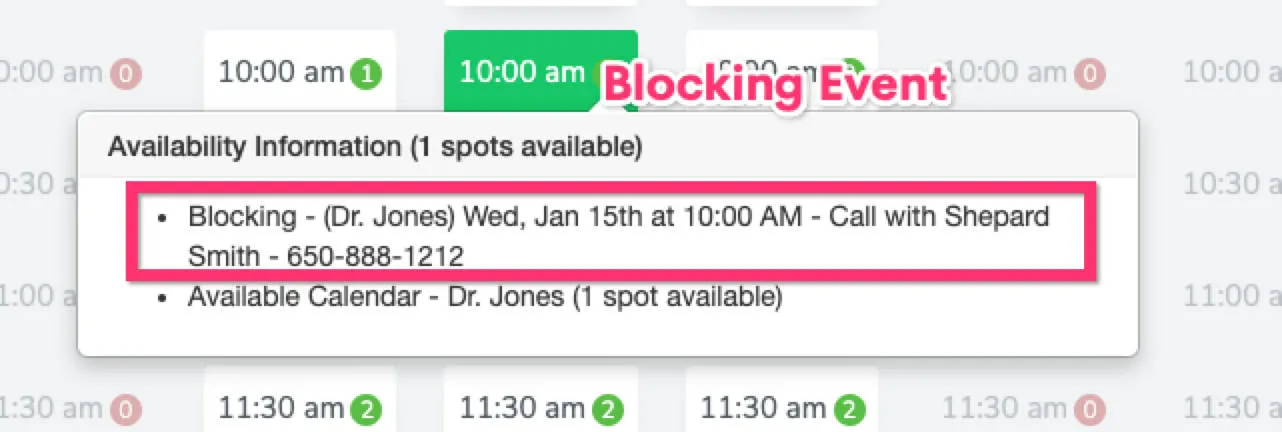
In this case, Dr. Jones already has one appointment on his synced calendar: “Call with Shepard Smith – 650-888-1212.” One other appointment slot is available, so the green availability bubble displays 1.
Calendar or Booking Page availability conflicts
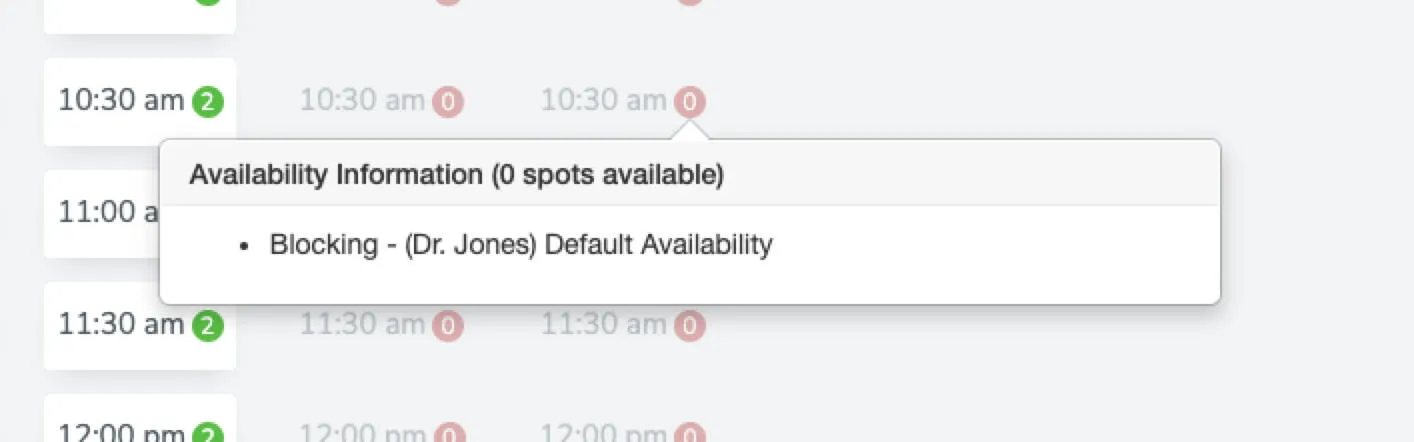
Section titled “Calendar or Booking Page availability conflicts”This happens when the availability set on your calendar or booking page blocks appointment slots from appearing as open. For example, if your business hours are 9 AM to 5 PM Monday through Friday, you will see an Availability error blocking your 10:30 AM time slot on Sunday:
Troubleshooting/Fixing:
Section titled “Troubleshooting/Fixing:”When you sync a new calendar to Apptoto, you choose the dates and times you are available to take appointments.
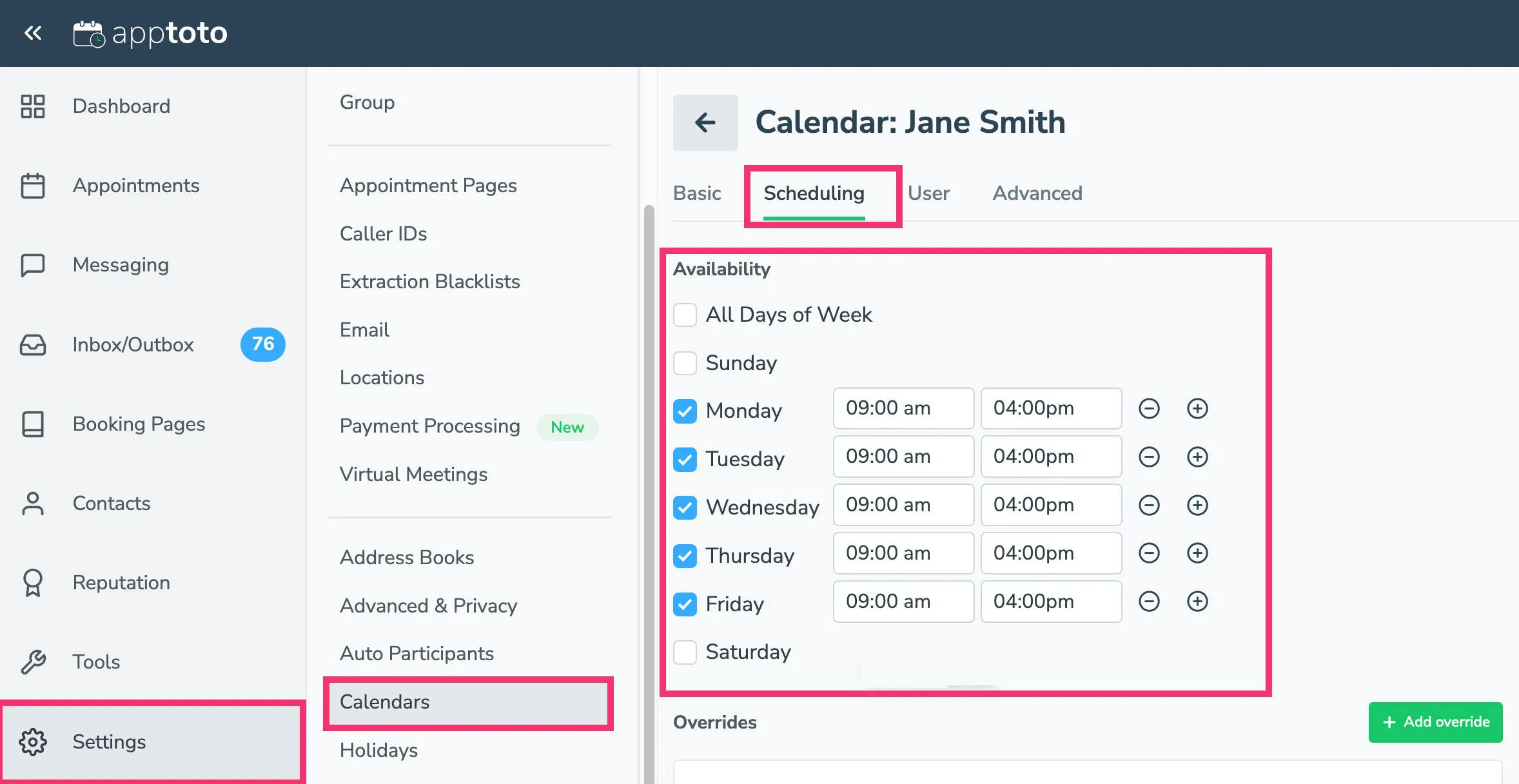
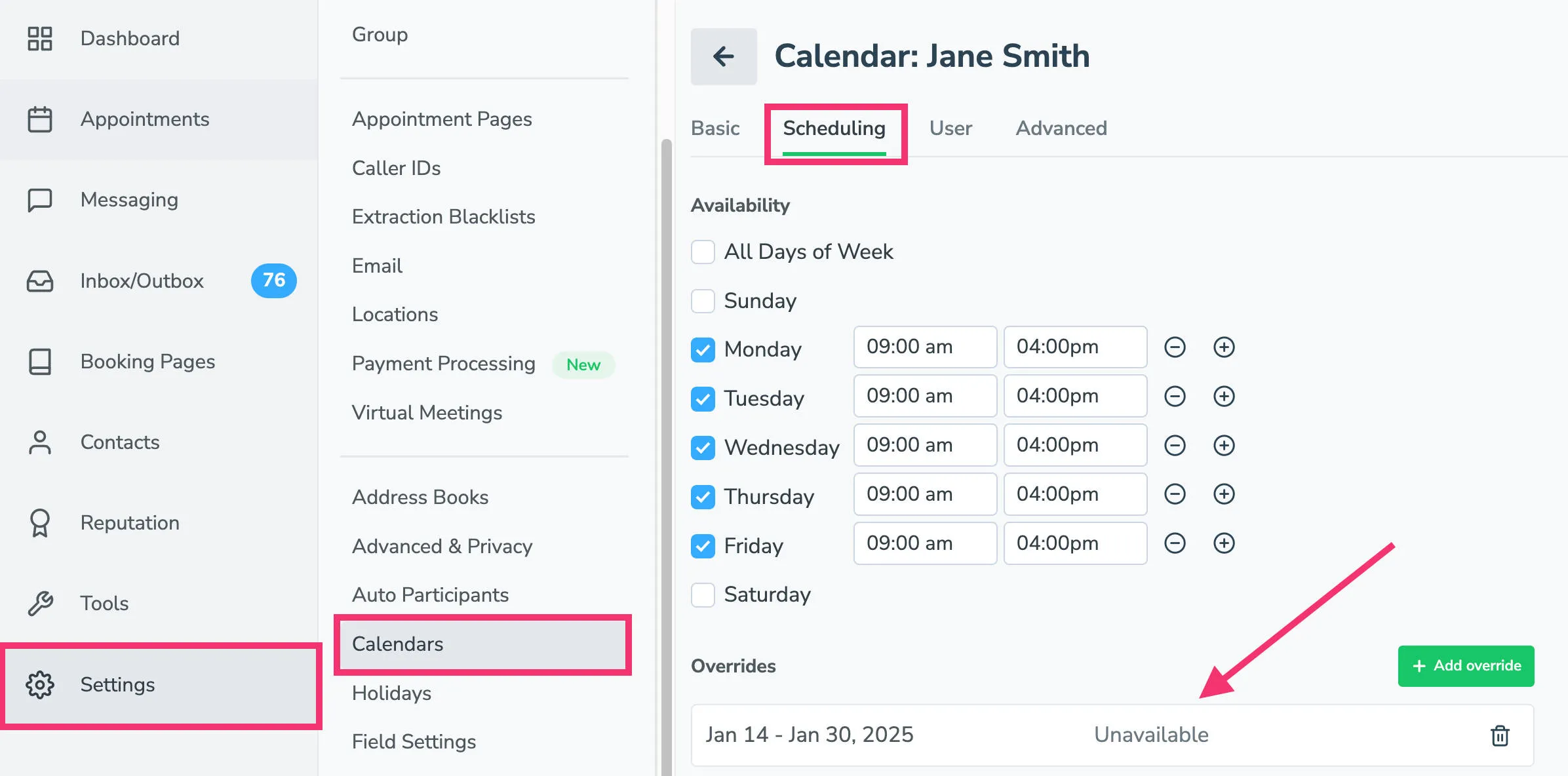
You can find your Availability Settings by clicking the Settings > Calendars > select calendar > Scheduling tab.
- Please confirm that your availability is correct at the Calendar level (and that the time slot you are troubleshooting falls within those times) before proceeding to the Booking Page.
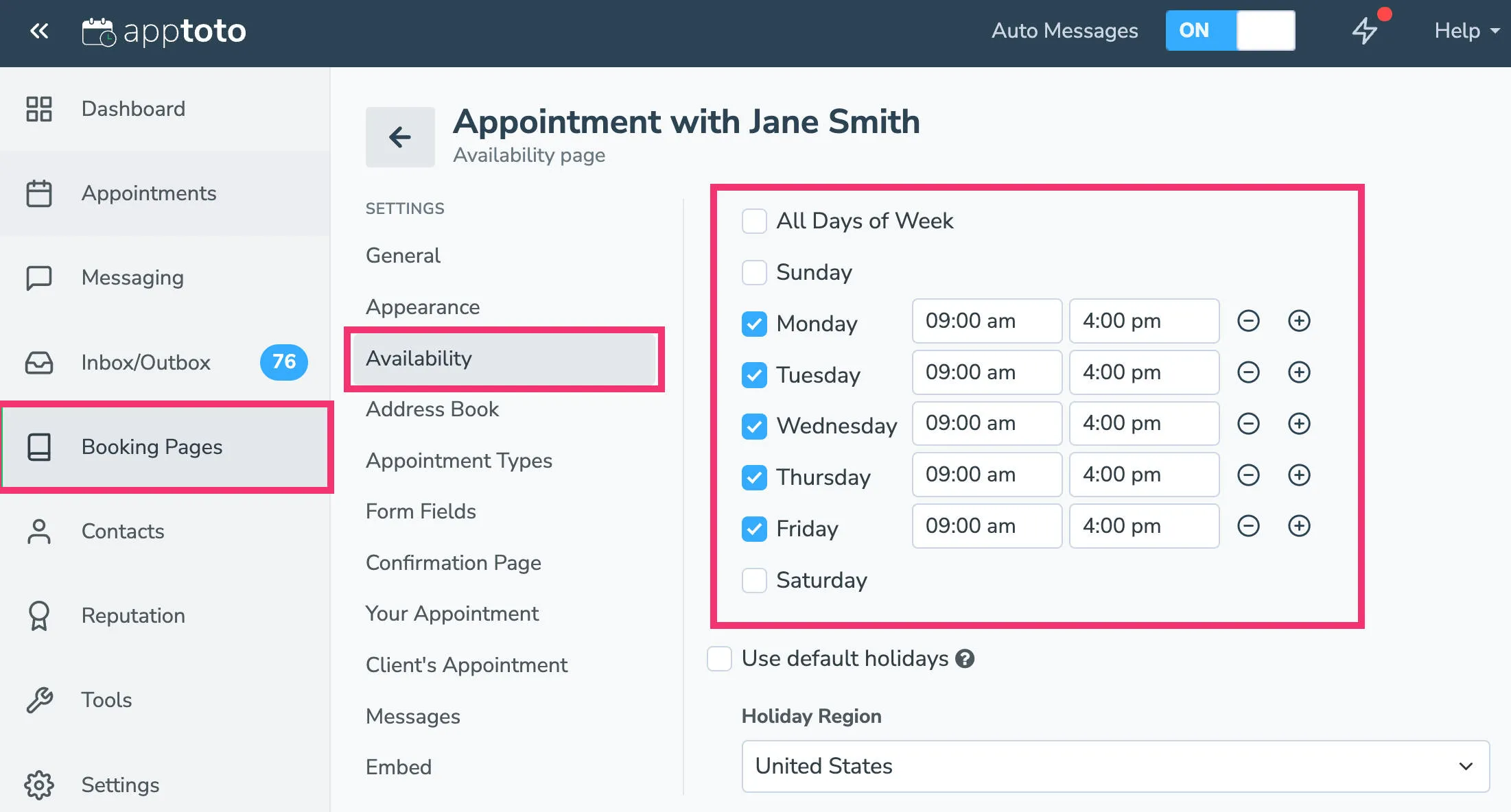
If you’ve set an individual booking page to have hours and days of availability that differ from your calendar, you’ll also need to check the Availability settings at the Booking Page level. You can find this by clicking the Booking Pages > Select a Booking Page > Availability tab > Availability section.
- If “Use default availability for calendar” is checked, you are using the Calendar-level settings.
- If “Use default availability for calendar” is unchecked, you are using booking page-level settings. Ensure that the time slot you are troubleshooting falls under a day or hour that your page should show openings.
“Availability Override” conflicts
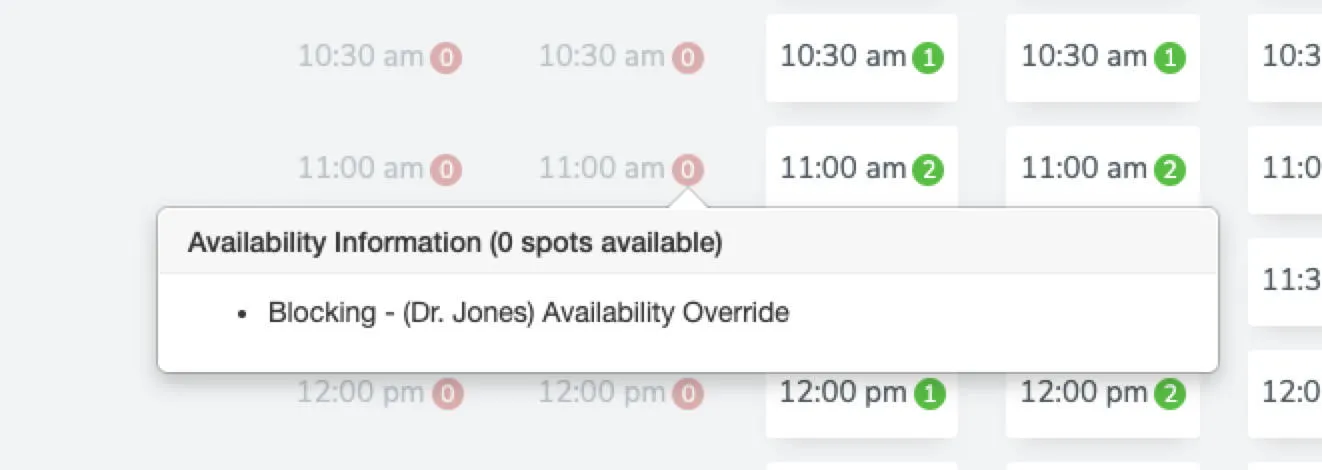
Section titled ““Availability Override” conflicts”“Availability Overrides” allow you to adjust the hours and days you are available for appointments on specific days or date ranges. For example, if your summer hours differ from your regular schedule, you could implement an Availability Override to display different appointment slots.
An Availability Override error occurs if a time is blocked because an availability override is in place for that time or day.
Troubleshooting/Fixing:
Section titled “Troubleshooting/Fixing:”Availability Overrides are also set at the Calendar and Booking Page level.
First, check your Calendar to determine if you have any Availability Overrides. This can be found under Settings > Calendars > select calendar > Scheduling > Availability Overrides.
- Check that the appointment slot you are concerned about isn’t part of an availability override marked “unavailable.”
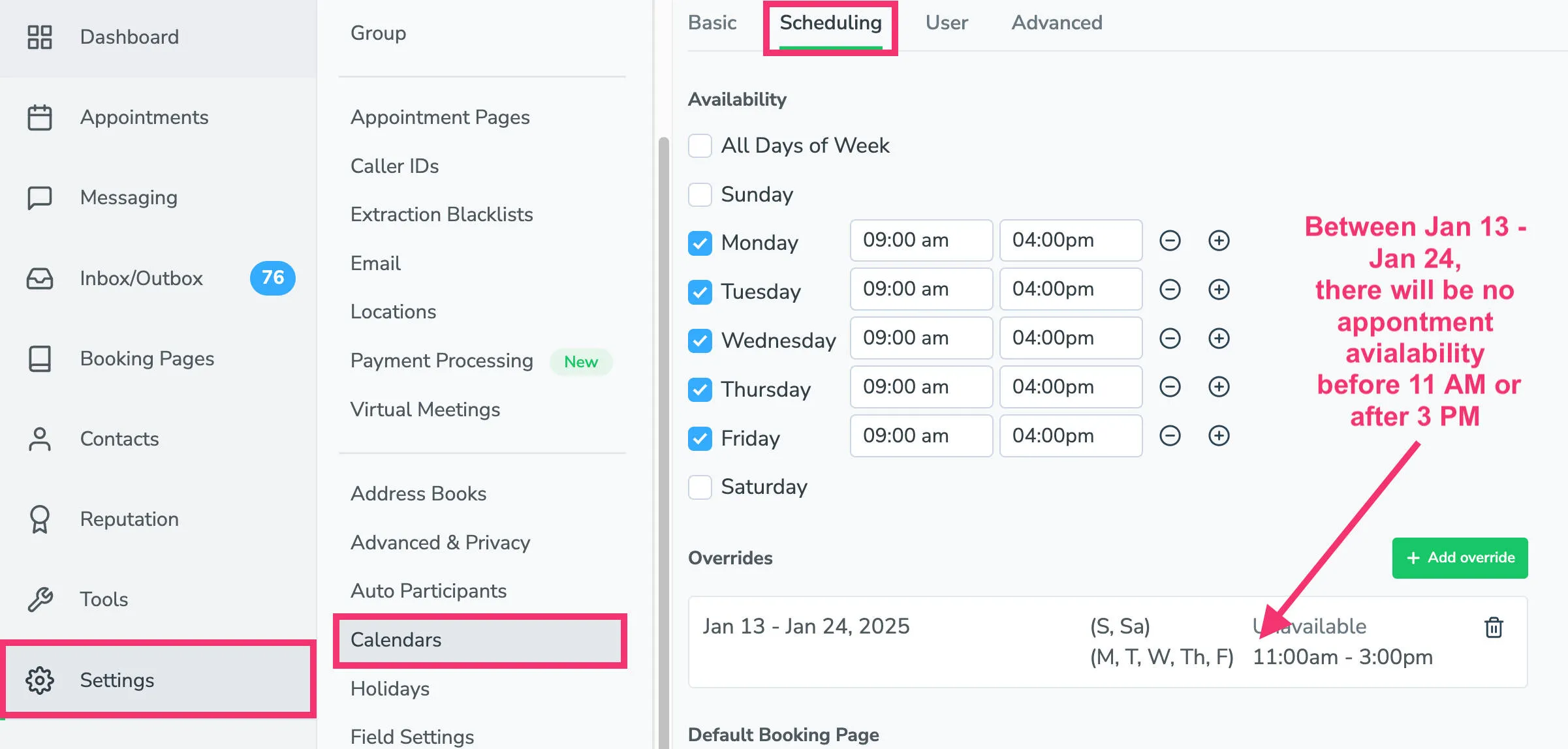
- Second, if you’ve used the Availability Override to set different hours or days for a date or date range, check that the appointment slot doesn’t fall outside the new schedule.
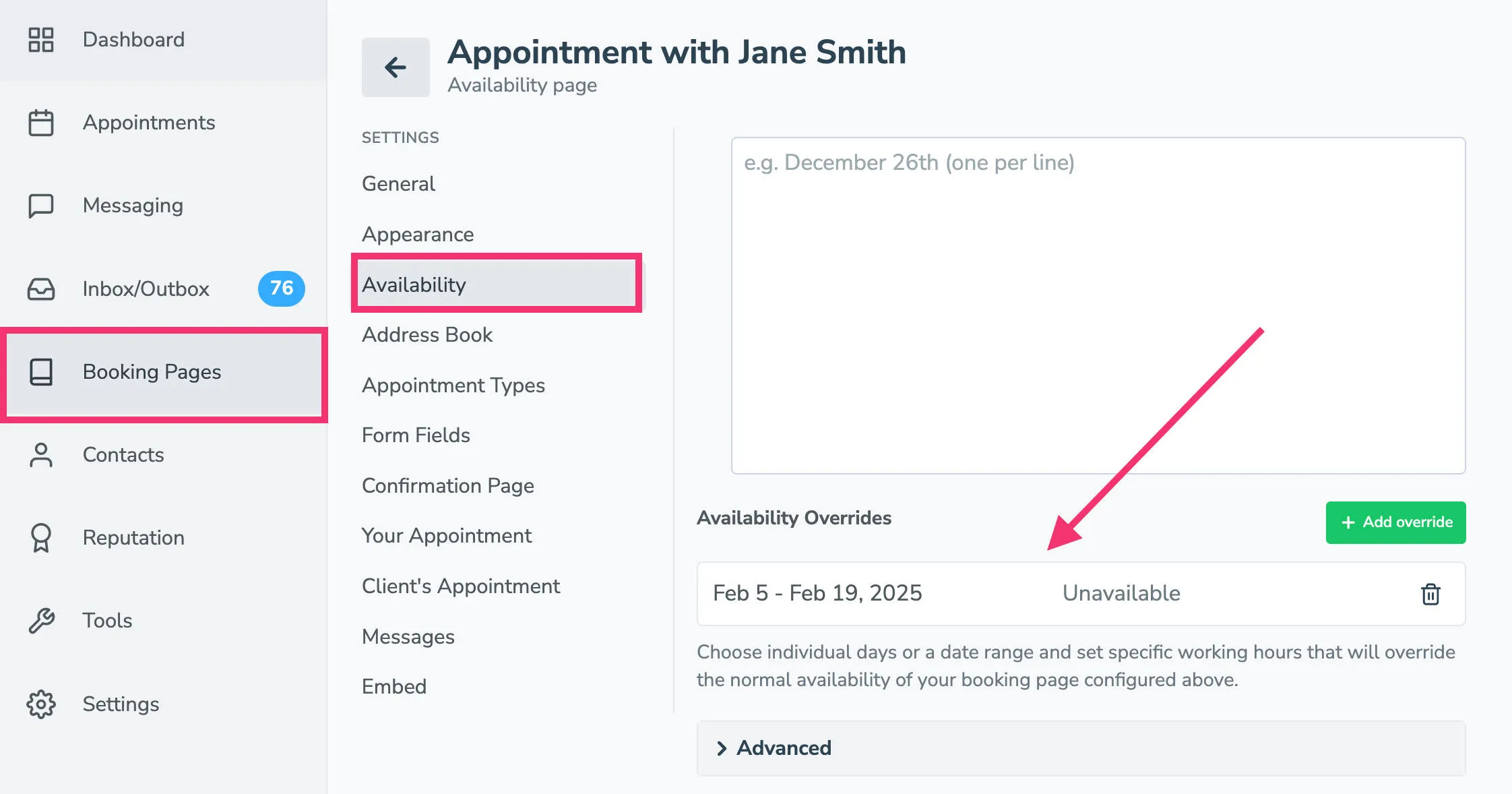
Repeat this process at the Booking Page level. To find Availability Overrides for a Booking Page, navigate to Booking Pages > Select a Booking Page > Availability > Availability Overrides.
Holiday conflicts
Section titled “Holiday conflicts”Setting holidays (at the account or Booking Page level) will block your booking pages from showing any appointment availability that day. If a time slot is booked because you’ve scheduled a holiday on that day, you will see this error:
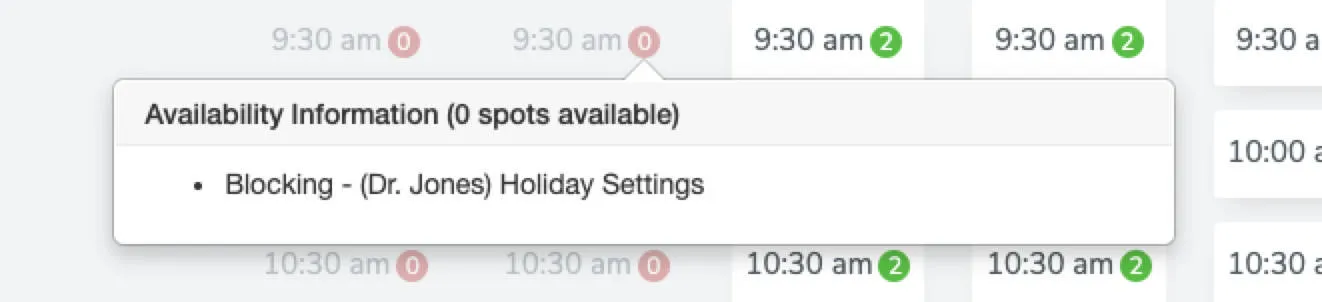
Troubleshooting/Fixing:
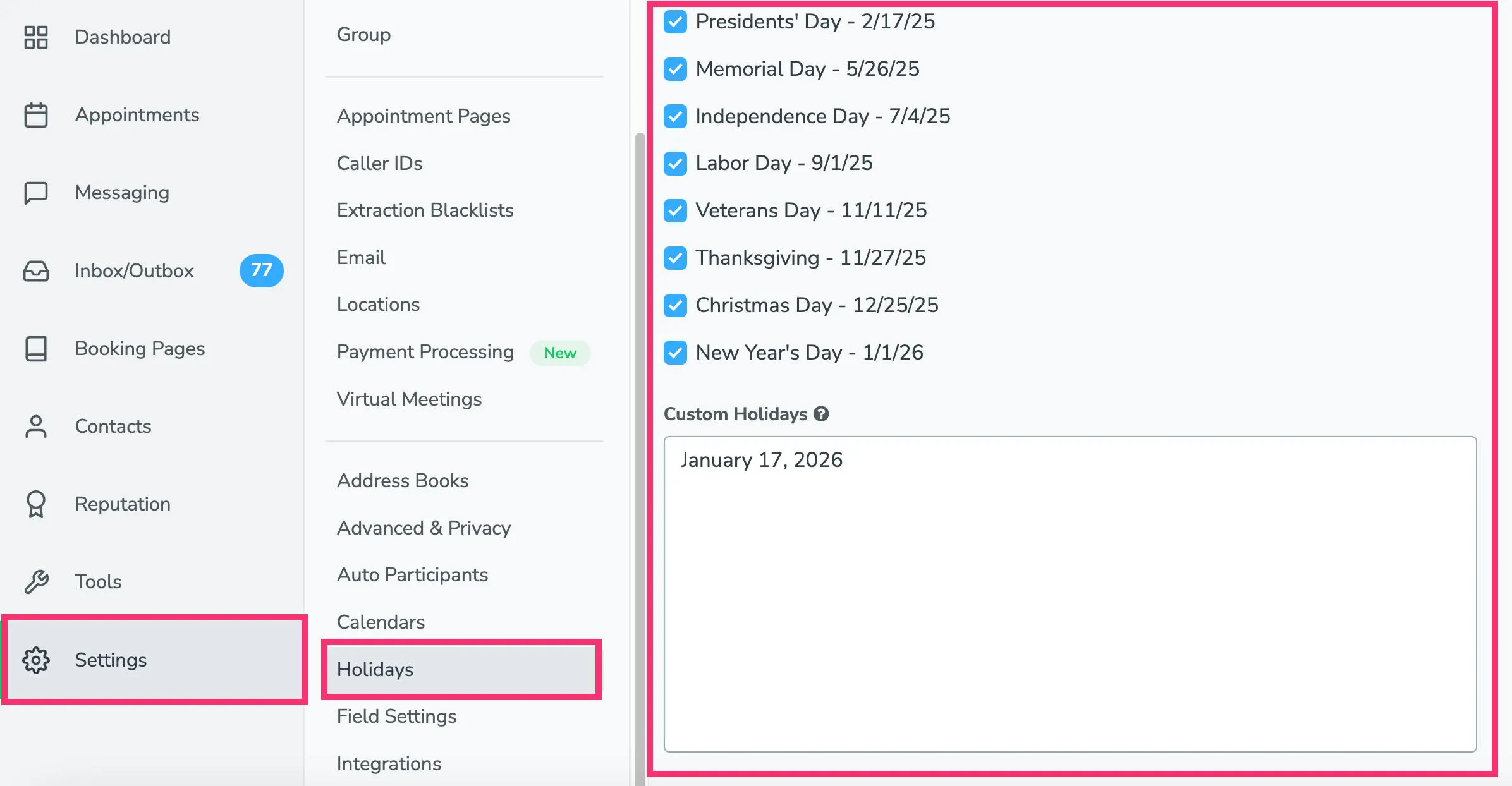
Section titled “Troubleshooting/Fixing:”First, check whether you’ve set account-level holidays (by navigating to Settings > Holidays). Ensure that the appointment slot you are troubleshooting doesn’t fall on one of the standard or custom holidays you’ve added.
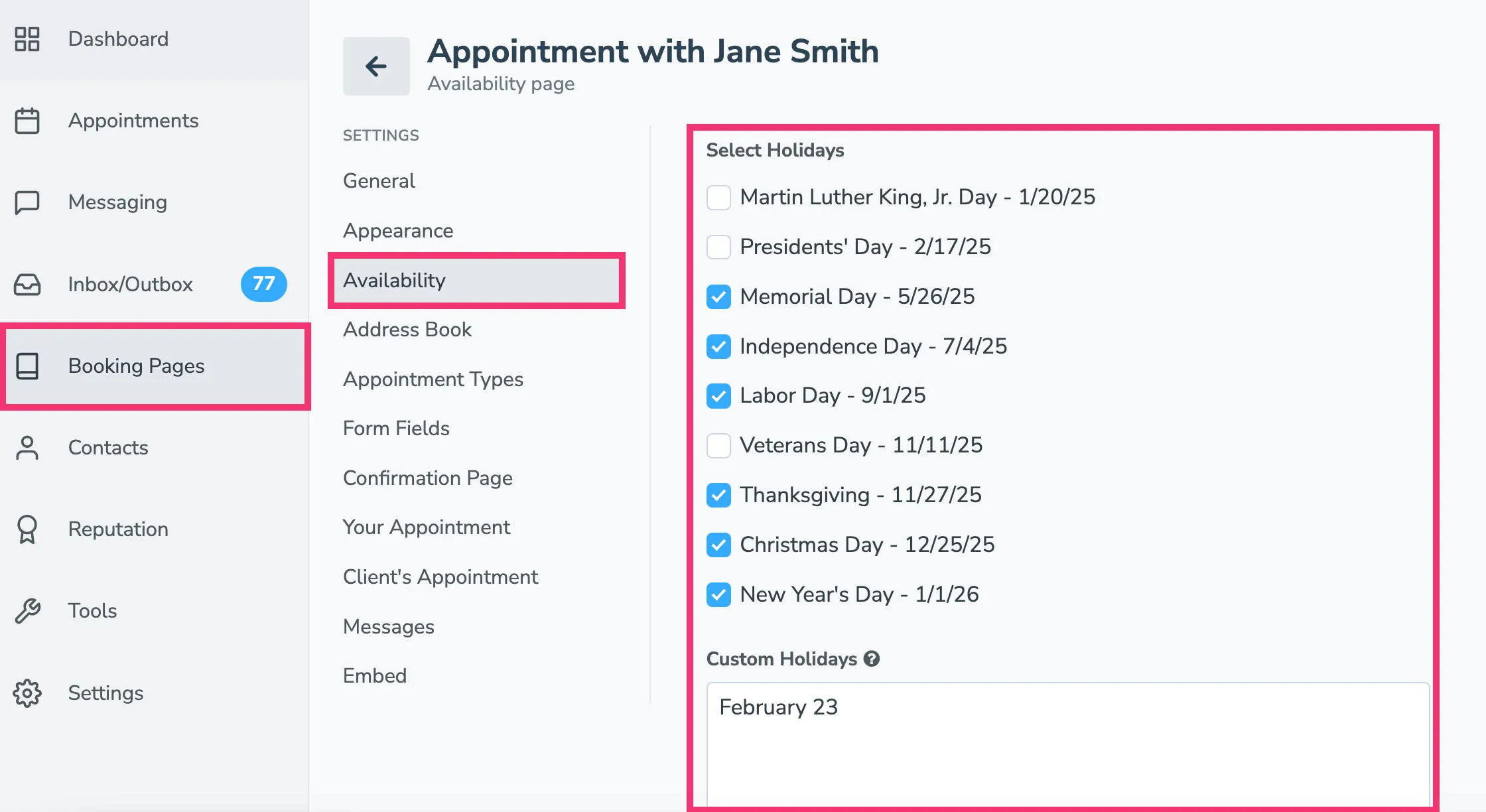
Next, navigate to Booking Pages > Select a Booking Page > Availability > Availability section. Ensure that either “Use default holidays” is checked or that the appointment slot you are troubleshooting doesn’t fall under the standard or custom holidays you’ve set for this booking page.
Time slot is marked “Additive”
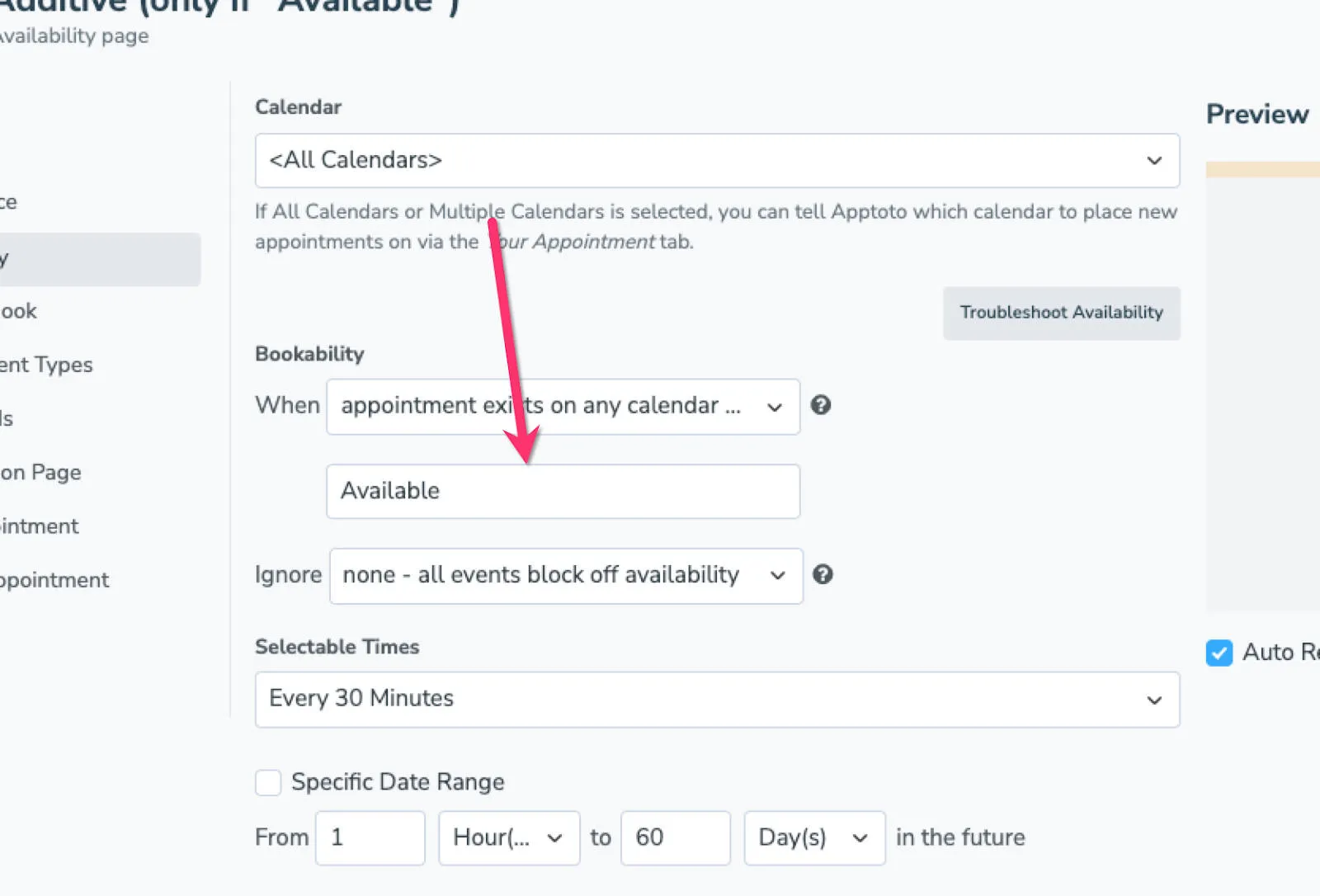
Section titled “Time slot is marked “Additive””Some booking pages are set up only to show availability when appointments meet certain criteria (e.g., there is an “appointment” titled “Available” on the Calendar).
An example of how this looks on a Calendar is as follows:
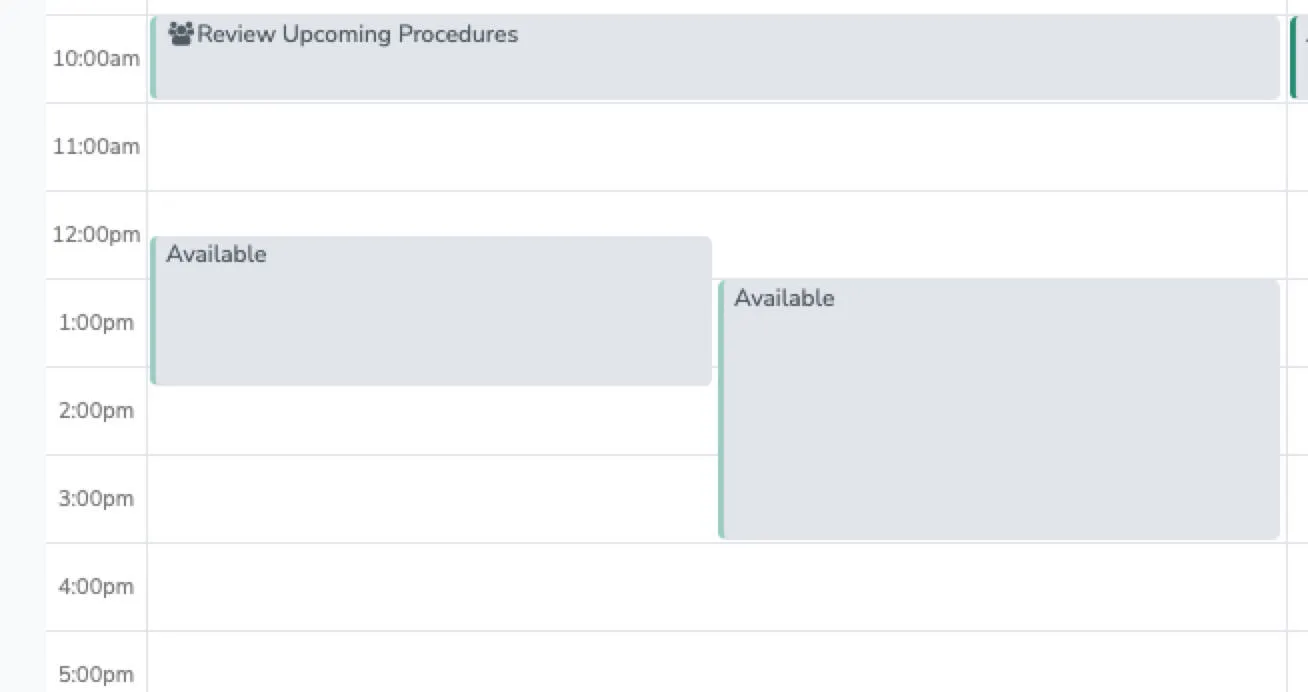
Two “appointment” time ranges are available, one on the calendar between 12:30 and 2:15 and another between 1 and 3.
When you hover over an available appointment slot, it will display as Additive rather than blocking. So at 1:00 PM, when both “appointment” time ranges are titled “Available,” there will be two spots. At 3:00 PM, only one appointment will be available since only one range extends that far.
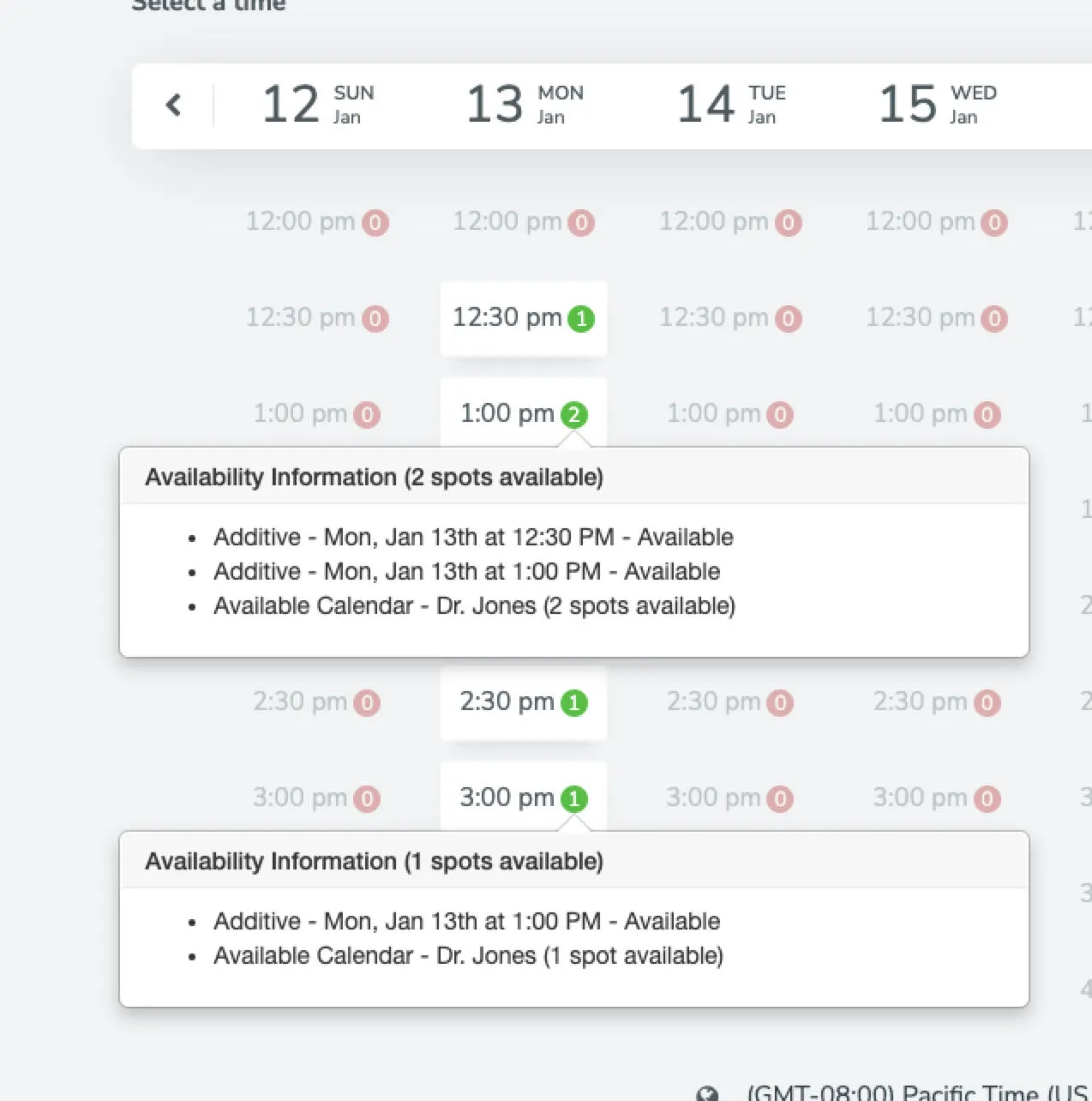
Troubleshooting/Fixing:
Section titled “Troubleshooting/Fixing:”Navigate to Booking Pages > Select a Booking Page > Availability. Check your Bookability settings to ensure the appointment slot you are troubleshooting meets the settings you’ve created.
Time slot is marked “Spots Across All Calendars”
Section titled “Time slot is marked “Spots Across All Calendars””Some booking pages are set up only to show availability when all calendars synced to the booking page are free for a given time.
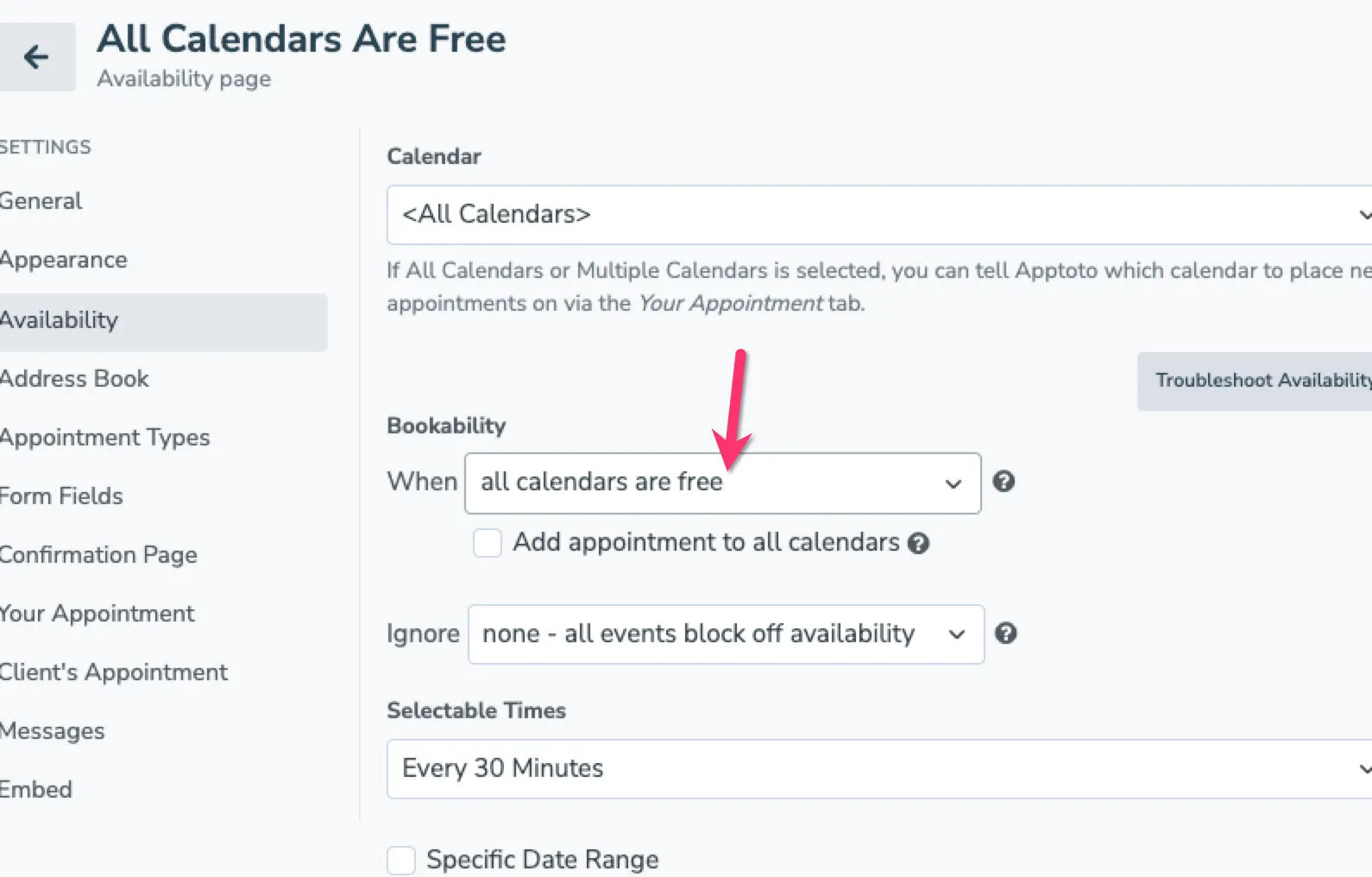
On the booking page, the Troubleshoot Availability tooltip might look similar to this:
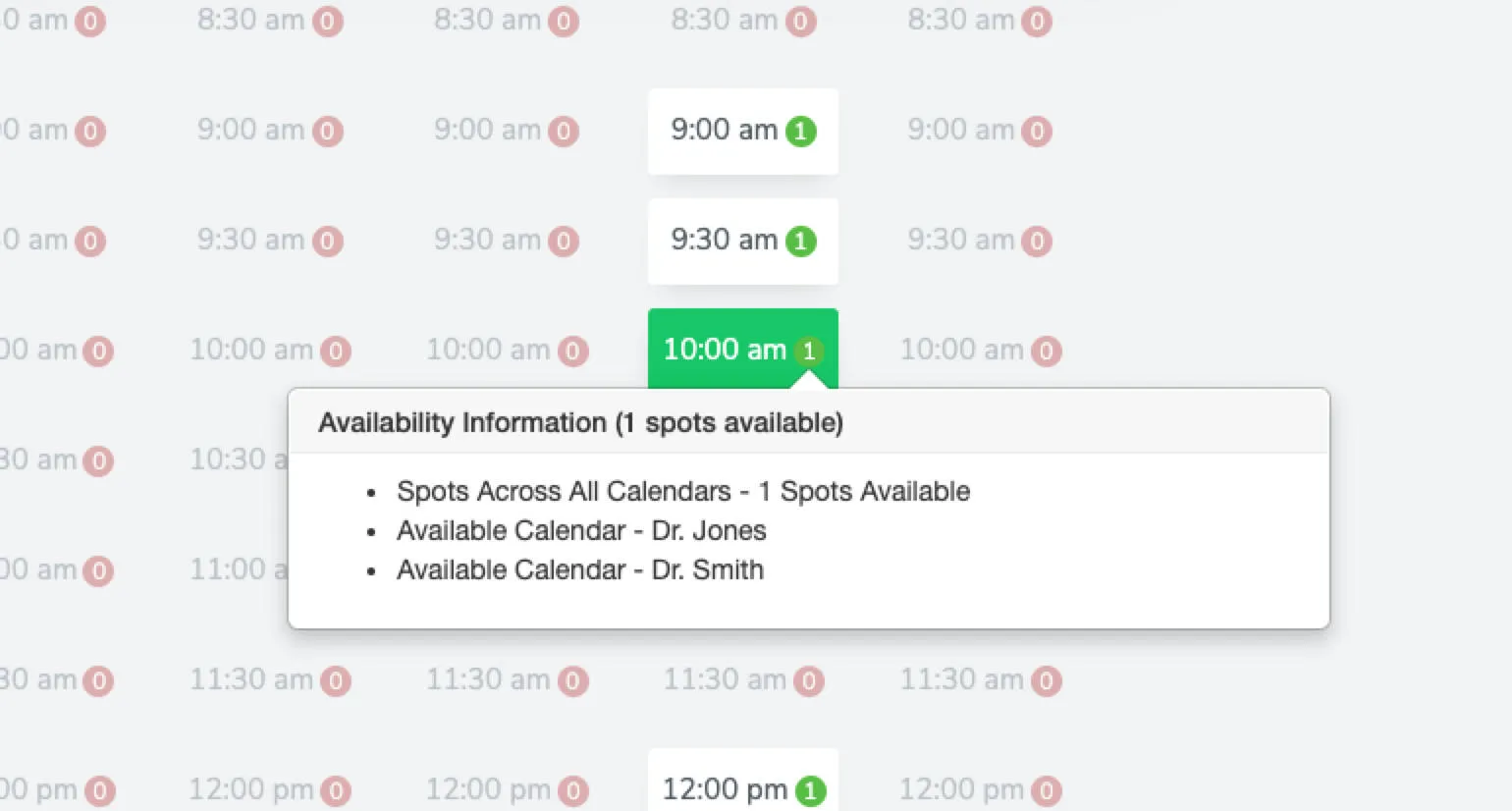
Neither Dr. Jones nor Dr. Smith have an appointment booked at 10 AM. Since both their calendars are free, there is an open appointment slot.
At 11:30 AM, at least one doctor is booked. Therefore, no appointment is available during that time slot.
Troubleshooting/Fixing:
Section titled “Troubleshooting/Fixing:”Navigate to Booking Pages > Select a Booking Page > Availability > Bookability. Confirm if you have the “When all calendars are free” setting enabled. If this is not correct, change the setting.
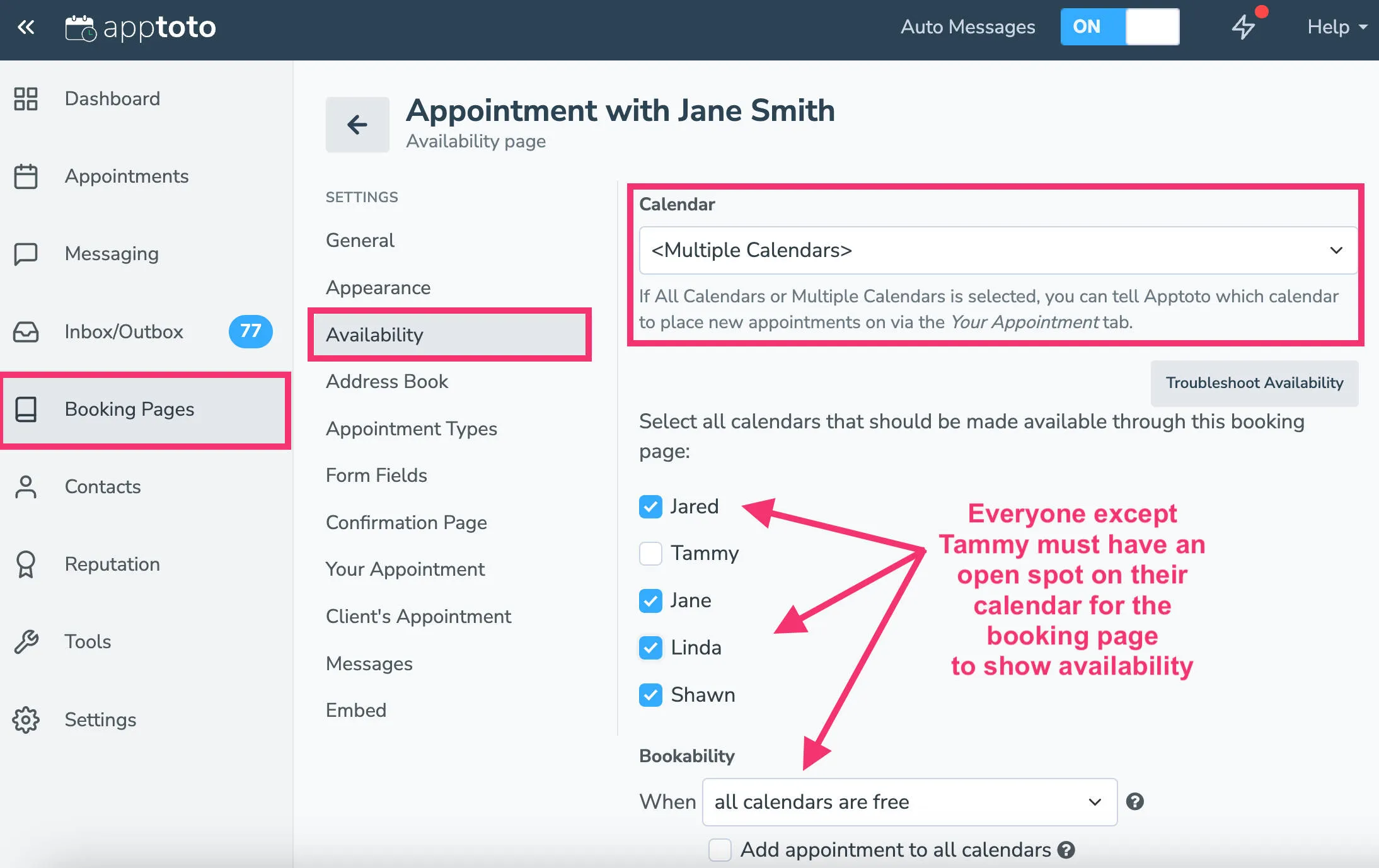
If this is the correct setting, look at all the calendars synced to your booking page. Confirm that there is not already an appointment during the time slot you are trying to troubleshoot.
Time slot is marked “Before Booking Page Opens” or “After Booking Page Ends”
Section titled “Time slot is marked “Before Booking Page Opens” or “After Booking Page Ends””Finally, you can control if you want your booking page to display availability for a specific date range (e.g., January 14 through February 28 for a special promotion) or a rolling time frame in the future (e.g., bookings can be made between 1 day in the future and 90 days).
This is set up on Booking Pages > Select a Booking Page > Availability. Underneath the selectable times section, you can choose a specific date range for your page (check “specific date range”) or a span of dates (from # to # in the future).
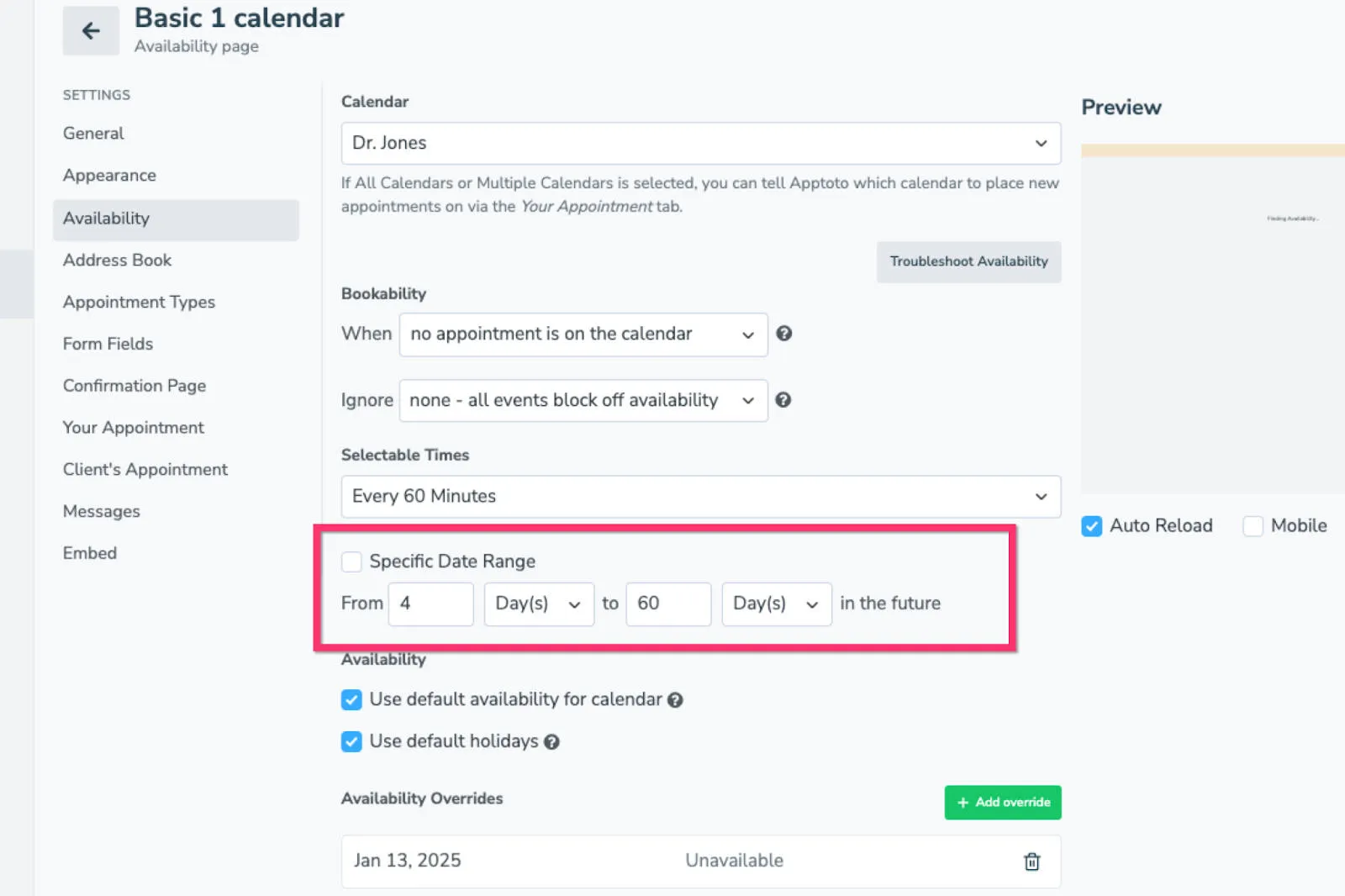
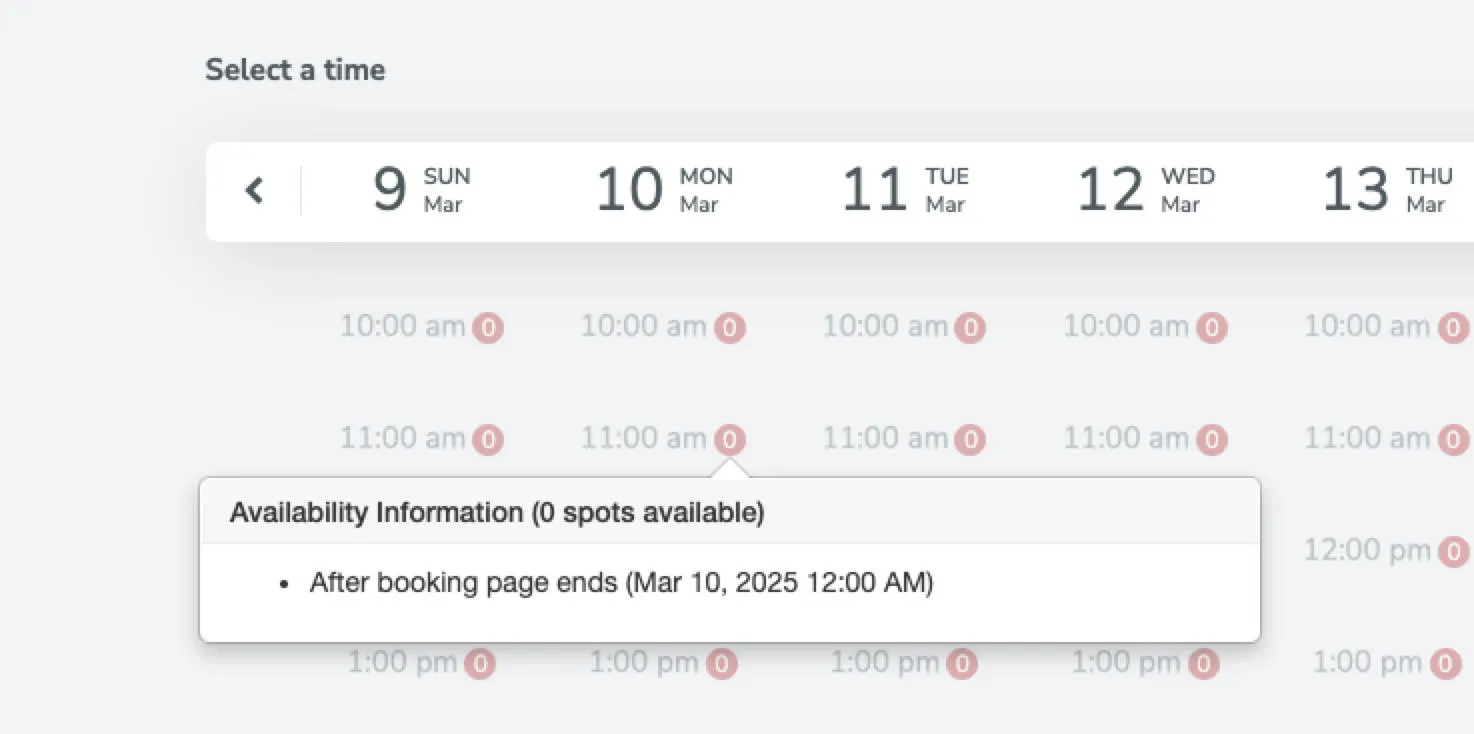
If you see a warning in the Troubleshoot Availability tooltip that says “Before Booking Page Opens” or “After Booking Page Ends,” then your date range is preventing the appointment slot from showing.
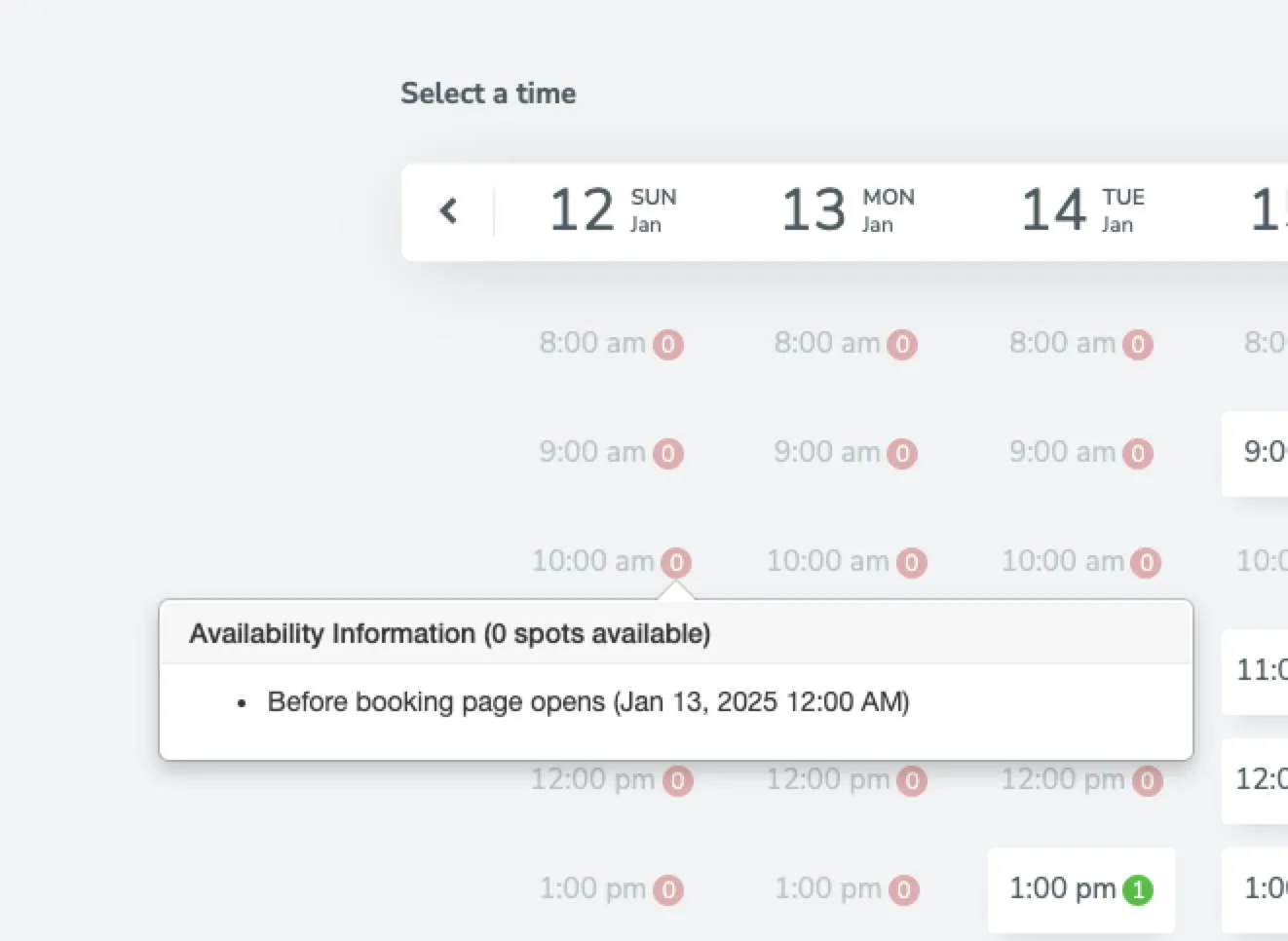
OR
Troubleshooting/Fixing:
Section titled “Troubleshooting/Fixing:”Navigate to Booking Pages > Select a Booking Page > Availability. Confirm if you have checked a “specific date range” or have set a rolling availability date range.
Confirm that the appointment slot you are troubleshooting falls within whatever date range you have set.
Contacting Support
Section titled “Contacting Support”After following the troubleshooting guide above, if you still cannot identify why an appointment slot is unavailable that you feel should be available, please contact support@apptoto.com.