
Form Fields (fka Booking Fields)
The Form Fields tab on your booking page controls what information clients provide before they can complete a booking. You can show or hide standard contact fields, add custom questions, and set up conditional fields that only appear based on earlier answers.
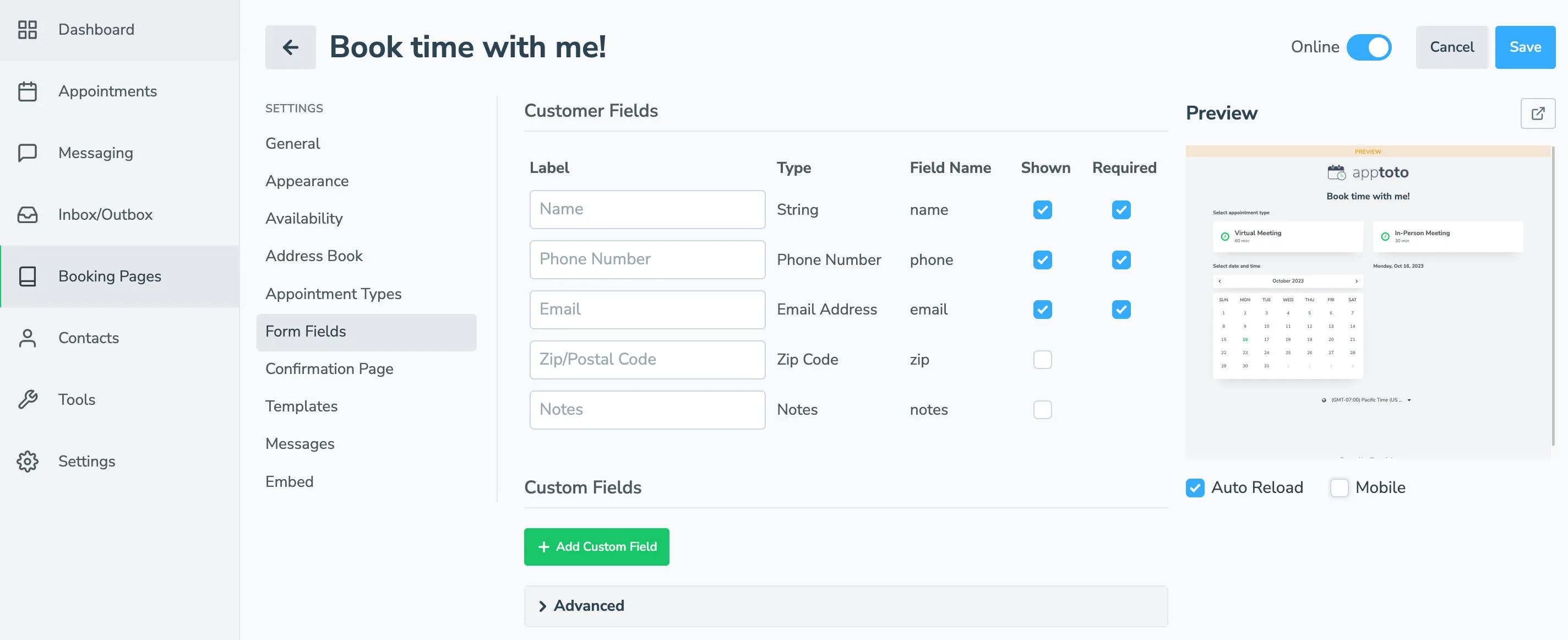
Customer fields
Section titled “Customer fields”These are the built-in fields that collect client contact information: Name, Phone, Email, Zip, and Notes.
For each field you can:
- Change the label: type a new label to replace the default (the default appears greyed out as a placeholder)
- Shown: check to display the field; uncheck to hide it entirely
- Required: check to make the field mandatory before the client can submit
When a client submits the booking form, Apptoto uses these fields to create or update a contact in the address book linked to the booking page.
Custom fields
Section titled “Custom fields”Beyond the standard contact fields, you can add any number of custom fields to collect service-specific information.
To add a custom field, click + Add Custom Field and fill in:
| Field | Description |
|---|---|
| Label | The name or label of the field shown to clients |
| Required | Select if you want to require clients to enter before being allowed to book |
| Field Name | Internal name used for storage and integrations |
| Target | Associate the value with the Event or the Contact (e.g., “Location of meeting” → Event; “Nickname” → Contact) |
| Description | Optional hint text shown below the field |
| Type | The kind of input (see below) |
| Default | Pre-filled value clients can edit before submitting |
Field types
Section titled “Field types”| Types | Use it for |
|---|---|
| String | Short, single-value answers (nickname, username, referral code) |
| Text Area | Long-form answers (goals, notes, what to discuss) |
| Number | Numeric input (party size, age) |
| Checkbox | Let clients select one or more options from a list |
| Dropdown | Present a fixed list of choices |
| Hidden Field | Pass a value silently via URL query string (e.g., ?source=newsletter) |
| File Upload | Let clients attach files before booking (see below) |
File Upload fields
Section titled “File Upload fields”A File Upload field lets clients attach files while they book: an insurance card, a photo of the problem, a signed PDF, a spreadsheet. Choose the type File Upload and two extra settings appear:
| Setting | What it does |
|---|---|
| Maximum files | How many files clients may attach to this question, up to 20. Each file can be up to 10MB. |
| Accepted files | Which kinds of file the question takes: Images, PDF, Word, Excel, CSV and text, or Any file. Anything else is refused when the client tries to attach it. |
Uploaded files are private. They arrive attached to the booking in your Inbox, and the link to each one only opens once you are signed in to Apptoto.
Conditional Fields
Section titled “Conditional Fields”A conditional field only appears when a client enters a specific answer in another custom field. Use conditional fields to gather follow-up details without showing irrelevant questions to everyone.
- Create the trigger field: Add a custom field (dropdown or checkbox works best) with the answers that should trigger follow-up questions/fields.
- Add the conditional field: Click +Add Custom Field to create the follow-up field.
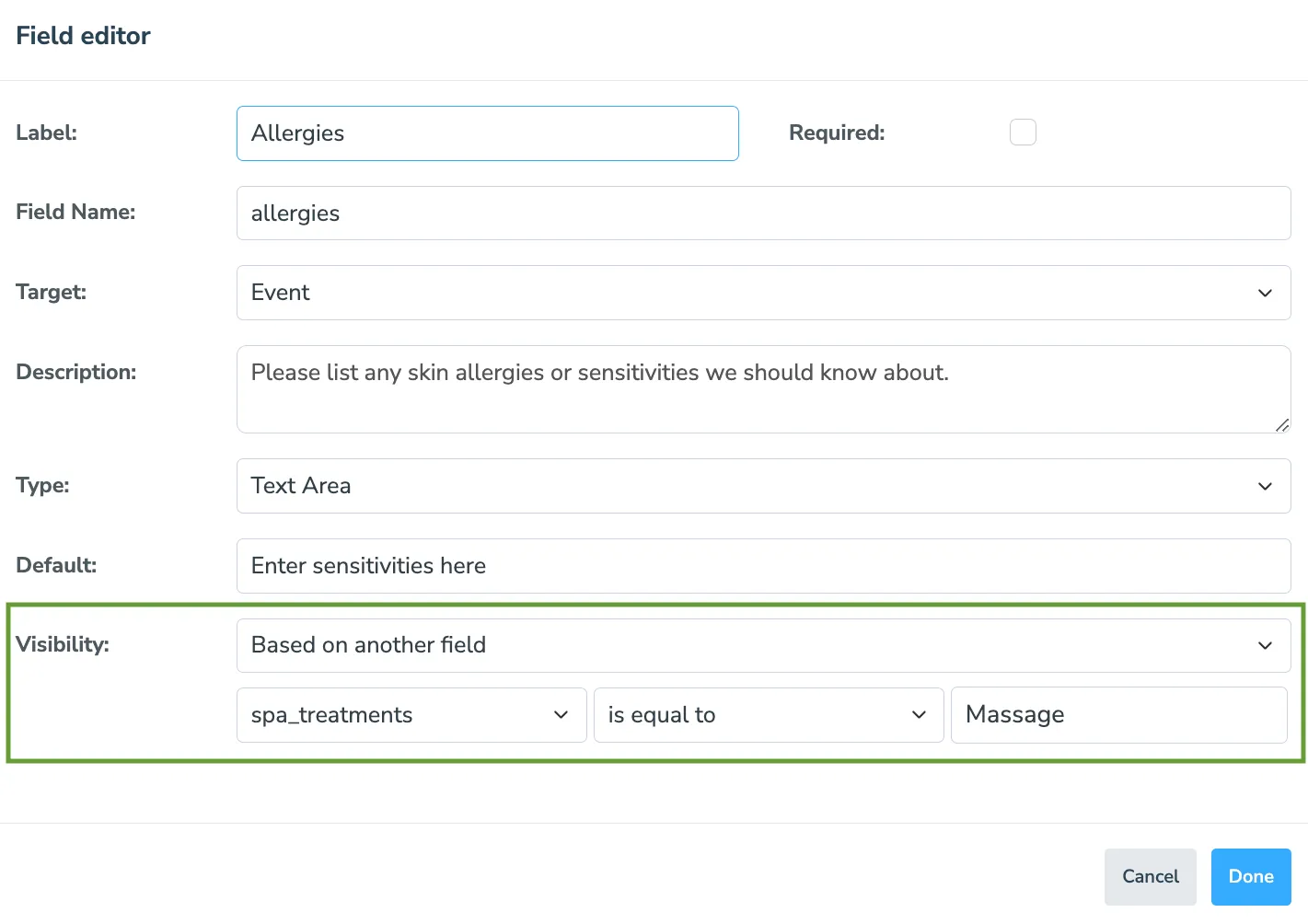
- Set visibility conditions: In the Visibility section, select **Based on another field. Choose the trigger field, set whether the condition is “is equal to” or “not equal to,” and enter the triggering answer.
- Save: Click Done to save the booking page.
Advanced
Section titled “Advanced”Expand the Advanced section at the bottom of the Form Fields tab for additional controls:
| Setting | What it does |
|---|---|
| Require last name to book | Client/patient must provide both first and last name |
| Obtain consent to send text messages about appointments | Requests consent to send appointment related SMS messages |
| Obtain consent to send marketing text messages | Requests consent to send marketing text messages |
| Allow clients to invite other guests | Adds a guest invitation field; clients can add up to 10 additional email addresses before submitting |