
Two-Factor Authentication (2FA)
Two-factor authentication (2FA) adds a second layer of security to your account. In addition to a password, users must verify their identity with a time-sensitive code from an authenticator app or a text message. By requiring two forms of identification, 2FA makes it significantly more difficult for unauthorized users to gain access to sensitive business information.
Enabling 2FA for your account
Section titled “Enabling 2FA for your account”You must have Full permissions or be a Group Admin to set up 2FA at the account level.
-
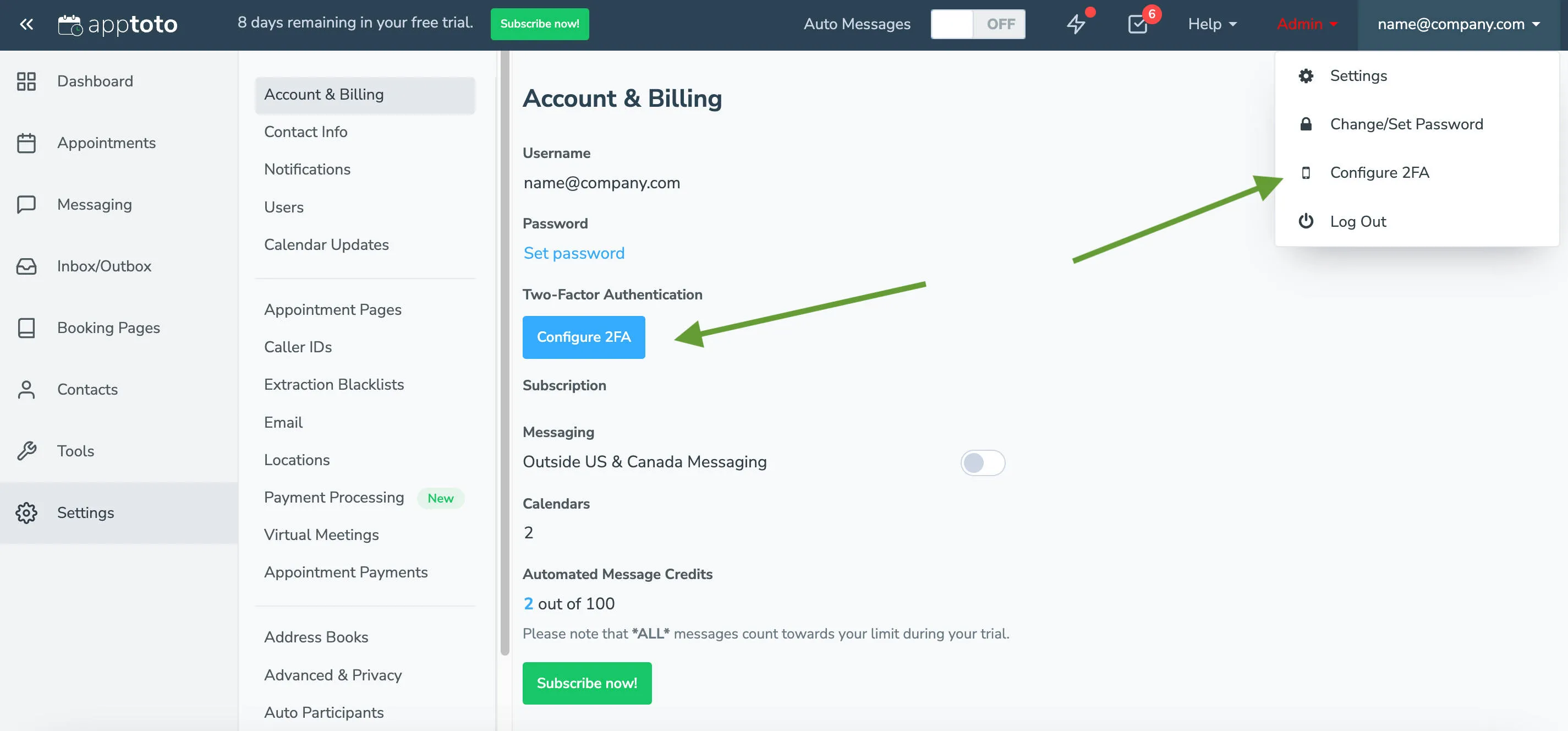
Go to Account & Billing: Navigate to Settings > Account & Billing. You can also click your username in the upper right corner and select Configure 2FA.
-
Click Configure 2FA: Under the Two-Factor Authentication section, click Configure 2FA.
-
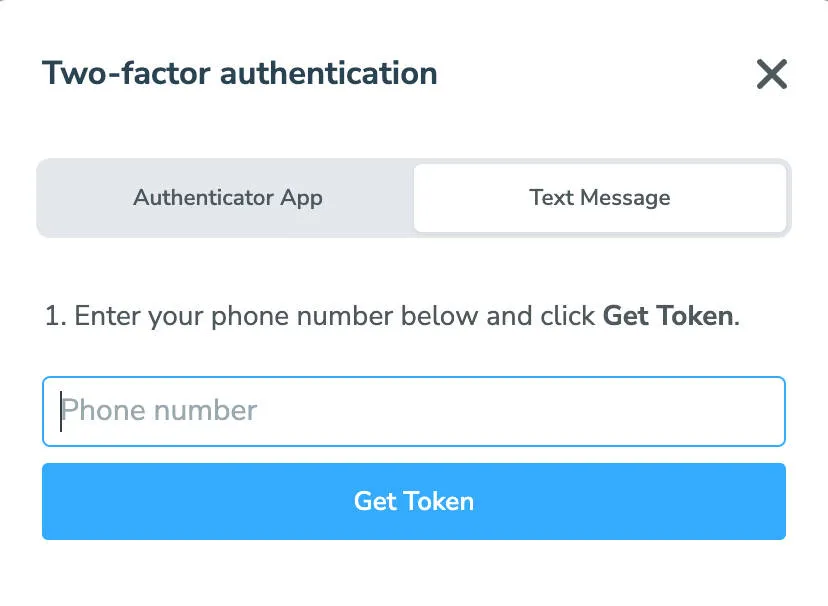
Choose your verification method. A screen will appear with two options:
-
Download an authenticator app (such as Authy or Microsoft Authenticator) to your mobile device.
-
In the authenticator app, tap Add Account or + and scan the QR code shown in Apptoto.
-
Enter the verification code provided by the authenticator app into Apptoto.
-
Click Verify Token.
-
Enter your phone number.
-
Click Get Token.
-
Enter the token you received and click Save.
-
Once two-factor authentication has been enabled at the account level, you can adjust 2FA settings further at the user level. You can also require some or all users of the Apptoto account to enable 2FA.
Requiring 2FA for All Users
Section titled “Requiring 2FA for All Users”Once 2FA is enabled at the account level:
-
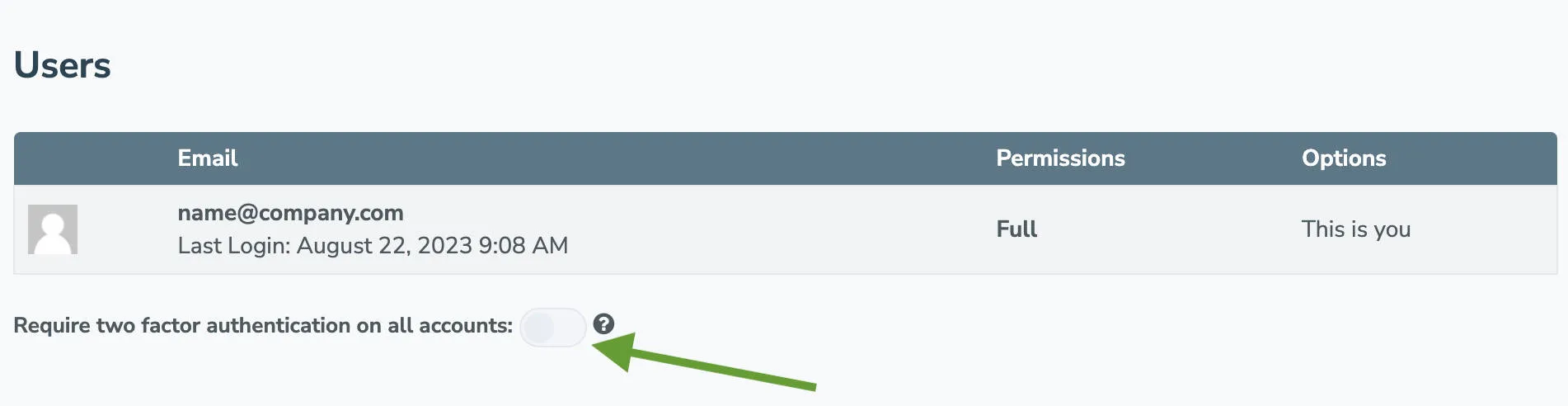
Navigate to Settings > Users.
-
Underneath the list of all users in the account, toggle Require two-factor authentication on all accounts to on.
-
The next time any users associated with the primary account (or subaccounts) log in, they will be required to set up 2FA.
Requiring 2FA for Individual Users
Section titled “Requiring 2FA for Individual Users”If you want to require 2FA for some users (but not all), you can set individual user-specific 2FA settings instead of toggling it on for all users.
-
Navigate to Settings > Users.
-
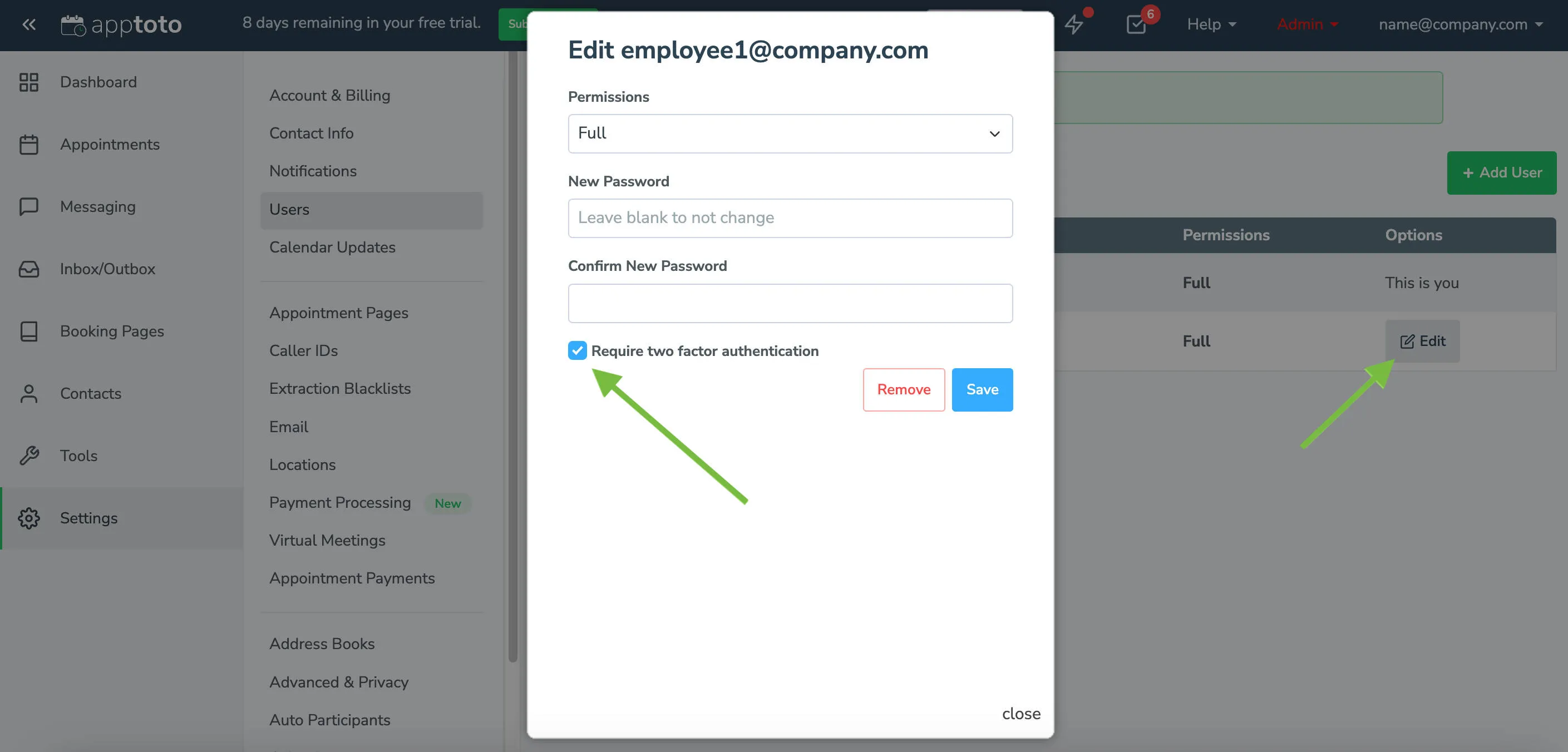
Click the Edit button to the right of the user’s login.
-
On the Edit screen, check the box next to Require two-factor authentication.
-
Click Save. Apptoto will prompt the individual user to set up 2FA the next time they log in.
Re-Configuring or Disabling 2FA
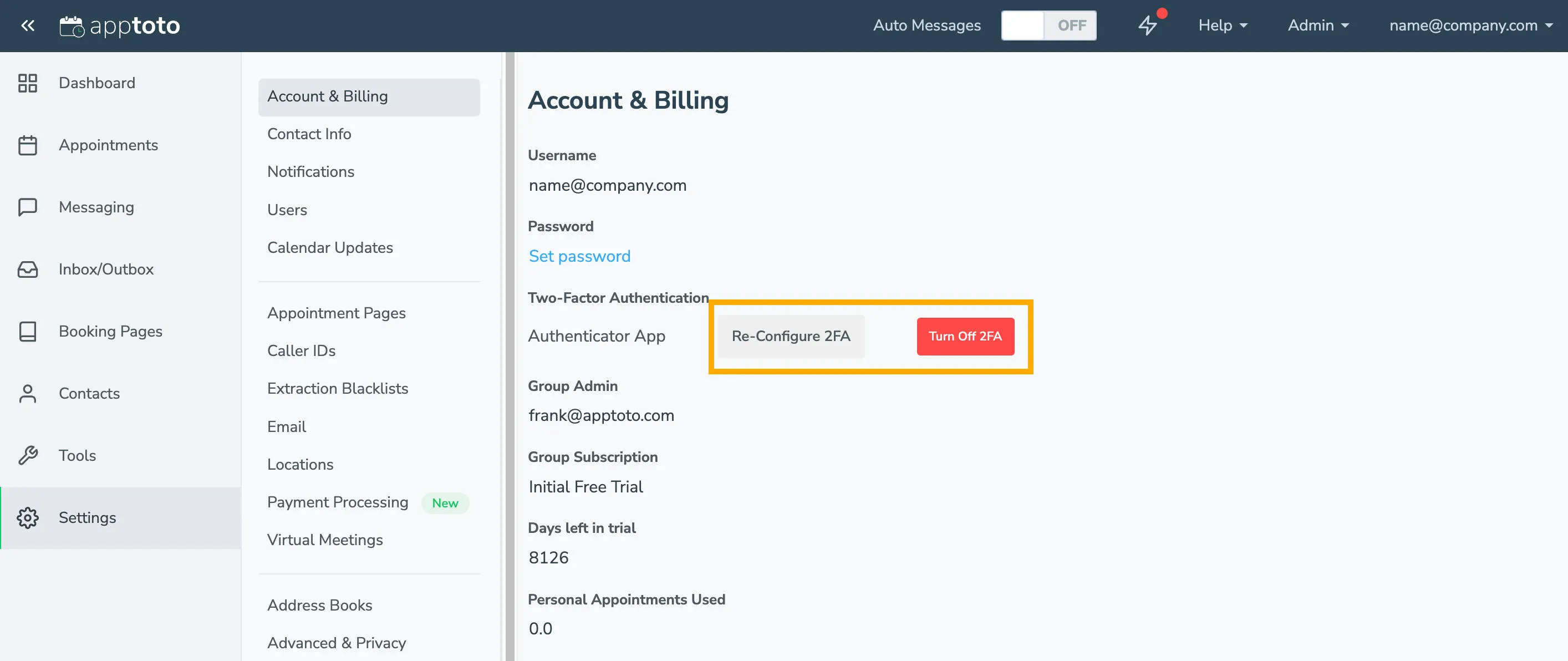
Section titled “Re-Configuring or Disabling 2FA”If you want to reconfigure or disable two-factor authentication, you can do so from the “Accounts & Billing” page.
-
Navigate to Settings > Account & Billing.
-
Under Two-Factor Authentication, choose an action:
-
Click the Re-Configure 2FA button.
-
Generate a new token in your authenticator app.
-
Enter the new token in Apptoto and click Save.
-
Click the Turn Off 2FA button.
-
A prompt will appear asking if you are sure you want to remove 2FA. Click Yes.
-