
Exchange/SQL Sync Agent Troubleshooting
If Apptoto is unable to sync to your Exchange or SQL calendars, these troubleshooting tips will help get your data back online and flowing to Apptoto.
-
Ensure Apptoto Sync Agent is running. On the computer originally connected to Apptoto, check the system tray for the Apptoto Sync Agent. If it’s not running, open the Windows menu and search for Apptoto to start the sync agent again.
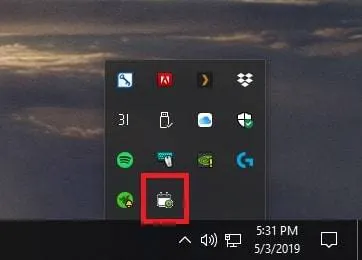
-
Test Connection. Once the sync agent is running again, click Test Connection to ensure the connection to your Exchange/SQL data is working correctly, then click Save once you see Connection Successful. If you recently changed your passwords, you’ll need to update that info here.
-
Verify. Open Settings > Calendars in your Apptoto account. You should see green dots alongside the Sync button, indicating the calendar is back online and connected.

Those 3 basic steps resolve most cases of connectivity issues. If they don’t resolve your account’s connection issues, reach out to the support team — they’ll be happy to help.